How to Restore IE Edge Favorites/Bookmarks? | IE Edge Recovery
| Workable Solutions | Step-by-step Troubleshooting |
|---|---|
| Fix 1. Back up and restore | Back up DataStore folder in File Explorer, then restore Favorites in IE Edge...Full steps |
| Fix 2. Restore Favorites manually |
Method 1. Restore previous versions of Microsoft Edge Favorites disappeared. To import favorites from Internet Explorer to Microsoft Edge, open Microsoft Edge and go to the "Settings" icon, then choose "Import favorites". This will allow you to transfer your saved bookmarks from Internet Explorer to Microsoft Edge. |
| Fix 3. Use a data recovery tool | Download a data recovery tool > scan > recover Favorites/Bookmarks...Full steps |
How do I restore the lost Edge favorites?
If you accidentally deleted your favorites in Microsoft Edge, you can try restoring them from a backup or by checking the "History" page. If you don't have a backup, you can try to recover your favorites by looking for the "Favorites" folder in the "Roaming" folder in File Explorer. If you're unable to recover them, you can also try reinstalling Microsoft Edge to start fresh. To prevent this from happening again, you can also consider using a third-party password manager or bookmarking tool that syncs across devices.
If you're experiencing issues where your Windows 10 IE Edge favorites get lost due to accidental deletion, browser or Windows updates, or system setting changes, don't worry. You can recover deleted or lost IE Edge favorites using the effective methods provided below.
Solution 1. Back up and Restore IE Edge Favorites
To prevent losing Edge favorites due to false operations, create backups and have a plan to restore them in case of problems. This approach is a good method for users to safeguard their favorites and ensure they remain intact. By taking proactive steps, you can minimize the risk of losing your favorites and have a smooth experience with Edge.
Back up Favorites from IE Edge
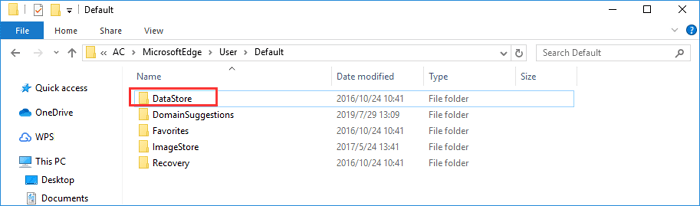
To backup Microsoft Edge data, open File Explorer and navigate to C:\User\UserName\AppData\Local\Packages\Microsoft.MicrosoftEdge_8wekyb3d8bbwe\AC\MicrosoftEdge\User\Default, then copy the DataStore folder to a desired backup location.
Restore Favorites in IE Edge
To restore Favorites in IE Edge, close Microsoft Internet Explorer Edge if it's opened. If you have backups, restore the bookmarks from the backup. If you don't have backups, you can try to recover
1. Open File Explorer, go to C:\User\UserName\AppData\Local\Packages\Microsoft.MicrosoftEdge_8wekyb3d8bbwe\AC\MicrosoftEdge\User\Default.
2. Copy the backed up DataStore folder that you saved into the "Default" folder.
3. To restore Microsoft Edge and get Favorites back, click "Replace the files in the destination". This will allow you to recover the browser and its saved bookmarks.
Solution 2. Restore IE Edge Favorites Manually
If this solution doesn't work, go on with the following two ways. And similar to IE Edge favorites disappearing, you may also encounter the download history missing issue. In this case, go to check how to recover deleted download history in Microsoft Edge. If this solution doesn't work, go on with the two ways below.
Method 1. Restore Previous Versions if Microsoft Edge Favorites Disappeared
1. To restore the Favorites folder, go to "This PC", navigate to the "C:\Users\Usersname" directory, find the Favorites folder, right-click on it, and select "Restore Previous Versions".
2. To check if the favorites bar has appeared in Microsoft Edge, simply relaunch the browser. This will allow you to see if the favorites bar has been added as intended.
Method 2. Import Favorites from Internet Explorer
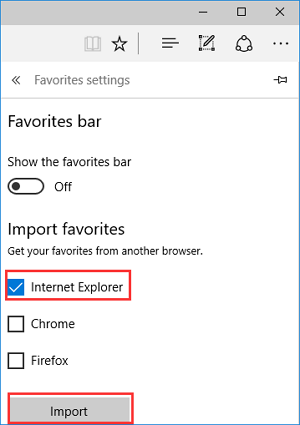
1. Open the Microsoft Edge app.
2. Click/tap on the More actions button at the top right corner, and click/tap on "Settings".
3. Click/tap on the "Import favorites" from another browser link.
4. Select "Internet Explorer", and click/tap on "Import". Your favorites and favorites bar will be restored in Microsoft Edge.
To import your Internet Explorer favorites into Microsoft Edge, go to the Microsoft Edge app, select "Hub" and then "Favorites", and click on "Import favorites". You can also browse to C:\Users\UserName\Favorites to find your Favorites folder and import them from there. Once imported, you can save them in Microsoft Edge again.
Solution 3. Perform IE Edge Recovery with Deep Data Recovery
If you've cleared your IE Edge and local Favorites files from your PC, a professional data recovery program can help you recover your lost bookmarks. When you find nothing in IE Edge or no tracks in the C drive, download Deep Data Recovery for free and use this hard drive recovery software to get your precious IE Edge bookmarks back.
Step 1. Run Deep Data Recovery on your computer, select file types and click "Fast Scan" to initiate the recovery process.

Note: You can choose different search modes based on where and why the data was lost.
Step 2. To recover a lost folder, choose "Select Folder" under Specify a location and browse to the location where the folder went missing. Click "OK" to start the scan.

Step 3. You can search for the target folder or use the Filter feature to quickly find specific types of files within it.

Step 4. After the recovery process is complete, you can preview the recovered folder. To finalize the recovery, click "Recover" and select a new, secure location on your PC to store the recovered data.
Related Articles
- How to Retrieve Deleted Skype Messages and Chat History
- How to Recover Norton Deleted Files (2 Ways)
- Free | How to Repair Corrupted Excel Files with Excel Repair Tool (.XLS/.XLSX)
- Super Easy! How to Recover Deleted Files from NAS (Synology/QNAP)
- How to Recover Photos from Nokia Lumia 800/520
You can recover deleted photos from your Nokia Lumia using either the ZUNE backup method or Deep Data Recovery software. - How to Recover Deleted Photos from Huawei Phone
To recover deleted photos on a Huawei phone, follow these simple steps: first, stop using the phone immediately to prevent overwriting of the deleted data; then, download a reliable data recovery software or app, such as Deep Data Recovery, on your computer and connect your.
Products
Articles & Tutorials
- Data Recovery
- Data Backup
- File Recovery
- File Backup
- System Backup and Restore
- Disk and Partition Clone
- Technical articles
- Mobile articles
- Disk Master Help
- Windows Data Recovery Tutorials
- Windows Secure Delete Tutorials
- Windows Partition Management Tutorials
- Windows File Backup and Restore Tutorials
- Windows System Backup and Restore Tutorials
- Windows Disk Backup and Restore Tutorials
- Windows Clone Tutorials