How to Restore Database in SQL Server 2014 from .Bak File
The ".bak" file is actually an image file, not a backup file. It's used to restore Microsoft SQL databases from a single file saved on the hard drive, which is a backup of the database. This backup method is convenient for restoring databases even if they become corrupted, as it allows for a simple and easy recovery process.
How to Create a Bak File by Yourself
To create a .bak file, you can use the BACKUP DATABASE command in SQL Server Management Studio. For example, to back up a database named "mydatabase" to a file named "mydatabase.bak" in a specified location, you can run the following command: `BACKUP DATABASE mydatabase TO DISK = 'C:\Backup\mydatabase.
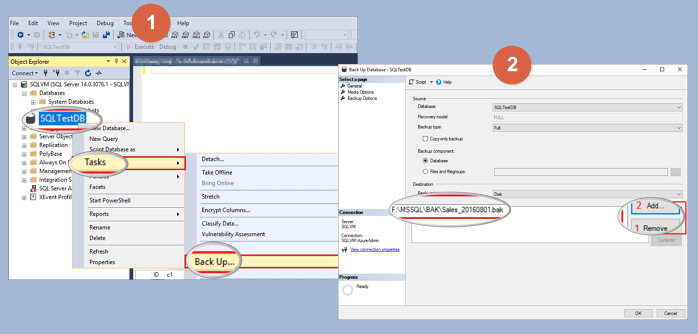
Step 1. To back up the database in SSMS, open the application, right-click the database, and select "Task > Back Up" from the context menu.
Step 2. You can take a backup of your database according to your needs and specify where you want to store the backup. This allows you to have a copy of your database in a safe location, which can be useful in case something goes wrong or you need to restore your data.
How to Restore MS SQL Database in Every Way
Now that we've discussed the differences and backup creation, let's dive into the details of restoring a Microsoft SQL database. There are various ways to restore a database, including methods with and without the .bak file, each suited for different situations.
Method 1. Restore SQL Database from Bak File Using T-SQL
To recover a .bak file in SQL Server Management Studio, you can right-click "Databases" and select "Restore Database", or use T-SQL to automate the process. This allows you to restore the database without manual intervention.
RESTORE DATABASE F FROM DISK = 'c:\sql\F.bak' WITH FILE = 1, NOUNLOAD, STATS = 5, RECOVERY GO
To restore a backup from your database, you can use the following command line: `RESTORE DATABASE F FROM DISK='path_to_your_backup_file.bak'`. Replace "F" with the name of your actual database. If you have multiple backup restorations, you can use different command lines, such as `RESTORE DATABASE F FROM DISK='path_to_your_backup_file1.
RESTORE DATABASE F FROM DISK = N'c:\sql\F.bak' WITH NORECOVERY Go
RESTORE LOG F FROM DISK = N'C:\Program Files\Microsoft SQL Server\MSSQL14.MSSQLSERVER\MSSQL\Backup\F_LogBackup_2019-8-4_12-24-25.bak' WITH RECOVERY Go
Method 2. Restore MS SQL Server Database Without Bak Files
If your SQL database components get corrupted, you can use professional SQL database recovery software to resolve the issue quickly and efficiently. This software can restore .mdf and .ndf files, fix database log files, and recover corrupted objects, such as tables, triggers, indexes, keys, rules, and stored procedures, with the help of Qiling MS SQL Recovery.
Step 1. Close the SQL Service in Task Manager or SQL Server Manager Console.
Step 2. To recover a corrupted MS SQL database, run Qiling MS SQL Recovery, select the database location by clicking "Browse" or "Search", and then click "Repair" to initiate the analysis process.
Step 3. When it's done, select the files you want to repair and click "Export".
Step 4. To enable the SQL service and export the repaired files to a database, you can follow these steps: First, turn on the SQL service. Then, you can choose to export the repaired files to a database, which will allow you to export them as SQL scripts.
Method 3. How to Recover Deleted Bak File (Additional Help)
If you deleted or lost the .bak file itself, you can recover it. We don't recommend deleting .bak files in case of future data recovery. If you really want to undelete .bak files or extract them from inaccessible devices, Deep Data Recovery can help with a simple and fast method. Follow the steps to get back the .bak file.
Step 1. Launch Deep Data Recovery, select file types, and click "Fast Scan" to start the recovery process.

Note: You can choose different search modes based on where and why the data was lost.
Step 2. Select the location to scan
To recover permanently deleted files, select the device and drive where the files were deleted using Shift delete or emptied from the recycle bin. Click the "Scan" button to initiate a search for lost files.

Step 3. Check the results
The software will automatically scan the entire selected drive. Once the scan is complete, select the "Deleted Files" and "Other Lost Files" folders in the left panel. Then, use the "Filter" feature or click "Search files or folders" to quickly locate the deleted files.

Step 4. Recover deleted files
Select the deleted files, click "Preview", then click "Recover" to save them elsewhere.
Conclusion
Restoring a SQL database is a straightforward process, but a single misstep can lead to corruption and make the data inaccessible. To avoid this, consider using Qiling MS SQL Recovery, a tool that can successfully restore SQL data even from a corrupted database.
Related Articles
- How to Recover Deleted SQL Server Rows [2025]
- [Solved] MS SQL Server Database Corruption Repair
- SQL to XML | How to Export Data from SQL Server to XML
- How to Fix SQL Database Page Level Corruption Automatically
- How to Recover DCIM Folder from SD Card
Here are the simple steps to recover a DCIM folder from an SD card on a Mac or Windows PC: scan the SD card, preview and select the DCIM folder. - How to Recover Call Recordings in Mi Phone
If you've accidentally deleted call recordings from your Redmi note, you can recover them by following the guide for how to recover deleted call recordings in Mi Phone, which applies to models like Redmi note 3/4/5/6/7 Pro and more.
Products
Articles & Tutorials
- Data Recovery
- Data Backup
- File Recovery
- File Backup
- System Backup and Restore
- Disk and Partition Clone
- Technical articles
- Mobile articles
- Disk Master Help
- Windows Data Recovery Tutorials
- Windows Secure Delete Tutorials
- Windows Partition Management Tutorials
- Windows File Backup and Restore Tutorials
- Windows System Backup and Restore Tutorials
- Windows Disk Backup and Restore Tutorials
- Windows Clone Tutorials