Free | How to Repair Corrupted Excel Files with Excel Repair Tool (.XLS/.XLSX)
The solutions can be used to repair corrupted Excel files in various versions, including 2019, 2016, 2010, 2007, and formats such as XLS, XLT, XLSX, XLSM, XLTM, XLTX, and XLAM, to recover and repair corrupted Excel files.
File corruption in Excel and Word is a common issue when using Microsoft Office, often resulting in error messages when the problem occurs.
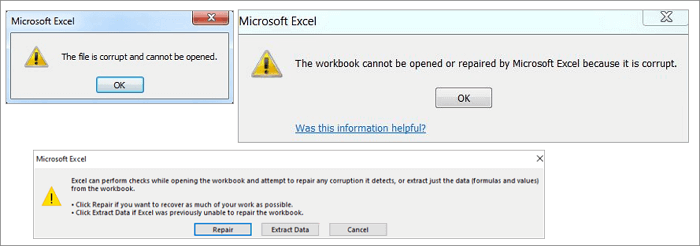
An Excel file can get corrupted due to various reasons such as power outages, software or hardware crashes, viruses, malware, or other external factors that can interrupt the file's normal functioning, leading to errors, inconsistencies, or loss of data within the file.
- Abrupt power outage
- Virus or malware attack
- Hardware failure
- Excel application crash
- Excel file deleting
- Excel internal error
Even though you regularly back up your Excel files, corruption can still occur unexpectedly, and your backup may not contain the latest work. If this happens, remain calm and use the effective Excel repair tools on this page to attempt and repair corrupted Excel files without losing any data.
Excel Repair Tool Free Download Full Version
To recover corrupted Excel files, we recommend using Qiling file repair tool, which is effective in repairing corrupted Excel files and restoring XLS/XLSX file data.
If you need to repair corrupted JPEG/JPG files or recover damaged MP4 and MOV files, this file repair tool is also a great choice.
This professional MS Office Excel file repair tool boasts impressive features that make it a reliable solution for repairing damaged Excel files.
- Recover corrupted Excel files in XLSX/XLS formats
- Repair single or multiple Excel files without quantity limit
- Restore Excel data including tables, charts, formulas, and chart sheets
- Real-time preview of repairing corrupted Excel file
- Supports MS Excel 2019/2016/2013/2010/2007/2003/XP/2000/97/95 versions
How to Repair Corrupted Excel Files with Qiling File Repair Tool
To repair damaged Excel files, download Qiling MS Office document repair tool for free and follow the step-by-step guides below. The process involves three simple steps.
Step 1. Launch Deep Data Recovery, select file types, and click "Fast Scan" to start the recovery process.

Note: You can choose different search modes based on where and why the data was lost.
Step 2. This software allows you to repair damaged Word, Excel, PPT, and PDF files in a single process. To do this, simply click the "Scan" button and then scan the disk where the corrupted documents are stored.

Step 3. Qiling data recovery and repair tool scans for all lost and corrupted files, allowing you to find target files by type or by searching for a specific file name in the search box.

Step 4. Deep Data Recovery can automatically repair damaged documents, allowing you to preview the file and then recover the repaired Word, Excel, and PDF documents to a safe location.
3 Simple Tools to Repair Excel File Online Free
If you don't want to download a desktop Excel repair tool, you can still repair your Excel file online. There are top-notch online Excel repair tools available that you can utilize, offering a convenient alternative to desktop solutions.
Unfortunately, there are no free online tools that can repair corrupted Microsoft Excel files. However, some online tools offer a demo version of the repaired file for preview, but a full version requires payment.
1. Recovery Toolbox for Excel
Recovery Toolbox for Excel is an online tool that helps to repair corrupted Microsoft Excel files without downloading. It supports various Excel file types, including xls, xlt, xlsx, xlsm, xltm, xltx, and xlam, and can recover data such as table styles, fonts, worksheets, and workbook cell data.
Step 1. To repair a damaged Excel file, click "Select File" to choose the file with an xls, xlt, xlsx, xlsm, xltm, xltx, or xlam extension. This will allow the Excel repair tool to scan the file and attempt to recover its contents.
Step 2.Enter your email address and verification code from the captcha image, then click "Next" to proceed.
Step 3. Wait for the corrupted Excel file to be recovered.
Step 4. Make payment as required. Download the recovered Excel spreadsheet

2. Online Office Recovery
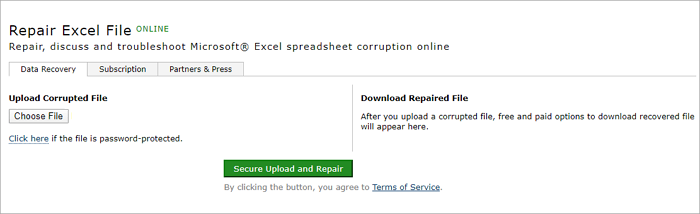
Online Office Recovery offers a solution to repair, discuss, and troubleshoot Microsoft Excel corruption issues online through their platform at https://online.officerecovery.com/excel/.
Steps to repair corrupt Excel online with this recovery tool:
Step 1. Upload your corrupt Excel file by clicking the "Choose a File" button.
Step 2. Click "Secure Upload and Repair" to upload your file.
Step 3. Wait for the repair to finish, then you can download the demo version to get a preview. After that, you can pay for the full version.
3. Microsoft Excel Repair Tool
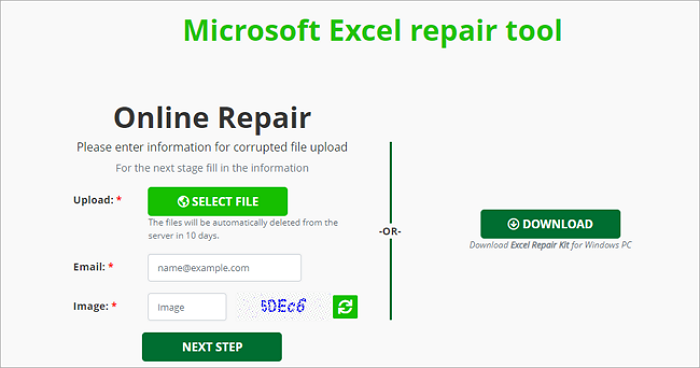
The Microsoft Excel Repair Tool is designed for recovering corrupted Excel files and offers both online and offline versions to repair damaged Excel files. To use the online version, follow these steps: (steps to use the online version)
Step 1. Click the "SELECT FILE" button to upload your corrupt Excel file.
Step 2. Enter your email and verification code.
Step 3. Click "NEXT STEP" and wait for the online repair to complete.
Step 4. To preview recovered data, download the demo version of the software. Once you're satisfied with the results, you can pay for the full version to unlock its full capabilities.
Pros:
- Simple to use, no need to download
Cons:
- Charge by quantity (e.g., 10 USD for one Excel document repair), too expensive
- Security and data privacy cannot be guaranteed
- There are size limits for uploaded files, such as a maximum file size of 35 megabytes.
Other 4 Manual Ways to Recover Corrupted Excel Files Free
In addition to Qiling's data recovery software and the online Excel recovery tool, there are also manual methods to restore damaged Excel files, which are free but have a low probability of file repair and recovery.
Fix 1. Use the Open and Repair Tool in Windows Excel
Step 1. Open a blank Excel sheet, click "File" > "Open".
Step 2. Go to the location and find the folder that contains the corrupted Excel file.
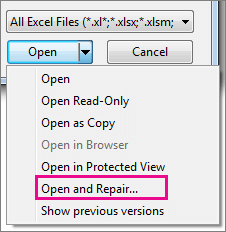
Step 3. In the Open dialog, select the corrupted Excel file and click the arrow next to the Open button, then select "Open and Repair".
Step 4. Click "Repair" to recover as much Excel data as possible.
If "Repair" can't recover your Excel data, click "Extract Data" to extract values and formulas from the Excel sheet.
Fix 2. Repair Corrupted Excel File Free from TMP File
Microsoft Office's AutoSave feature automatically saves Excel temp files as a backup on your computer, providing a safety net in case your file becomes corrupted or crashes. If this happens, you can recover the corrupted file by following these tips.
Step 1. Find the temporary files folder on your PC, navigate to the Excel temp files with the TMP extension, and locate them in this folder.
- For Windows 8/10 users: C:\Users\\AppData\Local\Microsoft\Office\UnsavedFiles
- For Windows 7 users: C:\Users\name\AppData\Roaming\Microsoft\Excel\
Step 2.To find the temporary Excel files that begin with "$" or "~" and end with ".TMP" in Excel, go to File > Open > Browse and select the folder where you're looking for these files. In the File name field, type `*.
Step 3.The files should be copied and saved to another safe location by renaming the extension from .TMP to either .XLS or .XLSX.
Fix 3. Repair Corrupted Excel by Saving as Other Formats
If you can open a corrupted Excel file but it's empty, try saving it in a different format to potentially repair the data.
Step 1. Open corrupted Excel file and go to "Save As".
Step 2.To save the Excel file as a web page, select "Web Page" from the file formats, ensure the entire Excel file is selected, and then click "Save".
Step 3. To open the saved file in Microsoft Office Excel, locate the file, right-click on it, and select "Open with" followed by "Microsoft Office Excel".
Step 4. If the file can be opened normally, go to "Save As" and choose an Excel format (such as .xls or .xlsx), which will recover the corrupted Excel file.
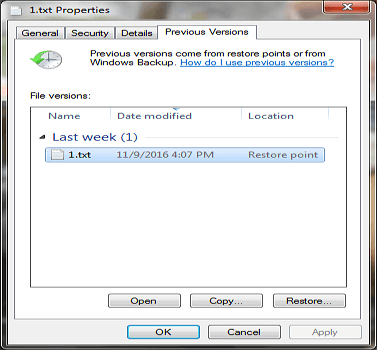
Fix 4. Restore Corrupted Excel File Free from Previous Versions
If an Excel file becomes corrupted, a practical solution is to restore the previous versions from File History or restore points. However, this method is only effective if Windows file backup was enabled in advance, otherwise it's useless.
Step 1.To recover a lost Excel file, create a new Excel file with the same name as the lost file. If you have a present Excel file, you can also try to find it.
Step 2. Right-click on the Excel file and select "Properties".
Step 3. To recover your Excel file, go to the "Previous Versions" section, select the most recent version or the one that was saved before Excel crashed, and click "Restore".
To Sum Up
You can recover corrupted Excel files using various methods. If you prefer to use Windows' built-in utilities, you can try four fixes that utilize backup data. Alternatively, you can use one of three online Excel repair tools to repair files without installing any software. However, be aware that using online tools may raise data security and privacy concerns.
For effective and safe recovery, consider using a desktop Excel repair program like Deep Data Recovery. This software is competent in repairing files and effective in recovering deleted files caused by issues such as accidental deletion, storage device formatting, partition loss, virus attacks, OS crashes, hard disk damage, and more.
Excel Repair Tool FAQs
If you're struggling to repair corrupted Excel files, you may have additional questions. Fortunately, we have answers to common queries related to this issue. Whether you're wondering how to recover data from a damaged Excel file, how to repair corrupted Excel files using built-in tools, or how to use third-party software to fix Excel files, we've can help.
How do I recover a corrupted Excel file?
To repair Excel files in the simplest way, use the Qiling file recovery tool. This tool allows you to recover and restore your Excel files with minimal effort, making it an ideal solution for those who need to fix damaged or corrupted Excel files quickly and easily.
Step 1.To start finding crashed or damaged Excel files, select a location on your computer where you typically store or work with Excel files, such as the "Recent" or "Quick Access" section of the File Explorer, or a specific folder where you save your Excel files. You can also check the "Recycle Bin" or the "System Restore" feature to see if any deleted Excel files have been recovered.
Step 2. Repair and recover corrupted Excel files.
Step 3. Save the recovered Excel file to a secure location.
How do I repair a corrupted Excel file 2010 in Windows 10?
You can repair Excel in Windows 10 in four feasible ways.
To fix the issue of Excel not opening, you can use the Open and Repair tool in Microsoft Office Excel. This tool can repair and open the corrupted workbook, allowing you to access its data and functionality. To do this, go to the File tab, click on Open, and then select the corrupted workbook.
Fix 2. Restore corrupted Excel file from TMP file
Fix 3. Repair corrupted Excel by saving as other formats
Fix 4. Restore damaged Excel file from the previous version
How can I recover a corrupted Excel file for free?
To repair a corrupted Excel for free, do the following:
Step 1. To open a corrupted workbook, go to "File" > "Open" and select the location and folder containing the workbook.
Step 2. In the Open window, select the corrupted Excel file.
Step 3.To recover Excel data, click the arrow next to the Open button and select "Open and Repair". Alternatively, you can click "Repair" to attempt to recover your data.
How do you recover Excel corrupt files online free?
You can try online Excel repair tools like Recovery Toolbox for Excel, Microsoft Excel Repair Tool, or Online Office Recovery to recover corrupt Excel files. These tools typically follow a 3-step process: upload the file, wait for the repair to complete, and then preview and pay for the repaired file.
How does an Excel file gets corrupted?
Reasons that lead to MS Excel files corruption:
- Sudden system shutdown
- Virus attacks
- Hard disk failure
- Too much data and large size files
- Abrupt closing of application
Related Articles
- Audacity Recovery: Recover Deleted and Unsaved Audacity Recordings
- Recover Deleted or Missing Outlook Folder
- Downloads Folder Not Responding on Windows 10? Fix It Now!
- Word 2010/2013/2016/2019 Keeps Crashing When Saving [Solved]
- How to Fix SSD Not Showing Up in Windows 11/10/8/7
If your SSD is not showing up, it's a common issue with various causes. Fortunately, there are solutions to this problem, and we've listed them in this article, tailored to help you resolve the issue on Windows 11, 10, 8, or 7. - 4 Ways to Fix the Parameter is Incorrect in External Hard Drive
Here are 4 ways to fix the problem of the parameter is incorrect in an external hard drive, solve the problem and recover data in external hard drive: Check the connection, update the drive's firmware, run a disk check and repair, and recover data using data recovery software.
Products
Articles & Tutorials
- Data Recovery
- Data Backup
- File Recovery
- File Backup
- System Backup and Restore
- Disk and Partition Clone
- Technical articles
- Mobile articles
- Disk Master Help
- Windows Data Recovery Tutorials
- Windows Secure Delete Tutorials
- Windows Partition Management Tutorials
- Windows File Backup and Restore Tutorials
- Windows System Backup and Restore Tutorials
- Windows Disk Backup and Restore Tutorials
- Windows Clone Tutorials