Fix Maxtor External Hard Drive Not Recognized/Not Working Without Data Loss
This page provides solutions to common issues with Maxtor external hard drives, including not being recognized, not working, or not opening, without losing any data.
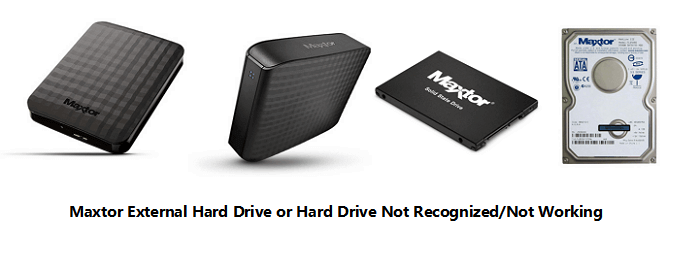
Maxtor External Hard Drive Not Recognized, Won't Open on PC
Maxtor is a brand of storage devices owned by Seagate, offering a range of internal and external storage options, including hard drives and SSDs, for personal and business use.
Maxtor external hard drive users may encounter various issues when using their storage devices to save data or transfer files on Windows or Mac computers, similar to problems experienced with Seagate external hard drives. If you're facing similar issues, don't worry.
- Case 1 - If your Maxtor external hard drive won't open on your PC, try restarting your computer and the drive, then check the drive's power cable and USB connection. If it still doesn't work, try running a disk check on the drive to see if it's corrupted. You can also try using a different USB port or a different computer to rule out any issues with your current setup.
- Case 2 - If your computer can't detect the Maxtor USB drive, try restarting your computer, plugging the drive into a different USB port, or using a USB hub to see if it's just a faulty port. You can also check the drive's LED light to ensure it's turning on, indicating it's receiving power. If none of these steps work, try updating your computer's USB drivers or reinstalling the drive's software. If the issue persists, it may be a hardware problem and you might need to contact the manufacturer or a professional for further assistance.
- Case 3 - To make your Maxtor external hard drive detectable again, try restarting your computer, unplugging and replugging the drive, or checking the drive's power cord and USB connections. If it still doesn't work, you can try formatting the drive, but be aware that this will erase all data on the drive. If none of these steps work, you may need to contact Maxtor support for further assistance. Additionally, ensure that the drive is properly connected to a working USB port.
If your Maxtor external hard drive or USB drive suddenly won't open or fails to show up on your PC, you can try a few troubleshooting steps to fix the issue. First, ensure the drive is properly connected to the PC and the power cord is securely plugged in if it's a powered drive. Next, try unplugging the drive, waiting for 10-15 seconds, and then plugging it back in. If that doesn't work, check the drive's LED lights for any signs of life, and ensure the drive is not set to sleep mode. If the issue persists, you can try updating the drive's firmware, checking for any physical damage, or using a different USB port.
Follow the methods in the provided parts to get your Maxtor external or internal hard drive working normally again without losing any data. These steps will guide you through the process of resolving issues and making your Maxtor hard drive function properly once more.
You May Also Interest In:
If you're experiencing similar issues on your hard drive, you can try the following fixes.
How to Fix Hard Drive Not Showing Up in Windows
If your hard drive, whether new or old, internal or external, is not showing up in File Explorer or Disk Management, here's how to get it back in Windows 10, 8, or 7 without losing any data. First, ensure the drive is properly connected and powered on. If it's an external drive, try using a different USB port.
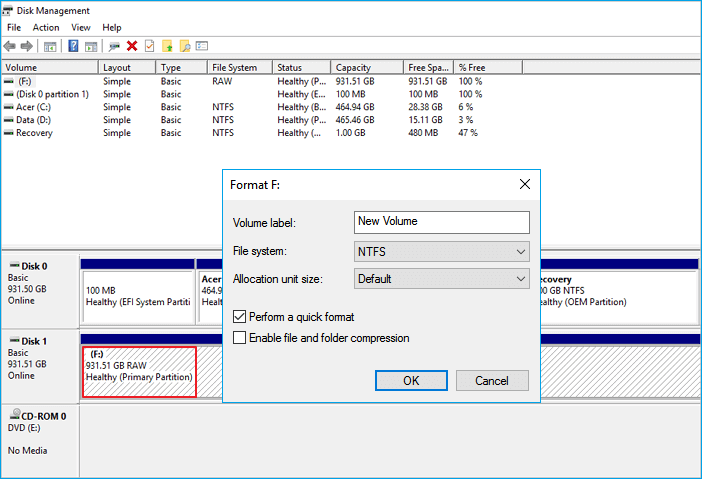
Part 1. Check Maxtor Internal/External Hard Drive State
Before attempting to fix the issue with your Maxtor external hard drive not being recognized, first check its state by opening Windows File Explorer and Disk Management. This will help you determine the exact problem you're experiencing. Based on the results, you can then find the right solution to resolve the Maxtor drive issues.
Step 1. Connect your Maxtor external hard drive to PC.
Step 2. To open Windows File Explorer, double-click on This PC or My Computer.
Step 3. Check if the device shows up or not.
If the Maxtor hard drive shows up but is inaccessible or requires formatting, follow Part 2 to recover data first using reliable data recovery software.
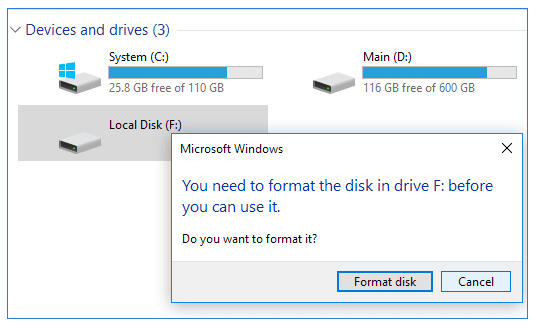
If the Maxtor device isn't showing up or being recognized, proceed with Step 4 to verify its status in Disk Management.
Step 4. Right-click Windows icon and select Disk Management to open it.
Step 5. Check its' state in Disk Management:
If your Maxtor external hard drive or USB shows as RAW or unallocated, move to Part 2 to restore data first.
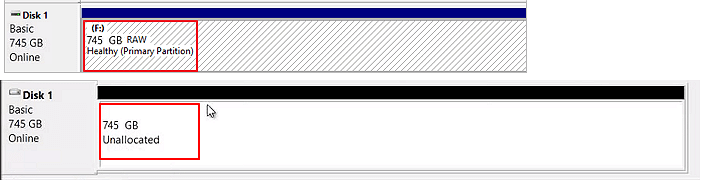
If the Maxtor hard drive shows as unknown, offline, no media, or new volume, refer to Part 3 for practical fixes.
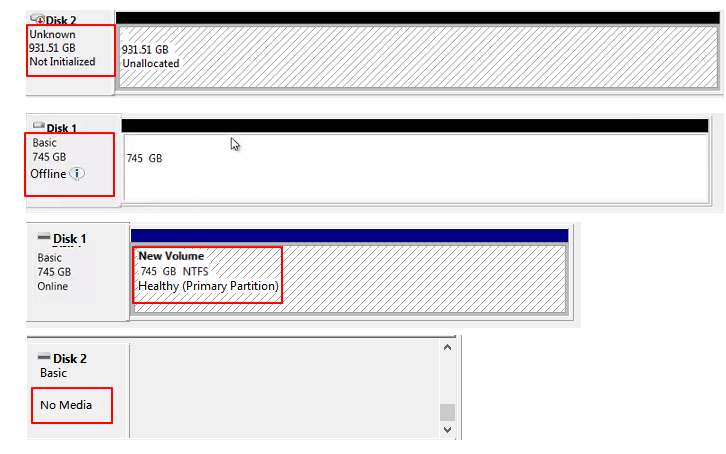
If the Maxtor internal or external hard drive doesn't show up in Disk Management, take it to a local device repair center for a manual disk repair service.
Part 2. Restore Data from Maxtor External Hard Drive
Applies to: Restore data from inaccessible, inaccessible, RAW, unallocated Maxtor internal/external hard drive, avoiding data loss.
To prevent further data loss, use a powerful hard drive recovery software to restore all lost data on your Maxtor external or internal hard drive, USB, etc devices immediately.
Deep Data Recovery can scan and restore data from a Maxtor external hard drive or USB drive with ease.
3-Step Tutorial: Recover Data from Maxtor External/Internal Hard Drive
Step 1. Connect your external hard drive to your computer using a correct USB cable, then run Deep Data Recovery. Choose the file types you want to recover and click "USB/SD Scan" to start the process.

Note: You can choose different search modes based on where and why the data was lost.
Step 2.You can see your external disk listed under External drives in the next window. This software supports various popular external disk brands, including WD, Seagate, Toshiba, LaCie, SanDisk, Samsung, and more.
Select the external hard drive and then click the "Scan" button.

Step 3. As soon as the scan process starts, the software will find lost and deleted data and display the scan results, with recovered data nicely organized, allowing for quick location of target files or folders by file type or searching with an exact file name.

Step 4. After scanning, you can preview the recovered files and select the ones you want to recover. To avoid overwriting the original data, save the recovered files to a different drive than the original Seagate drive. Simply click "Recover" to start the recovery process.
After restoring valuable data from the Maxtor external hard drive, you can now move to Part 3 and pick up a reliable resolution to make your device back to work again. Additionally, remember to save the recoverable data to another secure location in case of further data loss.
Part 3. 13 Fixes for Maxtor External Hard Drive Not Recognized/Not Showing or Not Working Issues
Applies to: If your Maxtor external hard drive is not recognized, not working, or not showing up on Windows, try the following solutions: Check the USB connection, restart the computer, and update the drivers. If the issue persists, try using a different USB port, checking the power cord, and running a disk check.
To get Windows to recognize your Maxtor external hard drive or make your Maxtor internal hard drive work again, try these practical methods. First, ensure the drive is properly connected and powered on.
- #1. Change USB Port
- #2. Change Drive Letter
- #3. Initialize Maxtor Hard Drive and Create a New Partition
- #4. Active Maxtor Hard Drive Online
- #5. Enable Legacy USB Support in BIOS
- #6. Disable USB Selective Suspend Setting
- #7. Uninstall or Reinstall Disk Driver
- #8. Check Disk Error Using Disk Error Checking or CHKDSK Command
- #9. Repair Bad Sectors
- #10. Format Maxtor External Hard Drive
- #11. Run Windows Troubleshooter
- #12. Update Windows to the Latest Version
- #13. Clean Up Virus
If your Maxtor hard drive or external USB drive is not recognized or not showing, try methods 1-7 to make it show up or detectable again.
If your Maxtor or other internal/external hard drive is not working, you can try various methods to revive it. Specifically, methods 8 through 13 may be effective in getting your drive back up and running again.
Fix 1. Change USB Ports and Reboot PC in Safe Mode
When a Maxtor USB hard drive is not recognized by a computer, changing the USB ports can be a helpful troubleshooting step. This is because the issue may be related to the specific port being used, rather than a problem with the drive itself.
- Step 1: Connect the Maxtor external hard drive to another USB port on your PC, and try all available USB ports to see if it shows up.
- Step 2:Try to connect your Maxtor drive to your family's or colleagues' computers. Is it showing up there? If it is, then the issue is likely with your computer.
- Step 3:To connect the Maxtor drive to the motherboard USB ports, first open the tower case using a screwdriver. Then, locate the USB ports on the motherboard, which are usually found at the back of the tower.
If you're unable to see anything on your screen, don't worry, you can try restarting your PC in safe mode. This will allow your computer to boot up with the minimum required drivers and programs, which should help you troubleshoot the issue.
- Step 1: Go to Settings, click on Update & security;
- Step 2: Click on Recovery, select Advanced Startup and click Restart now;
- Step 3: The PC will automatically boot into another Startup Settings screen, where you can press F4 to reboot into Safe Mode.
Check whether the Maxtor external hard disk or USB drive can be detected or recognized on your computer. If it can't be detected, you can try to use a different USB port, or restart your computer, and then check again.
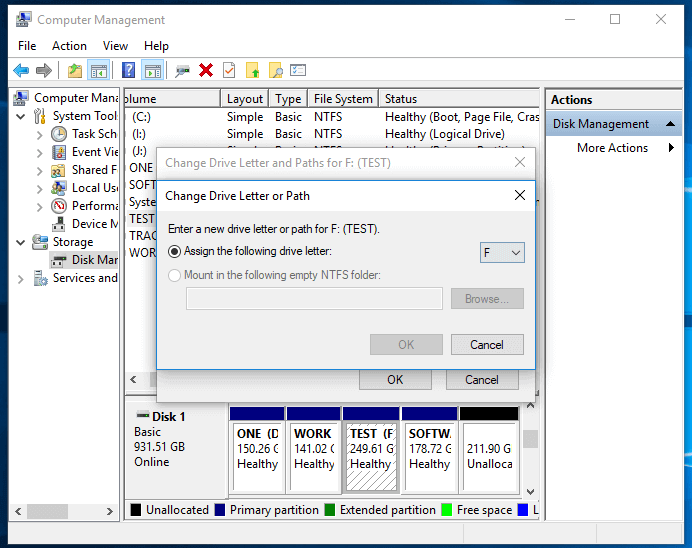
Fix 2. Change Drive Letter
When a Maxtor external or internal hard drive is not assigned a drive letter in Disk Management, it will only show up as a new volume in Disk Management, but will not be detected by Windows File Explorer.
To add a drive letter to your device using Disk Management, you'll need to follow these steps: Open the Disk Management tool by searching for it in the Start menu, right-click on the drive you want to add a drive letter to, and select 'Change Drive Letter and Paths'. From there, you can assign a drive letter to the drive.
- Step 1:To connect your Maxtor external hard drive to your PC and open Disk Management, simply plug the hard drive into a USB port on your computer, and the operating system should automatically detect it. Once the drive is recognized, open the Disk Management tool by searching for it in the Start menu or by typing "diskmgmt.msc" in the Run dialog box (Windows key + R).
- Step 2: Right-click the Maxtor volume and select "Change Drive Letter and Paths".
- Step 3: In the new window, click "Change". Assign a new drive letter to your USB and click "OK".
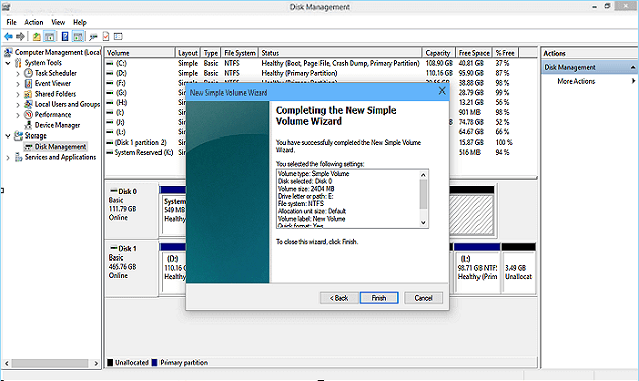
Fix 3. Create a New Partition
If a Maxtor hard drive shows up as unallocated or unknown in Disk Management, it won't be detected by Windows File Explorer. To make it usable again, you'll need to initialize the disk and create a new partition on the drive. This will allow you to access the drive and its contents.
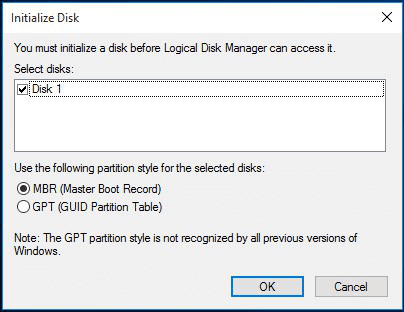
Initialize Hard Drive:
- Step 1: Connect Maxtor hard drive to PC, and open Disk Management.
- Step 2: To initialize an external hard drive, locate the uninitialized, unknown external hard drive, right-click on it, and select the "Initialize Disk" option. This will prepare the drive for use.
- Step 3: Then set the disk to initialize and set the disk as MBR or GPT.
Create a New Partition on Maxtor Hard Drive:
- Step 1: Keep Maxtor external hard drive connected to your PC and open Disk Management.
- Step 2: Right-click on the unallocated space and select "New Simple Volume".
-
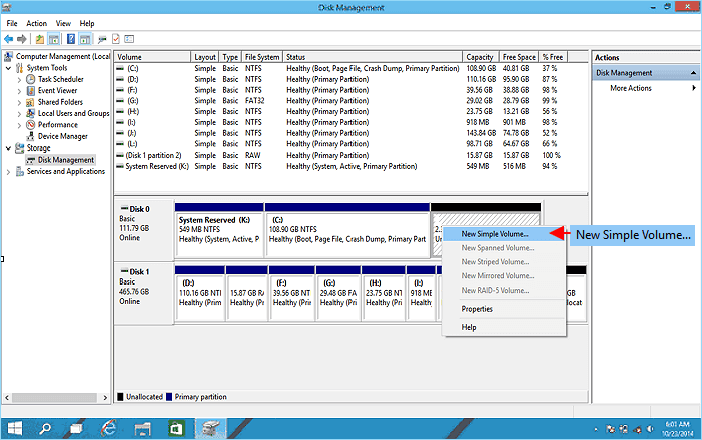
- Step 3: Set a new drive letter, file system, and size for the new volume.
- Step 4:Follow the onscreen instruction guidelines to finish the process.
-
Fix 4. Active Maxtor Hard Drive Online
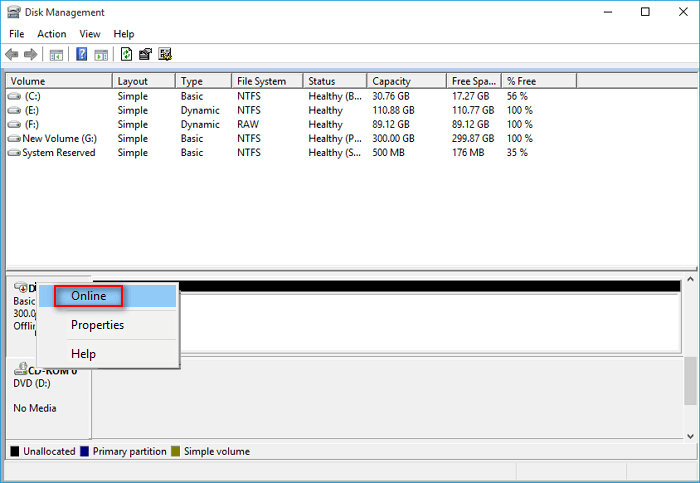
If a Maxtor external or internal hard drive is offline in Disk Management, it will also not appear in Windows File Explorer. To resolve this, you can set the hard drive online using Disk Management by following these steps.
- Step 1:Keep the Maxtor hard drive or external device connected to your PC and open Disk Management.
- Step 2: Locate and right-click on the Maxtor disk, select "Online".
-
Fix 5. Enable Legacy USB Support in BIOS
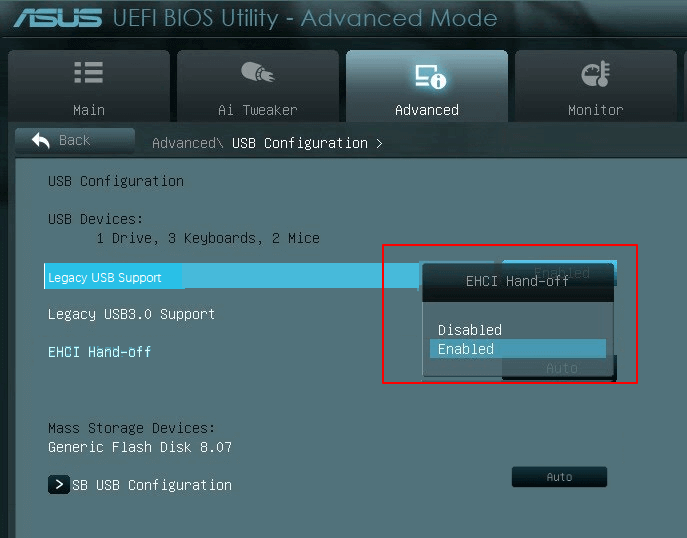
If the Maxtor hard drive isn't recognized in BIOS, the computer won't be able to detect it, and consequently, Windows won't be able to recognize it either.
To enable USB support for the Maxtor hard drive in BIOS, follow these steps: Enter your computer's BIOS settings by pressing the designated key (usually F2, F12, or Del) during boot-up. Navigate to the "Advanced" or "USB" tab, and look for an option related to USB support or legacy USB support.
- Step 1:Restart PC, press F2/F8/F11 to enter BIOS.
- Step 2:Go to the Advanced tab, select "USB Configuration".
- Step 3: To enable Legacy USB Support, go to the BIOS settings, select Legacy USB Support, and set its state to "Enabled". Save the changes and exit the BIOS settings.
-
Fix 6. Disable USB Selective Suspend Setting
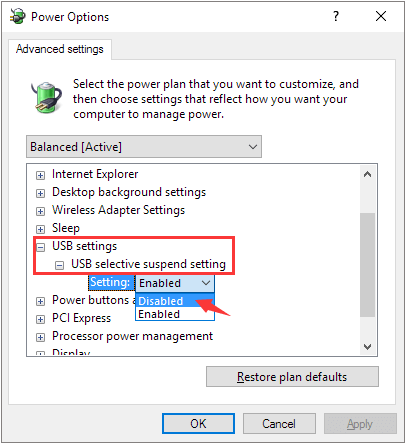
- Step 1:Type power plan in Windows Search box and hit Enter
- Step 2:To access Power Options, click on Start, type "Power Options" and select the result. Then, select "Change plan settings" and click on "Change advanced power settings".
- Step 3:To disable the USB selective suspend setting, go to "USB settings" in the settings menu, then select "USB selective suspend setting", and finally toggle the switch to "Disabled".
- Step 4:Click "OK" > "Apply" to save the changes
-
Fix 7. Uninstall or Reinstall Disk Driver and USB Controllers
If your Maxtor external or internal hard drive is not detected by your PC, updating your disk drivers and USB controllers may resolve the issue. An outdated hard drive driver can prevent the device from being recognized, making it difficult to view or access the Maxtor drive. By updating these drivers, you may be able to detect the Maxtor device again and regain access to its contents.
Update Disk Driver:
- Step 1: Right-click on This PC or My Computer, select "Manage".
- Step 2: On Computer Management, select "Device Manager".
- Step 3: To resolve the issue of a missing hard drive, expand the Disk drives section, right-click on the hard drive that's not showing up, and select the "Update driver" option. This will initiate the process of updating the driver for that particular hard drive.
-
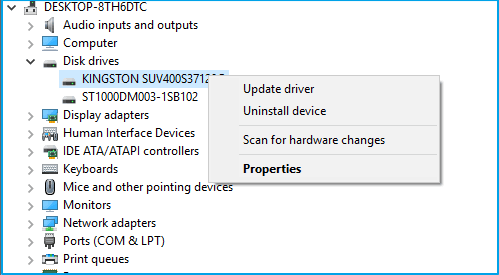
- Step 4: Select "Search automatically for updated driver software".
Update USB Controllers:
- Step 1: Open the Run box (Windows + R), type devmgmt.msc and hit Enter.
- Step 2: To remove Universal Serial Bus controllers, go to Device Manager, expand the 'Universal Serial Bus controllers' section, right-click each USB device listed there, and select the 'Uninstall' option.
-
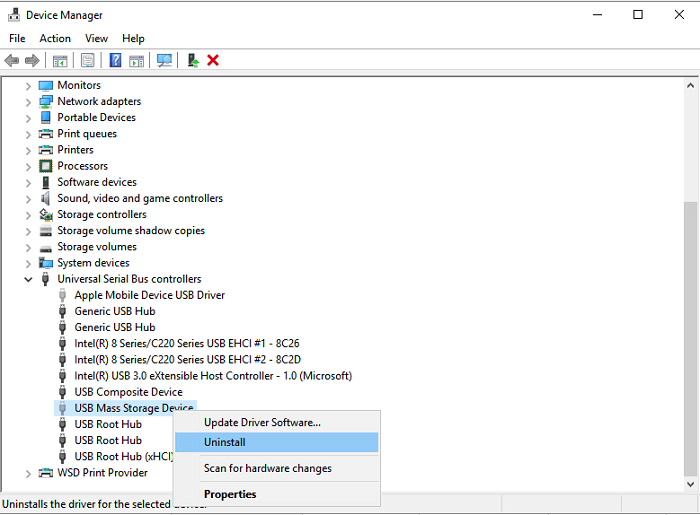
Check your device's settings to see if it shows up as unrecognized or not connected. This can help you identify any issues with the device's connection or its software.
- If the Maxtor external hard drive is not recognized, go to the 'drivers' tab, delete or uninstall the driver, and then check if the external hard drive appears in My Computer/My PC.
- If your Maxtor external hard drive or USB shows up but disappears later, try repeating the steps above and go to Disk Management to change the drive letter of your Maxtor external hard drive or USB, then reconnect it to the PC to try and detect the Maxtor drive again.
If your Maxtor hard drive or external USB is detected but not accessible, try these fixes to make it work normally again. The solutions above are designed to address issues where the hard drive is recognized but not showing, and if your drive is accessible but not openable, check and follow these additional fixes to get it working again.
Fix 8. Check Disk Error
Here are the steps to fix errors on your hard drive using Disk Checker or CHKDSK command:
Check Disk Error using Disk Error Checking
- Step 1: Right-click This PC/My Computer > Select "Manage".
- Step 2:To access the Disk Management tool for your Maxtor external hard drive or USB drive, right-click on it in Disk Management and select Properties > Tools.
- Step 3:To check and repair the drive for file system errors, click on the 'Check' option under the 'Error checking' section. This will initiate a scan to identify and potentially fix any file system errors on the drive.
-
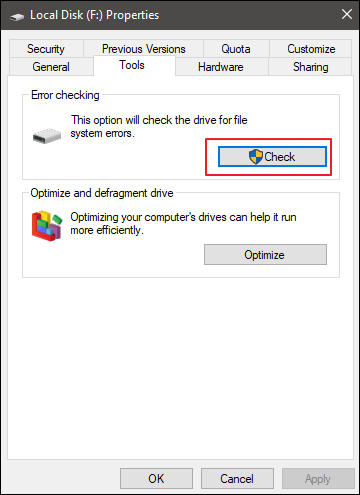
- Step 4:After this, right-click on the Maxtor drive and click Properties.
- Step 5:To modify the security settings, navigate to the Security section, click on "Edit", and then select all the checkboxes for Authenticated Users, System, Administrators, and Users under the "Allow" permission.
- Step 6:Click Apply and OK.
Check Disk Error using CHKDSK CMD
Caution:The CHKDSK command can fix inaccessible or corrupted storage devices, but it comes with a risk of permanent file loss. Therefore, it's crucial to recover data with reliable file recovery software before applying this fix.
Repair not working Maxtor external hard drive/USB with CMD, follow the guide:
- Step 1:Type cmd in Windows Search and hit Enter.
- Step 2: Right-click Command Prompt and select "Open as administrator".
- Step 3: Type diskpart and hit Enter.
- Step 4: Run the command prompt as an administrator and type `chkdsk g: /f /r /x` (replace `g` with the drive letter of your external hard drive), then press Enter. This will run a full disk check on the drive, fixing any errors and recovering any readable information that can be recovered. The `/f` option forces a check, `/r` option recovers readable information, and `/x` option forces a dismount of the drive before scanning.
- Step 5: To exit the disk checkup process, simply type "exit" when the process is finished. This will allow you to complete the process and return to your normal computer usage.
Now your Maxtor external hard drive or USB drive should be accessible to be opened and work normally.
Fix 9. Repair Bad Sectors
Fix 'Maxtor external hard drive undetectable' error with free partition manager - Qiling Partition Master. Download, install and run it.
- Step 1: Launch Qiling Partition Master Free and right-click the partition that you want to check, then click "Check partition" to check the partition.
- Step 2: To check the partition, choose the method you prefer: Check Partition Properties, run Windows Chkdsk to fix errors, or perform a Surface Test. Click OK to proceed.
- Step 3: Let Qiling Partition Master automatically check the hard disk partition errors and repair errors for you. Click OK to finish the process.
Fix 10. Format Maxtor External Hard Drive
If your Maxtor external hard drive or USB device has a RAW file system or becomes inaccessible, you can easily format it to NTFS or another file system, making it usable again. This process allows you to restore the device's functionality and use it with your computer.
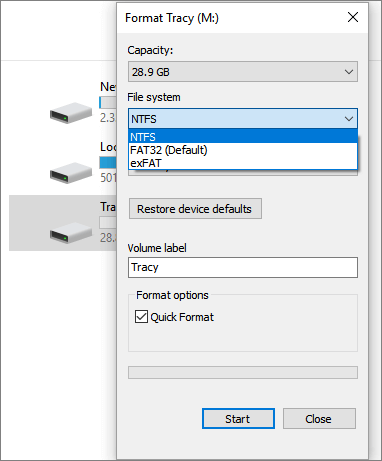
- Step 1: To access an inaccessible external or internal hard drive, open Windows File Explorer, right-click on the drive, and select the "Format" option from the context menu. This will erase all data on the drive and prepare it for use again.
- Step 2: On the format window, select the desired file system - NTFS for your device.
- Step 3: Check "Quick Format" and click "Start".
-
Fix 11. Run Windows Troubleshooter
- Step 1: Open Windows Setting, go to Update and Security.
- Step 2: Click "Troubleshoot", go to "Hardware and Devices".
- Step 3: Click "Run the troubleshooter" and wait for the process to complete.
-
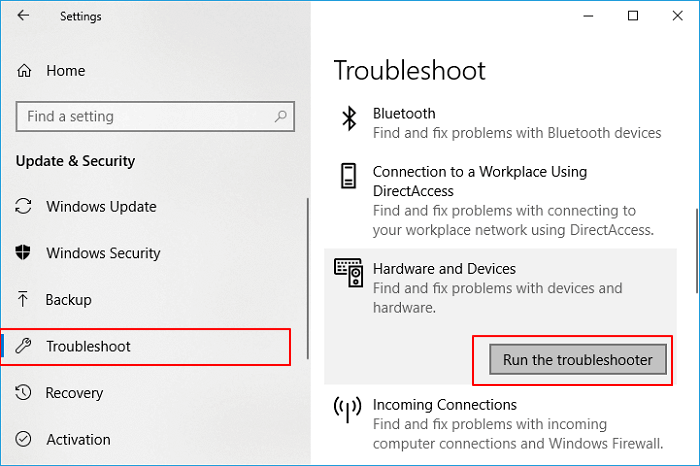
- Step 4: Once the scan process is complete, select the issue you want to fix and click "Next" to proceed.
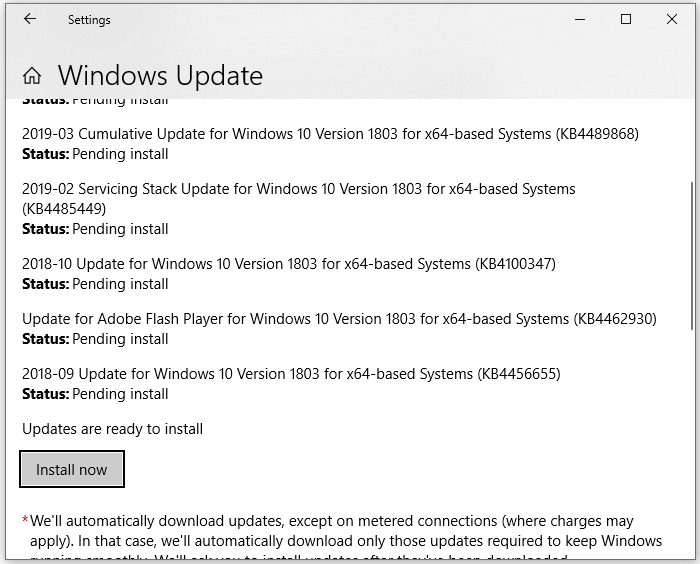
Fix 12. Update Windows to the Latest Version
- Step 1: Go to Windows Settings, click "Update and Security".
- Step 2: Click "Windows Update" and select "Check for updates".
- Step 3: Click "Install Now" if new update is available.
-
Fix 13. Clean Up Virus
If you're experiencing data loss or issues with opening your storage device, it's possible that an unknown virus or malware infection is the cause. In this case, downloading a virus cleaner tool to remove the virus first may resolve the problem.
Clean Up Virus:
- Step 1: Download or install any one of the virus cleaner software on your PC to keep it safe from malware and other online threats.
- ①The top antivirus software options include Norton AntiVirus, Kaspersky Anti-Virus, Avast, ESET NOD32 Antivirus, and Avira.
- Step 2: Run the antivirus software to scan the Maxtor device for malware. This will help identify and remove any harmful programs that may be causing the issue.
- Step 3: To scan and clear virus and malware on your Maxtor hard drive or external hard drive, you can use an anti-virus software specifically designed for external storage devices. Run a full system scan using the software, which will detect and remove any malicious programs.
After the Maxtor storage devices are restored, you can try to open and check the files saved on them. If you encounter any lost files, don't worry, as Deep Data Recovery with its reliable file recovery features can help you recover them.
Conclusion
This page offers 13 solutions to help Maxtor users resolve various issues with their external hard drives, internal hard drives and solid state drives, USB drives, and other Maxtor devices on Windows PCs, including not being recognized, not showing up, and not working properly.
If you have valuable files saved on storage devices, you can use professional hard drive data recovery software like Deep Data Recovery to help rescue your data.
FAQs About Maxtor External Hard Drive Not Recognized
If you're experiencing issues with a Maxtor or other storage device, here's a brief summary: Check the following questions and answers for potential solutions to your problems. You may find the answers and fixes you need.
1. What to do if Maxtor hard drive/external hard drive not recognized in Disk Management?
Here are some tips for troubleshooting a missing external hard drive in Windows File Explorer and Disk Management:
- Unplug the Maxtor external hard drive and then replug it into the PC correctly, ensuring it is securely connected.
- #2. Change the USB port.
- #3. Change the USB connection cable, power cable.
- If your storage device is not showing anything, take it to a local disk repair center for a manual repair service.
2. How to fix Maxtor hard drive not working on Mac?
If you're a Mac user experiencing issues with your Maxtor external or internal hard drive not working on your Mac, try these fixes:
- #1. Re-insert the Maxtor external hard drive to Mac
- #2. Change USB data cable
- If the Maxtor external hard drive is not being recognized by the computer, try changing the USB port or connecting it to another computer to rule out any issues with the current computer. This can help determine if the problem lies with the computer or the external hard drive itself.
- To format a Maxtor hard drive or external hard drive for Mac, you can follow these steps: First, ensure the drive is connected to your Mac via USB. Then, click on "About This Mac" in the Apple menu, followed by "Storage," and select the external drive. Click on "Erase" and confirm the action.
- To reset NVRAM on a Mac, restart the device, then press and hold the Option (⌥), Command (⌘), P, and R keys simultaneously for exactly 20 seconds. If the Mac restarts, release the keys. This process clears the NVRAM, which can resolve issues related to display settings, keyboard preferences, and other system settings.
- To set your Maxtor external hard drive to show up on your desktop, go to Finder > Preferences > General and check the box next to "External disks" and/or "Hard disks".
- If your Maxtor external hard drive is not showing up after trying the above fixes, send it to a local repair center for further assistance.
3. How to access my Maxtor external hard drive?
- Connect one end of the USB cable to the USB port on your Maxtor hard drive.
- Turn on your portable hard drive.
- To access your Maxtor hard drive, click "Open folder to view files" and then click "OK." This will open the drive, allowing you to view any files or content saved to it.
- To select multiple files on your computer, locate the files you want to select, then right-click each one. This will open a context menu with various options, such as "Copy," "Move," "Delete," and "Share.
4. How do I get Windows 10 to recognize my external hard drive?
To check if the USB drive is visible, open the Disk Management tool by pressing Windows + R, typing diskmgmt.msc in the run prompt, and hitting Enter. This will open a window that lists all the disks connected to the computer, including the USB drive. If the USB drive is visible, it should be listed in the Disk Management window.
If you have important data on your Maxtor external hard drive, use a reliable data recovery software like Deep Data Recovery for Mac to recover your files from the problematic storage device.
Related Articles
- Fix/Repair Unallocated External Hard Drive without Losing Data
- Fix Unknown USB Device - Device Descriptor Request Failed
- [Full Guide] 10TB/12TB Internal and External Hard Drives
- Recover Deleted Recordings/Shows on DirecTV
- Solved - Files in Downloads Folder Disappeared [2023]
If your files in the downloads folder have mysteriously disappeared, there's a solution. - Fix Slow USB Transfer Speed in Windows 7/10/11
If you're experiencing slow USB transfer speeds on Windows 7, 8, 10, or 11, you're not alone. Fortunately, there are ways to speed up USB transfer speeds. This article will guide you through the process of resolving slow USB transfer issues on your Windows operating system.
Products
Articles & Tutorials
- Data Recovery
- Data Backup
- File Recovery
- File Backup
- System Backup and Restore
- Disk and Partition Clone
- Technical articles
- Mobile articles
- Disk Master Help
- Windows Data Recovery Tutorials
- Windows Secure Delete Tutorials
- Windows Partition Management Tutorials
- Windows File Backup and Restore Tutorials
- Windows System Backup and Restore Tutorials
- Windows Disk Backup and Restore Tutorials
- Windows Clone Tutorials