$RECYCLE.BIN Folder | All You Want to Know About $RECYCLE.BIN Folder Is Here
The $recycle.bin folder is a system file that stores deleted files, allowing them to be recovered if needed. It can be safely deleted, but it's not recommended to do so unless you're running low on disk space or have specific reasons to remove it. Deleting the $recycle.bin folder won't have a significant impact on your computer's performance. However, keep in mind that deleting this folder will permanently remove all deleted files, so it's essential to back up any important data before doing so. If you're unsure, it's always best to consult a system administrator or IT professional for guidance.
This page provides an in-depth look at the $recycle.bin folder, covering its purpose, location, and contents. It explains that the folder is used by Windows to store deleted files and folders, and that it can be found in the root directory of the hard drive. The page also discusses the contents of the folder, including the original file name and path, and provides information on how to access and manage the folder.
What Is $RECYCLE.BIN Folder (on External Hard Drive)
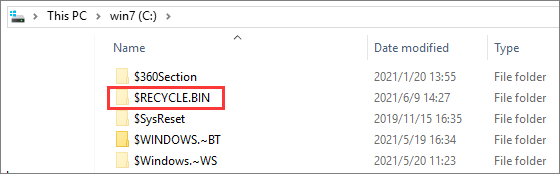
The $recycl.bin folder is a hidden system folder that stores deleted files and folders, allowing for recovery of mistakenly deleted items on Windows 10/8/7.
Is $RECYCLE.BIN Folder a Virus
The $recycle.bin folder is a normal system folder and is not a virus, so there's no need to delete it. If you don't want to view it, you can check "Hide protected operating system files" in the folder options.
Where Is the $RECYCLE.BIN Folder on Windows 10
The recycle bin is a hidden system folder that exists in each partition's root directory by default. To view it, you need to make your computer display hidden files first.
How to Show Hidden $RECYCLE.BIN Folder in Windows Explorer
Step 1. To open File Explorer on your computer, press the Win + E keys, and then click the "View" tab on the top toolbar.
Step 2. Select "Options", and click "Change folder and search option".
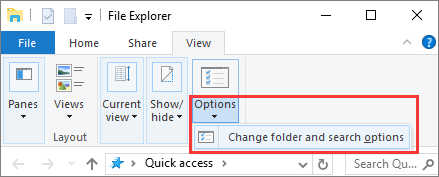
Step 3. To show hidden files and folders on Windows, click the "View" tab, scroll down to "Select Show hidden files, folders, and drives" under Advanced settings, and uncheck "Hide protected operating system files(Recommended)".
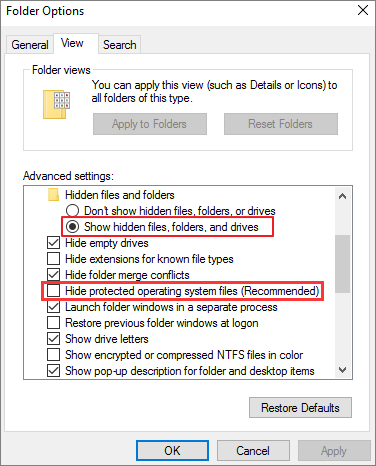
Step 4. To apply the changes, click "Apply" and then "OK" to keep them. This will make all Recycle Bin folders/files with the +H and +S attributes visible.
The $recycle.bin folder location path is typically C:\$RECYCLE.BIN or D:\$RECYCLE.BIN, etc. on Windows systems.
Can I Delete $RECYCLE.BIN Folder
The $recycle.bin is a system-The $Recycle.Bin folder cannot be deleted, even by an admin user, as Windows will automatically recreate it once files are deleted on the same drive. It can be removed using a Linux LiveCD, but this is not a recommended solution. The folder's purpose is to store deleted files temporarily until they are permanently erased. It is a protected folder and cannot be deleted. You can, however, empty the contents of the folder to free up disk space.
If the recycle.bin folder in a hard drive is taking up too much space, it's likely because there are too many files in the Recycle Bin that haven't been deleted.
To free up disk space, open the $recycle.bin folder, click on Recycle Bin, select the unwanted files, and delete them from the Recycle Bin.
- Notice:
- After deleting files from the Recycle Bin, it's often too late to recover the data unless you use professional data recovery software. So, it's essential to think twice before pressing the Delete button to avoid losing your important files.
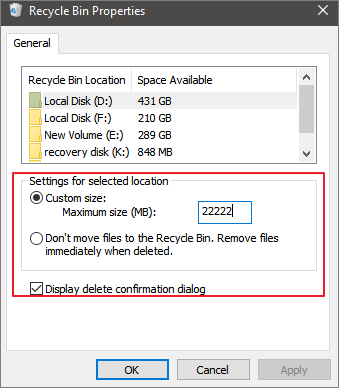
This setting can be enabled to prevent files from being moved to the Recycle Bin, instead they will be deleted immediately when removed.
Recover Deleted Files from $RECYCLE.BIN Folder on Windows 10
When you delete files from the $Recycle.Bin folder in any drive, they will be permanently deleted and cannot be recovered. This is similar to deleting a file from the Recycle Bin on your computer.
If you accidentally delete files from the Recycle Bin, you can still retrieve them using Deep Data Recovery, a top-notch file recovery tool that can easily recover lost photos, videos, documents, emails, and hundreds of other file formats.
Deep Data Recovery
- Recover files from various storage devices, including a formatted hard drive, emptied Recycle Bin, memory card, flash drive, digital camera, and camcorder, using specialized software or tools. These tools can help retrieve lost or deleted files, even if they have been permanently deleted or the storage device has been formatted.
- Support data recovery for sudden deletion, formatting, hard drive corruption, virus attacks, system crashes, and other unforeseen events that can result in data loss.
- To restore lost data on Windows, you can use the built-in System Restore feature, which creates a snapshot of your system at regular intervals. This allows you to revert to a previous state if something goes wrong. Additionally, you can use the File History feature to back up and restore files.
- To retrieve deleted files from a Mac computer running macOS 11.2 to 10.9, you can use the built-in Time Machine feature or a third-party data recovery software. First, stop using the Mac immediately to prevent any new data from being written to the disk.
Here are the steps to recover permanently deleted files from Recycle Bin with Qiling data recovery program. Qiling data recovery program allows you to recover permanently deleted files from the Recycle Bin by scanning the Recycle Bin for deleted files and restoring them to their original location.
Step 1. Launch Deep Data Recovery. Select file types and click "Recycle Bin Scan" to start the recovery process.

Note: You can choose different search modes based on where and why the data was lost.
Step 2. To recover files from an emptied Recycle Bin on Windows, hover the mouse pointer over the "Recycle Bin" option under the "Locations" section and click "Scan" in the context menu.

Step 3. Qiling data recovery software performs a quick scan for all deleted files, followed by a deep scan to detect more lost files. After scanning, you can use the "Filter" feature to select a specific file type, such as Pictures, Word, videos, etc.

Step 4. Once you've located the files you want to restore, you can double-click them for a full preview. Then, select the target files and click "Recover". It's recommended to save the recovered files to a different volume or an external USB drive to avoid data overwriting.
Closing Thoughts
The $recycle.bin folder is a system file that stores deleted files and data, and this tutorial covers its core issues, including what the folder is, whether it's a virus, and whether it can be deleted.
The Recycle Bin stores deleted files and folders, allowing you to recover them if needed. To free up space, you can empty the Recycle Bin, but be cautious not to delete important files. If you've accidentally emptied the Bin with crucial data, stop using your computer and use a file recovery tool to retrieve the files.
Related Articles
- [Official & Latest] Deep Data Recovery Key 13.5 and Qiling License Code
- EFS Decryption Guide: How to Recover Encrypted Files on NTFS Drive Without Effort
- Free Download Professional Data Recovery Software with Crack
- A Simple Way to Repair Adobe PDF Files |PDF Repair Full Guide
- Four Options: How to Recover Lost Data from Hard Disk for Free
Have been confused about how to recover lost data from hard disk? we'll give you four options to retrieve your last data back in this post. - How to Recover Lost Word Documents in Windows?
If you've lost a Word document, there are ways to recover it. You can recover unsaved, deleted, or corrupted Word documents using various methods outlined on this page. Additionally, you can also find the best data loss prevention software for Windows to help prevent future data loss incidents.
Products
Articles & Tutorials
- Data Recovery
- Data Backup
- File Recovery
- File Backup
- System Backup and Restore
- Disk and Partition Clone
- Technical articles
- Mobile articles
- Disk Master Help
- Windows Data Recovery Tutorials
- Windows Secure Delete Tutorials
- Windows Partition Management Tutorials
- Windows File Backup and Restore Tutorials
- Windows System Backup and Restore Tutorials
- Windows Disk Backup and Restore Tutorials
- Windows Clone Tutorials