How to Recover Unsaved Excel Files
If you've forgotten to save Excel files on a Windows PC, you can easily recover unsaved Excel files with just a few simple steps. Follow the steps below to retrieve your lost Excel files.
| Workable Solutions | Step-by-step Troubleshooting |
|---|---|
| Recover Unsaved Excel Workbooks | Open a new or an Excel workbook. Go to "File > Open"...Full steps |
| Recover Updated Excel Files | Open the Excel application, find "Recovered" and click "Show Recovered Files"...Full steps |
| Recover from Previous Versions | Open Excel, and click "File" > "Info" > "Manage Workbook"...Full steps |
| Recover Overwritten Excel Files | Enter the OneDrive official page and sign in to your account...Full steps |
| Other Effective Solutions | Restore from File History > Run Data Recovery Software...Full steps |
Common Reasons that Can Lead to the Loss of Your Excel File
Data is essential to the success of any business, and accurate, up-to-date information is crucial for making informed decisions. Excel files are often used to store this vital data, but they can be prone to loss due to various reasons, making it difficult for business owners and managers to make informed decisions about resource allocation and pricing.
Accidental Deletion:
Accidental deletion is a common cause of lost Excel files, often resulting from a user clicking the wrong button or deleting a file without intending to. However, it's possible to recover deleted Excel sheets using the right methods.
Unintentional Formatting:
This error often happens suddenly and you can't open the Excel file, but formatted files can almost always be recovered if the recovery process begins promptly.
Excel Corruption:
Corruption, such as damaged or corrupted files during storage or transfer, is another common cause. This can be resolved by repairing the file if it's not heavily damaged, but in severe cases, a backup is a better option.
Excel Overwritten:
Excel data loss can occur due to various reasons, including formatting errors, corrupted files, and human mistakes. Additionally, data loss can also happen if a file is accidentally deleted, overwritten, or lost, making it often impossible to recover overwritten Excel files, especially without spending money on data recovery services.
Excel data loss can have serious consequences, including lost productivity, revenue, and customers, making it crucial to take steps to prevent and recover unsaved files.
How to Recover Unsaved Excel Files on Windows 11/10/8/7
We've all been there - We've all been there - working on an important Excel file, only to accidentally close it without saving or have our computer crash, resulting in lost unsaved changes. But fear not! In many cases, it is possible to recover unsaved Excel files on Windows 10, and there are a few different methods you can try to get your work back.
Excel offers various methods to recover data from a corrupted file. The AutoRecover feature automatically saves a temporary copy of your file at set intervals, allowing you to recover your work from the last saved AutoRecover file.
Method 1. How to Recover Unsaved Excel Workbooks
If you've never saved a newly created Excel file and it's not saved, you can still recover it even if Excel or your system crashes.
- Notice:
- This method works only if Excel has enabled AutoSave and AutoRecover functionality, which is enabled by default, allowing you to recover lost files.
To recover an unsaved Excel file, click on the "File" tab, select "Recent", and look for the file in the list. If it's not listed, check the "Open other workbooks" option and search for it in the folder where you saved it.
Step 1. Open a new or an Excel workbook.
Step 2. Go to "File > Open".
Step 3. Click the "Recent" option on the top left.
Step 4. Click the "Recover Unsaved Workbooks" button at the bottom.
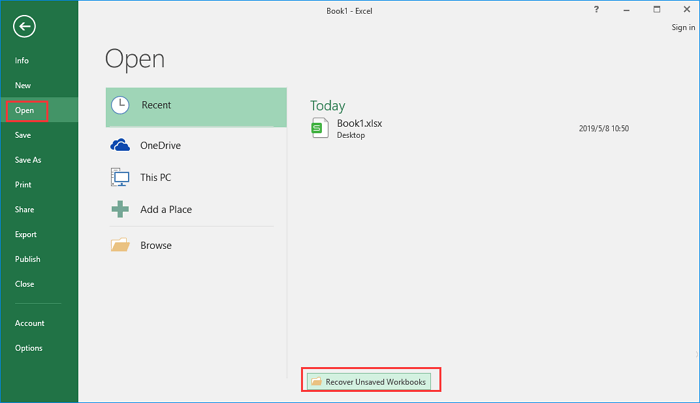
Step 5. Scroll through the list of unsaved Workbooks and open the one you want.
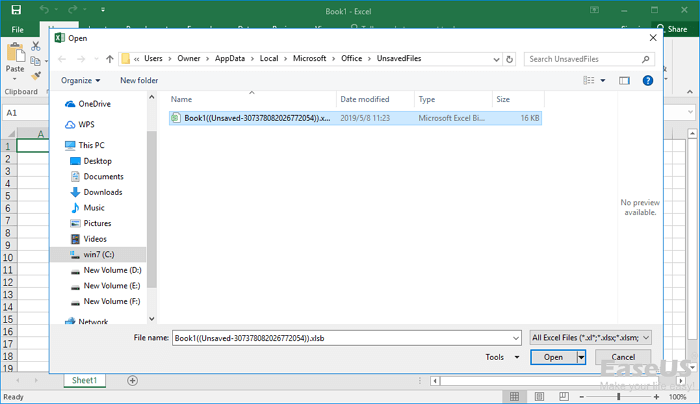
Step 6. Hit the "Save As" button to recover the.
Excel saves temporary files, a copy of all unsaved files, by default at a specific location.
C:\Users\[YourSystemName]\AppData\Local\Microsoft\Office\UnsavedFiles
Replace [YourSystemName] with the name of your system in the given address to access the folder where Excel files are saved, and perform unsaved Excel document recovery.
Method 2. How to Recover Updated Excel Files
If your Excel file crashed and you had previously saved it, you can recover the updated file, but you'll lose the changes made after the last save. To do this, follow these steps.
Step 1. To recover a deleted file in Excel, open the Excel application, navigate to the "File" menu, select "Info", and click on "Manage Versions" or "Manage Recovered Files" (depending on the version of Excel you're using). In the "Manage Recovered Files" window, find the file you want to recover and click on it.
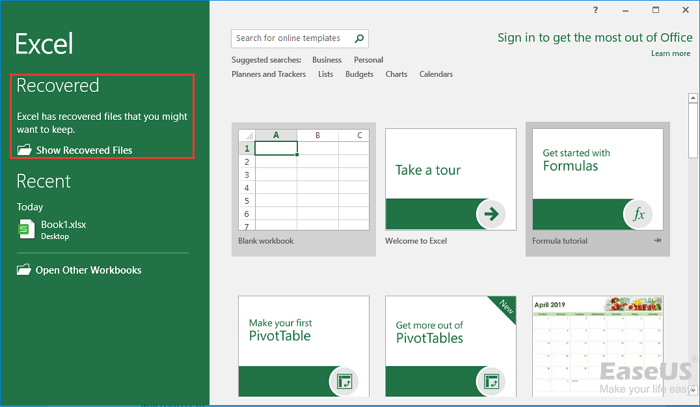
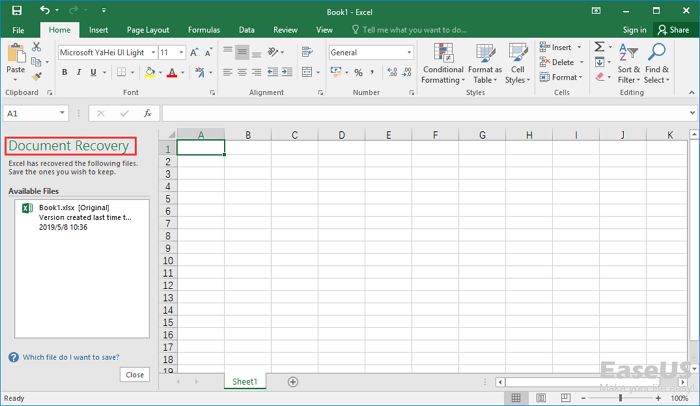
Step 2. The "Document Recovery" pane will display the unsaved files. Open and save the Excel file you need.
Method 3. How to Recover Unsaved Excel from Previous Versions
If you have a saved Excel file and updated the data, but want the old version, you can use the "Version History" feature in Excel 2010 and later versions to retrieve the previous version. To do this, open the Excel file, click on the "File" tab, select "Info", and then click on "Manage Versions" in the right-hand panel. From there, you can select the version you want to revert to and click "Restore" to retrieve the previous version of the Excel file. This will replace the current version with the previous one, effectively restoring the old data.
Step 1. Open Excel, and click "File" > "Info" > "Manage Workbook".
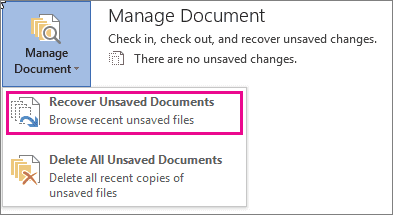
Step 2. Click "Recover Unsaved Workbooks" from the drop-down menu.
Step 3. To restore a previous version of a file, click on the version you want to restore and click "Open".
Step 4. To save the file, click on "Save As" in the bar at the top of the file.

To enable AutoRecover in Microsoft Word, you need to go to File > Options > Save, and then check the box next to "Save autosaved copies of my work every X minutes." This will allow you to recover your work in case of a crash.
Method 4. How to Recover Overwritten Excel Files
Storing important files in the cloud can help prevent data loss in the event of a hardware failure or other catastrophe, with services like OneDrive and DropBox offering a convenient way to back up files and access them from anywhere.
How to Recover Overwritten Excel Files from OneDrive
When storing Excel files, OneDrive is a great option, offering 2 GB of free storage with the option to purchase more if needed. It also keeps track of prior file versions, allowing users to restore an older version if necessary. If you need to recover an unsaved Excel file from OneDrive, follow these steps.
Step 1. Go to the OneDrive official page and sign in to your account.

Step 2. To access your saved file, click on the folder where you saved it, such as Documents.
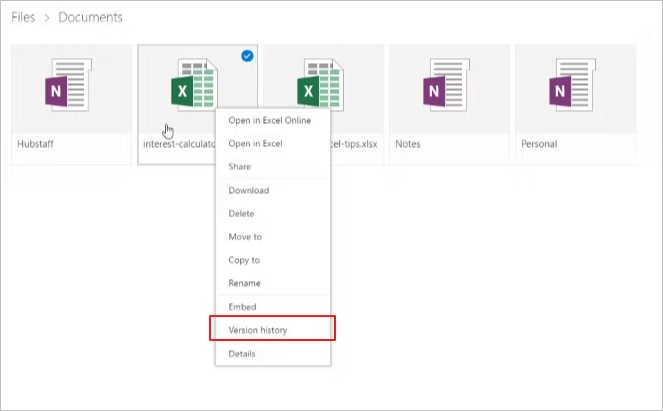
Step 3. Find the Excel document you're looking for, and right-click it.
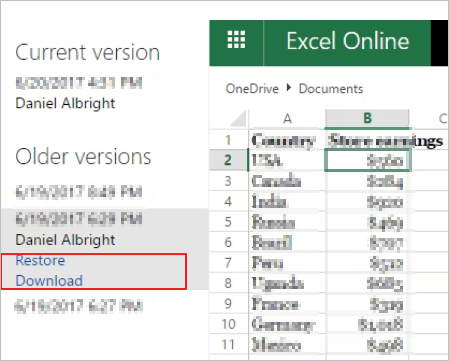
Step 4. To view all the previous versions of a file, go to the "Version History" section. Here, you can see a list of all the previous versions of the file in the pane on the left.
Step 5. Find the version you want to restore, select "Restore" to overwrite the current version, or click "Download" to download a copy of that version.
How to Recover Overwritten Excel Files from DropBox
DropBox offers 2 GB of free storage, but with a 100 MB file size cap, which may not be sufficient for users with large Excel files. However, it does provide a convenient solution for recovering overwritten Excel files, allowing users to easily retrieve the previous version of the file from their DropBox account.
Step 1. Log into DropBox.

Step 2. To view previous versions of a file, click on the three dots at the top right corner of the file for which you want to see the previous versions. This will open a dropdown menu where you can select "See previous versions".
Step 3. Click the" Version History" option.
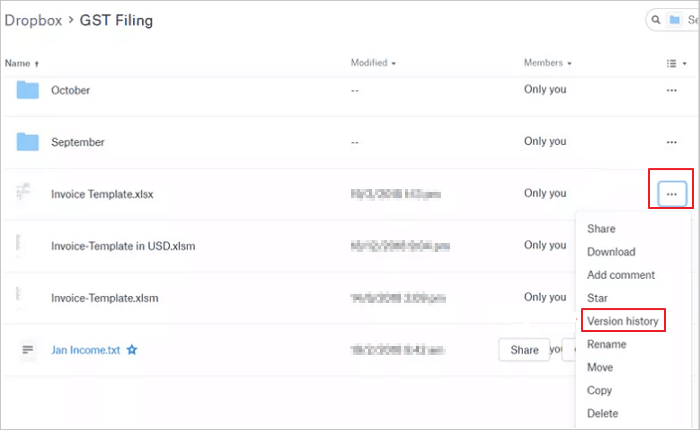
Step 4. Open and download the Excel data from DropBox.
Microsoft OneDrive and Dropbox are great tools for storing and sharing files, making it easy to back up office files to the cloud.
Method 5. Restoring Previous Versions of the Excel from File History
If you've accidentally deleted or modified an Excel file and want to restore it, you can use File History to revert to a previous version. First, ensure File History is enabled, then follow these steps to restore your Excel file.
Step 1. Navigate to your file in Windows Explorer.
Step 2. Right-click the file and select "Previous Versions".

When you accidentally delete a file, you can restore it from previous versions. If you've turned on File History, you'll see a window with previous versions of the file. If you haven't, you can still try to restore from a restore point, but only if you've created one.
Method 6. How to Retrieve Unsaved Excel Files with Data Recovery Software
Losing an unsaved Excel file can be frustrating, but there is still hope - you may be able to recover XLSX/XLS files using data recovery software, which can scan your hard drive for lost or deleted Office files and recover them if possible, with Qiling data recovery software being one of the most popular options available.
- Data Recovery Wizard offers a variety of features that make it a valuable tool for anyone who needs to recover lost data, making it a useful resource for those in need of data recovery assistance.
- The software supports a wide range of file types, allowing users to recover various types of data, including photos, videos, documents, and more.
- With this tool, you can recover corrupted Excel files, undelete Excel files, and run Excel password recovery.
- The software includes a preview feature that lets you view recovered files before saving them.
Qiling data recovery software is an excellent choice for anyone who needs to recover lost or deleted Excel files, making it a reliable tool for Excel recovery.
Step 1. Choose file types and click "Fast Scan" to start
Launch Deep Data Recovery. Choose file types and click "Fast Scan" to start the recovery process.

Note: You can choose different search modes based on where and why the data was lost.
Step 2. Select location and click "Scan"
To recover lost Excel files, choose the drive or a specific folder on Desktop or somewhere else where you lost the files, and click the "Scan" button.

Step 3. Locate your excel files
To quickly locate the Excel files from the scan results, click the "Documents" option in the left panel, select "Excel", and click "Preview" to confirm if the files are the desired ones.

Step 4. Recover Excel files
Select the desired Excel files, click the "Recover" button, and choose a folder to save the recovered files to a new location.
How to Recover Unsaved Excel Files on Mac
When a Mac user loses an unsaved Excel file, they can try using the "Recover Unsaved Workbooks" feature in Excel. This feature can be accessed by going to the "File" menu and selecting "Recover Unsaved Workbooks". If this doesn't work, they can also try using the "Time Machine" feature, which can be accessed through the "System Preferences" menu.
Method 1. Restore Unsaved Excel File from the Temporary Folder
To find the file, look for it in the temporary folder, which should contain a list of recently saved Office files.
- Go to "Applications" > "Utilities" > "Terminal".
- Open the Temporary files folder by typing `open $TMPDIR` and pressing "Return", then select the "TemporaryItems" folder within it.
- Find the unsaved Excel file under "TemporaryItems" and restore.
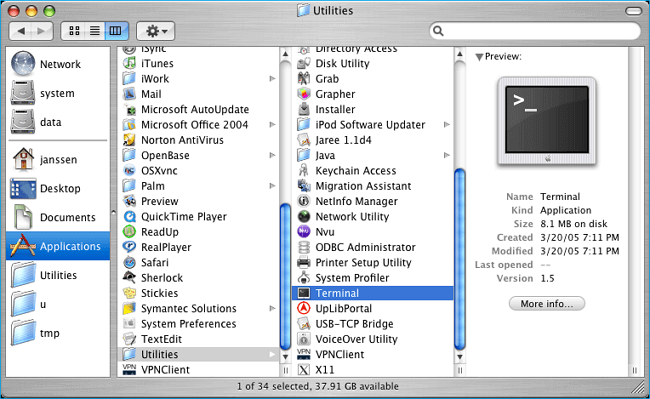
Method 2. Recover Lost or Unsaved Excel Files from AutoSave
If the file you're looking for isn't in the Temporary folder, you can try finding it in the Microsoft Office AutoSave folder, where you may be able to locate and open the unsaved file.
- Go to "Applications" >" Utilities" > "Terminal".
- Type defaults write com.apple.Finder AppleShowAllFiles true.
- Click "Finder" > press "Return" on your Mac.
- Type /Users/username/Library/Containers/com.microsoft.Excel/Data/Library/Preferences/AutoRecovery and click "Go" to open Excel's AutoRecovery folder.
- To recover unsaved spreadsheet files on a Mac, first, navigate to the 'Recent Workbooks' or 'Recent Spreadsheets' section in the Microsoft Excel or Google Sheets application, depending on the software used. If the files are not found in the recent section, check the 'AutoRecover' folder, which is usually located in the user's library in the 'Documents' or 'Users' folder. Look for files with a '.
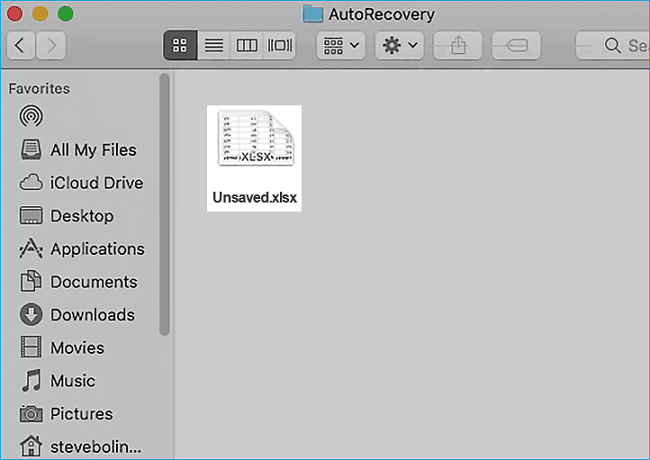
If you're unable to recover your Excel file using the methods mentioned earlier, you can try using Mac data recovery software to scan your hard drive for any lost or deleted Excel files.
Full Guide
If you're having trouble recovering unsaved Excel files on your Mac, you can try using the AutoRecover feature, which automatically saves your work at set intervals. You can also try checking the Excel file's location, as it may be saved in a different folder than you expected. Additionally, you can attempt to recover the file by going to the "File" menu, selecting "Open", and then clicking on "Recover Unsaved Workbooks" to see if the file can be restored.
Precautions to Avoid Excel Data Loss - AutoSave
Data loss can have severe consequences, but enabling Excel AutoSave can help prevent this issue by automatically saving your work at regular intervals, ensuring that your data is protected and can be recovered in case of an unexpected event.
To enable Excel AutoSave, click the "File" tab and select "Options", then in the Save category, check the box next to "Save AutoRecover information every _ minutes".
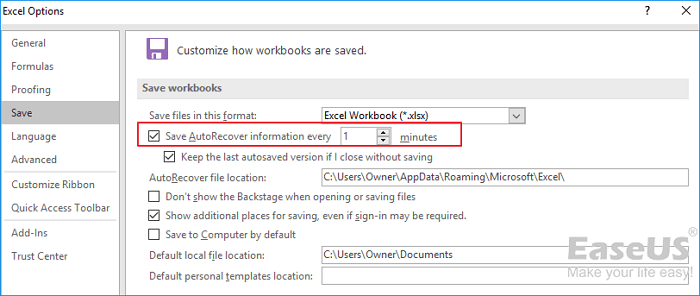
To avoid Excel data loss, you can enable AutoSave, which saves your workbook at regular intervals, and change the number of minutes in the text box to specify how often you'd like Excel to save your workbook.
1. Save your workbook regularly.
To ensure your latest changes are saved, it's a good practice to manually save your Excel workbook in addition to relying on automatic saving. This guarantees that your updated file is always saved.
2. Back up your workbook.
In addition to saving the workbook regularly, it's also a good idea to back up your workbook periodically, creating an extra copy of your data in case something happens to your original file.
3. Avoid working files without first creating a backup.
To ensure you have a backup of your file, you can create a copy of it and store it in a separate location, such as an external hard drive or cloud storage. This way, if something does happen to the file, you will still have a copy to fall back on.
4. Save Excel files in multiple formats
To ensure data security, save your Excel files in multiple formats, such as CSV, PDF, or XLSX, to prevent loss of information in case the original file becomes corrupted or unreadable.
Conclusion
Excel's AutoRecover feature can help you recover unsaved work in case of a computer crash or accidental file closure. To maximize the chances of recovering your data, ensure AutoRecover is turned on and you know the location of the recovery files. With a bit of luck, you should be able to retrieve your unsaved work.
Related Articles
- Chrome History: How to View, Delete, and Recover
- SD Card Repair on Windows 10 and Android
- Fix Hard Disk Not Detected/Recognized on Windows 10
- macOS Update Ultimate Guide: How to Update OS on All Models of Mac
- Top 5 Best Windows 7 Disk Image Backup Software
If you're looking to back up your Windows 7 disk image, consider the top 5 software options. These programs allow you to create a complete and bootable backup of your system, including all installed applications, settings, and data. - Top 6 Photo Recovery Software for Windows PC
Here are the top 6 photo recovery software for Windows PC, allowing you to easily and completely recover deleted or lost photos from various devices, including your computer, SD card, digital camera, USB drive, external hard drive, and phone.
Products
Articles & Tutorials
- Data Recovery
- Data Backup
- File Recovery
- File Backup
- System Backup and Restore
- Disk and Partition Clone
- Technical articles
- Mobile articles
- Disk Master Help
- Windows Data Recovery Tutorials
- Windows Secure Delete Tutorials
- Windows Partition Management Tutorials
- Windows File Backup and Restore Tutorials
- Windows System Backup and Restore Tutorials
- Windows Disk Backup and Restore Tutorials
- Windows Clone Tutorials