How to Recover Unsaved Excel Files from Excel Temporary Files in Windows 10/11
Excel temporary files location in Windows 11/10/8/7:
1. Windows 10: C:\Users\UserName\AppData\Local\Microsoft\Office\UnsavedFiles.
2. Windows 8/7/Vista: C:\Users\UserName\AppData\Local\Microsoft\Office\UnsavedFiles.
3. Windows XP: C:\Documents and Settings\UserName\Local Settings\Application Data\Microsoft\Office\UnsavedFiles. Full guide...
To recover unsaved Excel files in Windows 10, you can quickly access the solutions by following these steps: First, check if Excel has created temporary files for your unsaved work, which can be found in the C:\Users\YourUsername\AppData\Local\Temp folder.
| Workable Solutions | Step-by-step Troubleshooting |
|---|---|
| Excel AutoSave location Windows 10 | Microsoft Office has an AutoSave feature that saves Excel files automatically. Excel temporary files location...Full steps |
| How to recover unsaved Excel files | Recover Excel temp files: Open Excel, click "File" > "Open" > "Recent" > "Recover Unsaved Workbook"...Full steps |
| How to recover deleted Excel files | Free download a file recovery tool to restore deleted or lost Excel files easily. Qiling data recovery software...Full steps |
Q: Where does Excel save temp files?
Unfortunately, when your C drive fails, it can be challenging to recover lost Excel files, especially if they weren't saved. However, Microsoft Office's AutoSave feature can indeed help you recover your work. By default, AutoSave saves temporary files in the following locations:Excel AutoSave location Windows 10? - A user scenario from answers.microsoft.com
Microsoft Office, including 2016/2013/2010, offers the AutoRecover tool that automatically saves your working Excel document. If you experience a power failure, system crash, or misoperation, you can recover the unsaved document from Excel temporary files created by Office, which is also known as AutoSave and AutoRecover in different Office versions.
Where Are Temporary Excel Files Stored in Windows 10/11
Microsoft Office's AutoSave feature saves Excel files as you work into a temporary folder on a Windows PC every X minutes, which can be set to a desired interval. To enable this feature, simply turn on AutoRecover in the Office Excel app.
Excel AutoSave location on Windows 10/8/7/Vista/XP:
Windows 10: C:\Users\UserName\AppData\Local\Microsoft\Office\UnsavedFiles
Windows 8/7/Vista: C:\Users\UserName\AppData\Local\Microsoft\Office\UnsavedFiles
Windows XP: C:\Documents and Settings\UserName\Local Settings\Application Data\Microsoft\Office\UnsavedFiles
How to Recover Unsaved Excel from Temporary Files
In Office 2010 and the higher version, recovering Excel temp files is quite easy by using the AutoRecover feature. Take the following two ways to recover unsaved Excel files in Windows 10.
You can also restore an unsaved Word document from temporary files in these two methods.
Method 1. Using Recover Unsaved Workbooks
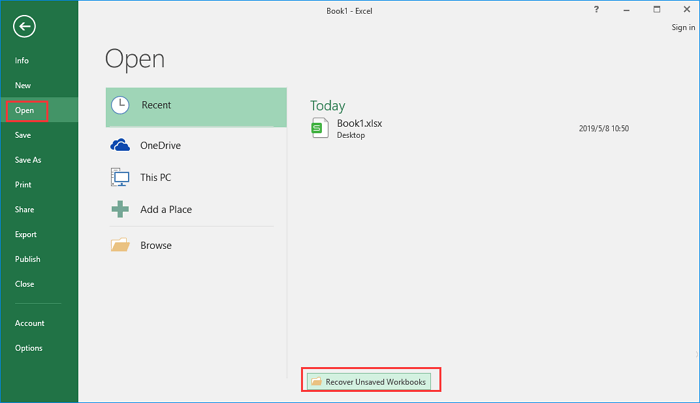
Step 1.To recover an unsaved Excel workbook, open Excel, click on "File" in the top left corner, select "Open" from the dropdown menu, and then choose "Recent" from the next dropdown menu. Finally, click on "Recover Unsaved Workbooks" located at the bottom left corner of the window.
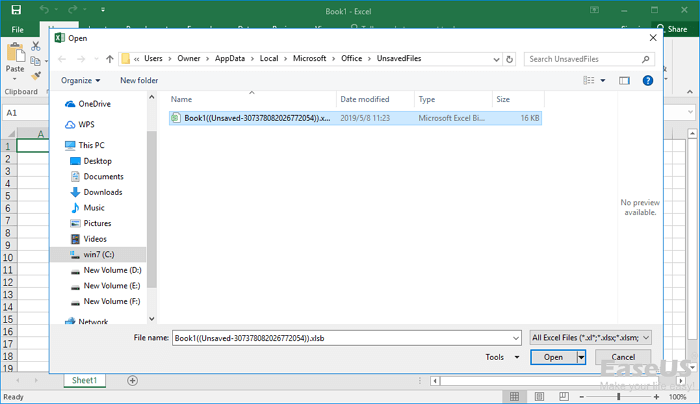
Step 2.To recover an unsaved file, select it and click the "Open" button, then choose "Save As" from the pop-up window.
Method 2. Using Manage Workbooks
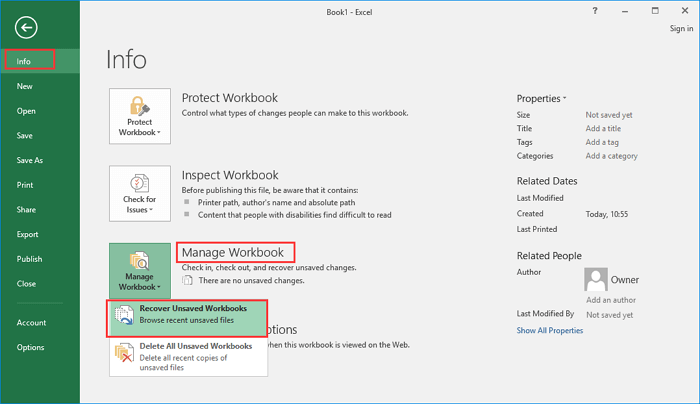
Step 1.To recover unsaved Excel workbooks, open Excel and click "File" > "Info" > "Manage Workbook" from the top menu, then select "Recover Unsaved Workbooks" from the drop-down menu.
Step 2. Select the unsaved file and click the "Open" button. Then, on the pop-up window, choose "Save As" to recover it.
How to Recover Lost/Deleted Excel Files with Data Recovery Software
If you've lost an unsaved Excel document, you can try recovering it from Excel's temporary files. However, if you've lost a saved Excel file due to accidental deletion, storage device formatting, system corruption, or a virus attack, the above solutions won't work. In such cases, you may need to explore other data recovery options, such as using a third-party data recovery software, checking the Recycle Bin, or seeking professional help from a data recovery service.
To recover deleted or lost Excel files, you can use the innovative Deep Data Recovery software, which is famous for recovering deleted files at a high recovery rate in the easiest way. This versatile data recovery tool supports various document file formats, including DOC/DOCX, XLS/XLSX, PPT/PPTX, PDF, CWK, HTML/HTM, INDD, EPS, and more.
Qiling Excel Recovery and Repair Tool
- Recover Excel files from various storage devices, including formatted hard drives, emptied recycle bins, USB drives, SD cards, pen drives, and external hard drives, among others.
- You can repair corrupted Excel files, as well as damaged photos, videos, and Word documents, for free after data recovery.
- Excel file recovery is crucial for various situations, including sudden deletion, formatting, hard drive corruption, virus attacks, and system crashes. In the event of a file being accidentally deleted, Excel's built-in recovery feature can help retrieve it.
To recover deleted Excel files, download and use Qiling data recovery software, which can retrieve lost files in just three simple steps.
Step 1. Select file types and click "Fast Scan" to start
To recover lost files, launch Deep Data Recovery, select the desired file types, and click "Fast Scan" to initiate the recovery process.

Note: You can choose different search modes based on where and why the data was lost.
Step 2. Select location and click "Scan"
Select the drive or folder where the Excel files are located and click the "Scan" button to start the recovery process.

Step 3. Locate your excel files
To quickly find the Excel files from the scan results, click the "Documents" option in the left panel, select "Excel" and click "Preview" to verify if the Excel files are the desired ones.

Step 4. Recover Excel files
Select the desired Excel files, click the "Recover" button, and choose a folder to save the recovered Excel files to another location.
Conclusion
Losing Excel files, whether unsaved or saved, is a frustrating experience. If you've lost an unsaved document, you can try recovering it from Excel's temporary files. However, if you've lost a saved file or want to restore a permanently deleted one, you'll need to use a data recovery tool like Qiling to retrieve it.
Deep Data Recovery can recover permanently deleted files from various storage media, including HDD, SSD, USB flash drive, SD card, and more, with a high success rate.
Extra Tip: How to Enable AutoSave Feature in Excel to Create Temp Files
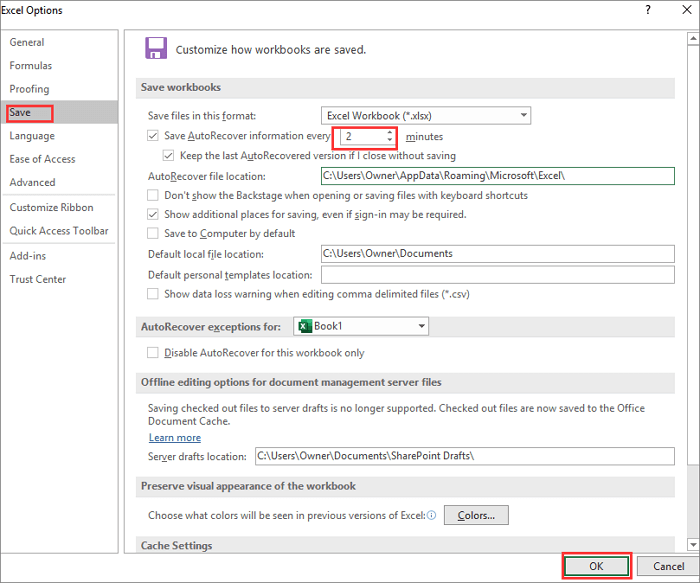
To turn on the AutoRecover feature in Excel, follow these steps:
Step 1. Open Excel go to "File" > "More" > "Options".

Step 2. To save your work, select the "Save" option on the left panel, then tick the boxes for saving AutoRecover information every specified minutes and keeping the last autosaved version if you close without saving.
Step 3. Click "OK" to save the changes.
Related Articles
- How to Recover Unsaved Word Document 2019/2018/2016/2013/2010/2007
- Recover Deleted Files from Downloads Folder
- Repair Corrupted PSD Files with Online Free PSD Recovery Tool
- How to Recover Unsaved Word Document After Computer Restarts/Shutdown
- SD Card Data Recovery with SD Card Recovery App
Looking for SD card recovery app to recover deleted, formatted or lost files from SD card? This article walks you through the whole process for how to used SD card recovery app to recover data from SD card - How to Show Hidden Files in USB on Windows PC/Mac
Want to show hidden files on your USB flash drive? This article provides a step-by-step guide to help you.
Products
Articles & Tutorials
- Data Recovery
- Data Backup
- File Recovery
- File Backup
- System Backup and Restore
- Disk and Partition Clone
- Technical articles
- Mobile articles
- Disk Master Help
- Windows Data Recovery Tutorials
- Windows Secure Delete Tutorials
- Windows Partition Management Tutorials
- Windows File Backup and Restore Tutorials
- Windows System Backup and Restore Tutorials
- Windows Disk Backup and Restore Tutorials
- Windows Clone Tutorials