How to Recover Formatted Hard Drive/SD Card/USB Data Using CMD
To recover a formatted SD card using the Command Prompt, you can use the built-in Windows utility called `chkdsk`. First, insert the SD card into a card reader and connect it to your computer.
You can try using the built-in Command Prompt (CMD) on Windows to recover files from a formatted SD card. Open CMD, navigate to the drive where the SD card is mounted, and use the `chkdsk` command to scan the card for recoverable files. Alternatively, you can use the `dir` command to list the files on the card, and then use the `copy` command to transfer the files to your computer. However, please note that the effectiveness of these methods depends on the type of files and the extent of the formatting. It's also recommended to stop using the SD card immediately to prevent overwriting the data.
It's no longer a new problem for users to lose files and data while formatting a hard drive, SD memory card, USB, or other storage devices. When coming across this problem, you have two free methods to recover formatted data from hard drive/SD memory card/USB.
To recover deleted files from formatted storage devices, follow these steps: First, stop using the device immediately to prevent overwriting of deleted data. Next, download and install a reliable data recovery software, such as Deep Data Recovery, which supports various file systems, including NTFS, FAT, and HFS+. Then, connect the formatted device to your computer and run the software.
How to Recover a Formatted Hard Drive/SD Card/USB Using CMD
When you delete, hide, or format a storage device, you may be able to recover lost data using CMD commands.
- Notice:
- Be extremely cautious when using CMD commands to recover data from a formatted hard disk, SD card, or USB drive, as incorrect operation can lead to further complications. If CMD fails to locate your lost files or you're unsure how to use it, you can skip this method and instead use a hard drive recovery software to easily recover your data without any technical hassle.
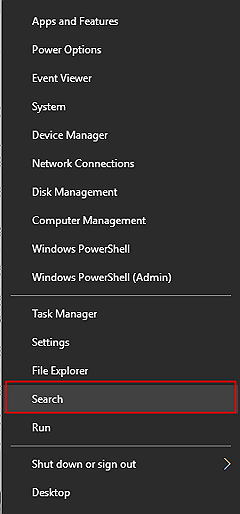
1. Connect your Hard disk/SD card/USB to the system. Right-click on the Windows icon and select "Search" from the menu.
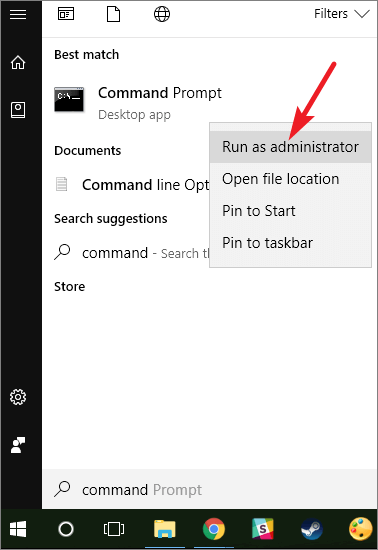
2. To run Command Prompt as administrator, open the Command Prompt application, right-click on it, and select "Run as administrator" from the context menu. Click "Yes" to confirm and run the application with elevated privileges.
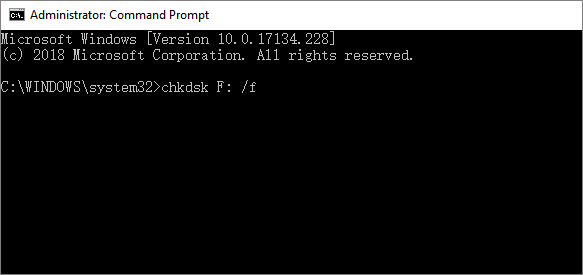
3. To run a check on a drive and potentially recover lost files, you can type `chkdsk F: /f` in the Command Prompt and press Enter, replacing `F:` with the drive letter of the affected device. This command initiates a thorough check of the drive and its files, and the `/f` option forces the check to run even if it's been used recently. This can help identify and potentially recover lost or corrupted files.
4. Type: Y and hit Enter to continue.

5. Type: F and hit Enter again.
Type: F:\>attrib -h -r -s /s /d *.* and hit Enter. (Replace F with the drive letter of the device where you lost files or data.)

After using the method, your lost files will be found and saved in a newly created folder on an SD memory card, USB drive, or hard drive. You can change the file extension back to a normal format and make the found files reusable again. If this method is unsuccessful, you can continue using a CMD alternative to help you out and undo the format on your storage device on Windows 10/8/7.
How to Recover a Formatted Hard Drive/SD Card/USB with Data Recovery Tool
Deep Data Recovery is a software that serves as a perfect alternative to CMD, allowing users to recover and restore lost data from formatted hard drives in a simple and fast way. In addition to formatted recovery, it can also recover deleted files from emptied recycle bins, lost partitions, corrupted hard disks, raw partitions, and more.
To recover your data, activate this tool as soon as possible, as the sooner you act, the more likely your data will be recovered. Our software is 100% clean and risk-free, ensuring your privacy is safe. If you need help, contact our tech support team for online assistance anytime after activation.
Note: To ensure a high data recovery chance, install Qiling data recovery software on a different disk, rather than the formatted one.
Step 1. Launch Deep Data Recovery, select file types, and click "Format Scan" to begin the recovery process.

Note: You can choose different search modes based on where and why the data was lost.
Step 2. You can recover your lost data by using a data recovery software like Deep Data Recovery. Choose the hard drive partition which you've accidentally formatted and click "Scan".

Step 3. This formatted hard drive recovery software will start scanning for all the lost data and files, and after scanning, you can filter a specific file type to quickly find files you need, or search for specific files or folders to select the data you want to recover.

Step 4. To recover deleted files, first preview the scanned files, then select the ones you want to recover and click "Recover". Next, choose a new location to store the files and click "OK".
After a free diagnosis, Qiling Data Recovery Experts can offer one-on-one manual recovery service, which includes manual data recovery, data backup, and data protection. They can also provide customized recovery solutions for specific data loss scenarios, such as corrupted files, deleted data, and formatted drives. Additionally, they can assist with data migration, data transfer, and data recovery from various storage devices, including hard drives, solid-state drives, memory cards, and USB drives.
- To repair a corrupted RAID structure, unbootable Windows OS, and corrupted virtual disk file, you can try various methods. For RAID corruption, running a disk check (chkdsk) or using a RAID recovery tool like Deep Data Recovery can help. If the issue persists, booting from a Windows installation media and running the built-in System File Checker (sfc) or DISM tool can fix corrupted system files. For corrupted virtual disk files (.vmdk, .vhd, .
- Recover/repair lost partition and re-partitioned drive
- Unformat hard drive and repair raw drive (BitLocker encrypted drive)
- Fix disks that become GPT protected partitions
Bonus Tip: Format Hard Drive/SD Memory card/USB to Use Again
After recovering data from a formatted or unformatted SD card, USB drive, or hard drive, it's also essential to format the storage device again to a workable file system, such as NTFS or FAT32, to ensure it's ready for use.
- 1. Connect the formatted or unformatted storage devices to your PC.
- 2. To format your device, open the File Explorer or This PC/My Computer, right-click on your device, and select the "Format" option. This will erase all data on the device and start the formatting process.
- 3. To restore system files to their original state, change the file system to NTFS or FAT32. This will make them usable again.
You can use the Disk Management tool in Windows to format and reset storage devices like memory cards, USB drives, and hard drives. This will allow you to reuse them to save and store data again.
If the formatted device is specifically an SD card, recover its files before further formatting or repair and save them outside the card.
Related Articles
- Free Toshiba HDD Recovery: Perform Toshiba Hard Drive Recovery for Free
- Free PST Recovery Software
- How to Recover Files from Corrupted External Hard Drive
- Recover Deleted Files Windows 10 | 6 FREE Ways
- Kingston Recovery Tool – Recover Data from Kingston SSD/USB Drive/SD Card
Kingston recovery tool software enables you to repair and recover Kingston SSD, USB drive, memory/SD card or flash card data on Windows or Mac due to deleted, formatted or RAW Kingston drives. - Data Recovery Software for MMC Card - Recover Data from MMC Card
The data recovery software for MMC card allows you to recover deleted or formatted documents, photos, videos, pictures and more from the MMC card. Get this tool to find the MMC card files.
Products
Articles & Tutorials
- Data Recovery
- Data Backup
- File Recovery
- File Backup
- System Backup and Restore
- Disk and Partition Clone
- Technical articles
- Mobile articles
- Disk Master Help
- Windows Data Recovery Tutorials
- Windows Secure Delete Tutorials
- Windows Partition Management Tutorials
- Windows File Backup and Restore Tutorials
- Windows System Backup and Restore Tutorials
- Windows Disk Backup and Restore Tutorials
- Windows Clone Tutorials