How to Recover Files from Folder Lock Without Password Step-by-Step
When users forget their password, they will be locked out and unable to access their locked files and data. Professional users and geeks have provided three methods to unlock Folder Lock without the password.
Overview: Unlock a Password Protected Folder in Windows 10
In the second part, we will provide 3 ways to unlock a folder and 2 ways to securely recover lost files from Folder Lock. Read on to get the full guide.
| Workable Solutions | Step-by-step Troubleshooting |
|---|---|
| 3 Ways to Unlock Folder Lock |
|
| Recover Lost Files after Removing Folder Lock Password |
|
PLUS: The solutions provided on this page can be applied to unlock all versions of Folder Lock without a password on Windows 10, 8, 7, and even older Windows systems.
How to Unlock Folder Lock If Password Forgotten
"I locked one of the folders in my laptop (Windows 10) by using a password-protected code. I just put the code on a notepad, create a folder, and locked it. It's a Windows batch file (cmd.exe). I have totally forgotten my password now and tried at least 30 times to open it. Unfortunately, the password was wrong and it didn't work.
Can somebody please tell me how can I unlock that folder? or delete this cmd.exe application from my laptop? As this folder contains very important files and I need them on an urgent basis."
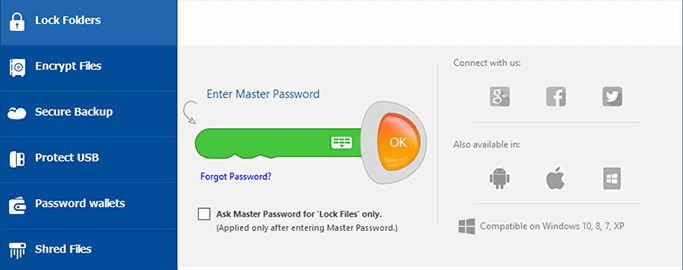
Folder Lock is a powerful software that safeguards vital data and files on a Windows PC by setting password protection on selected files and folders. It also allows users to hide files, encrypt files, and securely delete files.
Many Folder Lock users have experienced the same issue of forgetting their password, making it impossible to open the application. If you're having the same issue or are unable to access Folder Lock, even after forgetting your password, don't worry - there are solutions available.
You'll learn verified solutions to remove the password from Folder Lock and restore all lost files with ease in the following two parts.
Part 1. Unlock Folders and Files, Remove Folder Lock Password
3 major methods to remove malware from your computer are:
Method 1. Unlock Folders/Files (Use Folder Lock Serial Key as Password)
Offered by: www.newsoftwares.net
If you've forgotten the master password for Folder Lock, you can use the Serial Number you provided during registration as an alternative master key. This workaround is mentioned in an FAQ post on the website www.newsoftware.net.
Note: The Master Key option must be enabled in Password Security Settings for the feature to work. If you're unsure how to enable this setting, contact the Folder Lock support team for assistance.
To unlock Folder Lock with your serial key, first, download and install the software from the official website. Then, launch the application and click on the "Enter Serial Number" button.
Step 1. Open Folder Lock and click "Lock Folders".
Step 2. To unlock the software, enter your serial number in the password field and click "OK".
Step 3. To unlock your folder and files, you can try using a password reset tool or contacting the system administrator for assistance. They can help you regain access to your locked content.

Method 2. Remove Password from Locked Files by Uninstall Folder Lock
Offered by: YouTubers, geeks from tech forums.
Note: If you are a trial user with a serial key, try using the serial key to directly unlock files and folders, as it may be the most straightforward method to access the locked content.
This method is designed to assist users who are unable to access their Folder Lock due to not having a serial key or password.
How to Access Secure Folder without Password:
Step 1. Open Registry Editor:
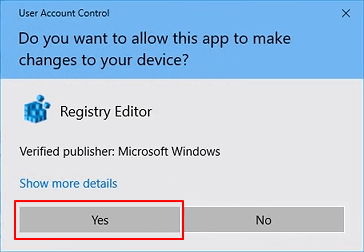
To open the Registry Editor, click "Start" in Windows, then open the "Run" dialog, type "regedit" and hit Enter, and finally click "Yes" to open the Registry Editor.
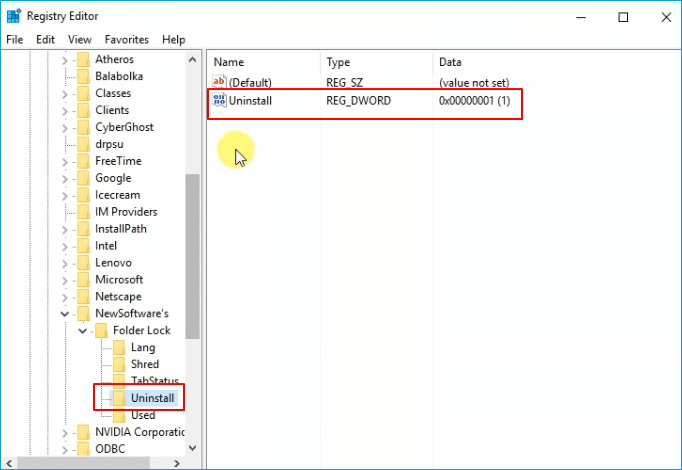
Step 2. Go to: HKEY_CURRENT_USER/SOFTWARE/NewSoftware's/Folder Lock/Uninstall.
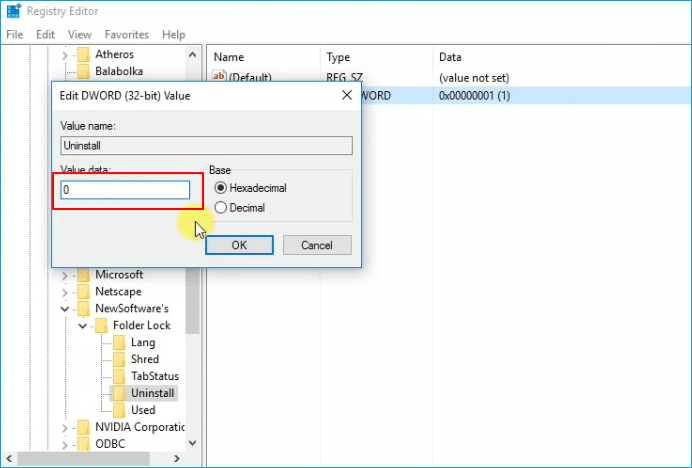
Step 3. To disable the Windows 10 built-in OneDrive, double-click the "Uninstall" entry, change the value data from "1" to "0", and click "OK".
Step 4. Exit Registry Editor, open Task Manager, and end task of all running applications, programs.
Step 5. Go to Apps & Features, search and find "Folder Lock".
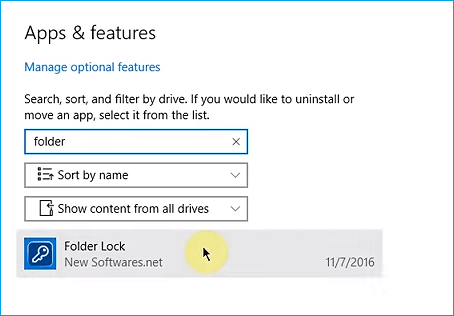
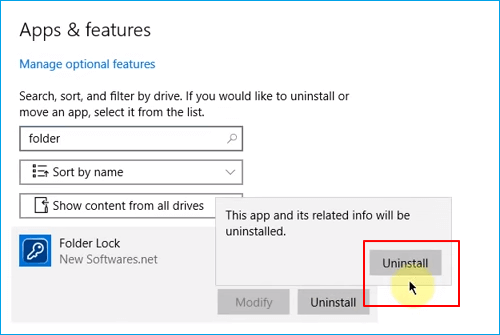
Step 6. To uninstall Folder Lock, hover your mouse over the program icon, click on it, and select "Uninstall". Then, confirm the uninstallation by clicking "Uninstall" again in the pop-up window.
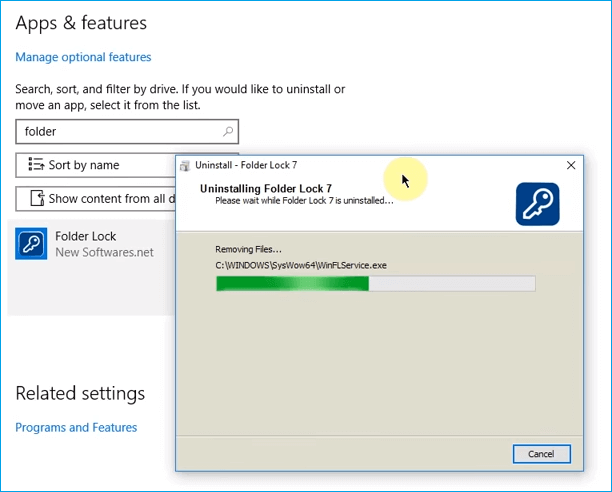
Step 7. Wait for the uninstalling process to finish.
After unlocking the folders with Folder Lock, you can directly access your previously locked files and folders with ease.
If you want to use Folder Lock to protect your files again, you can simply re-download and re-install it on your PC to continue using its service.
Method 3. Stop Folder Lock Password Protection
Offered by: geeks from tech forums.
This method is designed to help users remove password protection from Folder Lock by rebooting the PC from Safe Mode and removing the folder's access permission, thereby bypassing the password requirement.
Note: Be careful while you are following the steps below to remove password protection.
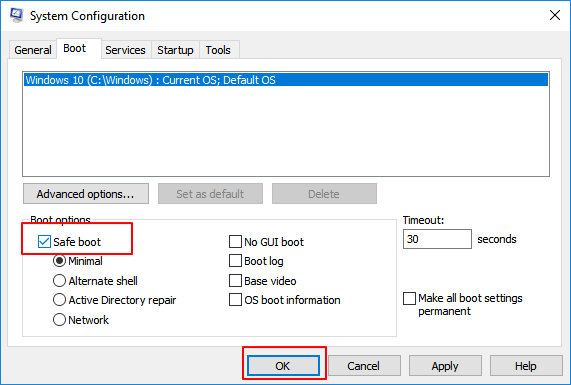
Step 1. Restart Windows from Safe Boot Mode:
- Press Win + R to open the "Run" dialog > Type: MSCONFIG and hit Enter.
- Click "Boot" in the "System Configuration" dialog.
- Select "Safe Boot" with minimal radio button > "OK".
- Click "Restart" when another dialog appears to ask you to restart Windows in Safe Mode.
Step 2. After restarting the computer in Safe Mode, reinstall Folder Lock.
Note: After installing Folder Lock, do not click the Finish button. Instead, continue with the steps that follow to complete the setup process.
Step 3. Remove folder access permission
- To unlock your folder, go to the file or folder location where it's currently locked, and it should reappear.
- Right-To unlock a file or folder locked by Folder Lock, click on the locked item and select "Properties" from the context menu.
- Click "Security" > "Edit".
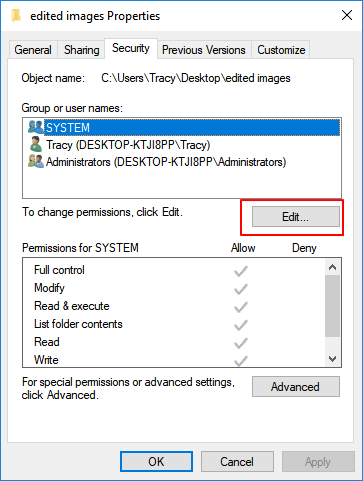
- Now you'll see the "Group", user names box.
- The user names are System, Your Name and Administrator, etc.
- When you select a username, you'll see a list of checkboxes in the "Permission" section for that user, including options like "Full control", "Modify", "Read & execute", "List folder contents", "Read", and "Write".
- Uncheck all Deny boxes and repeat the process for all other usernames.
- Click "OK".
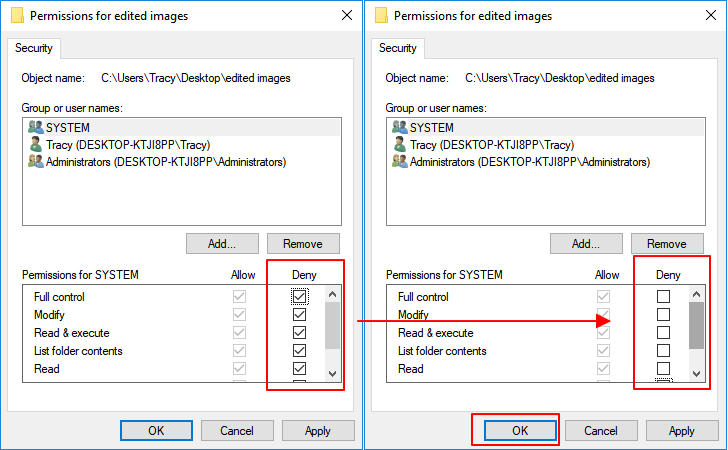
Note: If Windows prompts you to verify the folder permission change, click "Yes" to confirm the modification.
After disabling folder password protection, you should now be able to access the folder and copy files to a secure location.
Part 2. Recover Lost Files after Removing Folder Lock Password
Now you can view, find, and reuse your saved files in Folder Lock or folders again without needing any passwords. If you can't find a wanted file in the target folder, you can follow one of the methods offered below to recover your lost files.
For a higher data recovery rate, we recommend using robust data recovery software to recover folders in a timely manner, saving you time and effort.
To recover lost files from a folder, use file recovery software like Deep Data Recovery. This software can scan the folder and its subfolders to find deleted files, even if they've been overwritten. Simply download and install the software, select the folder to scan, and let the software do its job.
Deep Data Recovery is a professional file recovery software that allows users to easily view, find, and recover all present and lost files in a folder with just a few clicks.
Reliable Data Recovery Software
- To restore data after formatting, emptying the recycle bin, a virus attack, system crash, or other unexpected events, you can use various methods. One approach is to utilize data recovery software, such as Deep Data Recovery, to scan the affected device and retrieve lost files.
- Use a data recovery software to restore files from various storage devices, including SD cards, hard drives, USB flash drives, memory cards, digital cameras, and more. The software can scan the device, identify recoverable files, and allow you to select and save them.
- This software supports over 1000 types of files, including popular formats like DOC/DOCX, XLS/XLSX, PPT/PPTX, as well as audio and video files such as AIF/AIFF, M4A, and many others.
Follow the below guidelines to find all your files in Folder or Folder Lock now:
Step 1. Run Deep Data Recovery. Select file types and click "Fast Scan" to start the recovery process.

Note: You can choose different search modes based on where and why the data was lost.
Step 2. This software allows you to recover lost data from all devices, including HDD, SSD, USB drive, SD card, USB flash drive, camera, etc., by scanning the drive where the lost files were located.

Step 3. Qiling data recovery software allows you to browse the full scan results and select the file type you need by clicking on the file type filter, supporting over 1000 file types such as photos, videos, documents, emails, audio files, and more.

Step 4. To recover data from selected files, click "Recover" and choose a storage location to save the recovered data.
To recover deleted photos from Folder Lock app, you can use the app's built-in recovery feature or a third-party recovery software. If the photos were deleted from the app itself, you can try to recover them by reinstalling the app and then restoring the backup.
Note: If your files are not showing up, it's possible that they're just hidden. To fix this, you can try setting files to unhide in a folder. This method shows you how to do that.
Method 2. Show or unhide hidden files in Folder/Folder Lock
To show or unhide all hidden files in a folder, follow these steps:
Step 1. Right-click the Start or Windows icon, select "Search".
Step 2. To open File Explorer Options, select the "View" tab, then click on "Show hidden files and folders" in the list of options on the right side of the window. This will allow you to see and interact with files and folders that are normally hidden from view.
Step 3. To access the Advanced settings on your computer, navigate to the "View" tab and click on "Show hidden files, folders, and drives". Then, click "OK" to confirm the change.
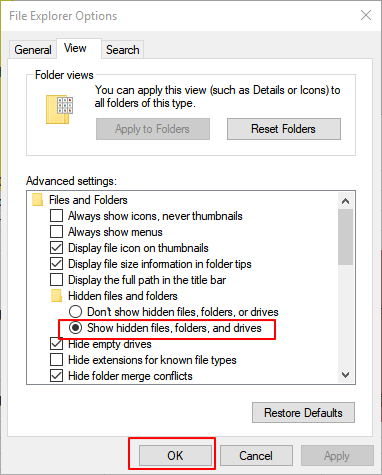
You can then check your folder to see if the missing files show up.
To Sum Up
This page provides three methods in Part 1 to help remove Folder Lock password protection without a password, allowing you to access locked files again.
When you can't see any files in a folder, you can try two methods from Part 2 to recover them. If you're still having trouble, check out our How-To or File-Recovery pages for more help.
Folder Lock Forgot Password | Anvi Folder Locker FAQs
1. Anvi Folder Locker Reset Key | How Do I Unlock Anvi Folder Locker without Password?
Anvisoft's Anvi Folder Locker stopped running in 2016, so it no longer supports resetting the folder locker key.
Steps to unlock Anvi Folder Locker without password:
Step 1. Run Windows in "Safe Mode".
Step 2. Move to the targeted folder, press "Ctrl+C" and "Ctrl+V", then move the files to another folder without needing a password.
Step 3. Exit "Safe Mode".
2. Can Folder Lock be hacked?
Folder Lock is a secure tool that protects your files and folders from unauthorized access, making it impossible for hackers to breach your data.
3. How to Recover Files from Folder Lock?
Step 1. Free download and run Deep Data Recovery Free.
Step 2. Scan the lost/deleted files from Folder Lock.
Step 3. Preview and recover the lost files.
Related Articles
- How to Recover Folders Turned into .exe | Remove exe Virus
- Word 2010/2013/2016/2019 Keeps Crashing When Saving [Solved]
- Excel Cannot Open the File Because The File Format or File Extension Is Not Valid
- Inkscape Recovery: How to Recover Lost/Unsaved Inkscape Files
- How to Permanently Delete Files from Recycle Bin
Emptying does not mean permanently delete files from the recycle bin. Check out the guidelines for how to completely delete files from recycle bin without recovery. - How to Permanently Remove Sensitive Files and Data from a Computer (PC & Mac)
You can use Qiling File Shredder to delete sensitive files and data from a Windows computer and Disk Utility as well as Terminal Command to remove sensitive files on Mac.
Products
Articles & Tutorials
- Data Recovery
- Data Backup
- File Recovery
- File Backup
- System Backup and Restore
- Disk and Partition Clone
- Technical articles
- Mobile articles
- Disk Master Help
- Windows Data Recovery Tutorials
- Windows Secure Delete Tutorials
- Windows Partition Management Tutorials
- Windows File Backup and Restore Tutorials
- Windows System Backup and Restore Tutorials
- Windows Disk Backup and Restore Tutorials
- Windows Clone Tutorials