EFS Decryption Guide: How to Recover Encrypted Files on NTFS Drive Without Effort
About Encrypting File System (EFS)
Encrypting File System (EFS) protects critical and sensitive files on NTFS volumes with a certificate or key, requiring unauthorized users to ask permissions to access files and folders, with Microsoft Windows denying access to locked data. If an EFS-encrypted hard drive is moved to another computer, access to encrypted files is also denied.
EFS (Encrypting File System) is a Windows feature that allows individual file and folder encryption. This article focuses on unlocking EFS-encrypted files. If you're looking for solutions to decrypt BitLocker files or recover encrypted files by ransomware, please visit the linked pages.
How to Open EFS Encrypted File
There are typically two types of users requesting EFS decryption: those who have the password and those who don't, often due to their own mistake or key corruption.
1. Use the password
EFS encrypted files have a lock icon, which can be unlocked by logging in with a password.
2. Without Using the password
If you're unable to access your encrypted files due to a forgotten password or corrupt encryption keys caused by a hard drive error, you can use the File Properties to decrypt EFS files.
Step 1. Press Windows + E to open file explorer. Right-click on the file and select Properties.
Step 2. Switch to the Security tab, and click Advanced.
Step 3. Clear the Encrypt Contents to Secure Data check box.
How to Recover Deleted EFS Encrypted Files
Due to careless operations on encrypted files, such as deletion, formatting, or virus infection, they disappeared unexpectedly. To recover lost EFS encrypted files, you can use Deep Data Recovery to retrieve them from a Windows NTFS hard drive, USB flash drive, or SD card without any hassle.
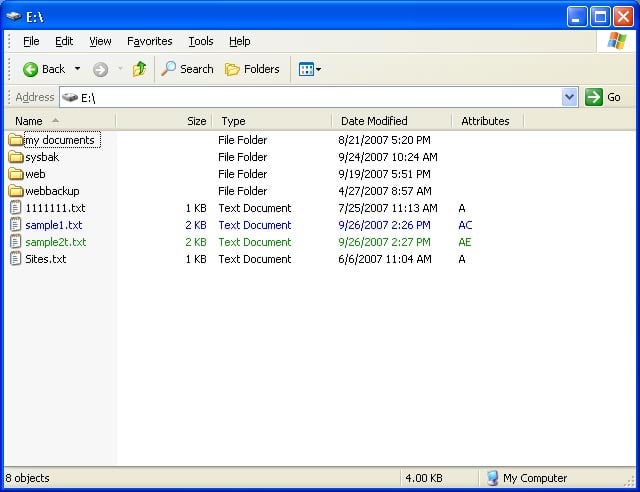
The efficient and easy-The EFS Recovery Tool provides a simple solution to recover encrypted files from NTFS drives and external hard drives, but requires either the encryption password or the presence of the SAM database (for Windows 2000, XP, 2003, Vista, 2008, Windows 7, 8). Additionally, the user must have administrator privileges to use the tool. A sample encrypted file, "sample2.txt", is provided as an example of an encrypted file from an NTFS drive.
Step 1. Run Deep Data Recovery. Select file types and click "Fast Scan" to begin the recovery process.

Note: You can choose different search modes based on where and why the data was lost.
Step 2. To recover lost files, select the partition where the files were stored and click "Scan". Qiling data recovery software supports partition recovery with various file systems, including FAT (FAT12, FAT16, FAT32), exFAT, NTFS, NTFS5, ext2, ext3, HFS+, and ReFS.

Step 3. If you want to quickly find the lost data from the numerous scan results, you can use the filter or search function.

Step 4. You can preview files before recovery, then select all desired data and click "Recover" to restore files from existing partitions, but do not save the files to the partition where you lost the data.
Note:
- The software is not compatible with FAT partitions and requires recovered encrypted files to be copied to an NTFS partition.
- It must work on the present Windows system.
- The recovered files are still encrypted.
Related Articles
- How to Empty Recycle Bin on Windows 10 (On a Schedule)
- 7-Zip Data Error Fix (4 Methods)
- How Do I Fix Unreadable Content in Word (Windows/Android)
- HDD Unallocated Space Data Recovery
- Why C Drive Is Full and How to Make Space
Are you facing the issue of a full C drive on your Windows device? this guide will walk you through the process of solving the problem and freeing up space on your C drive. - How to Fix "Get Windows ready don't turn off your Computer" 2021
If you get the message 'Windows 8 getting Windows ready, don't turn off your computer', you should learn the solutions to solve this problem. Check out the details.
Products
Articles & Tutorials
- Data Recovery
- Data Backup
- File Recovery
- File Backup
- System Backup and Restore
- Disk and Partition Clone
- Technical articles
- Mobile articles
- Disk Master Help
- Windows Data Recovery Tutorials
- Windows Secure Delete Tutorials
- Windows Partition Management Tutorials
- Windows File Backup and Restore Tutorials
- Windows System Backup and Restore Tutorials
- Windows Disk Backup and Restore Tutorials
- Windows Clone Tutorials