How to Recover Deleted Worksheet in Excel
You can learn how to undo deleted sheets in Excel and recover permanently deleted Excel documents using data recovery software, as well as recover unsaved Excel files effectively.
| Workable Solutions | Step-by-step Troubleshooting |
|---|---|
| 1. Recover deleted worksheet |
Method 1. Go to "File" > click "Save as" > re-open the original Excel document > copy...Full steps Method 2. Open the excel file > click "Home" > click "History" > click "Previous"......Full steps |
| 2. Recover deleted Excel file | Download Excel file recovery software > choose a location to scan > preview and recover...Full steps |
| 3. Recover unsaved Excel file | Open Excel > click "File" and "Info" > click "Manage Workbook" > choose Recover...Full steps |
Working on an Excel document, you may accidentally delete a worksheet tab with essential data, leaving you with a difficult decision. You can either close the Excel file without saving to restore the deleted worksheet, or click the save button to keep all changes, but lose the chance to undo the deletion. Each choice comes with a trade-off, making it tough to decide.
Now that you are here, you can find solutions to this dilemma.
Recover Deleted Sheet (Data) in Excel 2007/2010/2013/2016
You can learn how to recover deleted sheets and data in Excel without losing any changes from a graphic tutorial.
Method 1. Recover Deleted Worksheet in Excel Before Saving
When you delete a sheet in Excel, there's no Undo option, but you can recover it by closing your workbook without saving changes and then reopening it. However, if you've made significant changes and don't want to lose them, you can try a different approach. To recover the deleted sheet, you can use the "File" menu to open the workbook in "Safe Mode" (hold the Shift key while opening the file). This will allow you to recover the deleted sheet without overwriting your existing changes. Alternatively, you can also try using the "File" menu to "Open a Copy" of the workbook, which will create a new copy of the file without the deleted sheet, allowing you to recover it without affecting the original file.
1. To save your current Excel document with a different filename, go to the "File" tab and click on "Save As". This will allow you to save your working document with a new name, while keeping the original file intact.
2. Re-open your original Excel document.
3. Copy the deleted worksheet from the original file to the new renamed document.
This method will help you recover deleted worksheet data to the new renamed Excel document and preserve all changes made to the Excel.
Method 2. Recover Deleted Worksheet in Excel After Saving
If you've saved your working Excel document, the original files will be overwritten and there's no way to restore the deleted worksheet. However, you can try to recover the original Excel document via the Previous Version.
1. To open the folder where the Excel document was saved, press the Windows key + E to open File Explorer, and then navigate to the folder where the document is located.
2. To view the files contained in the most recent backup of a folder, click on the Excel file, go to the "Home" tab on the toolbar, and then click the "History" button in the Open group. This will instruct File History to display all the files contained in the most recent backup of that folder.
3. To recover a deleted Excel worksheet, click the "Previous" button to locate and choose the version you want to restore, and then click the green "Restore" button to undelete the worksheet.
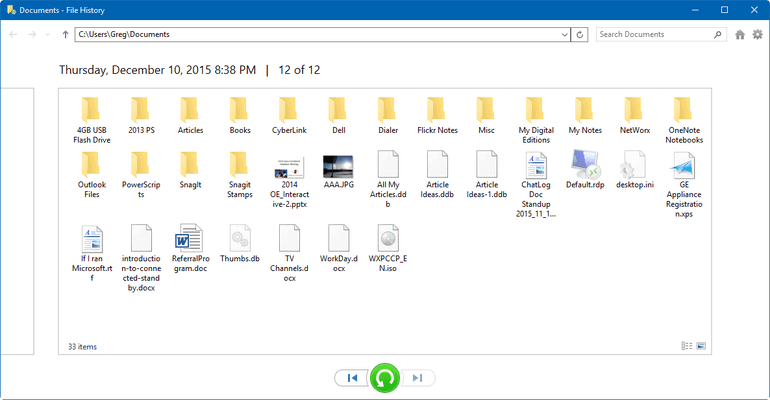
If you've accidentally deleted a sheet in Excel, you can recover it using the methods in this guide. However, if you've deleted the entire Excel document instead of a single sheet, you can still recover the file. To do this, you can try using Excel's built-in recovery feature, or you can also try using third-party software or online tools that specialize in recovering deleted files. In either case, act quickly, as the sooner you try to recover the file, the better your chances of success.
How to Recover Deleted Excel Files on Windows 10/11
Losing an Excel document can be frustrating, especially when it's due to unexpected deletion, hard drive formatting, device damage, or an OS crash. However, you don't have to give up hope. Deep Data Recovery can help you restore the lost Excel file, even if it's been permanently removed.
Qiling Deleted File Recovery Software
- Recover lost or deleted files, documents, photos, audio, music, and emails easily with advanced data recovery software. This technology allows you to restore deleted content from various devices, including computers, smartphones, and external hard drives, even after accidental deletion, formatting, or system crashes.
- Recover files from various storage devices, including SD cards, USB flash drives, the Recycle Bin, memory cards, digital cameras, and camcorders.
- After recovering data, you can also repair corrupted files, including corrupted Excel files, using software like Excel's built-in repair feature, or third-party tools like Excel Recovery or Repair Toolbox. These tools can help restore damaged Excel files to a readable state, saving you time and effort.
Step 1. Select file types and click "Fast Scan" to start
Launch Deep Data Recovery, select the desired file types, and click "Fast Scan" to initiate the recovery process.

Note: You can choose different search modes based on where and why the data was lost.
Step 2. Select location and click "Scan"
Choose the drive or a specific folder on your Desktop or somewhere else where you lost the Excel files, and click the "Scan" button.

Step 3. Locate your excel files
To quickly find Excel files from the scan results, click on "Documents" in the left panel, select "Excel", and then click "Preview" to verify the files.

Step 4. Recover Excel files
Select the desired Excel files, click the "Recover" button, and choose a folder to save the recovered Excel files.
You can recover unsaved and deleted Word documents in Windows 10 by using the Windows File Recovery tool, which can retrieve files from a corrupted or damaged drive. Alternatively, you can try using the Word Document Recovery feature, which is built into Microsoft Word, or use a third-party data recovery software such as Deep Data Recovery.
Extra Guide: How to Recover Unsaved Excel Files
When working on a crucial Excel document, it's not uncommon for the power to suddenly go out, causing the file to disappear due to the computer shutting down without a chance to save it. This is a common scenario where Excel data recovery and restoring unsaved files become essential needs.
If you're worried about losing an unsaved Excel document with important data, take a deep breath and relax - Excel's AutoRecover feature can help. You can recover unsaved Excel by following these simple steps.
1. Open Excel, click "File" and then click "Info." Click the "Manage Workbook" button and then choose "Recover Unsaved Workbooks" from the menu.
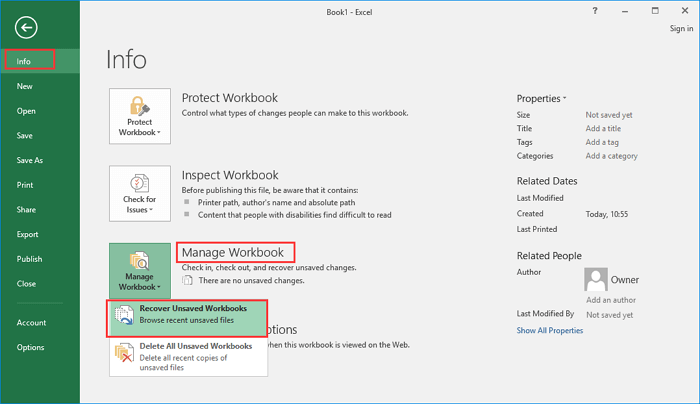
2. After Excel crashes, you can restore your unsaved work by clicking on the "File" tab, then selecting "Recent" and clicking on "Recover Unsaved Workbooks". This will open a window showing all unsaved Excel files. Select the desired file and click "Open" to load the workbook.
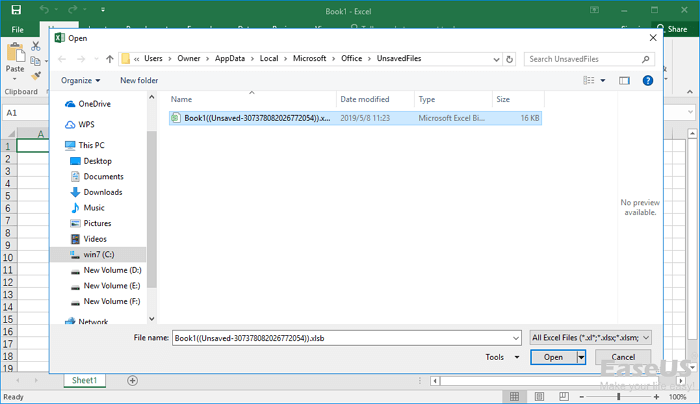
3. To recover the worksheet, click the "Save As" button on the yellow bar.
This solution won't work if the AutoRecover is disabled. You can enable it in this way:
To change the AutoRecover duration in Excel, open the program and click "File" > "Options". In the left navigation pane, click "Save", then change the AutoRecover duration in "Save AutoRecover information every xx minutes" and click "OK".
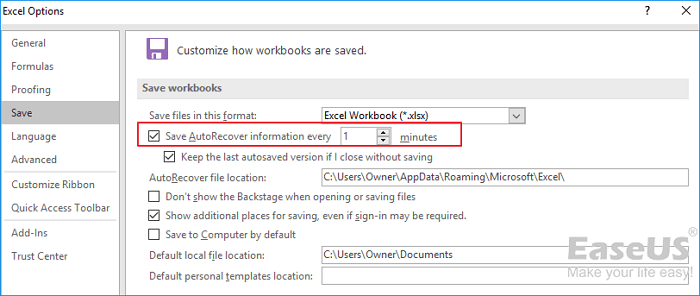
Even if you've enabled automatic saving, your computer will still keep temporary unsaved files for up to four days after the latest version. To ensure data security, it's a good idea to save your documents regularly and back up any saved files to an external hard drive if they're important.
- To recover lost or unsaved Excel files on a Mac, start by checking the Autosave feature, which may have saved a previous version of the file. If that doesn't work, try using the "Recover Unsaved Workbooks" feature in Excel.
Related Articles
- 5 Genius Ways to Fix Powerpoint Found a Problem with Content
- GIMP Recover Last Session: Recover Unsaved/Deleted/Lost GIMP Photos or Files
- How to Recover Deleted User Profile and Files in Windows 10/11
- ISO Recovery: Recover Deleted ISO Files with ISO Recovery Software
- Micro SD Photo Recovery | How to Recover Photos from Micro SD Card
To do Micro SD card photo recovery, you need the help of a tool. The recover Micro SD software will scan your drive, let you recover deleted or lost photos from Micro SD card selectively. Free download it to recover pictures from Micro SD card now! - How to Duplicate Hard Drive in Windows 10
Duplicating a hard drive in Windows 10 is a straightforward process that can be completed with the help of QILING Disk Master Professional. This guide will walk you through the steps to create a complete copy of your disk, ensuring that all your files, settings, and applications are preserved.
Products
Articles & Tutorials
- Data Recovery
- Data Backup
- File Recovery
- File Backup
- System Backup and Restore
- Disk and Partition Clone
- Technical articles
- Mobile articles
- Disk Master Help
- Windows Data Recovery Tutorials
- Windows Secure Delete Tutorials
- Windows Partition Management Tutorials
- Windows File Backup and Restore Tutorials
- Windows System Backup and Restore Tutorials
- Windows Disk Backup and Restore Tutorials
- Windows Clone Tutorials