Recover Deleted Word Documents in Windows 10/11 in 4 Ways
You're having a panic attack because you accidentally deleted your important assignment file just a day before the deadline. Don't worry, there are ways to recover deleted files, especially if you have a backup or a cloud storage service. You can try using the built-in File Recovery feature on Windows or third-party software like Deep Data Recovery, or use Time Machine on a Mac, or third-party software like Qiling file recovery software. If you don't have a backup, you can also try using data recovery services like Deep Data Recovery or Qiling file recovery software. There's still hope to recover your deleted file.
If you're wondering how to recover deleted Word documents, our step-by-step guide is here to help. Whether you have a technical or non-technical background, you can use the hacks to retrieve your files.
Recover Deleted Word Document from Recycle Bin
The Recycle Bin is always an option to recover files and important documents if you haven't deleted them permanently. If your PC's settings aren't configured to delete files permanently or you've used the Shift+Del keys simultaneously, you can still rescue your files.
To recover a deleted Word document from the Recycle Bin, follow these steps: Check if the document is still in the Recycle Bin, if not, skip to the next step. Open the Recycle Bin, navigate to the location where the document was deleted from, and check if it's still there.
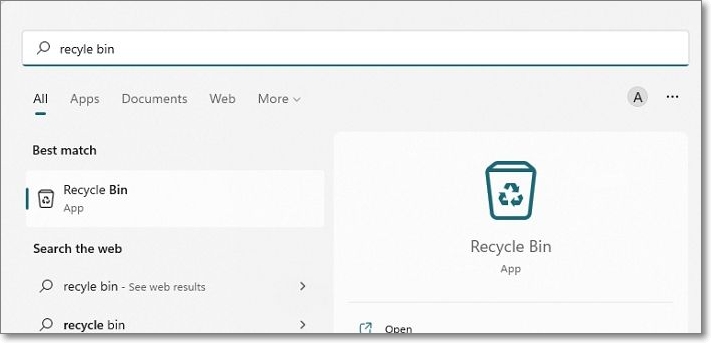
Step 1. To access the Recycle Bin, press the "Win" key on your keyboard to open the Start Menu, then type "Recycle Bin" in the search box and select the result from the list that appears.
Step 2. To find a deleted word document, click on the first search result to open it, and then find your document in the list.
Step 3. Right-click on the document and select the Restore option from the drop-down menu.
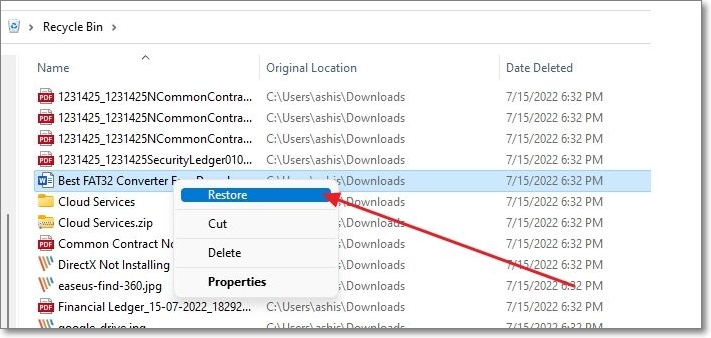
To recover a deleted Word document, start by checking the Recycle Bin on your computer. If you can't find the document, search for it by its name in the Bin, or look for files with the "doc" or "docx" extension. You can also sort the files by date and set them to "Newest first" to make it easier to find the document. Once you've located the file, you can restore it to its original location.
Recover Deleted Word Document from Previous Versions
You can retrieve your lost document using the Previous Versions feature, which restores your file to its initial version, allowing you to get back your file. This is a quick and easy method.
To recover deleted Word Documents from Previous Versions, follow these steps: First, open the Word document where you want to recover the deleted file. Then, click on the "File" tab and select "Info" from the drop-down menu.
Step 1. Open the folder or file where your document was saved, and then click on it to view its contents. If you're not sure where your document was saved, you can also search for it using the search bar.
Step 2. Right-click on the file and select Restore Previous Versions.
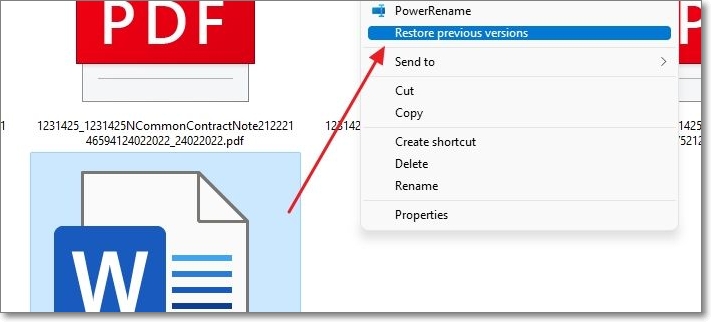
Step 3.A list of previous document versions will be displayed, from which you can select the version you want to restore.
Recover a Previous Version of an Unsaved Word file
To recover a previous version of an unsaved Word file, follow these steps:
Step 1. To open Microsoft Word, navigate to the application on your computer, click on it to open, and then select the "File" option from the top-left side of the ribbon. From the drop-down menu, select the "Info" option. This is the first step to perform the task.
Step 2. To recover unsaved documents, click on "Manage Documents" and then select the "Recover Unsaved Documents" option. From there, go to your File menu and click on "Open" to access the recovered documents.
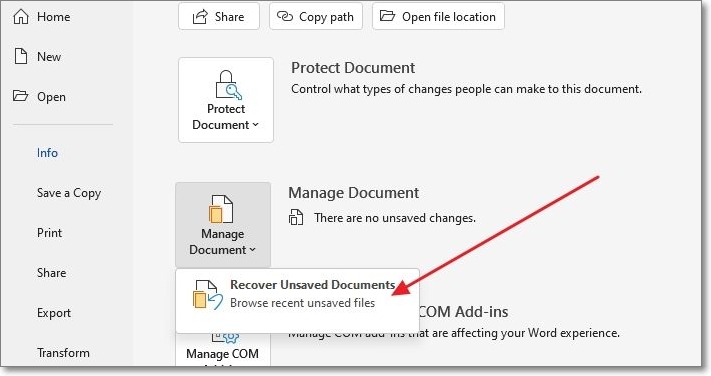
Step 3. To recover a document from a backup file in ASD format, you can open the folder where the backup files are saved and select the relevant file, which can then be opened to retrieve the document.
If your Word document is lost due to a program crash or misoperation, you can restore the unsaved document in various ways. You can try watching a video tutorial that provides a step-by-step guide on how to recover lost Word documents.
Recover Deleted Word Documents from Cloud Drive
Cloud Computing has brought a significant transformation, providing relief to many users by allowing them to store multiple files safely without using their device storage. Microsoft OneDrive is a powerful example of this, enabling users to save various file types, including documents, images, videos, presentations, PDFs, spreadsheets, and more.
If you've uploaded files to Microsoft OneDrive, you can easily recover them, even if you used the Shift+Delete keys for deletion. This means that deleted files can be retrieved, giving you peace of mind and flexibility.
Follow the steps given below to recover deleted Word Documents from OneDrive:
Step 1. Open your browser, go to https://onedrive.live.com, and press the Enter key.
Step 2. Sign in to OneDrive using your credentials. Once you have access, navigate to the Recycle Bin on the left side of the screen.
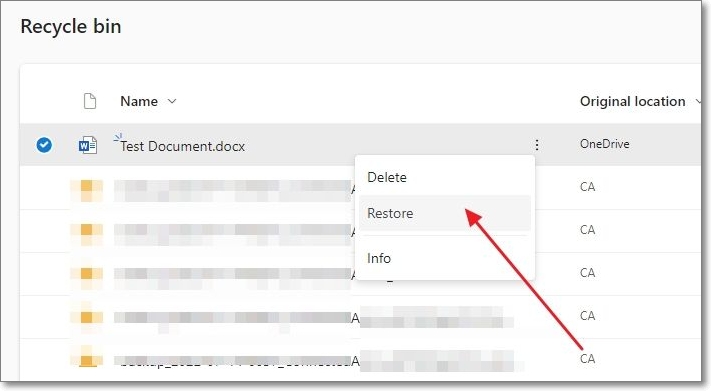
Step 3. To restore a deleted file, right-click on the file and select the Restore option from the drop-down menu.
To retrieve your saved file, you can simply go back to the location where you initially saved it, and your file will be there. The process of saving the file to a different location and then retrieving it is essentially a loop, where the file is saved in a new location and then retrieved back to its original location.
If you saved your Word document in the Personal Vault, you wouldn't be able to find it normally. Instead, you'd have to click on the Show Personal Vault Items from the Recycle Bin to see it listed there.
If you've deleted a Word document, you might be out of luck if you're waiting for it to magically reappear after 30 days, as OneDrive only retains deleted files for that period. However, if you have a Microsoft 365 subscription, the document will be retained for a longer 93 days, giving you a bit more time to recover it.
Recover a Previous Version of Word Document Stored in OneDrive
We have you covered if you want to retrieve a Word Document's previous version stored in OneDrive. You do not have to locate it on your device and follow the long-form procedure; you can easily do so.
Follow the below-mentioned steps to do so:
Step 1. To access a previous version of a document in OneDrive, sign in to OneDrive with your credentials, then navigate to the document whose previous version you want to retrieve.
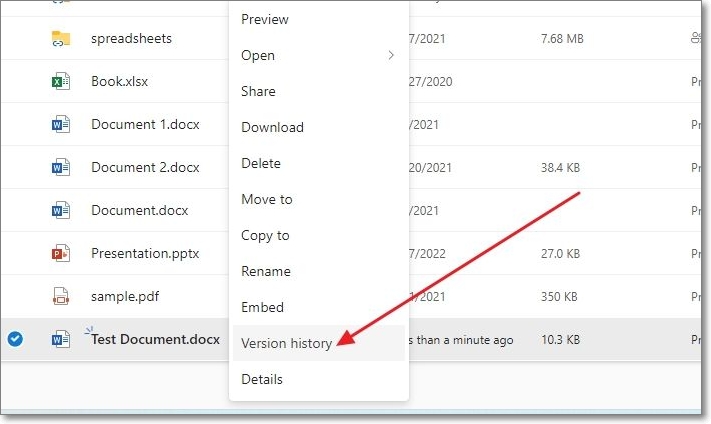
Step 2. To restore a previous version of a document, right-click on it and select Version History from the drop-down menu, then click Restore to retrieve the desired version.
The previous version of your document will now restore.
How to Recover Permanently Deleted Word Documents with File Recovery Software
That's not true. When you delete a document permanently and have no backup, it is typically unrecoverable.
1. Use Windows File Recovery Tool
Microsoft's Windows File Recovery Tool offers a reliable rescue option that utilizes the Command Line interface, similar to cmd or Command Prompt, to recover files of any type. However, this process requires the use of commands, and the tool is limited to working with NTFS-based drives.
However, the Windows File Recovery Tool has a drawback - it requires technical expertise to use, and only those familiar with the Command Line can retrieve files. Additionally, the tool is not compatible with Windows OS versions older than Windows 10 2014, making it inaccessible to some users.
2. Use Qiling Word Document Recovery Software
Spending time learning the command line to retrieve a file urgently is illogical, especially when you need to access a Word Document quickly. Instead, you can use a hack to recover any type of Word Document, even if it's been permanently deleted, removed from the Recycle Bin, or doesn't have a Cloud Drive backup. This hack is useful even if the AutoRecovery feature is turned off, providing a convenient solution in times of need.
Qiling Data Recovery Wizard is a tool that helps recover deleted Word Documents and other file types, even from damaged or corrupt files, and is trusted by over 75,000,000 users in 160 countries.
Features:
- Retrieve deleted files from HDD, SSD, SD card, USB, etc.
- Scan and recover files from any inaccessible storage device
- Recover data from a formatted hard drive
- Supports Recycle Bin recovery, lost partition recovery, and more
- Offers quick and advanced scanning
- Preview before recovery
- Free remote assistance
Here, We provide you the full steps to use Deep Data Recovery to recover your deleted word documents.
Step 1. Select file types and click "Fast Scan" to start
Launch Deep Data Recovery, select the desired file types, and click "Fast Scan" to initiate the recovery process.

Note: You can choose different search modes based on where and why the data was lost.
Step 2. Choose the Word file location
To start the scanning process, select the drive or a specific folder you want to scan and click the "Scan" button.

Step 3. Locate your Word files
The software will immediately start scanning the selected drive for lost data. After the scan, select the "Documents" option in the left panel, choose "Word" from the category bar, and click "Preview" to view the recovered files.

Step 4. Recover Word files
After previewing the lost Word files, select the desired Word files and click "Recover". Then, select a folder to store the Word files.
The Conclusion
Some people often ask about Word keeping backup files, and the answer is yes, but not everything. If the MS Word software on your system has the AutoRecover feature enabled, you will find a backup of your work, but if it's not enabled, Word will not automatically save backup files.
You can also try recovering a deleted Word document by checking the Recycle Bin on your PC, restoring a previous version from the document's history, using Cloud Drive, or employing data recovery tools.
In unfortunate situations where accidents and negligence occur, you can use the simple User Interface of Qiling Data Recovery Wizard to recover lost data. This includes recovering a Word Document from a formatted USB Drive using data recovery software like Deep Data Recovery.
Related Articles
- Top 10 Best SSD Recovery Software Windows and Mac 2022
- Top 5 PST Repair Tools in Windows 10/11
- How to Restore Lost Data with Easy Recovery Essentials Free Alternative
- How to Recover Files Too Large for Recycle Bin
- How to Delete Photos Permanently from Computer/Recycle Bin
There is a solution for how to delete pictures from computer permanently. Make use of Qiling File Shredder to delete photos permanently from PC. - How to Delete Videos from GoPro Hero 5/4 Session
Step-by-step guide for how to delete videos from GoPro 5 and 4 session lead you go through the whole process.
Products
Articles & Tutorials
- Data Recovery
- Data Backup
- File Recovery
- File Backup
- System Backup and Restore
- Disk and Partition Clone
- Technical articles
- Mobile articles
- Disk Master Help
- Windows Data Recovery Tutorials
- Windows Secure Delete Tutorials
- Windows Partition Management Tutorials
- Windows File Backup and Restore Tutorials
- Windows System Backup and Restore Tutorials
- Windows Disk Backup and Restore Tutorials
- Windows Clone Tutorials