How to Recover Deleted/Overwritten/Unsaved CSV Files [Solved]
Overview of CSV File Recovery
CSV stands for "comma-separated values." A .csv file is a simple file format used to store tabular data, similar to a spreadsheet or database, and is often associated with Microsoft Excel, where it's used to backup contacts on smartphones.
If you've accidentally lost a crucial .csv file, don't panic! The following solutions might be able to help you recover it.
How to Recover Lost or Deleted CSV Files
Qiling Data Recovery Software can effortlessly retrieve deleted or lost CSV files caused by accidental deletion, unknown errors, formatting, or virus infection. This software supports the recovery of 500+ types of files, including the CSV file format, and can be used to recover deleted CSV/Excel files with ease, following a simple 3-step guide.
Step 1. Select file types and click "Fast Scan" to start
Launch Deep Data Recovery. Select file types and click "Fast Scan" to begin the recovery process.
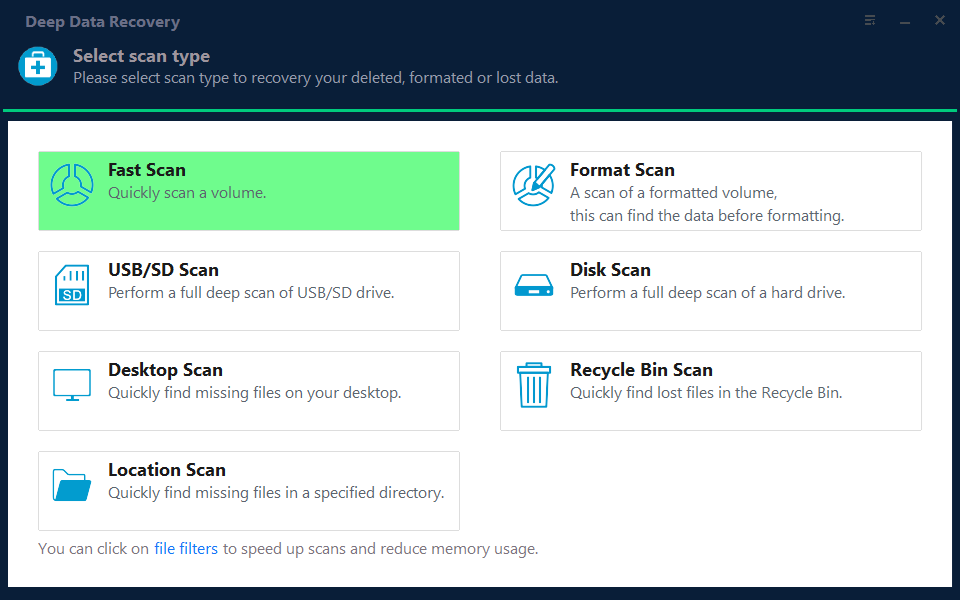
Note: You can choose different search modes based on where and why the data was lost.
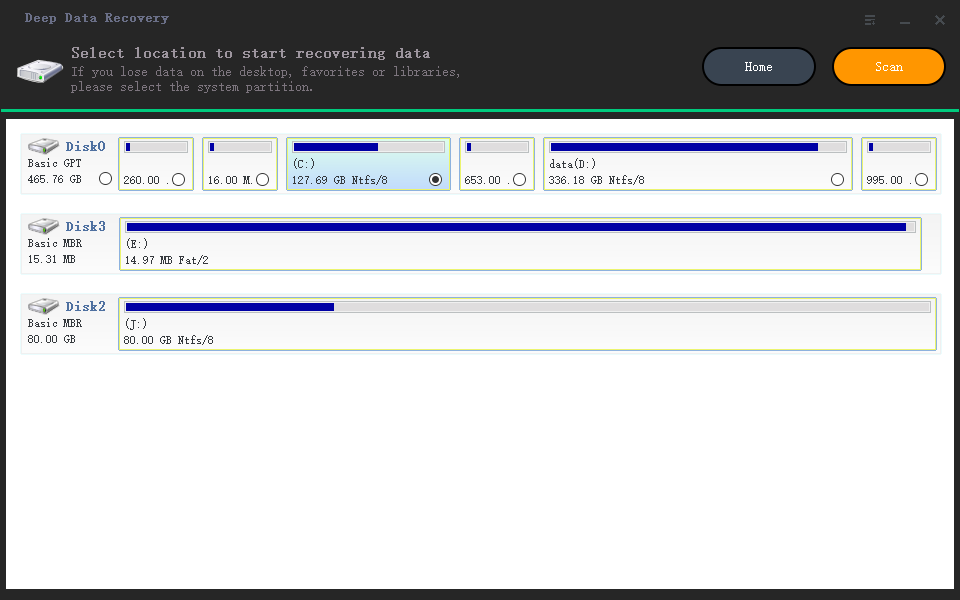
Step 2. Select location and click "Scan"
Select the drive or folder where the CSV files were lost, and click the "Scan" button.
Step 3. Locate your CSV files
To quickly find the CSV files from the scan results, click the "Documents" option in the left panel, select "CSV", and click "Preview" to verify the files are the desired ones.
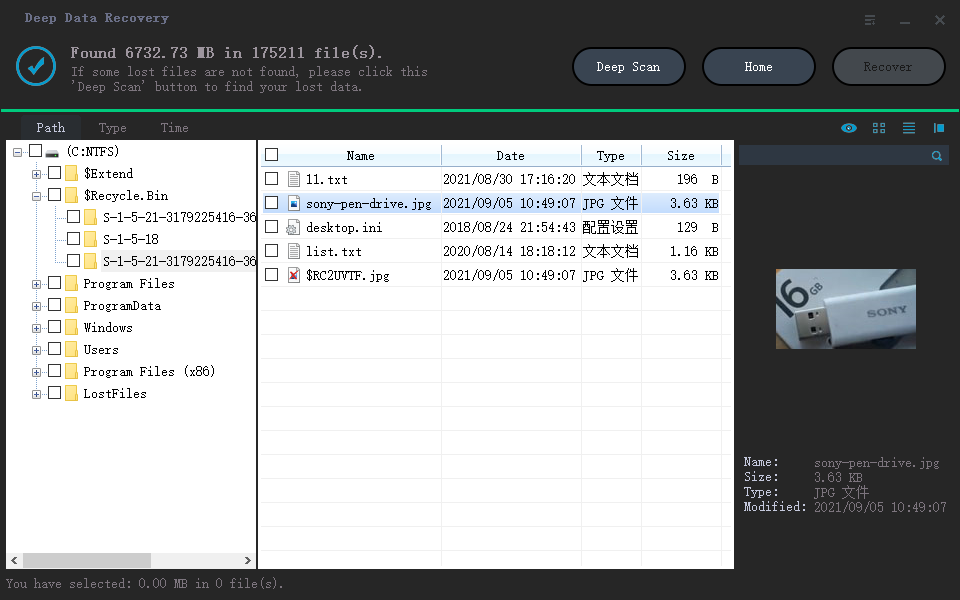
Step 4. Recover CSV files
Select the desired CSV files, click the "Recover" button, and choose a folder to save the recovered files to another location.
How to Recover Unsaved Changes in CSV Files
To recover unsaved changes in a CSV file, particularly if Excel crashed while editing, you can try to recover the changes from temporary files. The path to these temporary files varies, but in some cases, it may be located at `C:\Users\[username]\AppData\Local\Temp\`. Look for files with a .tmp extension, which might contain your unsaved changes.
C:\Users\%username%\AppData\Roaming\Microsoft\Excel\
How to Recover Overwritten CSV Files
Recovering overwritten CSV files is challenging because once a file is overwritten by new data, the original content is replaced. However, you can try using data recovery software to scan the drive and check if a previous version of the file is still recoverable. Additionally, check if Windows File History or a backup is available to restore the earlier version.
For a CSV that was deleted rather than overwritten or left unsaved, follow recovering deleted CSV files to check copies and verify the recovered rows.
Related Articles
- How to Open Numbers File in Excel
- How Fix Not Able to Launch Sticky Notes Error
- How to Restore Missing Desktop Icons and Files in Windows 10/11
- How to Recover Norton Deleted Files (2 Ways)
- Windows 11 vs Windows 10: Differences in Features, Performance, Gaming, and More
Microsoft's new operating system, Windows 11, is now available for download and installation, with Windows 10 users eligible for a free upgrade. - [Solved] Windows Cannot Access the Specified Device Path or File
This tutorial addresses the issue of Windows being unable to access a specified device path or file, which may occur when trying to start a program in Windows 11, 10, 8, or 7, or when working in MS Word.
Products
Articles & Tutorials
- Data Recovery
- Data Backup
- File Recovery
- File Backup
- System Backup and Restore
- Disk and Partition Clone
- Technical articles
- Mobile articles
- Disk Master Help
- Windows Data Recovery Tutorials
- Windows Secure Delete Tutorials
- Windows Partition Management Tutorials
- Windows File Backup and Restore Tutorials
- Windows System Backup and Restore Tutorials
- Windows Disk Backup and Restore Tutorials
- Windows Clone Tutorials