Recover Deleted or Unsaved PowerPoint Files
Overview
If you've deleted or failed to save a PowerPoint file, there are four simple ways to recover it. The first solution involves checking the PowerPoint's autosave feature, which automatically saves a copy of the file at regular intervals. If you've enabled this feature, you can try opening the autosaved file to recover your work.
| Workable Solutions | Step-by-step Troubleshooting |
|---|---|
| Fix 1. Recover deleted PPT files |
|
| Fix 2. Recover unsaved PPT files |
|
To avoid losing your PowerPoint files, make sure to save them regularly, especially before deleting or closing the device. This will ensure that your work is preserved and you can access it later. If you've already deleted or lost your files, check your device's recycle bin or trash folder, and try to recover them from there.
If you've accidentally deleted or lost your PowerPoint files, You can recover them using practical methods. PowerPoint is a common tool for presentations, but sometimes files can be lost due to deletion or program crashes. To get your files back, you can try using the built-in recovery features, such as the "Recover Unsaved Presentations" option, or use third-party software specifically designed for recovering deleted or unsaved PPT files. These tools can help you retrieve your lost files and prevent the need to recreate them from scratch.
How to Recover Deleted PowerPoint Files
Quick Tip: Undelete PPT from Recycle Bin
Applies to: Deleted recovery.
When you mistakenly deleted a PowerPoint file on the Desktop or Windows hard drive, the file is usually moved to the Recycle Bin.
Once you've deleted files from your computer, go to the Recycle Bin, and restore them first. If they're not there, try using a file recovery software to scan your computer for deleted files.
Step 1. Open "Recycle Bin" by double-clicking on its icon on the Desktop.
Step 2. Locate and right-click the deleted PPT file, and choose "Restore".
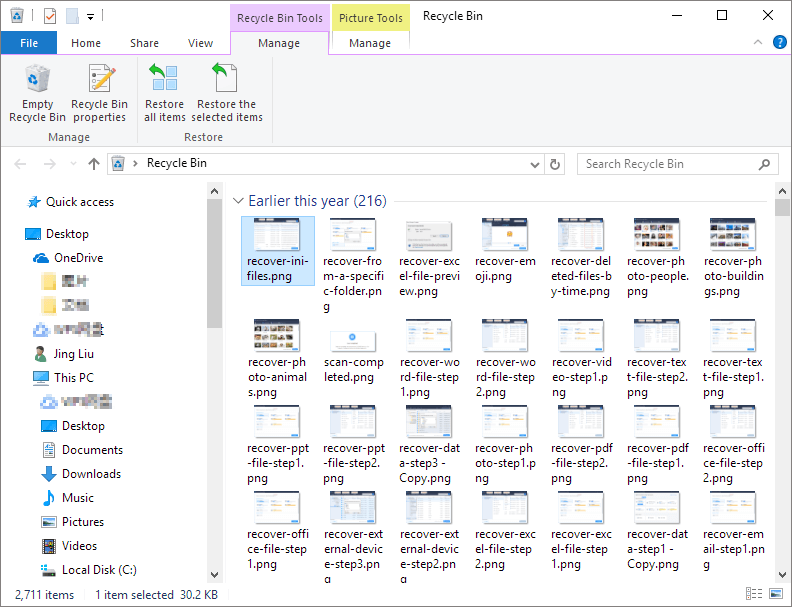
The Recycle Bin will then restore the deleted file to its original location.
Recommend: Restore Deleted PowerPoint File with File Recovery Software
This software applies to various file recovery scenarios, including recovering deleted files, formatted drives, RAW file recovery, and virus-infected files.
If you can't find a lost or deleted PPT file in the Recycle bin, you may also consider using reliable file recovery software for assistance.
Deep Data Recovery allows for easy document recovery, including PPT files, in just a few clicks, requiring no technical expertise and minimizing data risks. This software enables simple and efficient processing of recovered documents.
The software is highly reliable and trustworthy, thanks to its powerful D&R team and online technical support team, which allows you to confidently recover deleted PowerPoint files and other data.
Step 1. Select file types and click "Fast Scan" to start
Launch Deep Data Recovery, select the desired file types, and click "Fast Scan" to initiate the recovery process.

Note: You can choose different search modes based on where and why the data was lost.
Step 2. Choose the location
Select the drive where you lost your PDF/PPT/Word/Excel files and click "Scan".

Step 3. Scan for lost documents
When the scanning process is complete, click on "Documents" in the left panel to view the scanned documents. You can search for specific documents by file type or by name, and then click "Preview" to verify the document's contents before saving or printing it.

Step 4. Recover lost documents
Select the desired files and click the "Recover" button to save them to a secure location.
Besides picture recovery, audio and video file recovery, email recovery, and other files recovery, Deep Data Recovery can also be used to recover various types of files on your own.
How to Restore Unsaved PowerPoint Files
If you forgot to save your PowerPoint file, the power went out, or your computer unexpectedly shut down, It's not the end of the world anymore. There are ways to recover your work, and with the right tools and techniques, you can often retrieve your lost file or recreate it from scratch. So, take a deep breath and let's get started on finding a solution.
Here, you can try some first-To recover unsaved PowerPoint files in Windows 10/8.1/8/7, you can try the following manual methods: Check the AutoRecover files in the PowerPoint folder, which may have automatically saved the file at regular intervals. You can also look for the file in the Recent Files list, which is displayed when you open PowerPoint. If you've used the Save As feature, check the folder where you saved the file.
# 1. Recover Unsaved Presentations
Step 1. Open a blank Microsoft PowerPoint document by clicking the "File" tab.
Step 2. In the Recent section, click "Recover Unsaved Presentations" on the lower right.

Everything in the Unsaved folder is temporary files, so make sure to save all necessary work after restoring a PowerPoint presentation to avoid losing it again.
# 2. Restore Unsaved PPT from AutoRecover Folder
If you've enabled the AutoRecover function, you can restore the unsaved PPT file directly from the AutoRecover folder on your PC.
Step 1. Locate the AutoRecover folder.
- Click the "File" > "Options" > "Save".
- Copy the path next to "AutoRecover file location" and paste it into the "Save AutoRecover info" field in the PowerPoint Options window. For example, C:\Users\User\AppData\Roaming\Microsoft\PowerPoint.
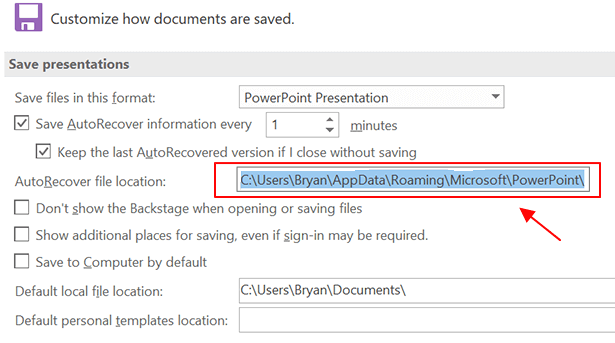
Step 2. Find and re-save your unsaved PowerPoint file.
- Open Windows File Explorer, paste the copied file destination path.
- To view your presentation, simply hit the "Enter" key and navigate to the folder containing your presentation, which should be named "MYPRESENTAION" or "PRESENTATION" depending on the specific folder name.
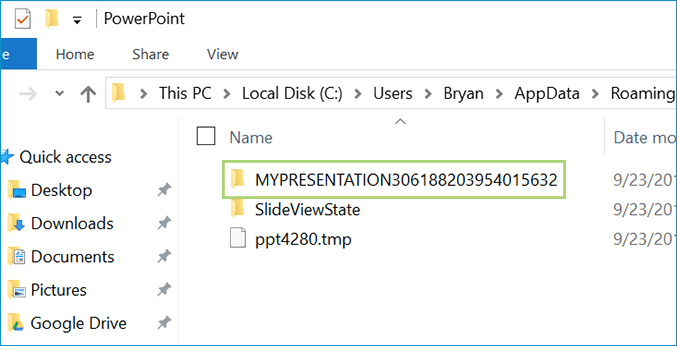
- Open the folder, you'll find your unsaved PowerPoint file.
- Open it with PowerPoint and save it to another secure location.

To restore deleted or unsaved PPT files on a Windows PC, you can try three reliable solutions: enabling AutoRecover, using a data recovery software, or employing a PowerPoint recovery tool. Additionally, it's a good idea to enable AutoRecover every time you start creating a PowerPoint deck to prevent future losses.
If you didn't have AutoRecover enabled, open your PowerPoint and go to File -> Options -> Save, and then check the boxes "Save AutoRecover information every X minutes" and "Prompt to save AutoRecover information before AutoRecover kicks in" to enable AutoRecover in PowerPoint. This will help recover your work in case of a crash or unexpected shutdown.
- "Save auto-recover info every 10 or 5 minutes."
- If you close the application without saving your changes, it will automatically recover the last saved version of your work, ensuring that you don't lose any progress. This feature helps prevent accidental data loss and allows you to pick up where you left off.

For a Windows 11 presentation that was saved and later deleted, follow the PowerPoint file-recovery steps and verify the slides and media after recovery.
Related Articles
- Windows 10 Startup Folder Location, How to Change Startup Programs
- My Documents Folder Missing from Windows 10/11 [Fixed Here]
- Where Do Permanently Deleted Photos Go on PC/iPhone/Android
- How to Restore, Unlock Encrypted Excel File Without Password
- Does Initializing a Disk Erase Data, Yes or No?
Initializing a disk in Windows can erase all data on the disk, including files, folders, and operating system files. This is because the initialization process rewrites the entire disk with a new file system, such as NTFS or FAT32, and formats the disk to be empty and ready for use. - Recycle Bin Windows 10 - Full Guide [with Pictures]
Fix a missing Windows 10 Recycle Bin by restoring the desktop icon, checking settings, and finding deleted files when the icon disappears.
Products
Articles & Tutorials
- Data Recovery
- Data Backup
- File Recovery
- File Backup
- System Backup and Restore
- Disk and Partition Clone
- Technical articles
- Mobile articles
- Disk Master Help
- Windows Data Recovery Tutorials
- Windows Secure Delete Tutorials
- Windows Partition Management Tutorials
- Windows File Backup and Restore Tutorials
- Windows System Backup and Restore Tutorials
- Windows Disk Backup and Restore Tutorials
- Windows Clone Tutorials