5 Genius Ways to Fix Powerpoint Found a Problem with Content
"The error message 'PowerPoint Found a Problem with The Content' keeps popping up whenever you try to present a slide in a presentation, which is embarrassing in a professional meeting."
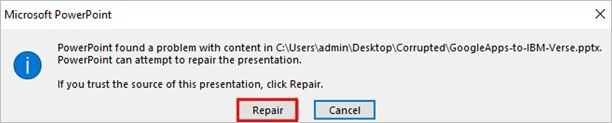
The problem can be identified in any PowerPoint version and is often quite inconvenient. Since this issue can be experienced in all versions of PowerPoint, there are various methods to deal with it. Please don't be too concerned about this warning message; the answers we will provide are quick and straightforward to follow. Without further ado, let's get to the details right away!
How to Fix PowerPoint Found a Problem with Content
When PowerPoint encounters a problem with content, it's essential to find a solution tailored to your specific situation. Since the error can manifest differently for each user, various paths to resolution exist. If you're facing this issue, explore each possible solution in-depth to resolve it quickly.
| Workable Solutions | Step-by-step Troubleshooting |
|---|---|
| 1. Disable Protected Views | Open your PowerPoint program if it is currently open or present in another folder...Full steps |
| 2. Repair the PPT Source Files | Download and launch Deep Data Recovery on your computer, select...Full steps |
| 3. Unblock the PPTX File | Right-click on the PowerPoint file and select "Properties" from...Full steps |
| 4. Move to an Unsynchronized Folder | Navigate to the folder's location in which the file has been stored and...Full steps |
| 5. Add to the Trusted Locations List | Open a previously saved PowerPoint presentation. Go to "Options"...Full steps |
Fix 1. Disable Protected Views to Fix PowerPoint Found a Problem
If you're experiencing the "PowerPoint found a problem with the content" issue, try visiting the Trust Center first. This location is often the most frequently visited spot for resolving this problem, and it's usually caused by protected views. So, without hesitation, try this method as your first step.
Step 1. Open your PowerPoint program if it is currently open or present in another folder on your computer.
Step 2. To access the "File" menu, select "Options" from the dropdown list.
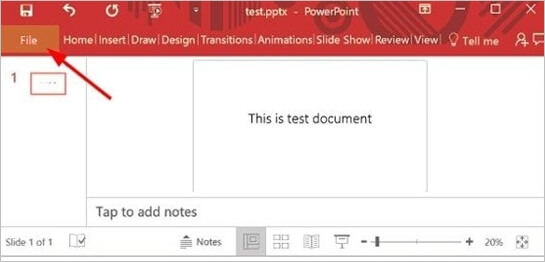
Step 3. The Trust Centers button is located on the left side of the screen. It is not visible by default, but you can click on the three dots on the left side of the screen to reveal it.
Step 4. On the right, click on the "Trust Center Settings" option.
Step 5. Then, choose "Protected Views" and uncheck all of the choices shown to you.
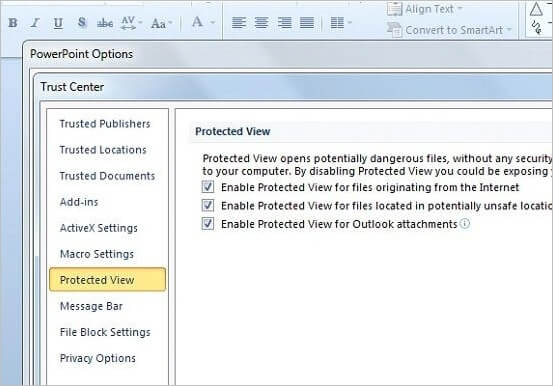
Step 6. You can now proceed by clicking on the "OK" button.
Step 7. If you're experiencing issues with your file, try reopening it to see if the problem has been resolved. This simple step can often resolve minor glitches or refresh the file's state, allowing you to continue working without further complications.
Fix 2. Repair the PPT Source File with a Repair Tool
The Deep Data Recovery tool is a great option for fixing issues with Microsoft Office files, earning it the nickname "all-in-one fixing software". It can also repair problems with Word, Excel, PowerPoint, and PDF files.
This software eliminates the need for additional file converting apps, as it works seamlessly with all Microsoft Word, Excel, and PowerPoint versions, making it easy to use and manage PDF files.
- Fixes and restores all file components from Excel (.XLS/.XLSX) files.
- Fixes and recovers PowerPoint (.ppt/.pptx/.pptm) files to their original state.
- This software fixes and restores all contents from damaged, corrupted, or unavailable PDF files.
Now that we are done with the basic introduction and highlighted features of the Deep Data Recovery, it's time to show you how to repair your PowerPoint slides if they are not opening.
Step 1. Launch Deep Data Recovery. Select file types and click "Fast Scan" to initiate the recovery process.

Note: You can choose different search modes based on where and why the data was lost.
Step 2. The software allows you to scan a disk with corrupted documents and fix damaged Word, Excel, PPT, and PDF files in a single process.

Step 3. Qiling data recovery and repair tool scans for all lost and corrupted files, allowing you to find target files by type or search for them by typing the file name in the search box.

Step 4. Deep Data Recovery can automatically repair damaged documents, allowing you to recover and save Word, Excel, and PDF files to a safe location after previewing them.
Fix 3. Unblock the PPTX File to Fix PowerPoint Problems
If you're having trouble opening a presentation in PowerPoint, it's possible that the file was obtained from an untrusted source or has been flagged as a security threat by your operating system. To resolve this issue, try opening the file in a different location, such as your desktop or documents folder, to see if the issue persists. If it does, you can try renaming the file to a different name or deleting any temporary files associated with it. If the issue persists, you may need to contact the file's creator or the source from which you obtained the file for further assistance.
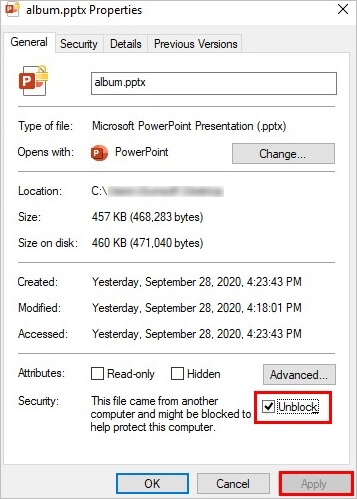
Step 1. Right-click on the PowerPoint file and select "Properties" from the drop-down menu.
Step 2. Click on the "General" tab to close the file's properties.
Step 3. To unblock a website, click on the "Unblock" button.
Step 4. To save your changes, click on the "Apply" button.
Step 5. If you've already tried checking for updates and restarting your device, you can try opening the file again to see if the issue has been resolved. This can help determine if the problem was a one-time glitch or if there's still an issue with the file.
Fix 4. Move the PPTX File to an Unsynchronized Folder
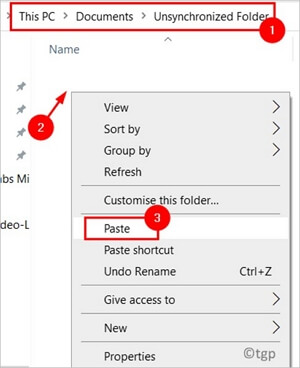
If you've previously tried adding your file location to the trust list and still see the same issue, there's likely a problem with the folder. If your file is stored in a Dropbox or OneDrive folder, you'll need to relocate it to a standard directory and try again.
Step 1. To access the file, navigate to the folder where it is stored and double-click on the file to open it.
Step 2. To cut a file, right-click on it and select "Cut" from the menu, or press ctrl + x on your keyboard.
Step 3. To move a file to a different location, first navigate to a normal directory (not a system directory like Windows or Program Files) using File Explorer. Right-click on the file you want to move and select the "Paste" option from the context menu.
Step 4. Check whether the problem has been resolved by reopening your file.
Fix 5. Add the Current Location of the File to the Trusted Locations List
When you download a PowerPoint file from the internet, it might be saved in a less secure location, preventing it from opening in PowerPoint. Adding the file to a trusted location can resolve the issue.
Step 1. Open a previously saved PowerPoint presentation.
Step 2. Go to "Options" by clicking on "file."
Step 3. To proceed, click on "Trust Center" and then "Trust Center Setup".
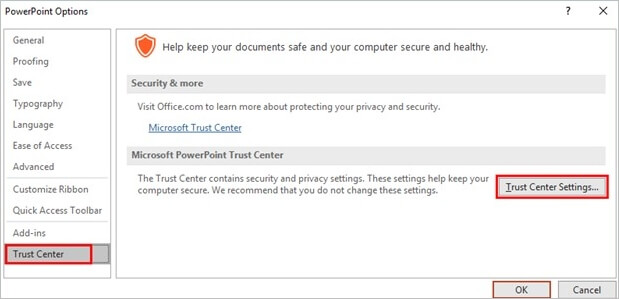
Step 4. Later, choose "Trusted Places" from the drop-down menu.
Step 5. Select "Add New Location" from the drop-down menu.
Step 6. Click "Browse" and enter the file's path that is causing the problem.
Step 7. Restart your PowerPoint program error-free once you've made the modifications.
Why Does PowerPoint Find a Problem with Content
Here are a few possible causes of the PowerPoint problem you're experiencing. The issue might be caused by a corrupted file, which can be resolved by closing and reopening the file.
Location of the file in the synchronized folder If your PowerPoint file is visible in a synchronized folder like Dropbox or OneDrive, it may cause the issue "PowerPoint found a problem with the content" due to the synchronized folder preventing the file from functioning correctly.
The File is Blocked When you download a file from a website, the operating system of your device may block it if it suspects the file contains a virus, preventing potential harm to your device. This is why you may see this error message.
Location of the File Not Present in Trust List The app may block file access due to protected views, which restrict file functionality. Disabling protected views can resolve the issue, allowing access to downloaded files from direct URLs or Outlook attachments.
Protected Views Enabled If the hosting folder of your file doesn't exist in PowerPoint's trust list, add it by going to "File > Add Trust List" to resolve the error.
Conclusion
The 'PowerPoint Found a Problem with Content' issue can be frustrating, but there are solutions to fix it. If your PowerPoint often hangs or freezes, try the measures mentioned above to resolve the issue. If none of these work, consider using a reliable tool like Qiling file repair tool, which is effective in resolving such problems.
Related Articles
- Files Getting Deleted Automatically Without Asking Windows 10/11
- How to Recover Norton Deleted Files (2 Ways)
- Microsoft Word Has Encountered a Problem and Needs to Close
- How to Recover Deleted/Overwritten/Unsaved CSV Files [Solved]
- Recover Lost Files with Qiling Portable Data Recovery Software
If your computer is plagued with viruses or boots slowly, a portable data recovery can breathe new life into it, reviving it from a state of disrepair. - Top 5 PST Repair Tools in Windows 10/11
PST files are prone to errors and corruption. Fortunately, there are top 5 free PST repair tools available to help repair Outlook data and recover lost PST files.
Products
Articles & Tutorials
- Data Recovery
- Data Backup
- File Recovery
- File Backup
- System Backup and Restore
- Disk and Partition Clone
- Technical articles
- Mobile articles
- Disk Master Help
- Windows Data Recovery Tutorials
- Windows Secure Delete Tutorials
- Windows Partition Management Tutorials
- Windows File Backup and Restore Tutorials
- Windows System Backup and Restore Tutorials
- Windows Disk Backup and Restore Tutorials
- Windows Clone Tutorials