Microsoft Outlook 2016/2013/2010 Not Responding in Windows 10/11 (5 Fixes)
Quick Access to Outlook Not Responding Fix
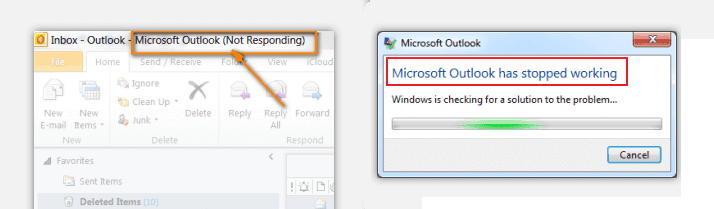
If Outlook stops responding at a screen that says "Processing", you can close Outlook, start it in safe mode, then close it and open it normally to resolve the issue.
- 1. Close Outlook.
- 2. To launch Outlook in safe mode, you can either hold down the Ctrl key while clicking on the Outlook icon, or you can add the parameter "/safe" to the command line when launching Outlook. This will start Outlook with a minimal set of add-ins and features, allowing you to troubleshoot issues or resolve conflicts with specific add-ins.
- To open Microsoft Outlook in safe mode in Windows 10, go to Start, type "Outlook.exe /safe", and press Enter. This will launch Outlook with a minimal set of features, allowing you to troubleshoot and resolve issues without being affected by add-ins or other customizations.
- To open Outlook in safe mode in Windows 7, go to Start, type "Outlook /safe" in the Search programs and files box, and press Enter.
- To run Outlook in safe mode in Windows 8, go to the Apps menu, select Run, type "Outlook /safe", and click OK. This will start Outlook with a minimal set of features, allowing you to troubleshoot and resolve issues without the distraction of unnecessary add-ins and features.
5 Fixes to Outlook 2016/2013/2010 Not Responding in Windows 10
If you're experiencing issues with Outlook in Windows 10, where the app gets stuck or not responding when trying to open or close, there are several methods to troubleshoot the problem. If the app is stuck on a "Processing" screen, try closing and reopening Outlook. If this doesn't resolve the issue, continue to the steps below to learn how to fix Outlook not working or not responding in Windows 10.
| Workable Solutions | Step-by-step Troubleshooting |
|---|---|
| Fix 1. Use Outlook Recovery Software | Select the drive partition where you used to save the Outlook PST files and then click "Scan"...Full steps |
| Fix 2. Start Outlook in Safe Mode | Close Outlook. Launch it in safe mode. Click "Start > Search" then type...Full steps |
| Fix 3. Install Outlook Updates | Type update in the Search box and click "Check for updates" to open Windows Update...Full steps |
| Fix 4. Repair Office Program | Close and quit all running Office programs. Enter Control Panel and...Full steps |
| Fix 5. Repair Outlook Data Files | Open Windows File Explorer and go to C:\Program Files (x86)...Full steps |
Before attempting to resolve the Outlook not responding issue, it's highly recommended to try an Outlook data recovery tool to restore all PST files in advance, avoiding potential data loss from incorrect operations.
Fix 1. Restore Outlook 2016/2013/2010 PST Files with Outlook Recovery Software
To avoid losing important email files when Outlook stops responding, it's a good idea to restore and create backups of your data first. If the Outlook data files become corrupted or damaged, or your user profile becomes corrupted, the program may stop responding, but Qiling hard drive recovery software can help you restore lost or corrupted emails with ease.
Step 1. Launch Qiling file recovery software on your Windows computer, select the file types you want to recover, and click "Fast Scan" to begin the recovery process.

Note: You can choose different search modes based on where and why the data was lost.
Step 2. Choose the drive or partition where you lost email files, and click "Scan" to begin the recovery process.

Step 3. The software will start scanning immediately. Wait until the scanning process is complete. To quickly find email files, click "Others" in the left panel and look for PST or Outlook files in the file type list.

Step 4. To recover email files, select the desired files, click "Recover", and save them to a different location to avoid overwriting the original files.
Import PST/OST files into Outlook:
To retrieve your email to Outlook, do the following steps.
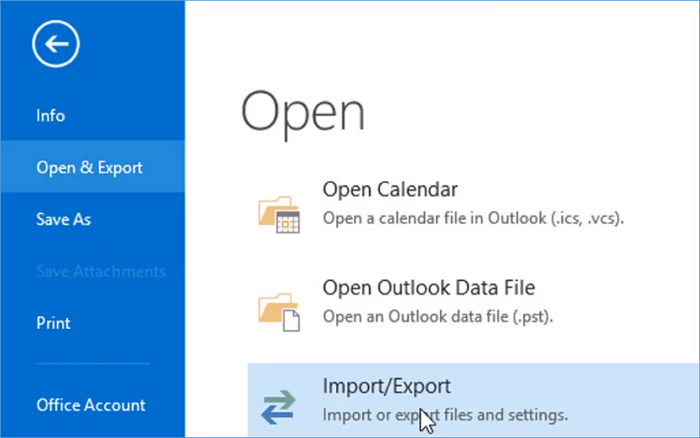
Step 1. To import emails into Outlook, start the program, go to the "File" menu, select "Open & Export", then "Import/Export", and choose "Import from another program or file", finally selecting "Open Outlook Data File".
Step 2. Drag and drop emails, contacts, and other folders from a .pst file into your existing Outlook folders in the navigation pane.
If you're not concerned about losing data or are sure that your Outlook data files haven't been corrupted, you can try directly resolving the issue. You can use the solutions below to resolve the problem with Outlook 2016 not responding.
Fix 2. Start Outlook 2016 in Safe Mode to Fix Outlook 2016 Not Responding
If Outlook stops responding at a screen that says "Processing," enter Safe Mode to solve Outlook 2016 not responding.
Step 1. Close Outlook.
Step 2. Launch it in the safe mode.
- To run Outlook in safe mode on Windows 10, click on the "Start" button, then select "Search", type "Outlook.exe /safe" and press Enter.
- For Windows 8: Open "Apps" menu > Select "Run" > Type: Outlook /safe and then click OK;
- To start Outlook in safe mode on Windows 7, go to Start, type "Outlook /safe" in the Search programs and files box, and then press Enter.
Step 3. To resolve the issue of Outlook 2016 not working in Windows 10, close Outlook, and then open it normally. This should allow you to use Outlook 2016 again.
Fix 3. Install the Latest Windows and Outlook Updates to Fix Outlook Not Responding
If Windows or Outlook is outdated, it may cause issues with using and sending emails. Installing the latest Windows and Outlook updates can help resolve the problem of Outlook not responding.
To install the Windows update, try the tips below.
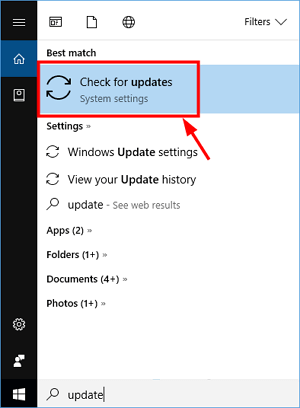
Step 1. To update Windows, go to the Search box, type "update", and click on "Check for updates" to open Windows Update.
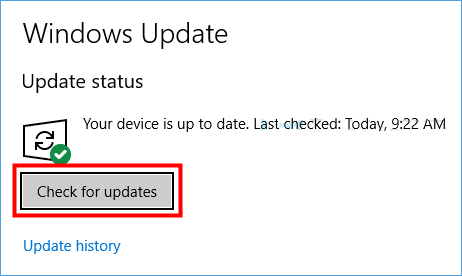
Step 2.If you're experiencing issues with Outlook, try updating Windows and Outlook by clicking on "Check for updates" and then "Install updates". Wait for the updating process to complete and restart your Windows PC. If Outlook still doesn't work, proceed with updating Outlook itself.
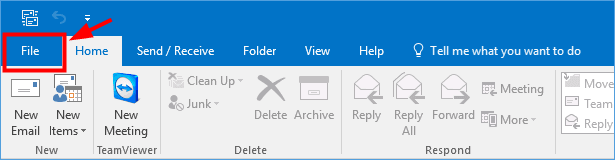
Step 3. Open Outlook and click "File".
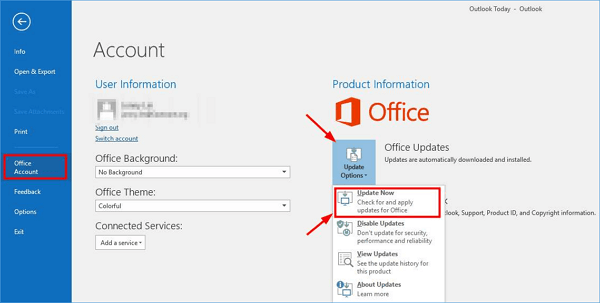
Step 4. Go to Office "Account" > "Update Options" > "Update Now" or in Outlook 2010, select "Help" > "Check for updates".
Fix 4. Repair Office Program to Fix Outlook Keeps Not Responding
To repair Office program files, go to Control Panel, then Programs and Features (in Windows 10) or Add or Remove Programs (in Windows 7), and select Microsoft Office from the list of installed programs. Click on the "Change" or "Modify" button, then select the "Online Repair" option.
Step 1. Close and quit all running Office programs.
Step 2. Enter Control Panel and select "Programs and Features".
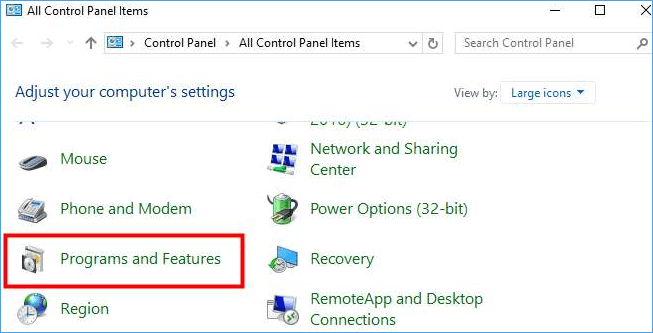
Step 3. To update Microsoft Office 2016 or Microsoft 2013, go to the list of installed programs, right-click on Microsoft Office 2016 or Microsoft Office 2013, and select "Change".
Step 4. Select "Online Repair" >"Repair".
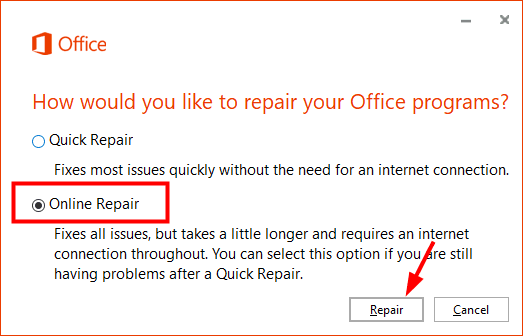
To resolve the issue, wait for the repair process to complete, and then open Outlook to see if it returns to normal. If it does, the problem is likely resolved.
Fix 5. Repair Outlook Data Files If Outlook Not Responding in Windows 10
If Outlook is not working or responding, it may be due to an error in the Outlook data files. To resolve this issue, you can try repairing the Outlook data files by following the tips provided. This may help resolve the problem and get Outlook working again.
Step 1. Open Windows File Explorer and go to C:\Program Files (x86)\Microsoft Office\root\Office16.
Step 2. Open "SCANPST.EXT" > Click "Browse" > Select the .pst file you want to scan.
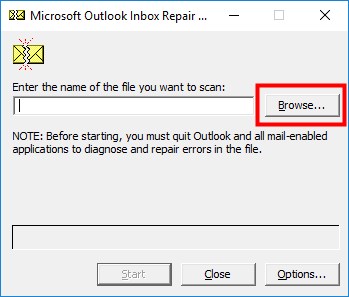
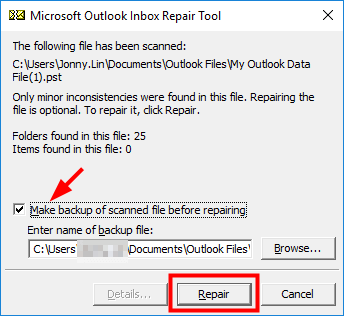
Step 3. Click "Start". Check "Make a backup of scanned file before repairing" box and click "Repair". Click "OK" when the repair process completes.
- Tip
- When using Microsoft Outlook 2016 or later, you may experience issues such as Outlook freezing or not responding when opening files or sending email messages. To prevent data loss, it's essential to back up your Outlook emails regularly. Alternatively, you can use a professional Outlook backup software to automatically back up your emails to a hard drive, saving you time and effort.
Other Possible Fixes for Outlook 2016/2013/2010 Not Responding Issue
If the issue persists, it's likely due to multiple factors. You can try different approaches to troubleshoot and resolve the problem.
- To ensure that Outlook is not in use by another process, you can try the following: Close any currently running Outlook instances, including the main Outlook application and any background processes like the Outlook add-ins or the Microsoft Outlook Service. If you're still experiencing issues, you can try restarting your computer to ensure that all processes are closed.
- Check possible add-in issues that interfere with Outlook.
- Check whether your mailbox is too large.
- To check if your AppData folder is redirected to a network location, you can follow these steps: Open File Explorer and navigate to the directory where your AppData folder is located. Look for any signs of redirection, such as a network drive letter.
- Ensure that your antivirus software is up-to-date and does not interfere with Outlook's functionality.
- Prevent Outlook from loading external content automatically, such as images in an email.
Related Articles
- Microsoft Excel Cannot Paste the Data? [Fixed]
- How to Restore IE Edge Favorites/Bookmarks? | IE Edge Recovery
- Files Missing from External Hard Drive but Still Taking Space
- Dashcam Video Recovery: How to Recover Video Files from Dashcam
- Files Disappeared and Missing from Hard Drive
Files or folders may suddenly disappear from a computer's hard drive without being deleted or formatted, leaving users wondering where they went. Fortunately, there are ways to recover them. - No Bootable Device Error - What Does It Mean, What Cause the Error, How to Fix
Users may encounter an error message “PXE-MOF: Exiting PXE ROM. No bootable device, insert boot disk and press any key” when starting their computer. Additionally, updating the PXE ROM or reinstalling the network drivers may also resolve the issue.
Products
Articles & Tutorials
- Data Recovery
- Data Backup
- File Recovery
- File Backup
- System Backup and Restore
- Disk and Partition Clone
- Technical articles
- Mobile articles
- Disk Master Help
- Windows Data Recovery Tutorials
- Windows Secure Delete Tutorials
- Windows Partition Management Tutorials
- Windows File Backup and Restore Tutorials
- Windows System Backup and Restore Tutorials
- Windows Disk Backup and Restore Tutorials
- Windows Clone Tutorials