How to Open ASD File and Recover Lost Word Document Easily
Quick Navigation: 4 Ways to Open ASD File
If you're struggling to open an ASD file in Microsoft Word, this article provides can help. Whether you're using Word 2019, 2016, 2010, or 2007, you'll learn three methods to recover your ASD file.
| Workable Solutions | Step-by-step Troubleshooting |
|---|---|
| Fix 1. Open ASD File via Recover Unsaved Documents Option | Use the AutoRecover function to open the Word ASD file. Open Word > "File" > "Open" > "Recent" > Click "Recover Unsaved Document"...Full steps |
| Fix 2. Open ASD File from Manage Document in Word | This is another simple way to open ASD file. Open "Word" > "File" > "Info" > "Manage Document" > "Recover Recent Unsaved Documents"...Full steps |
| Fix 3. Open ASD File in File Explorer | Open File Explorer, input the ASD file path: C:\Users\UserName\AppData\Roaming\Microsoft\Word\, look for ASD files...Full steps |
| Fix 4. Recover Lost ASD File with Data Recovery Software | If you can't find the ASD file or lost the Word document, you can use Qiling file recovery software to scan your PC and recover the ASD file. This software can also help you recover other lost files, making it a useful tool in case of data loss.repair corrupted Word document automatically...Full steps |
User Case: Can't Open .asd Files, How to Open ASD Files
"I have .asd file which I wish to open. I have tried everything with the word I think. And when I open in notepad that file, it shows random symbols, maybe it's corrupted and can't be restored? By the way, that file was restored from my disk. Any solutions?"

What Is an ASD File Word
An .asd file is a snapshot or backup copy of a Word document created by Microsoft Word's AutoRecover feature, used to recover unsaved files in case of a power outage or system failure.
The .asd files can be opened with Microsoft Word 2010 in Microsoft Windows-based Systems, but sometimes you may fail to open it. Word may say that the data is unsupported and cannot open it. This guide shows you three working ways to open an ASD file and recover the .asd files with ease.
Also read: Word 2010/2013/2016 Keeps Crashing When Saving
Method 1. Open ASD Files via Recover Unsaved Documents
Microsoft Word automatically searches for AutoRecover files each time it starts and displays any found data in the Document Recovery task pane. You can also use the Recover Unsaved Documents feature to locate and open ASD files, which contain unsaved document data.
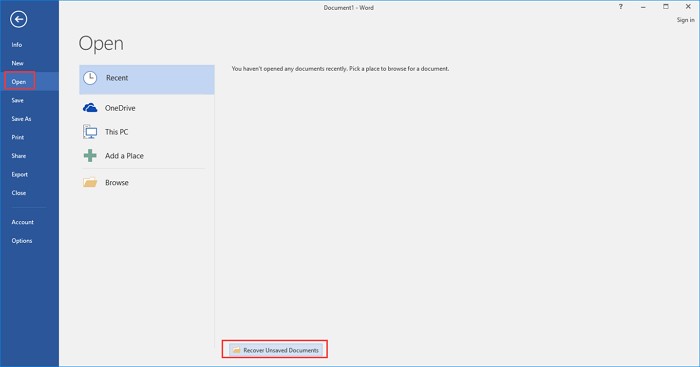
Step 1. Open Word and click on "File" > "Open" > "Recent".
Step 2. Look towards the bottom of the screen and click "Recover Unsaved Documents".
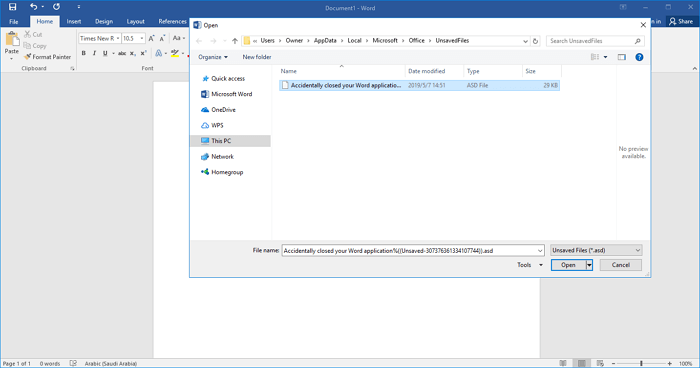
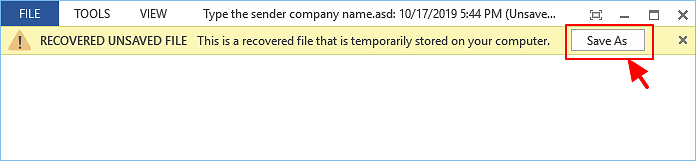
Step 3.To convert an ASD file to Word, select the ASD file from the UnsavedFiles Folder, click "Open", and then click "Save As" to save it as a Word document.
Also read: How to Recover Unsaved Word Document in Windows 10
Method 2. Open ASD Files from Manage Document Option in Word
To open an ASD file in Microsoft Word, you can use the Manage Document feature. This feature allows you to import and open ASD files, which are used by Word to store and manage document templates, styles, and other settings.
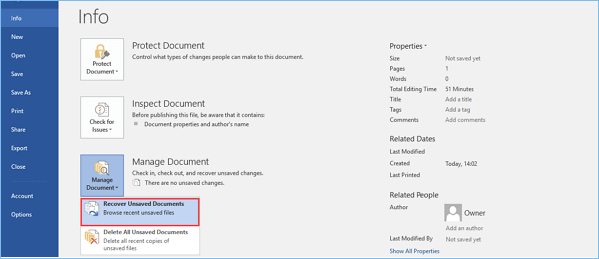
Step 1. In MS Word, click the "File" > "Info" tab in the upper left corner.
Step 2. To recover unsaved Word documents, click on the "Manage Document" button in the top right corner of the Word interface, and then select "Recover Unsaved Documents" from the drop-down list.
Step 3. To recover an ASD file, go to the Open Window, select the ASD file you want, and click "Open" to recover it.
Method 3. Open ASD File in File Explorer
Microsoft Office Word periodically backs up a document as you work on the file as long as you enabled the AutoRecover feature, saving the file in the .asd format in the directories specified below. The AutoRecover feature creates backup files in the default location, which is the user's AppData\Local\Temp directory for Windows and the user's Library\Temporary Items directory for Mac.
- On Windows 11/10/8/7/Vista: C:\Users\UserName\AppData\Roaming\Microsoft\Word\
- On Windows XP: C:\Users\UserName\Application Data\Microsoft\Word\
To find the file path, open File Explorer and copy the path to the file. Then, navigate to the same location in File Explorer and look for ASD files to open.
Step 1.To open File Explorer and find the ASD file, press the Win + E keys simultaneously, which will open File Explorer. Once open, you can copy the file path and navigate to the location on your computer where the ASD file is stored. This will allow you to access and potentially troubleshoot or modify the file as needed.
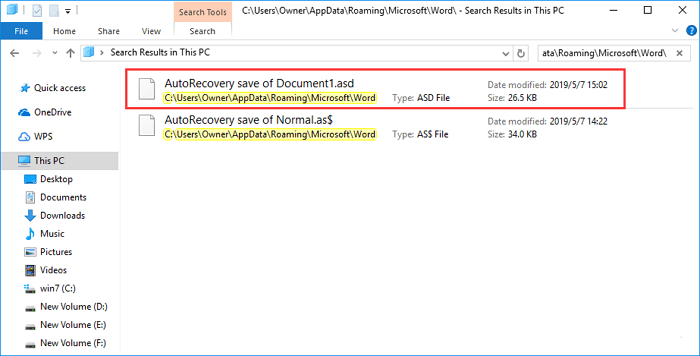
Step 2. Right-click on the .asd file, select "Open With..." and click "OK".
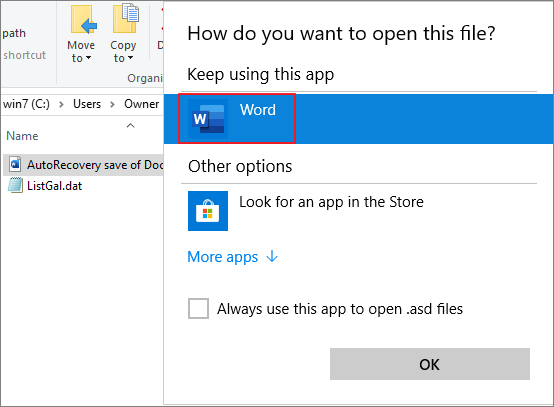
Step 3. To convert an .asd file to a Word document, open the file with the Word option and then click "Save As" to save it in a Word-compatible format.
Method 4. Recover Lost ASD or Word Files with Data Recovery Software
Microsoft ASD files or Word documents can be lost due to various reasons such as accidental deletion, storage device damage, virus attack, or lost partition. In such cases, the AutoRecover feature, which typically restores unsaved Word documents, is not effective in recovering the lost or deleted files.
If you've accidentally deleted or lost a Word document, don't worry - you can recover it with the help of Deep Data Recovery, a top-notch data recovery tool.
Robust Helper - Deep Data Recovery
- Recover lost or deleted files, documents, photos, audio, music, and emails with ease and effectiveness.
- If you've deleted files from a USB flash drive, emptied the recycle bin, a memory card, a flash drive, a digital camera, or a camcorder, don't worry, there are ways to recover them. You can use data recovery software like Deep Data Recovery, Recuva, or Disk Drill to scan the device and retrieve the deleted files.
- Data recovery tools can help recover lost data due to sudden deletion, formatting, hard drive corruption, virus attacks, and system crashes. These tools can recover data from various situations, including accidental deletion, partition loss, and file system corruption.
You can recover corrupted ASD files and Word documents using the Qiling document recovery program. The process involves three simple steps: downloading and installing the program, selecting the corrupted files you want to recover, and letting the program do the rest to restore your documents to their original state.
Step 1. Select file types and click "USB/SD Scan" to start
Launch Deep Data Recovery. Select file types and click "USB/SD Scan" to start.

Note: You can choose different search modes based on where and why the data was lost.
Step 2. Choose the Word file location
Choose a drive or a specific folder and click the "Scan" button.

Step 3. Locate your Word files
The software will immediately scan the selected drive for lost data. After scanning, select the "Documents" option in the left panel, choose "Word" from the category bar, and click "Preview" to view the recovered files.

Step 4. Recover Word files
After previewing the lost Word files, select the desired Word files and click "Recover". Then, select a folder to store the Word files.
Bonus Tip: How to Convert ASD Files to Word
To convert an ASD file to a .doc file, you can follow these steps:
Step 1. Open Microsoft Word. Click the "File" menu, then click "Open."
Step 2. Go to your username folder, which can be found in the drop-down menu at the top of the window.
Step 3. To access the Word folder, double-click the "AppData" sub-folder inside your user folder, then double-click the "Roaming" folder, followed by selecting the "Microsoft" folder, and finally opening the "Word" folder.
Step 4. To open an ASD file, click the drop-down menu at the bottom of the window labeled "Files of Type," then select "All Files." Double-click the ASD file to open it.
Step 5. To save a document in Word as a .doc file, navigate to the "File" menu and select "Save As." In the "Save as Type" dropdown, choose the "DOC" file format. Next, choose a location to save the converted file and give it a name, then click "Save."
Final Thoughts
The AutoRecover feature in Word creates an emergency backup to help recover and open ASD files/Word documents in case of an error. However, some errors can interfere with this functionality. If you've lost your backup ASD files, you can use Qiling data recovery software to retrieve your Word files with a few simple steps.
ASD File Recovery Frequently Asked Questions
To open an ASD file in Windows 10/8/7, you can use a few effective methods. First, you can associate the file with a specific program, such as Notepad, by right-clicking on the file, selecting "Open with", and choosing the program. Alternatively, you can use a file viewer or editor like Notepad++, Sublime Text, or Atom to open the file.
1. Where are ASD files saved?
- In Windows 7 and Vista, the file is stored in the C:\Users\username\AppData\Roaming\Microsoft\Word directory, where "username" is the actual username of the user.
- In Windows XP, the Word document settings file is stored in the C:\Documents and Settings\username\Application Data\Microsoft\Word directory, where "username" is the author's actual username.
- In Mac OS X, the file is stored in the C:\/Users/username/Documents/Microsoft User Data/Office version AutoRecovery/Autorecovery save of filename
2. Can you delete the .asd files, do they store any info?
The .asd files contain metadata that allows Live to quickly import tracks from previous projects and sessions, making export faster, especially across multiple projects. Deleting them is safe, but it means Live will have to rescan any audio files used in a project when loading it again, which can be time-consuming if the project has many files.
3. Where Does Excel Store Temp Files?
- Windows 10: C:\Users\AppData\Local\Microsoft\Office\UnsavedFiles
- Windows 8/7/Vista: C:\Users\UserName\AppData\Local\Microsoft\Office\UnsavedFiles
- Windows XP: C:\Documents and Settings\UserName\Local Settings\Application Data\Microsoft\Office\UnsavedFiles
4. How do I open an ASD file in Word 2010?
To open a .asd file in Word 2010:
- 1. On the File menu, select Open.
- 2. In the Files of type list, select All Files.
- 3. Select the .asd file that you found, and then select Open.
Related Articles
- How to Recover Files from Folder Lock Without Password Step-by-Step
- How to Recover Unsaved Word Document After Computer Restarts/Shutdown
- How to Recover Permanently Deleted Emails from Gmail Account
- How to Recover Deleted Windows.old Folder in Windows 11/10
- Minecraft Free Download and Minecraft Data Recovery Windows 10/11
How to download Minecraft game on PC for free? Get the detailed instructions to download Minecraft for free on Windows 10 or Windows 11. You can use a professional hard drive recovery to restore your lost Minecraft game data. - How to Fix Missing DLL Files in Windows 10/8/7 [2022 Full Guide]
To fix missing DLL files in Windows 10, you can run the SFC and DISM scanner to identify and replace corrupted system files, use a file recovery tool to retrieve deleted DLL files, manually download the missing DLL files from a trusted source, or reinstall the application that requires the DLL file.
Products
Articles & Tutorials
- Data Recovery
- Data Backup
- File Recovery
- File Backup
- System Backup and Restore
- Disk and Partition Clone
- Technical articles
- Mobile articles
- Disk Master Help
- Windows Data Recovery Tutorials
- Windows Secure Delete Tutorials
- Windows Partition Management Tutorials
- Windows File Backup and Restore Tutorials
- Windows System Backup and Restore Tutorials
- Windows Disk Backup and Restore Tutorials
- Windows Clone Tutorials