10 Ways to Fix Non System Disk or Disk Error on Laptops/PC
If the "Non system disk or disk error" message appears due to damaged or corrupt boot files on your Hard Disk Drive, you can try removing all non-bootable storage devices, checking the IDE or SATA cable of your HDD, or setting the correct boot priority in BIOS/UEFI to resolve the issue.
If you're experiencing a "Non-System Disk or Disk" error on your HP, Dell, Compaq, Acer, Lenovo, or other laptops and computers, don't worry. There are 10 fixes, ranging from general to advanced troubleshooting, that can help resolve this issue and get your computer up and running again. Whether you're looking for a quick solution or a more in-depth approach, one of these methods is sure to help you overcome this error and get back to using your computer with ease.
| Workable Solutions | Step-by-step Troubleshooting |
|---|---|
| 5 General Troubleshooting Fixes |
Fix 1. Remove non-bootable storage devices...Full steps Fix 2. Check HDD IDE and SATA cable...Full steps More Fixes...Full steps |
| 5 Advanced Troubleshooting Fixes |
Fix 5. Recover data from hard drive without OS...Full steps Fix 6. Rebuild MBR to fix non-system disk error...Full steps More Fixes...Full steps |
About non-system disk or disk error
When your HP Compaq 6000 computer displays a "Non-system disk" or "Disk error" message, it typically indicates a problem with the boot process or a faulty hard drive. This error message suggests that the computer is unable to locate or access the operating system on the primary hard drive, often due to a hardware issue, such as a malfunctioning hard drive or a problem with the BIOS settings. In this case, the computer is prompting you to replace the disk and press any key when ready, likely indicating that the primary hard drive is no longer functional and needs to be replaced or repaired.
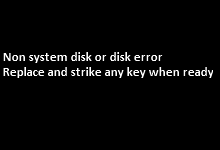
For your information, the non-A system disk or disk error message appears when the BIOS can't find a bootable OS on any storage device in its boot path, or it can't locate the boot disk. This can also be caused by a "boot device not found", "operating system not found" or "missing operating system" error.
General troubleshooting for non-system disk or disk error
HP provides a detailed guide on its help page to troubleshoot "Non-system disk error" and "disk error" issues on black screens in Windows 10, 7, and Vista, which can also be applied to other desktops and laptops from brands like Dell, Compaq, Acer, and Lenovo.
If you're experiencing issues with Windows installation or startup, try the four basic approaches first, which can often resolve the setup and prevent errors.
Fix 1. Remove all the non-bootable storage devices
Check and remove all non-bootable storage devices, such as non-system drives, floppy disks, or CDs/DVDs, to troubleshoot boot issues. After safely ejecting them, turn off and on the computer to see if the error persists.
Fix 2. Check on your HDD's IDE or SATA cable
Check the IDE or SATA cable connecting your HDD to the motherboard, ensuring it's securely fastened, then restart your computer.
Fix 3. Set the right boot priority in BIOS/UEFI
To access your computer's BIOS/UEFI environment, you can usually do so by pressing a specific key during boot-up, such as F2, F12, or Del, depending on your computer's manufacturer. Once in the BIOS/UEFI settings, navigate to the "Boot" or "Boot Order" section, and move the hard disk drive you're trying to boot from to the top of the list. This should ensure that it boots from the correct drive.
- To enter the BIOS or UEFI setup screen, press the key required while your computer is restarting. This key is usually Esc, F2, F8, or F10, but it may vary depending on your specific computer model.
- In the BIOS settings, use the arrow keys to navigate to the Boot tab and set the system drive as the primary boot device, placing it at the top of the list.
- In UEFI, you can use the mouse pointer to specify the boot sequence, making it easier to set up and manage your boot order. This allows for more flexibility and convenience compared to traditional BIOS systems, where you often had to use keyboard commands to navigate the boot menu.
- Save and exit the BIOS/UEFI setup utility, and the computer will restart with the changed settings.
Fix 4. Remove and reinstall the hard drive
A bad connection between the hard drive and the computer can cause unbootable issues, often resulting from a dropped or jarred hard drive. To resolve this, follow a standard process to safely reconnect the hard drive.
- Cut off the power
- Take out the battery (For laptops only)
- Remove the system disk (HDD or SSD)
- Reinstall the system disk
- Reinstall the battery (For laptops only)
- Power on the computer
Fix 5. Use Windows repair services
If the above solutions are too complicated for ordinary users, a safer option is to use manual Windows repair services. Qiling's professional technical team can assist in resolving system startup errors, including system failure, blue screen, black screen, and more, in a secure and efficient manner.
Consult with Qiling data recovery experts for a one-on-one manual recovery service, which includes a FREE diagnosis, followed by a range of services such as data recovery, manual recovery, and more.
- Fix Windows boot issues, including BSOD
- Fix Windows error and configure Windows environment
- Restore the system when it fails to boot
- Optimize Windows computer to make it run quickly
Advanced troubleshooting for non-system disk or disk error
Excluding external factors, the issue lies with the hard disk drive's boot files, which may have become damaged or corrupted. To resolve this, it's often necessary to repair the HDD's boot sector, master boot record (MBR), and boot configuration data (BCD), which should help resolve the non-system disk or disk error.
To protect data on a non-bootable computer, it's essential to take the right steps to fix the issue wisely. This may involve seeking professional help from a computer technician or IT expert who can diagnose and resolve the problem without causing further damage to the system.
Download Qiling bootable media data recovery software to access and recover hard drive data without OS.
Later, download Qiling bootable partition manager to rebuild MBR.
- Tip
- To create a bootable storage media, you'll need a healthy computer, a CD/DVD disc or USB drive, and bootable software. This is useful for recovering data from a non-booting computer or hard drive, and managing partitions without an operating system, such as partitioning, formatting, or wiping a partition. It can also help fix hard drive corruption, bad sectors, and rebuild the Master Boot Record (MBR).
Fix 6. Access hard drive and recover data from the hard disk without OS
Step 1. Create a bootable disk
Before creating a bootable disk, make sure to copy any important data from the USB to another device, as the process will erase the existing data. Once you're ready, you can use Deep Data Recovery WinPE Edition to create a bootable disk on the empty USB.
Connect a USB drive to your PC, then launch Deep Data Recovery WinPE Edition. Select the USB drive and click "Create" to create a bootable disk.
Step 2. Boot from the bootable USB
Connect a bootable disk to a PC that won't boot, and change the boot sequence in the BIOS settings. Typically, this is done by restarting the computer and pressing F2 at the same time to access the BIOS.
To boot your PC from a device other than the hard drive, press F10 to save and exit, selecting "Removable Devices" for a bootable USB drive or "CD-ROM Drive" for a bootable CD/DVD.

Note: You can choose different search modes based on where and why the data was lost.
Step 3. Recover data from a hard drive that won't boot
When you boot from a USB, you can run Deep Data Recovery from the WinPE bootable disk, which allows you to scan a selected drive to find lost files.
Click "Scan" to start the scanning process.

After scanning, you can preview and select the files you want to recover, then click "Recover" to save them to a different location to avoid data overwriting.

Fix 7. Fix non-system disk or disk error by rebuilding MBR
Download and install Qiling Partition Master Professional on a normal computer.
Step 1. Create a WinPE bootable disk
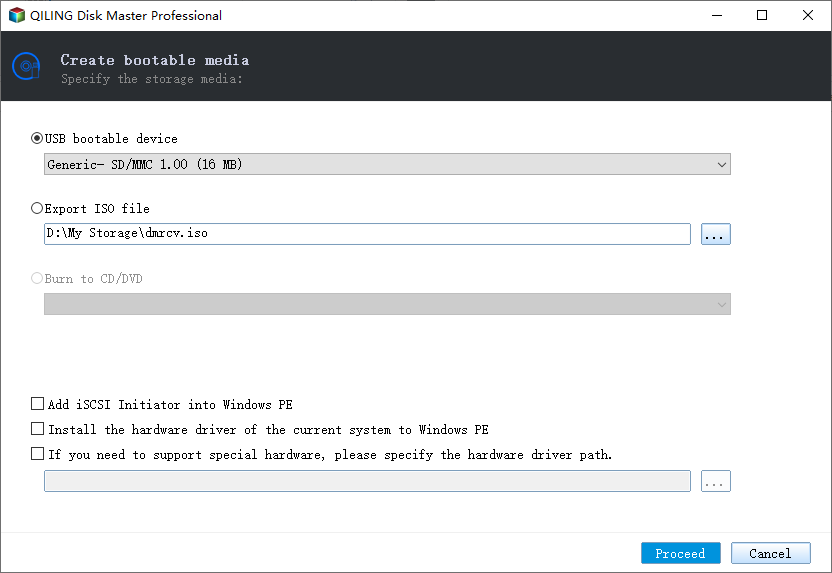
- Launch Qiling Partition Master and click "Create bootable media" on the tools page. From there, select to create the bootable disk on a USB drive, or alternatively, create it on a CD/DVD if your computer has a CD/DVD drive.
- Click "Proceed" to finish the process.
Step 2. Boot Qiling Partition Master Bootable USB
- Connect the bootable USB or CD/DVD to your PC.
- To access the BIOS screen, press F2 or Del when restarting your computer. Once in the BIOS, set your computer to boot from a removable device or CD-ROM drive. After doing so, Qiling Partition Master will automatically run.
Step 3. Rebuild MBR
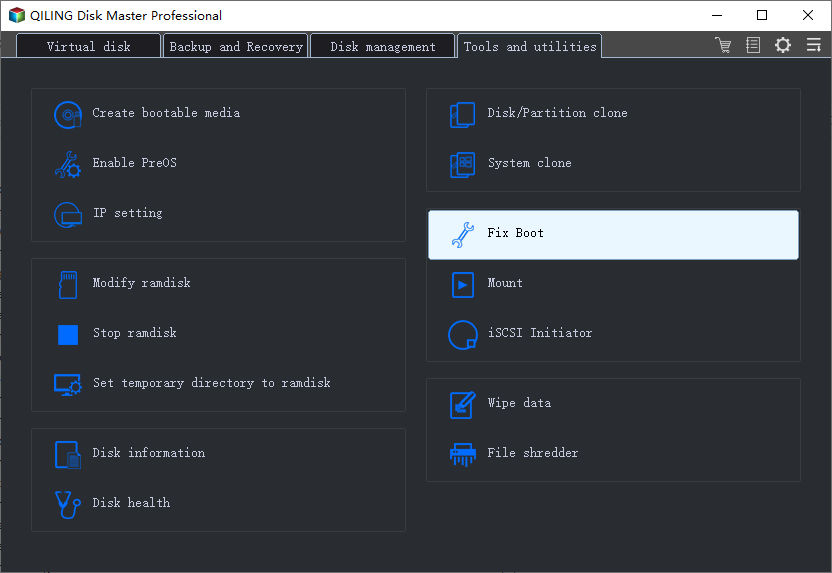
- To fix a damaged Master Boot Record (MBR), right-click on the disk that contains the damaged MBR. Then, select the option to "Fix boot" to proceed with the repair process.
- Select the type of MBR with the current operating system.
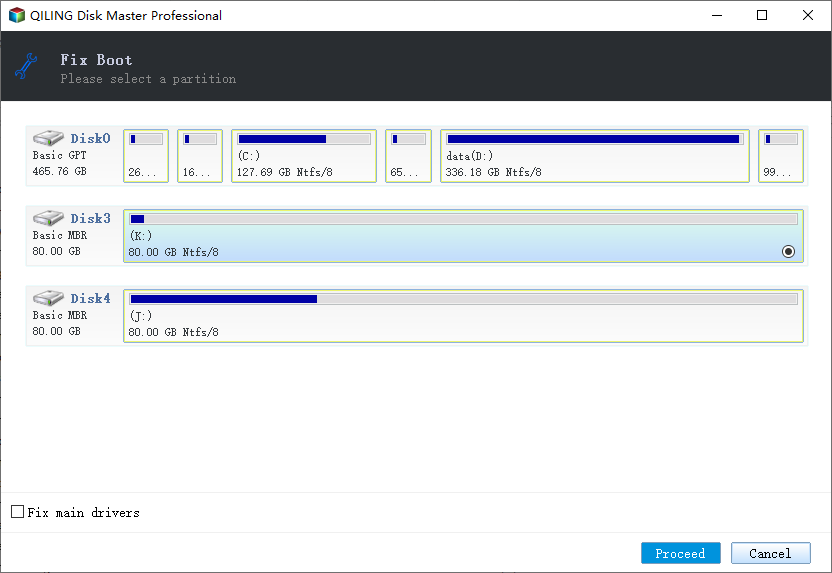
- After clicking "Proceed", the MBR is rebuilt, allowing your computer to boot normally again.
If the MBR is rebuilt and the error persists, further troubleshooting methods can be explored, such as running diagnostics on the hard drive to check for bad sectors, repairing any found, and ultimately replacing the hard drive and reinstalling Windows.
The complementary solutions all rely on the same essential tool, Qiling Partition Master, which is used to manage and manipulate disk partitions. A detailed tutorial on how to use the mentioned functions can be found on the linked pages.
- To run a surface test on a hard drive, you can use a tool like CheckDisk (chkdsk) on Windows or fsck on Linux. CheckDisk can be run from the command line or as a graphical interface, and it will scan the hard drive for errors and inconsistencies. If any errors are found, it will attempt to fix them.
- Fix 9. How to check and repair bad sectors on the hard drive
- To replace a hard drive using disk clone, follow these steps: First, back up all data from the old hard drive to an external drive or cloud storage. Next, purchase a new hard drive that is compatible with your system. Then, connect the new hard drive to your system and set it as the primary drive.
Related Articles
- Recover Data from Encrypted (EFS) Hard Drive Partition in Windows
- Fix Unreadable SD Card and Recover Data
- SD Card Won't Read or Open on My Computer
- Fixed: Seagate external hard drive not showing up in Windows 10/11
- Picture Contains Invalid Image File Header, How Do I Fix It? [5 Ways]
If you're getting an 'Invalid Image File Header' error when trying to open an image, this page provides can help. The error occurs when the image file's header is corrupted or damaged, preventing it from being recognized by your device. - What to Do When Computer Says Invalid System Disk Replace the Disk Windows 10/8/7
This guide provides solutions to fix the “invalid system disk” error on Windows 10, which can be caused by a faulty hard drive. Before attempting to fix the issue, it's recommended to use Qiling data recovery software to restore data from the hard drive to prevent data loss.
Products
Articles & Tutorials
- Data Recovery
- Data Backup
- File Recovery
- File Backup
- System Backup and Restore
- Disk and Partition Clone
- Technical articles
- Mobile articles
- Disk Master Help
- Windows Data Recovery Tutorials
- Windows Secure Delete Tutorials
- Windows Partition Management Tutorials
- Windows File Backup and Restore Tutorials
- Windows System Backup and Restore Tutorials
- Windows Disk Backup and Restore Tutorials
- Windows Clone Tutorials