No Bootable Device Error - What Does It Mean, What Cause the Error, How to Fix
What Does It Mean When It Says No Bootable Device
Users experience an error when starting Acer, Dell, or HP computers, displaying the message "PXE-MOF: Exiting PXE ROM. No bootable device, insert boot disk and press any key".
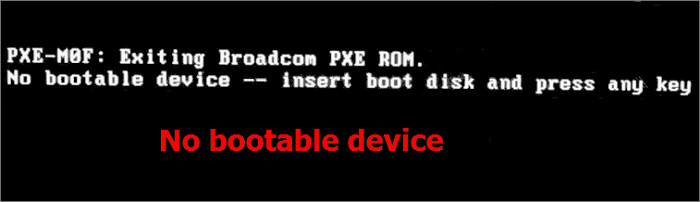
The "No Bootable Device" error occurs when Windows can't find a storage device containing necessary boot files and drives to boot the system, which can be an HDD, SSD, DVD, CD-ROM drive, or USB flash drive.
When a "no bootable device" error appears on your screen, it can be alarming, especially if you're not tech-savvy. Not only can't you access your computer, but you also risk losing data if you don't resolve the issue correctly. However, there's no need to panic - by following this tutorial, you can fix the problem without losing any data.
| Workable Solutions | Step-by-step Troubleshooting |
|---|---|
| Check Hard Drive Connection | Power off your laptop or PC completely. Unplug the power cord...Full steps |
| Set the Drive as Boot Device | Restart your computer press the F10 key repeatedly to enter the BIOS...Full steps |
| Use Windows Repair Services | Use Windows repair services to fix all Windows startup issues like BSOD, booting failure...Full steps |
| Fix Corrupted MBR | Launch Qiling Partition Master, click "WinPE Creator" on the toolbar...Full steps |
| Repair System Files | Put the Windows installation media drive or CD into your computer...Full steps |
| Fix File System | Boot your computer from the Windows installation media...Full steps |
What Cause No Bootable Device Error on Windows 10
A "No bootable device" error occurs when the computer can't find the device or file that boots the system. This issue can be caused by several factors, including a missing or corrupted boot sector, a faulty hard drive or SSD, or a BIOS or UEFI setting that's not configured correctly.
- The bootable hard drive or partition is not detected.
- The computer is not booting up correctly because it is set to boot from an unbootable device. This can be due to the boot order being incorrect, meaning it's trying to boot from a device that doesn't have an operating system or is not properly configured.
- The MBR (Master Boot Record) is damaged.
- The hard drive gets corrupted.
- The operating system file is corrupted.
Recover Data from a Laptop/PC That Won't Boot At First
If you're experiencing a "no bootable device" error, there are various possible causes, and the solution may differ depending on the underlying issue. However, if the problem is due to a hard disk or system issue, it's essential to take precautions to avoid data loss during the troubleshooting process. To do this, export your data to a backup location first, and then proceed with the recommended solutions. This will help ensure that your important files are safe while you work to resolve the bootable device issue.
If your computer won't turn on, you can use Deep Data Recovery to create a bootable USB drive and recover your data in the WinPE environment.
You can use this advanced data recovery software to recover permanently deleted files from various storage devices on Windows 10 and Mac computers.
Step 1. Create a bootable disk
To prepare your USB, copy any important data to another device if it's not empty. Then, you can use Deep Data Recovery WinPE Edition to create a bootable disk on the USB, which will erase the existing data.
Connect a USB drive to your PC, then launch Deep Data Recovery WinPE Edition. Select the USB drive and click "Create" to create a bootable disk.
Step 2. Boot from the bootable USB
To resolve the issue of a computer that won't boot, connect a bootable disk to the affected PC and modify the boot sequence in the BIOS settings. This typically involves restarting the computer and simultaneously pressing the F2 key to access the BIOS. From there, users can adjust the boot order to prioritize the bootable disk, allowing the computer to boot from it instead of the default settings.
To boot a PC from a device other than the hard drive, press F10, select "Removable Devices" or "CD-ROM Drive" as the boot device, and save and exit.

Note: You can choose different search modes based on where and why the data was lost.
Step 3. Recover data from a hard drive that won't boot
When you boot from a USB, you can run Deep Data Recovery from the WinPE bootable disk, select the drive you want to scan, and find all your lost files.
Click "Scan" to start the scanning process.

After scanning, you can preview all recoverable files, select the targeted files, and click the "Recover" button to restore your files. To avoid data overwriting, it's recommended to save all the recovered data to another place. This will ensure that your important files are safely recovered and can be accessed again.

After recovering your important files, you can confidently use the following methods to resolve the no bootable device error. These methods will help you get back on track and ensure your system is up and running smoothly again.
Fix 1. Check Hard Drive Connection to Fix No Bootable Device
To resolve the no bootable device issue, ensure the bootable hard drive is properly connected to the computer. If the connection between the system disk and the computer is loose, the computer may not detect the bootable hard drive, resulting in the error.
Note: It's easy to check the hardware connection on desktop computers, but disassembling a laptop is quite complicated and should be done by a professional.
Step 1. Power off your laptop or PC completely.
Step 2. Unplug the power cord and open up the case.
Step 3.If your SATA cable connection is not working properly, check or replace the cable to ensure it's securely connected to both the motherboard and the hard drive or solid state drive. This will help establish a proper setup between the two components.
Step 4. Reassemble your computer and restart it to see if it can start normally. If it still doesn't work, there might be a hardware issue, and you may need to contact a professional for further assistance.
Fix 2. Set the Bootable Hard Drive as Boot Device
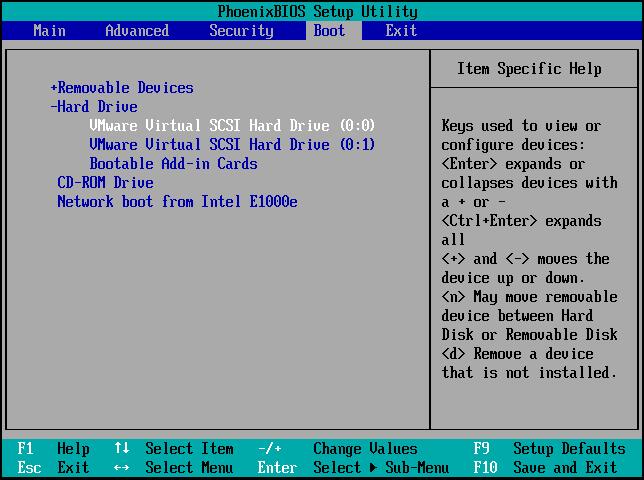
If your computer is set to boot from an unbootable disk or device, you can resolve the no bootable device problem by changing the boot order in the BIOS. To do this, restart your computer and enter the BIOS settings by pressing a key such as F2, F12, or Del, depending on your computer's manufacturer. Once in the BIOS, navigate to the boot order settings and change the boot priority to a device that is known to be bootable, such as a USB drive or a CD/DVD drive.
Related reading: UEFI vs. BIOS: What's the Difference and Which is Better
Step 1. To access the BIOS setup menu, restart your computer and press the F10 key repeatedly. If that doesn't work, try pressing ESC, F1, F2, or F8, as indicated by the screen message.
Step 2. Press the right arrow key on your keyboard until the Boot tab is opened.
Step 3. To prioritize the hard drive in the boot order list, press the + or - button to move it to the top of the list.
Step 4. Press F10 to save and exit. Then, restart your computer.
Fix 3. Solve Bootable Device Error with Windows Repair Services
To fix Windows 10 booting issues efficiently, you can use manual Windows repair services. Qiling's professional technical team can assist with solving system startup errors, such as system failure, BSOD, unbootable devices, and more.
Consult with Qiling data recovery experts for one-on-one manual recovery service, which includes the following services after a FREE diagnosis:
- Fix Windows boot issues, including BSOD
- Fix Windows error and configure Windows environment
- Restore the system when it fails to boot
- Optimize Windows computer to make it run quickly
Fix 4. Fix Corrupted MBR to Solve No Bootable Device Error
The Master Boot Record (MBR) is the first sector a PC reads when it boots up to access a hard disk. If the MBR becomes corrupted or damaged due to a virus attack, power outage, or bad sectors, it can cause a "no bootable devices found" error.
You can easily fix a corrupted MBR using Qiling Partition Master, an advanced disk management tool that can manage your hard disk in every way, including resizing/moving partitions to solve low disk space, merging partitions, creating/deleting/formatting partitions, cloning disks, wiping data, and converting disks/partitions.
The Windows 10 disk partitioning tool allows users to repair corrupted MBR with step-by-step guides, making it a useful download for those who need to fix issues with their disk partitioning system.
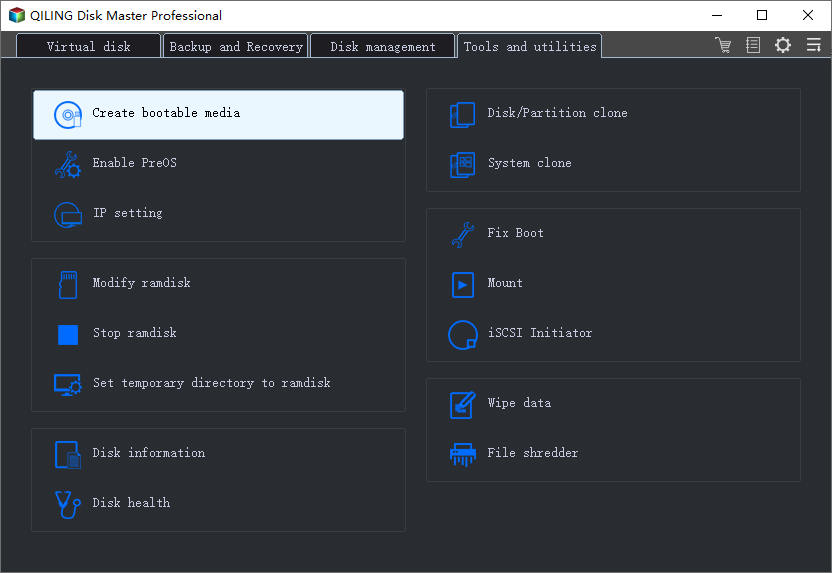
Step 1. Create a WinPE bootable disk
- Launch Qiling Partition Master, click "Create bootable media" on the tools page, and select to create the bootable disk on a USB drive or CD/DVD.
- Click "Proceed" to finish the process.
Step 2. Boot Qiling Partition Master Bootable USB
- Connect the bootable USB or CD/DVD to your PC.
- To access the BIOS screen on startup, press F2 or Del. Once in the BIOS, set the computer to boot from the removable devices or CD-ROM drive. After this, Qiling Partition Master will automatically run.
Step 3. Rebuild MBR
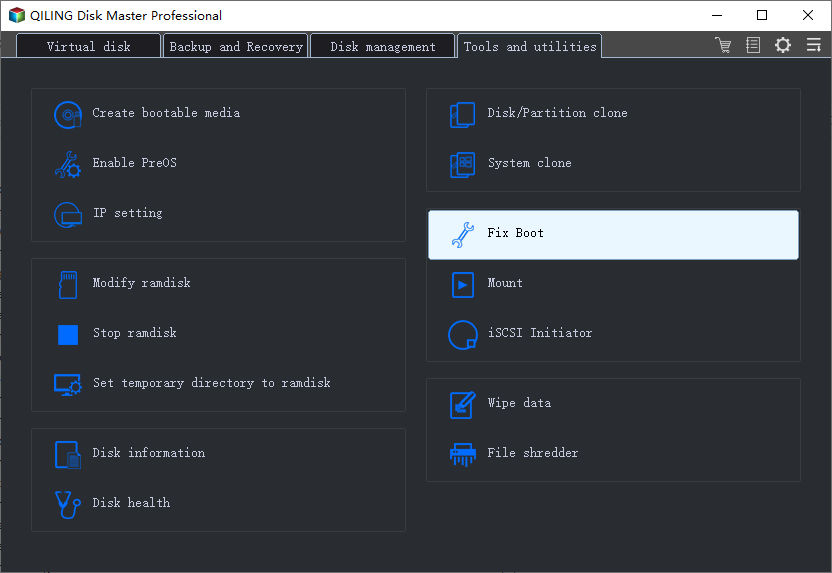
- Right-click the disk whose MBR is damaged. Choose "Fix boot" to continue.
- Select the type of MBR with the current operating system.
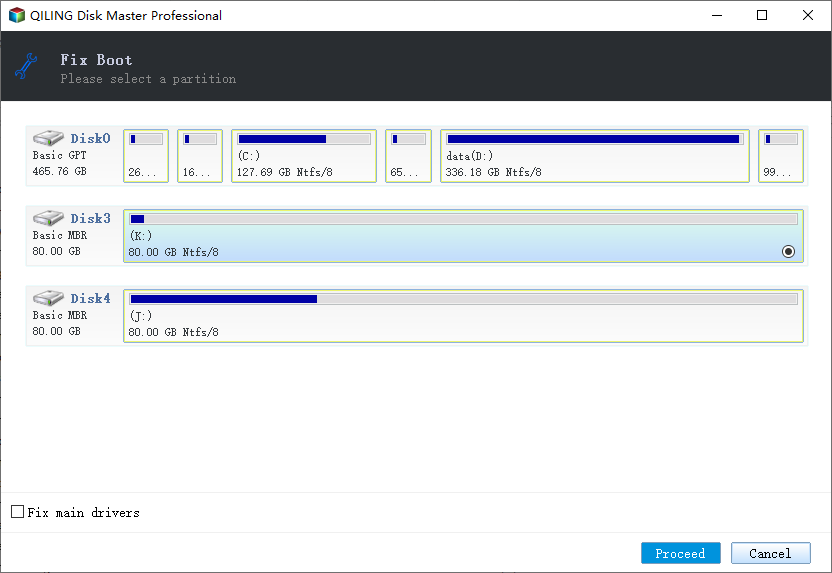
- The computer can boot normally again once the MBR is built.
Fix 5. Repair System Files with Installation Media
The "no bootable device" error can occur when system files on the hard drive are corrupted. To address this issue, you can try fixing the file using a specific method, which may resolve the problem.
Step 1. Put the Windows installation media drive or CD into your computer and boot from it. This involves booting your computer from the installation media, following the on-screen instructions to select your language, time and currency format, and other preferences, and then selecting the option to repair your computer.
Step 2. Choose the language and region, and then click "Repair your computer".
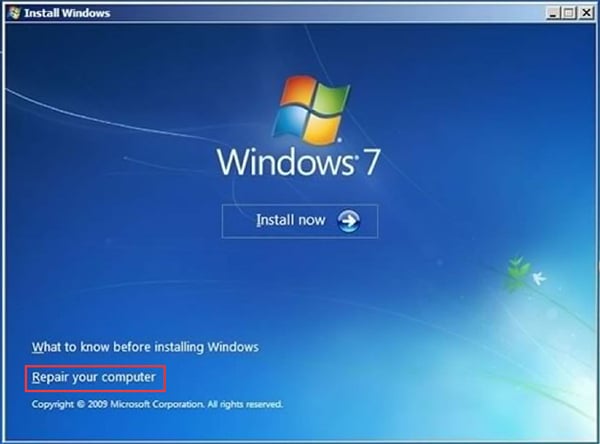
Step 3. For Windows 10 users, select "Troubleshoot > Advanced options > Command Prompt".
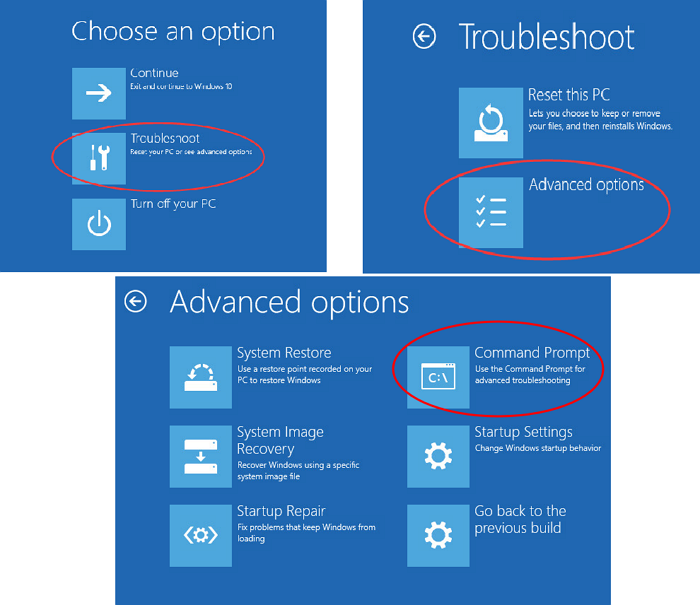
For Windows 7 users, on the System Recovery Options screen, choose "Use recovery tools that can help fix problems starting Windows..." and select "Command Prompt".
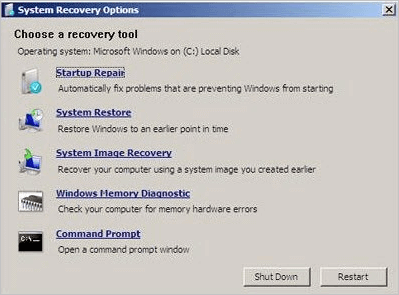
Step 4. In the Command Prompt, type the SFC command line and press Enter, then repeat the process. The sfc /scannow command scans the integrity of all protected operating system files and replaces incorrect, corrupted, changed, or damaged versions with the correct ones where possible.
sfc /scannow /offbootdir=c:\ /offwindir=d:\windows
C is the system drive, where Windows is installed. The drive letter can be changed if needed.
Fix 6. Fix File System on the Bootable Hard Drive
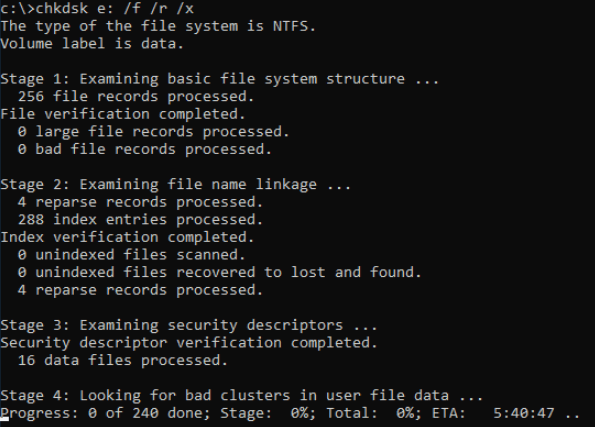
If the file system of the boot disk is damaged, the hard drive may not start normally and display a "no bootable device" error. This issue can be addressed by running the CHKDSK command to attempt to repair the corrupted file system.
If you're not comfortable using the Command Prompt (CMD), you can use a simpler alternative like Qiling partition manager to check and repair hard disk errors with just a few clicks.
Step 1. Boot your computer from the Windows installation media using the steps above.
Step 2. Access the Command Prompt. Enter the following command and press Enter.
chkdsk E: /f /r /x ("E" means the drive letter of the partition you want to repair, you can replace it).
Step 3. Wait for the process to complete.
Final Words
Dealing with the "No bootable device" error on Acer, HP, Dell, and other computers can be frustrating. Fortunately, there are effective solutions that can help resolve the issue. By trying out the most common fixes, such as checking the boot order, ensuring the bootable drive is properly connected, verifying the BIOS settings, running a disk check, and reinstalling the operating system, users can troubleshoot and resolve the problem.
To resolve the issue, first ensure that the bootable hard drive is recognized by your computer. Then, access the BIOS settings and adjust the boot order to prioritize the hard drive. If the issue persists, use a Windows installation CD to fix any corrupted Master Boot Record (MBR), system files, and bad sectors on the hard drive.
Important: When your computer won't boot, prioritize data recovery using Qiling software to efficiently rescue lost files before attempting to resolve the issue.
Related Articles
- How to Fix Missing DLL Files in Windows 10/8/7 [2022 Full Guide]
- Your Reliable Solution on How to Recover 2GB Data for Free
- SD Card Not Showing Up or Working in Windows 10/8/7
- Instant Solutions to Fix Word/Excel Is Locked for Editing
- How to Recover Severely Corrupted Word File According to Different Scenarios (Can Open or Cannot Open)
If you have a severely corrupted Word file that won't open in Word 2003 to Word 2019, including the version included with Microsoft 365, you can try recovering it. - 2 Ways to Recover Unsaved iWork Document on Mac
Mac crashes often happen without warning, leaving users' unsaved iWork documents at risk of being lost. A common scenario is when a Mac shuts down while a user is working on an iWork document, resulting in important data being left unsaved.
Products
Articles & Tutorials
- Data Recovery
- Data Backup
- File Recovery
- File Backup
- System Backup and Restore
- Disk and Partition Clone
- Technical articles
- Mobile articles
- Disk Master Help
- Windows Data Recovery Tutorials
- Windows Secure Delete Tutorials
- Windows Partition Management Tutorials
- Windows File Backup and Restore Tutorials
- Windows System Backup and Restore Tutorials
- Windows Disk Backup and Restore Tutorials
- Windows Clone Tutorials