How to Fix Microsoft Office Cannot Open This File Because Some Parts Are Missing or Invalid
Microsoft Word is the most widely used word processing program, but it has some shortcomings, such as the inability to open old files in newer versions of Microsoft Office, which can be due to version incompatibility or file corruption.
The Microsoft Word file you're trying to open might be damaged, and you'll get an error message stating the file is corrupt and cannot be opened, followed by a message saying Microsoft Office cannot open this file because some parts are missing or invalid. This issue can be resolved using the methods outlined in this article.
| Workable Solutions | Step-by-step Troubleshooting |
|---|---|
| 1. Update Trust Center Settings |
|
| 2. Change Security Settings |
|
Symptoms - Microsoft Office Cannot Open This File
The error message "Microsoft Office cannot open this file because some parts are missing or invalid" occurs when trying to access a document created in a previous version of Microsoft Office, such as 2007 or 2003.
Damaged File
This error message often appears after an update or when a problem occurs during the saving process. If your computer loses power or crashes while saving a file or when MS Word is writing to the disk, it can damage the file, leading to this error message.
Malfunctioning Storage or Malware
While following safety steps can minimize the risk, even the most recent versions of Microsoft Word can still experience corruption or damage, prompting disappointing warnings that a Word file has been corrupted or damaged. This is often due to the fact that newer versions of Word save files to a new location rather than overwriting the current document, reducing the likelihood of corruption. However, despite these precautions, errors can still occur, leaving users with corrupted files and the frustration of having to recover or recreate their work.
The unexpected behavior of Word files may be caused by malfunctioning storage device regions or severe malware threats that result in faulty files, potentially leading to system failures and file tampering.
To avoid disappointment when you can't view an important document, regularly back up your data. While it's frustrating, don't worry too much as you'll be able to fix damaged Word files in the next section.
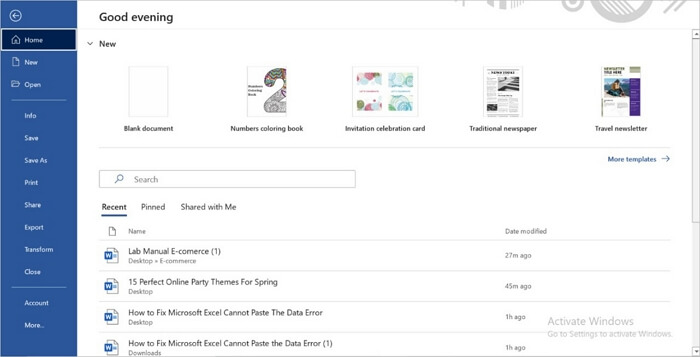
Fix Microsoft Office Cannot Open This File Because Some Parts Are Missing or Invalid
To resolve the error and repair your Word file, you can try two procedures. One involves updating your Trust Center Settings, while the other requires modifying system configurations. These methods can help get your files back in order and resolve the issue you're experiencing. Let's proceed with these solutions.
Method 1. Update Trust Center Settings
To update the Trust Center settings in Microsoft Word, follow these steps: Go to the File tab, click on Options, and then select Trust Center. In the Trust Center settings, click on Protected View and select the option to "Enable editing" or "Enable editing and execution of macros." This will allow you to open and edit Word documents without issues related to Protected View. Additionally, you can also update the policy to reflect the changes you've made. This should resolve any difficulties you're experiencing opening Word documents.
Step 1. Open MS Word on your computer.
Step 2. Select "File" and then "Options" from the drop-down menu.
Step 3. Select "Trust Center" from the drop-down menu and hit the "trust Center settings" button.
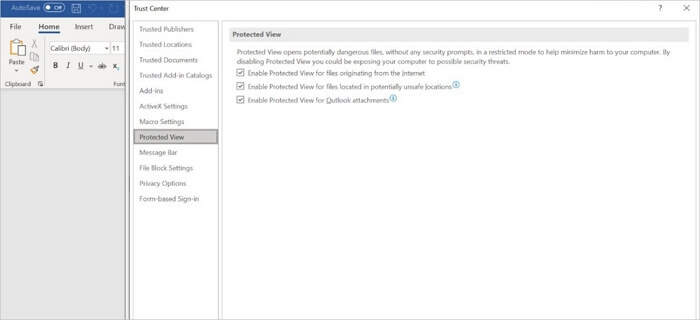
Step 4. Select "Protected View" from the drop-down menu.
Step 5. Un-tick everything and hit the "OK" button to confirm your selection.
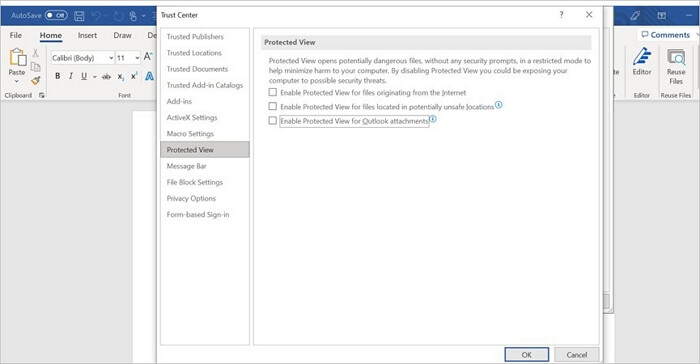
Step 6. Now try opening the document again after restarting Microsoft Word
The error notice should no longer appear, and you should be able to access the document without any issues.
Method 2. Change Component Security Settings
Step 1. Open the search bar, type dcomcnfg, and press the Enter key.
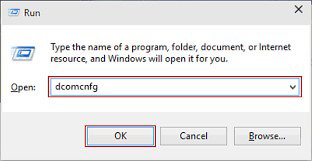
Step 2. A new window will appear. Choose "Component Services" from the menu.
Step 3. Double-click on the "Computers" folder on the main window of the screen.
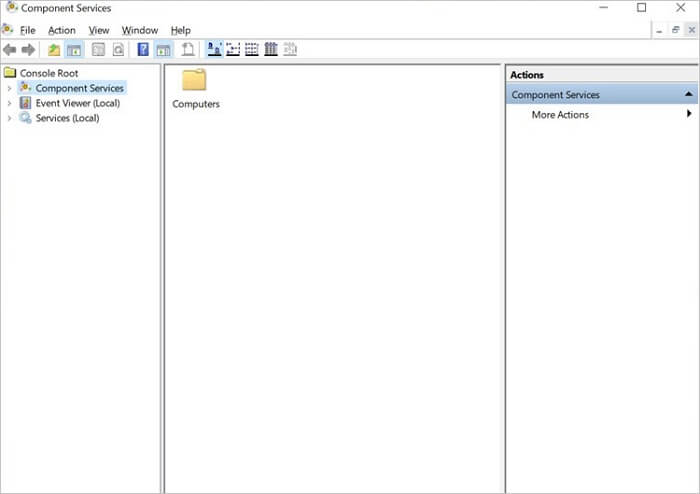
Step 4. Right-click on the "My Computer" icon and select "Properties" from the drop-down menu.
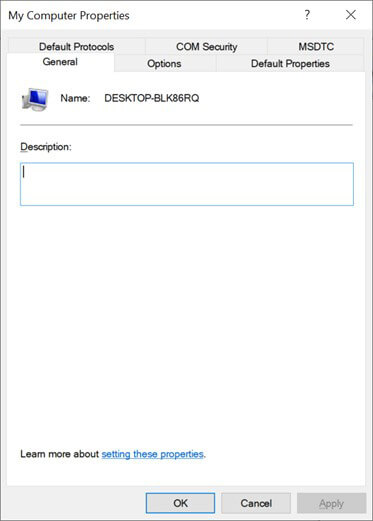
Step 5. Select the "Default Properties" option from the drop-down menu.
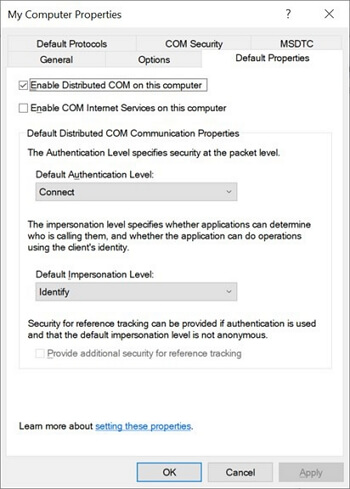
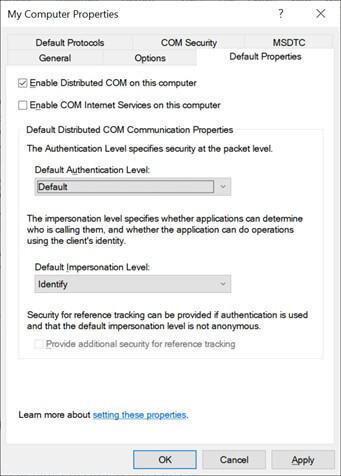
Step 6. To edit the "Default Distributed Properties" tab, select "Default" from the drop-down menu under "Default Distributed Com Communication Properties".
Step 7. Select the "OK" button and choose "Identity" from the Default impersonation level drop-down list.
How to Repair Corrupt Word Files with a File Repair Tool
If previous methods don't work, a Microsoft Office repair guide using Deep Data Recovery can help fix document issues and potentially recover deleted data.
This tool securely helps recover damaged files while preserving the original formatting and style, ensuring compatibility across different versions of Word, including 2000 and earlier, as well as 2013. It also provides quick access to detailed documentation and support, making it a reliable solution for recovering Word documents.
This easy-A word document repair tool can fix a corrupted Word document without altering its various components, including images, fonts, text, links, headings, or footers, and it doesn't require any additional software to function.
It's recommended to install the software from its official site and familiarize yourself with its features before purchasing it, as it's a free online tool that you can explore.
Step 1. Launch Deep Data Recovery, select the desired file types, and click "Fast Scan" to initiate the recovery process.

Note: You can choose different search modes based on where and why the data was lost.
Step 2. This software allows you to repair damaged Word, Excel, PPT, and PDF files in a single process. It scans the disk for corrupted documents and enables you to fix them in the same steps.

Step 3. The Qiling data recovery and repair tool scans for all lost and corrupted files, allowing you to find target files by type or search for them by name in a search box.

Step 4. Deep Data Recovery can automatically repair damaged documents, and after previewing the file, you can click "Recover" to save the repaired Word, Excel, and PDF documents to a safe location.
Conclusion
Microsoft Office cannot open this file because some parts are missing or invalid error can be resolved by checking the file's integrity, repairing the file using built-in tools, and using a third-party file repair tool. If the issue persists, try saving the file in a different format, checking for malware, and reinstalling Microsoft Office. Additionally, you can use a file repair tool to fix damaged Microsoft Office documents. These solutions can help resolve the issue and allow you to access your files again.
Related Articles
- How to Recover Files Lost While Moving
- Super Easy! How to Recover Deleted Files from NAS (Synology/QNAP)
- How to Recover Permanently Deleted Files in Windows 10 Without Software (Mac Included)
- How to Recover 0 Byte Word Document in Windows 10/8/7
- [SOLVED] Hard Drive/External Hard Drive Only Shows Half Capacity
Many reasons would result in hard drive showing partial capacity, like a half(1tb ssd only showing 500gb). If your hard drive only showing partial capacity, so you can get 6 fixes to how to restore hard drive full capacity. - Fix Hard Disk Not Detected/Recognized on Windows 10
Troubleshoot hard drive failure when a disk is not detected or recognized, and learn when to recover data before repair.
Products
Articles & Tutorials
- Data Recovery
- Data Backup
- File Recovery
- File Backup
- System Backup and Restore
- Disk and Partition Clone
- Technical articles
- Mobile articles
- Disk Master Help
- Windows Data Recovery Tutorials
- Windows Secure Delete Tutorials
- Windows Partition Management Tutorials
- Windows File Backup and Restore Tutorials
- Windows System Backup and Restore Tutorials
- Windows Disk Backup and Restore Tutorials
- Windows Clone Tutorials