How to Repair Memory Card Not Formatted
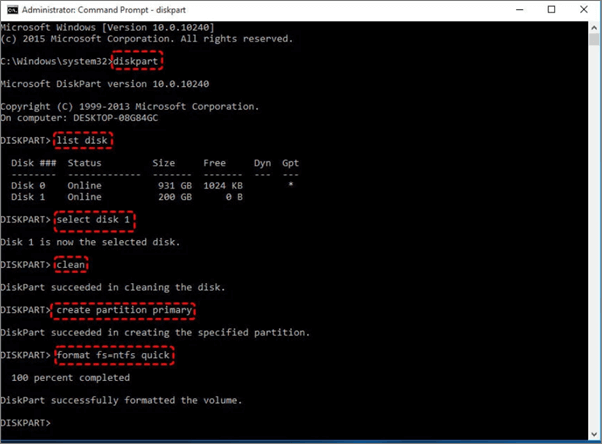
Quick Fix To Repair Memory Card Not Formatted with Diskpart:
- Press Windows + Rshortcut.
- Input cmdin the pop window and click OK.
- To perform the disk formatting operation, start by typing "Diskpart" in the command line, followed by "list disk" to display a list of available disks. Select the desired disk by typing "select disk 1" (assuming it's disk 1), then execute the "clean" command to wipe the disk.
- For more details>>
A "not formatted" error on a memory card or SD card can occur due to device corruption, and can be resolved without losing data. To fix this issue, follow the step-by-step tutorial provided, which can also be applied to other removable devices such as external hard drives and USB flash drives. The solutions will guide you through the process of repairing the device without losing any data.
Reasons for memory card not formatting
- Bad sectors in the memory card may be causing the issue. You can use Qiling Partition Master to perform a surface test to diagnose the problem.
- The memory card is write-protected. The memory card is protected, meaning you can only read data from it, but not write any new data.
- The virus attacks the memory card.
- Improper install.
- Sudden power failure during data writing, editing, or reading.
First. Recover data from memory card not formatted error
When a memory card shows a "not formatted" error, it's essential to first retrieve any important data stored on the device. Once the data is safely recovered, you can then format the device to resolve the issue. A suitable tool for this process is Qiling disk data recovery, which can aid in retrieving your data.
If you're thinking about how to repair a memory card without formatting to protect your data, you can try this safer approach. This method can help with data recovery in situations where you need to repair a memory card, such as when it's corrupted, damaged, or has issues with its file system or physical structure. By using this approach, you can potentially recover your important data without having to format the memory card, which could result in data loss.
- The memory card is not formatted, prompting a "not formatted" message and requesting a format operation to be performed on the card.
- Memory card became RAW with 0-byte memory.
- SD card is damaged. Try reformatting it.
- Getting "memory card not formatted operation failed" error message.
- 'The card cannot be accessed. Please reinsert the card or format the card using a camera.'
- The error message "This type of file system is RAW. Chkdsk is not available for RAW drives" is typically encountered when trying to access or manage a drive that is not properly formatted or is in a RAW state. This means the drive has not been initialized or formatted by the operating system, and as a result, the built-in disk check utility, Chkdsk, is not available for this type of file system.
Step 1. Launch Deep Data Recovery on your PC, and click "Fast Scan" to begin the process.
Connect the USB drive to your computer and launch Deep Data Recovery. To quickly filter the scanned files, you can choose a file category, such as Pictures, Videos, Documents, or Audio.

Note: You can choose different search modes based on where and why the data was lost.
Step 2. Select the formatted SD card, USB flash drive, or Pen drive from which you want to restore lost files, then click "Scan" to initiate the recovery process.

Step 3. After the scan is complete, all scan results will be displayed on the screen. You can use the "Filter" or "File Type" feature to find your target files.

Step 4. To recover files from a formatted external drive, select the desired files and click "Recover". A new window will open, prompting you to choose a new location for the recovered files. Confirm the selection by clicking "OK".
Consult with Qiling Data Recovery Experts for one-on-one manual recovery service, which includes a FREE diagnosis followed by the following services.
- Repairing a corrupted RAID structure, unbootable Windows OS, and damaged virtual disk files (.vmdk, .vhd, .vhdx, etc.) can be a complex process. It often requires a combination of data recovery and system repair tools, as well as expertise in handling various file systems and virtualization formats.
- Recover/repair lost partition and re-partitioned drive.
- Unformat hard drive and repair raw drive(Bitlocker encrypted drive)
- Fix disks that become GPT protected partitions
Second. Repair memory card not formatted error
After recovering your data, you can try to repair a memory card format error by formatting it in Windows. However, you may encounter a problem with Windows saying it was unable to complete the format or displaying other error messages. To resolve this issue, you can download Qiling partition software for free, a powerful tool that can help repair memory card not formatted errors and work well to resolve the issue.
- Warning
- The formatting operation will erase your data totally.
Method 1: To repair memory card not formatted with Qiling partition tool:
- To format an external drive or USB, click on the device you intend to format and select the "Format" option.
- Set the Partition label, File system (NTFS/FAT32/EXT2/EXT3/EXT4/exFAT), and Cluster size, then click "Proceed".
- Click "OK" to format the hard drive partition.
Method 2: To repair memory card not formatted with Diskpart
Diskpart is a powerful tool to format an SD card in Windows 10, but the formatting process requires more steps than method 1, so be patient during the diskpart steps.
1. Press Windows + R shortcut.
2. Input cmdin the pop window and click OK.
3. To perform a clean installation of Windows on a USB drive, use the Diskpart command-line utility to manage the disk. First, list all disks and select the USB drive (usually disk 1).
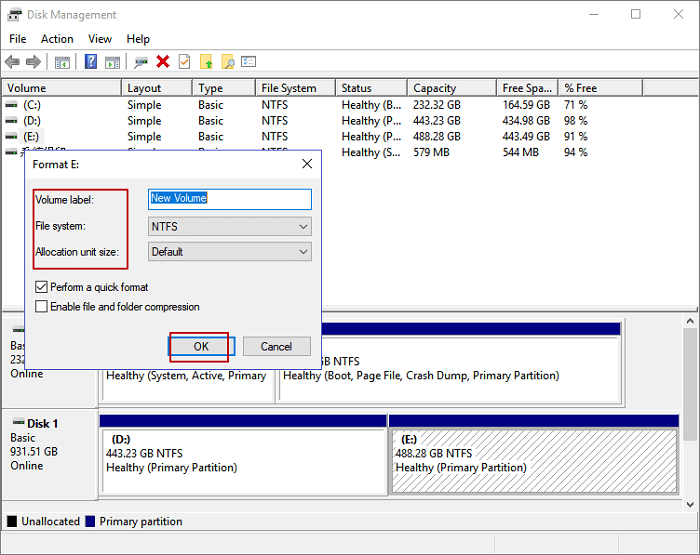
Method 3: To repair memory card error with Disk Management
1. Click Windows + X shortcut.
2. Choose Disk Management.
3. Find your memory card on the right panel.
4. Right-click the memory card and choose Format.
5. Set Volume label, File system, and Allocation unit size.
6. Click OK to complete a quick format.
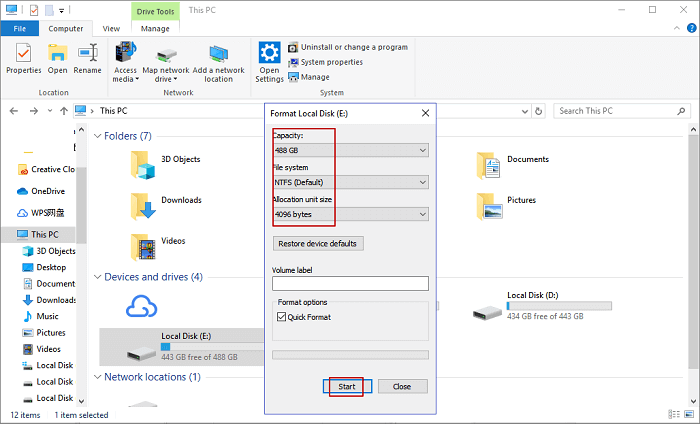
Method 4: To fix memory card problem via Windows File Explorer
1. Open File Explorer.
2. Choose This PC.
3. Click the memory card and select format.
4. Set the proper volume label, file system, and allocation unit size.
5. Click Proceed.
- Notice:
- When using Disk Management and File Explorer to repair a memory card that's not formatted, you may encounter errors like "The format did not complete successfully" or "Windows was unable to complete the format".
- We recommend using method one and method two to resolve card format errors.
Related Articles
- What Is an SD Card and What Is It Used For
- Repair and Recover Corrupted/Unreadable VHD or VHDX Files
- Apacer USB 3.0 Repair and Format Tool Free Download (Official)
- SD Card/USB Drive/Pen Drive Shows 0 Bytes
- How to Recover Data from FAT32 SD Card/Hard Drive/USB (Windows & Mac)
You can recover data from a FAT32 SD card that has been formatted, deleted, corrupted, marked as RAW, or become inaccessible or damaged. This applies to all types of FAT32 SD cards, including those from Samsung, SanDisk, PNY, Transcend, Sony, Kingston, Lexar, and more. - XML Repair| How to Repair/Recover Corrupted XML Files
This XML repair and recovery tutorial is offered to help you easily repair/recover deleted and corrupted XML files. Similarly, lost XML files can also be restored by referring to this guide.
Products
Articles & Tutorials
- Data Recovery
- Data Backup
- File Recovery
- File Backup
- System Backup and Restore
- Disk and Partition Clone
- Technical articles
- Mobile articles
- Disk Master Help
- Windows Data Recovery Tutorials
- Windows Secure Delete Tutorials
- Windows Partition Management Tutorials
- Windows File Backup and Restore Tutorials
- Windows System Backup and Restore Tutorials
- Windows Disk Backup and Restore Tutorials
- Windows Clone Tutorials