[macOS Guideline] How to Enter Mac Internet Recovery Mode
Quick Navigation:
| Workable Solutions | Step-by-step Troubleshooting |
|---|---|
| 1. Enter Mac Internet Recovery | Click the Apple menu and choose...Full steps |
|
2. Judge Your Processor |
Head to the menu bar and click the...Full steps |
|
3. Recover Lost Data |
Select the location where your important...Full steps |
Your Mac has a hidden recovery partition that contains a bootable copy of the operating system, allowing you to boot from it to reinstall macOS or check connected disks and external drives. This process is also known as booting into Recovery Mode.
Mac Recovery Mode is a troubleshooting tool that allows users to resolve critical system issues or restore data from a Time Machine backup, typically used as a last resort before seeking professional repair.
When the damage to a computer is severe, the recovery partition may also be affected, making it impossible to enter Recovery Mode. In such cases, the internet-based version of Recovery Mode, known as Internet Recovery, can be used as an alternative.
How to Enter Mac Internet Recovery
Internet Recovery is an internet-based version of Mac Recovery Mode that loads recovery tools from Apple's servers and can reinstall both the recovery partition and macOS, with the exact method of entering it varying between Macs with Apple Silicon and those with Intel processors.
Apple Silicon: Enter Internet Recovery
Step 1. To turn off your Mac, click the Apple menu and select Shut Down. This will immediately power down your device.
Step 2. Press and hold the Power key until you see the "Loading startup options" screen.
Step 3. Click Options > Continue.
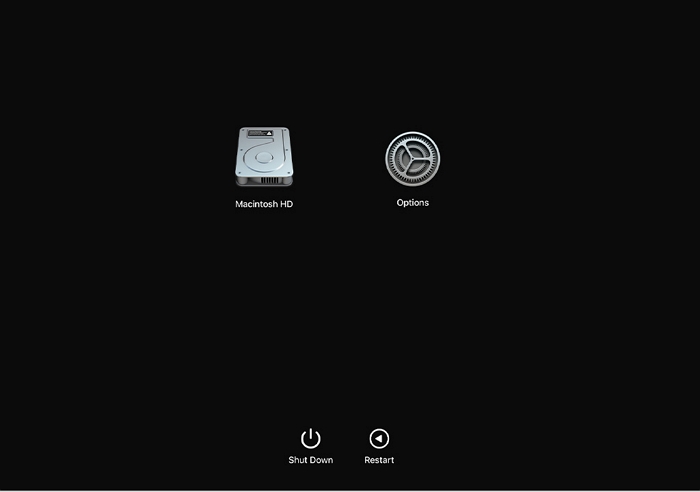
Step 4. Select your Mac disk and click Next.
Step 5. To access the administrator account, select it, click Next, and enter the password. This will allow you to enter the Internet Recovery mode by clicking Continue.
Intel Processor: Enter Internet Recovery
Step 1. Click the Apple menu and choose restart.
Step 2. When you see the startup screen, press and hold the shortcuts to start Internet Recovery, which may take a while.
Command + Option + R: reinstall the latest version of macOS compatible with your Mac.
Command + Option + Shift + R: To restore your Mac to its original factory settings, you can try reinstalling the version of macOS or OS X that was initially installed on your Mac when it was newly purchased. If the original version is not available, the process will install the next closest version that is still available. This will erase all data, applications, and settings, so be sure to back up any important files before proceeding.

Step 3. Then unlock the administrator account with the password.
Step 4. Make sure your Mac is connected to the internet, either via Wi-Fi or Ethernet.
Step 5.Your Mac will then start to download a recovery system image from Apple's server, and the time it takes to do so will depend on your internet connection.
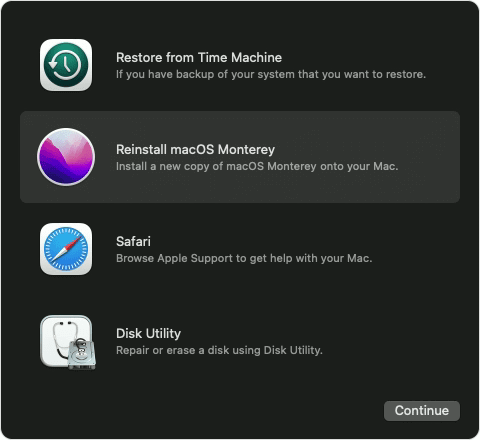
Step 6. When entering the Internet Recovery mode, you will see four options that are similar to those found in the common Recovery Mode.
Step 7. Choose the option you want to use.
Q. How to Know If Your Mac Uses Apple Silicon or Intel Processor?
Step 1. Head to the menu bar and click the Apple logo.
Step 2. Click About This Mac.
Step 3. Mac computers with Intel processors will show an item labeled "Processor", while those with Apple silicon will show an item labeled "Chip".
Mac computers equipped with Apple silicon chips can be distinguished from those with Intel processors by checking the model. If the Mac has a model that starts with "M" (e.g., M1, M2, etc.
Mac with Apple Silicon modes:
- iMac (24-inch, 2021)
- MacBook Pro (13-inch, 2020)
- MacBook Air (13-inch, 2020)
- Mac mini (2020)
How to Recover Lost Data When Time Machine Failed
When you enter Recovery Mode on your Mac, you can reinstall macOS and restore Time Machine backups. However, if your Time Machine drive fails or you didn't create a backup, you can't recover data this way. In such cases, using a data recovery tool like Deep Data Recovery for Mac is recommended.
What Deep Data Recovery for Mac can do:
- Recover files from an emptied Trash bin.
- Recover formatted or corrupted USB/SD card/external hard drive.
- The free version offers 2GB of free data recovery.
- The drive is known for its fast data scanning speed and good recovery quality.
Step 1. Launch Deep Data Recovery, select file types, and click "Fast Scan" to begin the recovery process.

Note: You can choose different search modes based on where and why the data was lost.
Step 2. Select the location where your important data & files were deleted and click the "Scan" button.

Step 3. The software will perform both a quick scan and a deep scan on the selected volume, working diligently to identify as many deleted files as possible.

Step 4. The scan results will be displayed in the left pane. Select the desired file(s) and click the "Recover" button to retrieve them.
Conclusion
Mac Internet Recovery is an alternative way to access Recovery Mode from Apple servers via a network connection, working similarly to the standard Recovery Mode, but requiring a different entry method.
Related Articles
- A Quick Answer: How Much Does Mac Data Recovery Cost
- How to Undelete Data on Mac OS X
- File System Format Comparison: ExFAT vs Mac OS Extended
- Recuva for Mac Free Download
- How to Fix Overheated Hard Drive and Recover Data [Symptoms, Causes & Fixes]
If a hard drive has overheated, it's essential to address the issue promptly. Symptoms include unusual noises, decreased performance, and system crashes. The causes can be attributed to dust buildup, inadequate airflow, or faulty cooling systems. - How to Fix Pen Drive Shows Empty Although It Has Data - 4 Solutions
Many reasons could result in Pen drive showing empty although it has data, and this page will analyze the reasons and show you corresponding solutions. The solutions are also applicable to similar issues like USB shows empty but it is full, USB files not showing but space used, etc.
Products
Articles & Tutorials
- Data Recovery
- Data Backup
- File Recovery
- File Backup
- System Backup and Restore
- Disk and Partition Clone
- Technical articles
- Mobile articles
- Disk Master Help
- Windows Data Recovery Tutorials
- Windows Secure Delete Tutorials
- Windows Partition Management Tutorials
- Windows File Backup and Restore Tutorials
- Windows System Backup and Restore Tutorials
- Windows Disk Backup and Restore Tutorials
- Windows Clone Tutorials