4 Ways to Show Hidden Files Using CMD, Control Panel and Software
Page Content: How to Show Hidden Files in 4 Ways
To recover missing files, you can use the Windows command-line to show hidden files, and there are other practical ways to unhide hidden files, which can be found in the table outlining the details.
| Workable Solutions | Step-by-step Troubleshooting |
|---|---|
| Fix 1. Use data recovery software | Use Qiling data recovery software to find all files and folders that were hidden somewhere...Full steps |
| Fix 2. Show hidden files CMD | Press Windows + X keys and select Command Prompt as an Administrator. Type attrib -h -r -s /s /d G:\*.*...Full steps |
| Fix 3. Run third-party software | Start Qiling CleanGenius, choose "File Showing" on the left pane. Next, choose the target drive...Full steps |
| Fix 4. Use Windows control panel | Open Windows Control Panel and navigate to File Explorer Options. Find the View tab, and tick the option...Full steps |
How Do I Make Hidden Files Visible
If files and folders mysteriously disappear from a storage location, you can try running a virus scan to ensure it's not a malware issue. If that doesn't work, check the recycle bin and system restore points to see if the files were accidentally deleted. You can also try checking the storage device's file system for errors or corruption.
If you're wondering how to make hidden files visible, there is a solution, it's a common question. Files might be hidden due to a virus or because you don't have permission to see all hidden files and folders in Windows. To resolve this, you can simply follow the steps to show hidden files in Windows, which will allow you to view all files, including the hidden ones. This should resolve your issue and give you access to all files, including the hidden ones.
The four most commonly applied approaches to show hidden files on a Windows computer are Attrib CMD, show hidden files CMD tool, Windows Control Panel, and data recovery software.
Method 1. Show/Recover Hidden Files with Data Recovery Software
Reliable data recovery software should also be used to find all files and folders that were hidden by a virus or improper file settings.
Here, Deep Data Recovery can help you find all hidden files on your computer or external storage devices and works effectively in deleted file recovery, formatted hard drive recovery, raw drive data recovery, and so on, including for Mac users.
To recover hidden files, you can use Qiling data recovery software. This software can help you retrieve deleted or hidden files by scanning your system and recovering them.
Step 1. Select file types and click "Fast Scan" to start
To recover a virus-infected file, run Qiling virus file recovery software on your Windows PC, select the desired file types, and click "Fast Scan" to initiate the recovery process.

Note: You can choose different search modes based on where and why the data was lost.
Step 2. Select the virus infected drive to scan
You can select the disk that was attacked by the virus to scan for lost or hidden files, taking note that this process may potentially cause further damage to the system.
- If a virus has hidden or deleted files on an HDD, it's recommended to install software on a different volume or an external USB drive to prevent overwriting of the existing data.
- If the infected device is an external hard drive, flash drive, or memory card, it's not necessary to install the software on the local drive of the computer.

Step 3. Check all scanned results
Deep Data Recovery will immediately start a scan process to find deleted or hidden files on a virus-infected hard drive. To locate specific files quickly, users can utilize the Filter or type grouping feature to display only desired file types, such as pictures, videos, documents, or emails.

Step 4. Preview and recover deleted/hidden files
After the process finishes, you can preview the scanned files. Select the files you want and click the "Recover" button, then save the restored files to a secure location on your computer or storage device, not where they were lost.
Method 2. Show Hidden Files Using Attrib CMD
The attrib command can be used to display hidden files, which may be hidden due to manual file hiding methods or virus infections. It can also be applied to external storage devices like USB drives and SD cards to show hidden files on them.
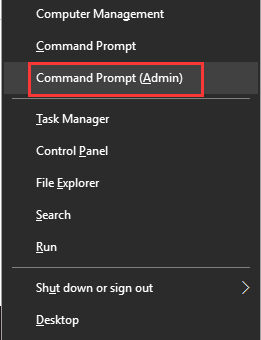
Step 1. To open the Command Prompt as an administrator, press the Windows key + X and select Command Prompt (CMD) with administrative privileges. Alternatively, you can click the Windows icon, search for Command Prompt, right-click on it, and select to open it as an administrator.
Step 2. To recover hidden files, first, identify the drive or storage device where the files are located. This could be an internal hard drive, external hard drive, USB drive, or even a cloud storage service like Google Drive or Dropbox.
Step 3. This command uses the attrib command to change the attributes of all files and subfolders on drive G:. The attrib command is used to change the attributes of files and folders, and the options used here are: -h (hide), -r (read-only), and -s (system). The forward slashes (/) are used to specify the root directory (/s) and the drive itself (/d), and the asterisk (*) is a wildcard character that matches all files and subfolders. When you run this command, it will hide, make read-only, and mark as system all files and subfolders on drive G:. When you run this command, it will hide, make read-only, and mark as system all files and subfolders on drive G:.
Attrib syntax explanation
- –h clears the Hidden file attribute.
- –r clears the Read-only file attribute
- –s clears the System file attribute.
- The command `attrib` and any command-line options are applied to matching files in the current directory and all of its subdirectories. This means that any specified attributes (e.
- /d applies attrib and any command-line options to directories.
Method 3. Run CMD Alternative to Show Hidden Files
Manual execution of the command line is not recommended for non-professionals due to the risk of causing harm with incorrect commands. Instead, a tool like Qiling CleanGenius can be used to perform tasks such as checking and fixing file system errors, enabling or disabling write protection, and updating the system with a single click, providing a safer and more user-friendly alternative.
To show hidden files using this 1-click-fix software, simply follow the simple steps below.
Step 1. DOWNLOAD Qiling CleanGenius for Free.
Step 2. Start Qiling CleanGenius, choose "Optimization" on the left panel. Next, click "File Showing" on the right panel.
Step 3. Select the hard drive and click "Execute".
Step 4. After the operation completes, click the here link to check the hidden files.
Method 4. Unhide Hidden Files Using Windows Control Panel
When you can't see some saved files on your computer hard drive or external storage devices, but are sure they still exist, try checking the file's properties, looking for the file in hidden folders, and using a file recovery software to scan the drive for the missing files. You can also try checking the file's extension, and looking for the file in the Windows recycle bin.
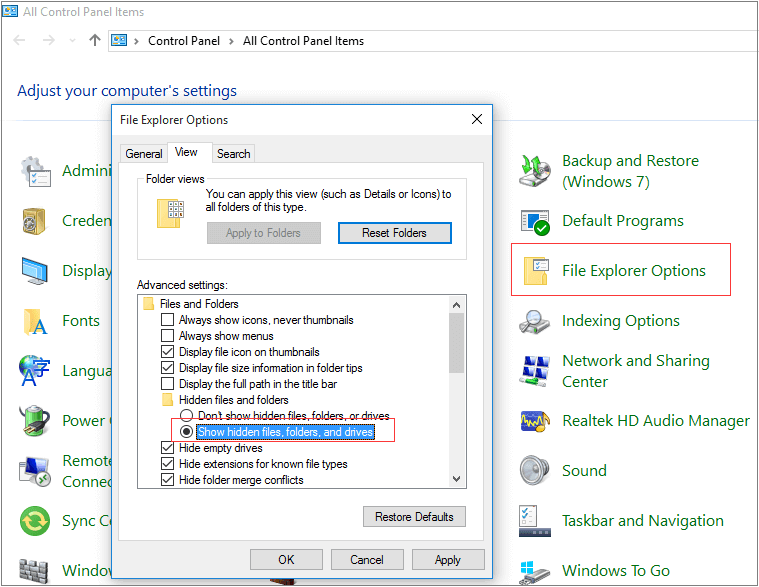
Step 1. To access File Explorer Options in Windows, open the Control Panel and navigate to the "File Explorer" section, then click on "File Explorer Options".
Step 2. Navigate to the File Explorer Options window, then go to the View tab. Under the Hidden files and folders section, select the option to Show hidden files, folders, and drives.
Step 3. Re-open your local hard drive or device to check the hidden files and folder on your PC again.
If the hidden files fail to show up after trying Method 1 and Method 2, it's highly possible that your files saved on the hard drive or external storage device were lost.
What Is the Best Way to Show Hidden Files
To determine the best file unhiding approach for your situation, take a closer look at the various methods available and select the one that best fits your needs.
| Comparison | Attrib CMD | CMD Alternative | Control Panel Settings | Data Recovery Software |
|---|---|---|---|---|
| Situations | Unhide files from virus or false operations | Unhide files with simple steps | Show hidden files from Windows File Explorer | Revive hidden files from virus or permission issues |
| Devices | Windows hard drive, USB, SD, external hard drive, etc. | Windows hard drive, USB, SD, external hard drive, etc. | Windows hard drive and partitions | Windows hard drive, USB, SD, external hard drive, etc. |
| OS | Windows only | Windows only | Windows and Windows Server OS | Windows, Windows Server OS, and macOS |
The Command Prompt with Attrib command is a reliable method to find hidden items on a PC or external storage devices, but it requires advanced computer skills. On the other hand, using the Control Panel Settings to unhide files is a more straightforward approach, but it may not be effective in cases where the files are hidden due to a virus infection.
Data recovery software offers both easy-to-use and powerful features in finding hidden documents, pictures, and all types of files. It allows you to easily locate and unhide files that are not visible by following a step-by-step guide, making all your hidden files and folders visible again.
- Notice:
- If your hidden files were saved on an external storage device, connect it to your PC beforehand. You can then proceed with the following steps to make your computer display those hidden files.
Bottom Line
To restore and show hidden files on your Windows computer or external storage devices, you can use one of four practical methods: the Attrib command, the Control Panel, or Qiling data recovery software. These methods can help you resolve the issue on Windows 10, 8, 7, Vista, and XP operating systems.
Here are the top questions and answers about removing viruses and protecting your files:
Question 1: Why my hidden files are not showing?
If the Hidden files settings are no longer available after a scan, a simple reboot is all that's needed to restore their visibility. The settings should become available again after the system restarts.
Question 2: How do I show hidden files?
To show hidden files, folders and drives in Windows, go to the Control Panel, click on Appearance and Personalization, then Folder Options. In the Folder Options window, click on the View tab, and under Advanced Settings, select the option to Show hidden files, folders, and drives.
Question 3: Which command is used to display hidden files?
CMD attrib command: The command "attrib -h -r -s /s /d G:\*.*" is used to show hidden files. This command removes the hidden attribute from the files and subdirectories on the G:\ drive, making them visible. The "/s" option is used to apply the command to subdirectories, and "/d" is used to apply the command to the current directory, and "*.
You can use reliable data recovery software to easily view and revive all missing files. The steps are listed on this page for reference.
If you're having trouble finding missing or hidden files on your PC, you can try using the Search option on the Qiling website or visit the How-To directory page for more guidance.
Related Articles
- Fix Files Missing After Restarting Computer and Recover Lost Data
- 'The file cannot be opened because there are problems with the contents' Fixes
- How to Solve We're Sorry but Word Has Run Into an Error and How to Repair Corrupted Word/Excel/PPT Files
- How to Recover Deleted History on Google Chrome Windows 10/Android/iPhone
- Solutions: Cannot Open External Hard Drive and Files/Folders
The solutions for an unresponsive external hard drive or inaccessible files are divided into two parts. If the hard drive itself won't open due to specific errors, try using Deep Data Recovery Free to retrieve files from an inaccessible HDD, external HDD, USB flash drive, or memory card. - How to Fix 'Can't View Pictures on SD card in Camera or Computer'
If you can't view pictures on your SD card or photos aren't showing up on your camera or computer, you can try the solutions provided. Additionally, a reliable photo recovery tool called Deep Data Recovery can help you recover any missing photos from the SD card with ease.
Products
Articles & Tutorials
- Data Recovery
- Data Backup
- File Recovery
- File Backup
- System Backup and Restore
- Disk and Partition Clone
- Technical articles
- Mobile articles
- Disk Master Help
- Windows Data Recovery Tutorials
- Windows Secure Delete Tutorials
- Windows Partition Management Tutorials
- Windows File Backup and Restore Tutorials
- Windows System Backup and Restore Tutorials
- Windows Disk Backup and Restore Tutorials
- Windows Clone Tutorials