How to Restore Missing AppData Folder in Windows 10/11 [Tips]
There is no AppData folder, how to find it?
I've been told that downloaded application files are stored in a folder called AppData located in C:/Users, but when I open the Users folder, I can only see Documents, Music, Pictures, Videos, and Downloads - there's no AppData folder. Is it possible that the AppData folder is missing?
How to restore AppData folder Windows 10?
You can restore the missing AppData folder by using the Windows 10 built-in feature called "Previous Windows Installation" or by using third-party software like Qiling Backup or Macrium Reflect. These tools can help you restore your files and settings from a previous Windows installation, including the AppData folder. Alternatively, you can also try to recover the missing files from a backup or by using the Windows 10 "File History" feature.
Where's AppData Folder in Windows 10/11
The AppData folder in the C drive's Users folder is hidden by default. If it's missing, you can easily unhide it to find your application files. However, if it's deleted or lost, you'll need to use hard drive recovery software to recover it.
How to Unhide AppData in Windows 10/11
1. Browse to your main drive where Windows installed, e.g., C:
2. Go to C:\Users\username\
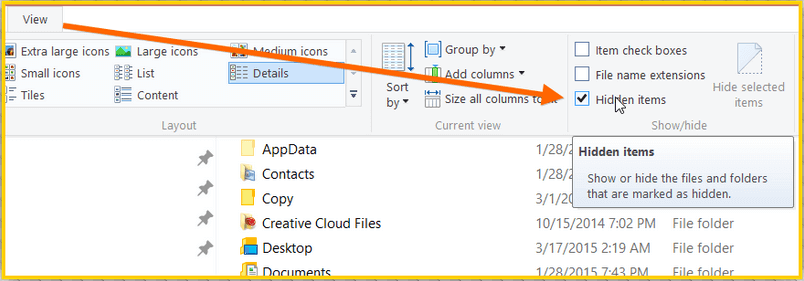
3. To view the AppData folder, click the "View" tab at the top and select the "Hidden items" option. This will display all folders, including the AppData folder.
How to Restore Deleted AppData Folder in Windows 10/11
If the AppData folder is deleted, which can happen when trying to free up C drive space, it's possible to recover it using reliable Windows data recovery software like Deep Data Recovery. The process is similar to recovering a lost or hidden Users folder in the C drive.
To recover the AppData folder in Windows 10 using Deep Data Recovery, you can follow these steps: download and install Deep Data Recovery, then select the drive where the AppData folder was stored and follow the software's instructions to scan and recover the folder. Deep Data Recovery can recover files from various types of storage devices, including hard drives, solid-state drives, and external drives, and it can also recover files from devices that have been formatted or deleted.
Step 1. Select file types and click "Fast Scan" to start
To begin the Deep Data Recovery process, launch the software, select the desired file types, and click "Fast Scan" to initiate the recovery process.

Note: You can choose different search modes based on where and why the data was lost.
Step 2. Select a folder to scan for lost files
To recover a lost folder, choose "Select Folder" under the "Specify a location" section, then click "Browse" to select the location where the folder was lost, and finally click "OK" to initiate the scan.

Step 3. Find and preview found files in the lost folder
If you remember the folder name, you can quickly find the lost files by typing it in the search box. Once found, open the folder and double-click to preview the scanned files, or use the Filter feature to find a specific type of file.

Step 4. Recover and save the lost folder
Select the folder and files you need, click "Recover", and choose a new and secure location on your PC to keep the recovered data.
Related Articles
- How to Recover Permanently Deleted Files in Linux Redhat/Ubuntu/Mint
- 7 Quick Ways to Reduce Chrome High Memory Usage Windows 10/11
- Downloads Folder Not Responding on Windows 10? Fix It Now!
- How to Change Your Gmail Password on PC/iPhone/Android
- Buffalo Nas Data Recovery Software | Recover NAS Data Quickly
Qiling's NAS data recovery software is a powerful tool designed to help you recover lost data from Buffalo NAS devices. Whether you accidentally deleted important files or lost data due to other reasons, this software can easily retrieve it for you. - Camtasia Recording Recovery | How to Retrieve Camtasia Projects/Videos
Qiling Camtasia recovery software can recover deleted, lost, or corrupted Camtasia video, audio, and project files due to studio crashes.
Products
Articles & Tutorials
- Data Recovery
- Data Backup
- File Recovery
- File Backup
- System Backup and Restore
- Disk and Partition Clone
- Technical articles
- Mobile articles
- Disk Master Help
- Windows Data Recovery Tutorials
- Windows Secure Delete Tutorials
- Windows Partition Management Tutorials
- Windows File Backup and Restore Tutorials
- Windows System Backup and Restore Tutorials
- Windows Disk Backup and Restore Tutorials
- Windows Clone Tutorials