How to Recover PowerPoint Files Not Saved | Free PowerPoint Files Recovery Methods
Real case in YouTube comments: You were working on a PowerPoint presentation when it suddenly stopped working, and you clicked on the "restart program" option without understanding its implications, which led to the system restarting and your unsaved work being lost, causing you distress.
If you've been working hard on your perfect PowerPoint presentation, only to have it disappear due to a computer crash or mistaken unsaved files, there are 3 solutions to help you recover unsaved PowerPoint files, so you can get back to work without starting from scratch.
Method 1 - Recover Unsaved Presentations (Office 2010/2016/2013/365)
For different Microsoft Office versions, the methods to recover an unsaved presentation may vary. If the "Recover Unsaved Presentations" button is not an option, you can try other fixes, which will be covered in the next part.
Recover Unsaved PPT File in Office 2010/2016/2013
- Launch your PowerPoint and create a blank presentation.
- Navigate to the File tab on the top right corner.
- Click "Recent" on the left side, and then click the "Recover Unsaved Presentations" link at the bottom.
- Click the Recover Unsaved Presentations button.
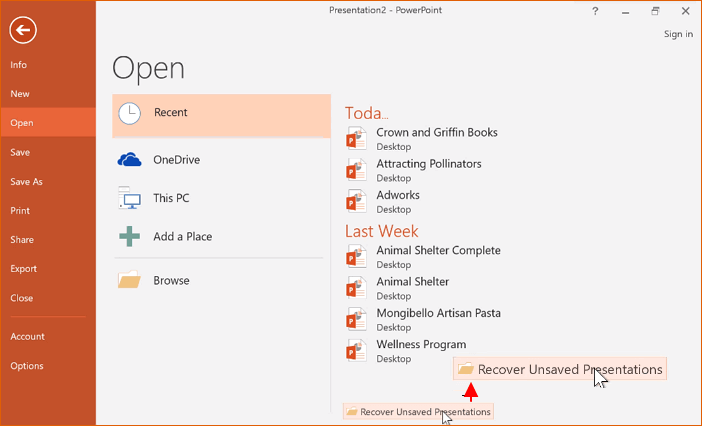
Recover PowerPoint File Not Saved in Office 365
- Click the File tab.
- Choose Info.
- Click Manage Document.
- Choose Recover Unsaved Presentations.
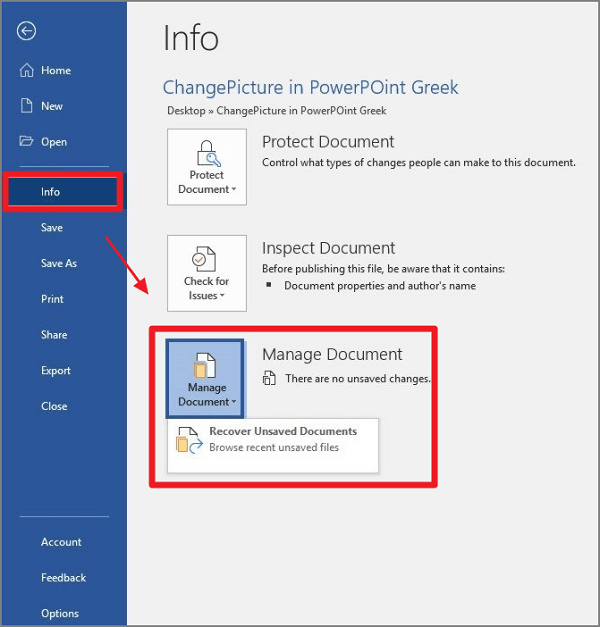
Method 2 - Apply AutoRecover Function to Recover PPT Files
If you've set the AutoRecover function, you can recover unsaved PPT files by following the detailed guide provided. This function allows you to retrieve your work even if you forget to save your presentation.
Step 1. Move to your AutoRecover folder.
- Launch PowerPoint and create a blank presentation.
- Click on File tab > Options > Save
Under the Save option, you can customize a few settings. Check Save Presentation on the upper part and also look at AutoRecover File Location under Save files in this format.
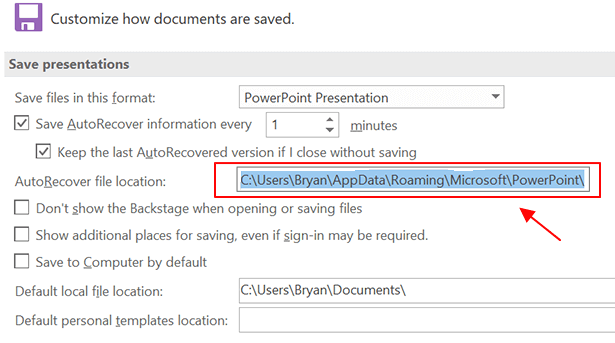
Step 2. Find your unsaved file.
- Copy the file path next to the AutoRecover file location
- To open Windows File Explorer, click the shortcut on the taskbar, type "Files Explorer" in the search box, or press the keyboard shortcut Windows + E.
- Paste the file path you copied and press Enter.
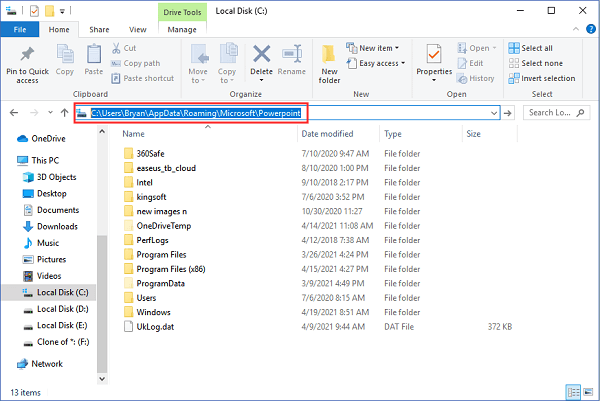
The PowerPoint folder will open, allowing you to browse and find the desired file. Once located, save it to a specific folder or your desktop for safekeeping.
After restoring your files, we recommend going back to the Save page and adjusting the "Save AutoRecover information every..." setting to a shorter time interval to minimize the risk of future file loss. This will allow for more frequent automatic saves, increasing the likelihood of recovering lost files.
Method 3 - How to Recover Deleted PowerPoint Files with Free Data Recovery Software
If the Recover unsaved presentations and Autosave function are not working to recover deleted/unsaved PowerPoint files, you can still retrieve them using PPT file recovery software like Deep Data Recovery.
Reliable PPT File Recovery Software
- Recover deleted files, documents, photos, audio, music, emails effectively.
- Recover files from various devices and media, including formatted hard drives, emptied recycle bins, memory cards, flash drives, digital cameras, and camcorders.
- Data recovery solutions are available for various unexpected situations, including sudden deletion, formatting, hard drive corruption, virus attacks, and system crashes. These solutions can help recover lost data and files, providing a safety net against unforeseen events that can compromise digital information.
Download software and try easy steps to retrieve data:
Step 1. Choose file types and click "Fast Scan" to start
Run Deep Data Recovery on your computer, select the file types you want to recover, and click "Fast Scan" to initiate the recovery process.

Note: You can choose different search modes based on where and why the data was lost.
Step 2. Choose the location
To recover lost files, select the drive where the files were lost and click "Scan" to start the recovery process.

Step 3. Scan for lost documents
When the scanning process is complete, click on "Documents" in the left panel to view the scanned files. You can filter the files by type or search for specific file names. Once you've found the desired document, click "Preview" to verify its contents.

Step 4. Recover lost documents
Select the desired files and click the "Recover" button to save them to a secure location.
Read Also:
Can I Recover A PowerPoint File I didn't Save? Try 3 Methods Here!
The solutions provided work on retrieving PPT files, but with limitations. The Office offers two methods: Recover unsaved presentations and autosave function. However, these fixes require settings to be done in advance, such as saving auto-recover information every few minutes. If these methods are not sufficient, a free PowerPoint File Recovery Software can be used as a last resort.
If you encounter any technical issue with our product, please send an email to support@idiskhome.com or read
website help.
Related Articles
- Your Reliable Solution on How to Recover 2GB Data for Free
- How to Activate Windows 10/11 with Product Key/Digital License/CMD
- How to Disable AutoSave in Word and Excel
- Fixed: Samsung SSD Not Showing Up in BIOS
- Download 2022 Best SQL Server MDF Viewer (for Free)
Qiling software offers the best MDF viewer software - MS SQL Recovery to help you download and apply to check, and view the MDF or NDF files for free. You can also use this software to open corrupted MDF/NDF files with detailed information and repair the file without installing a new MS SQL Server. - Top 10 Best NAS Recovery Software for RAID Recovery in 2022
The best software for NAS data recovery is Qiling NAS data recovery software, which allows you to recover deleted files from Synology, QNAP, Buffalo, and WD NAS drives in simple steps, without needing to physically remove and connect disks.
Products
Articles & Tutorials
- Data Recovery
- Data Backup
- File Recovery
- File Backup
- System Backup and Restore
- Disk and Partition Clone
- Technical articles
- Mobile articles
- Disk Master Help
- Windows Data Recovery Tutorials
- Windows Secure Delete Tutorials
- Windows Partition Management Tutorials
- Windows File Backup and Restore Tutorials
- Windows System Backup and Restore Tutorials
- Windows Disk Backup and Restore Tutorials
- Windows Clone Tutorials