Deleted C Drive File? This Article Tells You How to Recover it!
Many Windows users may encounter a situation where the C drive is running out of space, indicated by a red bar in the "Devices and Drives" section. Instead of deleting unnecessary files, which is a common initial solution, this is actually the problem itself.
The C drive, which is the computer's hard drive, contains the operating system, applications, and downloaded files. Deleting certain files can still affect the computer's operation, even if they seem useless.
What Happens If I Deleted C Drive Files?
Deleting files from the C drive can have varying consequences depending on the type of files. If cache files are deleted, it likely won't affect the computer. However, deleting system or software-related files can lead to issues such as software not opening or error messages appearing when trying to access the computer.
Recover Permanently Deleted C Drive Files with Deep Data Recovery
If you've tried the basic troubleshooting methods but still can't recover your deleted files, the next step is to use third-party software to try and recover them. This method is often the most effective way to recover deleted files, and can be applied by following the instructions provided by the software.
Deep Data Recovery is a tool that has a good reputation in the data recovery field, capable of finding deleted files on your computer even if you've emptied the Recycle Bin, through a deep scan. It has several key features.
Deep Data Recovery
- Utilize data recovery software to recover lost or deleted files, documents, photos, audio, music, and emails efficiently.
- Recover files from various storage devices, including formatted hard drives, emptied recycle bins, memory cards, flash drives, digital cameras, and camcorders, using data recovery software and techniques. This process involves scanning the device for recoverable files, identifying and extracting the desired data, and potentially restoring it to its original location or a new storage device.
- Data recovery software can help restore lost files and data in various situations, such as sudden deletion, formatting, hard drive corruption, or system crashes caused by virus attacks or other system failures. This can be particularly useful when important files are accidentally deleted, a hard drive is reformatted, or a system crash occurs, making it difficult to access critical data.
You can download the Qiling files recovery software from the button above and use the following steps to recover your deleted C drive files.
Step 1. Launch Deep Data Recovery. Select file types and click "Fast Scan" to begin the recovery process.

Note: You can choose different search modes based on where and why the data was lost.
Step 2. To proceed, select the specific file location you want to scan and then click the "Scan" button.

Step 3. After the process, select the "Deleted Files" and "Other Lost Files" folders in the left panel, and apply the "Filter" feature or click the "Search files or folders" button to find the deleted files.

Step 4. After clicking the "Recover" button, save the restored files, ideally in a location different from the original one to ensure the recovered files are safely stored and can be accessed without any issues.
After restoring the files you want, you can try to restart the computer or re-open the software to see if it can operate successfully.
Time is of the essence when it comes to data recovery. The sooner you start the process of finding and recovering data, the better your chances of successfully recovering data. If you wait too long, the data may be overwritten or there could be an issue with the drive from which you're trying to recover the data, making recovery impossible.
Quick Steps to Recover Deleted Files from Recycle Bin
Deleted files can often be recovered from the Recycle Bin, even after they've been deleted from the computer. This includes files deleted from the C drive. If you haven't emptied the Recycle Bin, you can try recovering the deleted files by following certain steps.
- Right-click the Recycle Bin icon and choose "Open".
- If you know the file name, you can search for the deleted file you want to restore in the search bar.
- To recover a selected file, click on it and choose the "Restore" option from the context menu, which will return the file to its original location.
Bonus Tip: How to Free Up C Drive Space
To free up C drive space without risking further data loss, you can use the Disk Cleanup utility, a built-in Windows tool that allows you to clean your disk without formatting. To do this, follow these steps: 1. Open the Disk Cleanup utility by searching for it in the Start menu or typing 'cleanmgr' in the Run dialog box. 2.
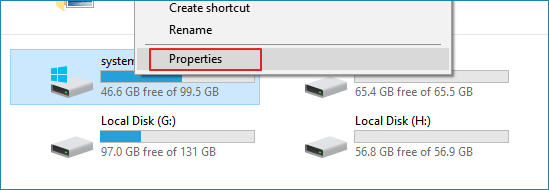
Step 1. To access the properties of the C drive, start by opening the This PC/My Computer window. Once open, right-click on the C drive icon, and then select Properties from the context menu that appears.
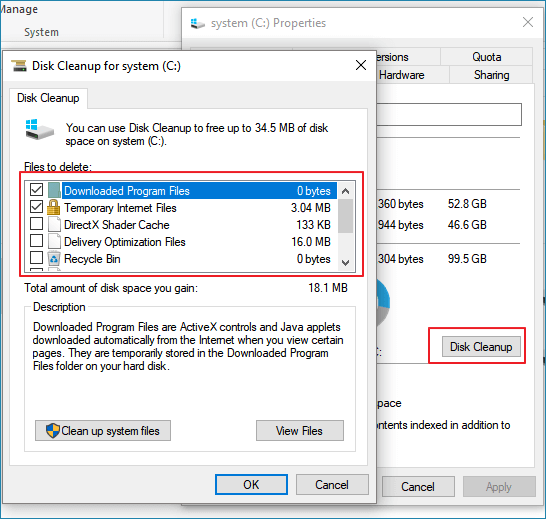
Step 2. Select the files you want to delete and click "OK" to remove them from your C drive using Disk Cleanup.
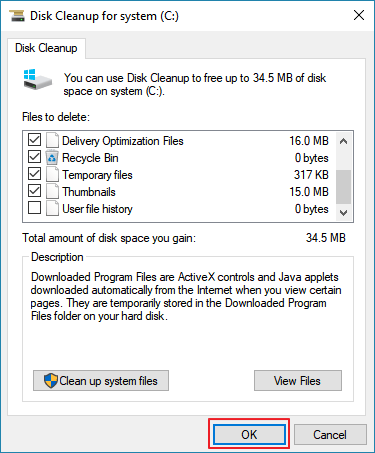
Step 3. Click OK to confirm the operation.
- Notice:
- Performing a disk cleanup that includes emptying the recycle bin will permanently delete all files currently stored in the recycle bin, making them unrecoverable.
Start to Rescue Your C Drive Files Now
To recover lost C drive files, use Deep Data Recovery software. Download and try it out. For future reference, when your C drive runs out of space, avoid deleting files directly on the C drive. If you'd like more information on freeing up C drive space, refer to the provided tutorial.
To solve the issue of C drive being full and out of space, start by checking for unnecessary files and deleting them. Use the Disk Cleanup tool to remove temporary files, system logs, and other items you don't need.
Don't delete your C drive files to free up space, instead use Qiling, a flexible tool that optimizes disk space with simple steps.

Related Articles
- Solved: Hard Drive Not Showing Files Though They Still Exist
- Terraria Load Failed No Backup Found (Terraria Data Recovery)
- [Solved] Disk Unknown Not Initialized in Windows 10/8/7
- How to Recover Deleted Game Files/Steam Data/Game Saves on PC
Recovering deleted game files on a PC can be achieved through several efficient approaches. To effectively recover deleted game files, refer to the detailed instructions in the article, which outline 5 methods for recovering lost game data after deletion. - How to Recover Deleted MP4 Files on Windows 10/11 [NEW]
Is it possible to recover deleted MP4 files on Windows PCs? Yes, you can recover deleted files with Undo option, Recycle Bin, Backup and Restore utility, and File History. Most importantly, you can trust and rely on Deep Data Recovery to recover deleted MP4 files.
Products
Articles & Tutorials
- Data Recovery
- Data Backup
- File Recovery
- File Backup
- System Backup and Restore
- Disk and Partition Clone
- Technical articles
- Mobile articles
- Disk Master Help
- Windows Data Recovery Tutorials
- Windows Secure Delete Tutorials
- Windows Partition Management Tutorials
- Windows File Backup and Restore Tutorials
- Windows System Backup and Restore Tutorials
- Windows Disk Backup and Restore Tutorials
- Windows Clone Tutorials