How to Open Corrupted Excel, Word, and PPT Files Without Backup
If you are a college or office worker, you are a busy professional who often struggles with opening and accessing crucial files like Excel, Word, and PPT documents at the most inopportune moments, only to find them corrupted and unusable, causing delays and disruptions to your work.
File corruption can occur due to various reasons such as a virus in the system, glitches in MS-Office tools, software compatibility issues, damage during copying or downloading, and problems with file recovery processes.
Here are the best ways to repair and open corrupted Excel, Word, and PPT files. You can try using the built-in repair tools in Microsoft Office, such as the "Repair" option in Excel, Word, and PPT, or the "Open and Repair" feature in Word.
Method 1. Open Excel/Word Files with Open and Repair Feature
The built-in Open and Repair feature in MS Office tools can help repair damaged or corrupted Excel, Word, and PPT files. This simple and easy-to-use feature can be a lifesaver when dealing with corrupted files.
Here is how you can repair such files:
Step 1. Run a blank workbook in Excel or word.
Step 2. To open a file, click on the top left corner of the screen and select the file you want to open from the list that appears.
Step 3. After clicking on the "Open", browse and click on the corrupted file.
Step 4. To open and repair a file, click on the "Open" button, then click on the downward-pointing arrow to the right of the "Open" button, and finally select "Open and Repair..." from the drop-down menu.
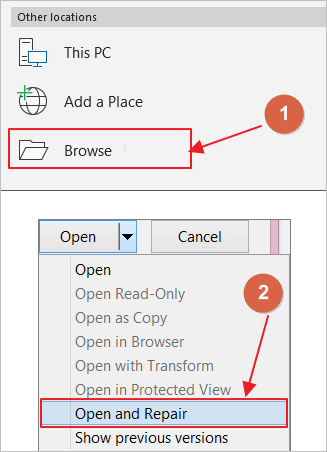
Step 5. You will now see two options, "Repair" and "Extract data". Click on repair and wait for a while until the MS office does its thing.
Your file is successfully repaired, and now you can access it to do your work.
Method 2. Open Corrupted Excel or Word Files from AutoRecover
Autorecover is a feature in MS Office that helps recover old files created using the software. If auto-recovery is enabled, it can assist in recovering corrupted Word, Excel, or PPT files by retrieving them from the recovered box in MS Office. This feature can be particularly useful for retrieving lost files.
Here is how you can do it:
Step 1. Open a blank word or excel file.
Step 2. On the top left corner, click on "Open".
Step 3. The software keeps a record of all files used or created by it, even if they're deleted from the computer, displaying a list of them.
Step 4. Click on the desired file, and it will be opened.
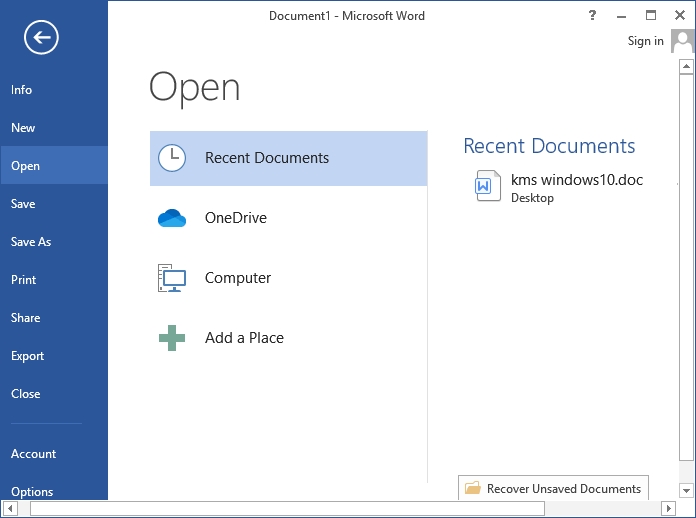
Step 5. The text was rewritten into a single paragraph, and you can now save it or copy-paste it into a new file to use as you see fit.
Method 3. Open Corrupted PDF/Excel/Word with a File Repair Tool
If none of the methods work, you may feel lost with no way out, but the Qiling file repairing tool can be a ray of hope. This user-friendly tool can help repair Word, PPT, Excel, and PDF files, offering a solution when other methods fail.
Deep Data Recovery is a popular file recovery software that not only recovers files but also repairs them, allowing users to access them quickly. The software has already been updated to support Windows 11, making it compatible with the latest version of the operating system.
Paying for Deep Data Recovery software unlocks its full features, including data recovery capabilities beyond file repair. In addition to file repair, it can recover permanently deleted files in Windows 10/11 using advanced algorithms, as well as recover data from formatted, RAW, and lost partitions, and even recover data in case of OS crashes or virus attacks.
Get the app now and say goodbye to the hassle of managing multiple files and worrying about their safety.
Step 1.Launch Deep Data Recovery, select the file types you want to recover and click "Fast Scan" to begin the recovery process.

Note: You can choose different search modes based on where and why the data was lost.
Step 2.To repair corrupted files, select a disk location where the damaged files are saved, then click "Scan" to start the process. Qiling file repair tool can fix broken documents, videos, and pictures in various formats.

Step 3.After scanning, you can quickly find corrupt data by file type. To repair damaged files, select the type (such as Documents, Pictures, or Videos) and filter by category. This supports various file types, including Word, Excel, PDF, JPEG, PNG, BMP, MOV, MP4, and GIF.

Step 4.Qiling file repair software automatically fixes broken files, allows previewing of repaired files before recovery, and enables saving recovered files to a different location to avoid data overwriting.
The Bottom Line
Losing important files like MS Word, PPT, or Excel documents can be a nightmare. Viruses and software issues can cause this problem, leaving you stressed and scrambling to recover your data.
The issue can be resolved by trying the open and repair feature of MS office, which is a simple and quick solution. If that doesn't work, enabling the auto-recovery option, which is usually on by default, may help recover the lost work.
If all else fails, the Qiling file recovery software can be used. It can be downloaded and used to easily repair the file through its user-friendly interface, providing a solution to recover the file.
Related Articles
- How to Fix Microsoft Office Cannot Open This File Because Some Parts Are Missing or Invalid
- How to Recover Data from Specific Folder
- Photoshop File Corrupted: How to Repair PSD File Without Any Effort
- Recuva Said File Is Unrecoverable | How to Repair or Recover
- How to Recover Formatted USB Flash Drive Mac
You can recover data from a formatted USB flash drive using Qiling USB flash drive data recovery software, even after a quick format using Disk Utility or other disk formatting tools. Simply download Deep Data Recovery to retrieve your lost data. - 4 Working Ways to Recover Lost Files After macOS Monterey Update
If you've lost files after updating to macOS Monterey, there are practical ways to recover them, and Qiling Mac data recovery software is a standout option for its ease and efficiency. To get started, simply follow the steps to recover your lost files on macOS Monterey.
Products
Articles & Tutorials
- Data Recovery
- Data Backup
- File Recovery
- File Backup
- System Backup and Restore
- Disk and Partition Clone
- Technical articles
- Mobile articles
- Disk Master Help
- Windows Data Recovery Tutorials
- Windows Secure Delete Tutorials
- Windows Partition Management Tutorials
- Windows File Backup and Restore Tutorials
- Windows System Backup and Restore Tutorials
- Windows Disk Backup and Restore Tutorials
- Windows Clone Tutorials