How to Change Your Gmail Password on PC/iPhone/Android
Gmail is a popular mailing service provided by Google, widely used by professionals for business, academic, and personal emails. To secure your account, it's essential to set a strong password, and if compromised, change your Gmail password immediately to prevent any potential issues.
You can change your Gmail account password using your PC, Android phone, or iPhone, and our article will guide you through the process on all platforms.
If you've lost your emails, you can recover them or learn how to recover permanently deleted emails in the last section of this article. Let's get started with the solutions.
How to Change Your Gmail Password on a PC
To change your Gmail password using a PC or laptop, follow these steps: regardless of whether you're using a Mac, Linux, or Windows computer, the process remains the same. You can easily reset your password by following the same steps on any of these platforms.
To change your Gmail password on your PC or laptop, follow these steps: open Gmail on your computer, click on your profile picture or icon in the top right corner, select "Manage your Google Account", click on "Security", then "Signing in to Google", and finally click on "Password" to update your password.
Step 1. Open any browser on your computer.
Step 2. Now, go to https://myaccount.google.com/.
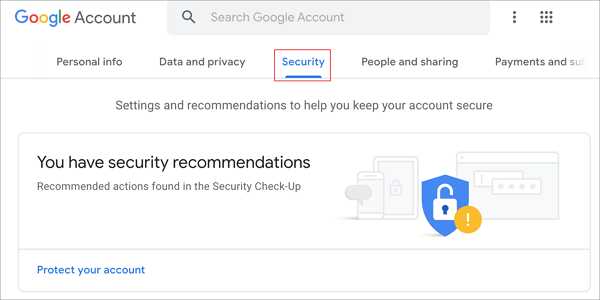
Step 3. You need to select the "Security" tab in your Google account.
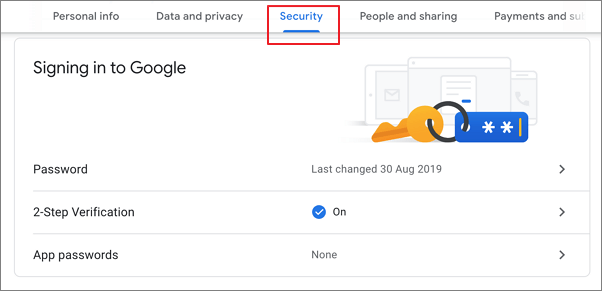
Step 4. Select "Password" from the Sign-in to Google tab.
Step 5. Verify yourself by entering your existing password.
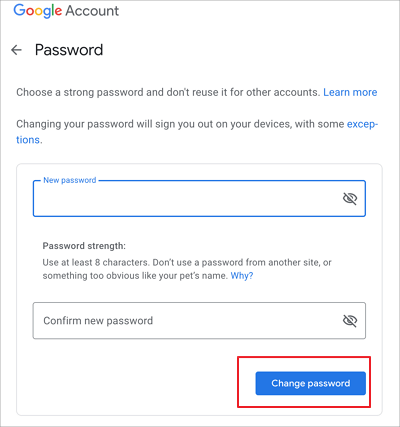
Step 6. Now, a new page will appear. Here, enter your new password and confirm it by retyping it.
Note: When creating a new Gmail account, make sure to type your password with the correct case sensitivity. For extra security, use a strong password that includes a mix of uppercase and lowercase letters, numbers, and special characters.
To change your Gmail password on your laptop or PC, follow these steps: open the Gmail website, click on your profile picture, select "Manage your Google Account," click on "Security," then "Signing in to Google," and finally "Password." In the "Password" section, click on "Change password" and follow the prompts to create a new password.
How to Change Your Gmail password on iPhone
To change your Gmail password on iPhone, go to the Settings app, then tap on 'Passwords & Accounts', select 'Add Account', choose 'Gmail', and sign in with your current password. Then, tap on 'Password' and enter your new password. Confirm your new password and tap 'Done' to save the changes.
To change your Gmail password on your iPhone, go to the Settings app, select "Passwords & Accounts," tap "Add New Account," choose "Gmail," enter your email address and password, then tap "Next." On the next screen, tap "Next" again, then tap "Done." Now, go to the Gmail app, tap the menu icon, select "Settings," and tap "Account.
Step 1. Open the Gmail application from your iPhone device.
Step 2. To access your profile, tap on the profile picture that you can see in the top right corner of the Gmail application.
Step 3. To link your Google account to your iPhone, select Google Account on your device. If you don't have a Google account, you can create one directly on the Google website at https://myaccount.google.com/.
Step 4. Select the "Personal info" tab from the enlisted tab options.
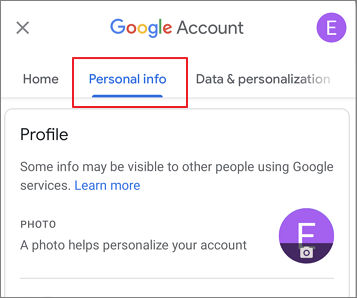
Step 5. Scroll down and select "Password" from the Basic info section.
Step 6. Enter your new password, then confirm it by retyping it again.
Step 7. Once done, tap on the Change password button.
Note:Be careful when inputting your new Gmail account password, as it is case sensitive. Choose a strong password that includes special characters, alphabets, and numerals for added security.
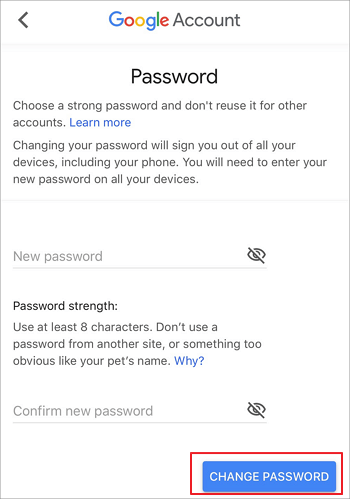
To change your Gmail password using your iPhone, start by opening the Gmail app and tapping on your profile picture in the top right corner. Then, tap on "Settings" and select "Account." Next, tap on "Security" and scroll down to the "Signing in to Google" section.
How to Change Your Gmail password on Android
You can change your Gmail password on your Android device, which is a straightforward process.
To change your Gmail password on Android, go to the Gmail app, tap on the menu icon (three horizontal lines), and select "Settings". Then, tap on "Accounts", followed by "Add account" and select "Existing account".
Step 1. To access the Settings app on your Android device, locate the Settings icon, which is usually represented by a gear or a cogwheel, on your home screen or in your app drawer. Tap on the icon to open the app, then navigate through the various options and settings to find what you're looking for.
Step 2. From your Settings application, go to Google.
Step 3. Now click on the "Manage your Google Account" button.
To change your Google account password from your Android phone, you can go to Settings > Accounts > Google, and then select the account you want to change the password for. From there, you can tap on the account name and select "Account settings" to change your password. Alternatively, if you have multiple accounts connected with your Android phone, you can choose the correct Gmail account from the list and change its password.
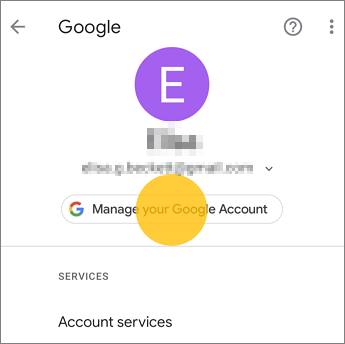
Step 4. You will see different tabs. Tapping on the Security tab would be helpful.
Step 5. Scroll down and tap on Password, which will be listed below the Signing in to Google section.
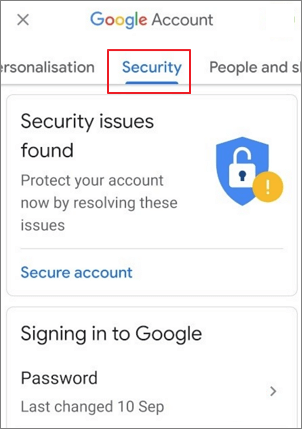
You will be redirected to a new page where you will be asked to confirm your identity by entering your existing Gmail password.
Step 6. Enter your new password for your Gmail account, then retype it to confirm that you've entered it correctly.
Note:Make sure to check case sensitivity while entering your new Gmail account's password, and it's highly recommended to choose a strong password consisting of unique characters, alphabets, and numbers for better security.
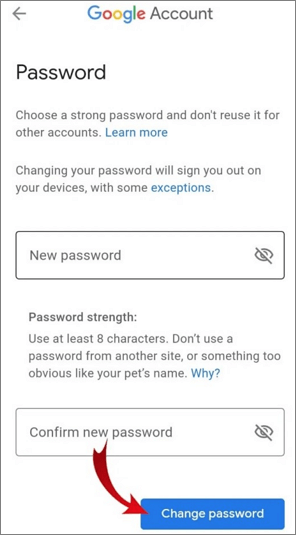
To change your Gmail password on your Android phone, go to the Google account settings, tap on "Security," and then select "Password." Enter your current password, and then choose a new password.
Recover Permanently Deleted Emails with Email Recovery Software
Microsoft's Outlook application allows you to manage multiple email accounts, but sometimes users may accidentally delete emails. Fortunately, you can recover permanently deleted emails using email recovery software, such as Deep Data Recovery.
Qiling Email recovery software allows users to recover permanently deleted emails from Outlook by following simple steps.
Qiling data recovery software features:
- The software allows you to recover deleted emails and helps to recover email files, appointments, notes, and contacts.
- Provide mailbox recovery for all Microsoft's Outlook versions
- Support you to see the emails before the recovery process to save time
With Qiling email recovery software, you can easily recover permanently deleted emails without worrying about losing them. To do this, simply download the software from their website and follow the steps to recover your lost emails.
Step 1. Launch Deep Data Recovery. Choose file types and click "Fast Scan" to begin the recovery process.

Note: You can choose different search modes based on where and why the data was lost.
Step 2. Select the drive or partition where the lost email files are located, and click the "Scan" button to begin the scanning process.

Step 3. The software will automatically start scanning immediately. Wait for the scanning process to finish. To quickly find the email files, click "Others" in the left panel and look for PST files or Outlook files in the file type list.

Step 4. Select the desired email files, click "Recover", and save them to a different location.
The Bottom Line
If your Gmail password is compromised, it's recommended to change it as most online applications are linked to your Gmail account, making it essential to protect your password.
You can change your Gmail password using your desktop or laptop, Android phone, or iPhone/iPad.
If you've lost or deleted emails from Microsoft Outlook, you can recover them using Qiling email recovery software, which is a reliable and effective tool that guarantees to recover Outlook emails.
Related Articles
- How to Recover Deleted Windows.old Folder in Windows 11/10
- Restore Deleted or Lost Thunderbird Emails
- Recover Lost/Hidden Users Folder in C Drive
- Restore Overwritten/Replaced/Saved-over XLS/CSV Files
- SnowRunner Lost Save Files on Steam/PS/Xbox | SnowRunner Recovery
How to Fix SnowRunner lost save files on PC, PS, Xbox, or Switch. We will introduce detailed methods to help you find lost game files, and you can use Deep Data Recovery to recover lost game files quickly. - How to Fix Starfield Save Games Missing and Restore Progress
If your Starfield save games are missing on Steam and Xbox, there is a solution! You can recover lost game data using Qiling data recovery software, which we recommend to help you restore your lost game data on your computer.
Products
Articles & Tutorials
- Data Recovery
- Data Backup
- File Recovery
- File Backup
- System Backup and Restore
- Disk and Partition Clone
- Technical articles
- Mobile articles
- Disk Master Help
- Windows Data Recovery Tutorials
- Windows Secure Delete Tutorials
- Windows Partition Management Tutorials
- Windows File Backup and Restore Tutorials
- Windows System Backup and Restore Tutorials
- Windows Disk Backup and Restore Tutorials
- Windows Clone Tutorials