Fix USB Access Denied Without Data Loss
The table below provides a concise guide to resolving the "USB access denied" error, which can also be applied to fix issues with pen drives, external drives, and other portable hard drives not being accessible.
| Workable Solutions | Step-by-step Troubleshooting |
|---|---|
| 1. Use the disk error checking tool | Use the Windows disk error checking tool for checking and fixing your device with system errors...Full steps |
| 2. Gain permissions to the drive | You can access the protected hard drive or USB, files, etc.. Right-click the inaccessible hard drive...Full steps |
| 3. Change drive letter to access USB | The drive letter is assigned to a USB or pen drive automatically, if the drive letter is incorrect...Full steps |
| 4. Edit Local Group Policy | Click the Search button and type in gpedit.msc. Press Enter to open "Local Group Policy Editor"...Full steps |
| More useful methods | Fix corrupted file system of the USB drive with CHKDSK in CMD, remove write-protection of portable hard drive, format and reset USB to factory settings...Full steps |
User Case: How Do I Fix Access Denied USB Drive
"Hi guys, do you know how to get saved data out of the inaccessible external hard drive? This morning, I tried to open my external hard drive but I failed. It won't allow me to open the drive with an error message 'H:\ is not accessible. To resolve the "Access is denied" error without losing data, try disconnecting the external hard drive, waiting for 10-15 seconds, and then reconnecting it to a different USB port on your laptop. If this doesn't work, try using a USB extension cable or a USB hub to rule out any issues with the current port. If the drive is still not accessible, you can try using a data recovery software to recover your data before attempting to format the drive. It's also a good idea to check the drive for physical damage or bad sectors, and consider consulting a professional data recovery service if you're unable to access your data."
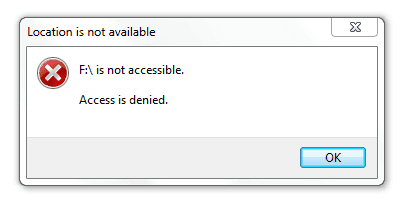
When a hard drive failure error occurs or the file system becomes RAW, you can't access your saved data. To fix an inaccessible hard drive with an "Access Denied" error, you can try quick fixes like checking the drive letter, disk management, or booting in safe mode. If these don't work, you can use effective methods like formatting the drive, using a data recovery software, or seeking professional help to recover your data without losing any of it.
What Is USB Access Denied Error
The "access denied" issue with USB drives, SD cards, and other removable flash drives is a common problem related to permissions and file systems. It occurs when you're unable to open a file or folder, a service on your computer fails to start, or you can't access a website, often due to issues with permissions, file systems, or other underlying factors.
In various devices, platforms, or applications, access denied errors may occur due to different reasons, resulting in unique error messages and troubleshooting workarounds. To address these issues comprehensively, we'll break down the error into five distinct cases, covering a range of situations users may encounter, providing clarity on the causes and solutions for access denied errors.
- HDD/USB/SD card Location is not available, access is denied
- The error "Folder access denied. Cannot open, delete or move a file folder" typically occurs when the operating system or a specific program is unable to access a folder due to permissions issues. This can be caused by a variety of factors, including incorrect file permissions, a corrupted folder structure, or a problem with the operating system's access control lists (ACLs).
- Command Prompt access denied. Diskpart has encountered an error.
If you're encountering the access denied error, even with other accompanying error messages, you can try troubleshooting by ensuring your account has the necessary permissions, checking the file path and name for any typos, and verifying that the file or folder you're trying to access is not locked by another process. You can also try running the application or script as an administrator, disabling any antivirus software temporarily, or checking for any malware infections.
First. Restore Data from Access Denied USB to Protect Data
To avoid data loss on an inaccessible USB flash drive, it's a good idea to first recover data from the device using Deep Data Recovery, which can help restore deleted files and recover formatted or corrupted data with a few simple steps.
To recover data from an inaccessible hard drive, USB, or other devices, you can download and apply this software. Follow these steps to retrieve your data:
Step 1. Select file types and click "Fast Scan" to start
Connect your USB drive or pen drive to your computer and launch the Qiling USB data recovery software. Select the desired file types and click "Fast Scan" to initiate the recovery process.

Note: You can choose different search modes based on where and why the data was lost.
Step 2. Run USB Data Recovery Software
Select the drive labeled as an External drive, and click "Scan" to start searching for lost files.

Step 3. Scan and Search Lost Files on a USB Drive
Deep Data Recovery will thoroughly scan your USB flash drive/pen drive, find all lost data, and allow you to filter and find specific files once the scan completes.

Step 4. Restore All Lost Files from USB
A double-Click will allow you to preview the files. Select the target files to restore and click "Recover" to save them to a secure location on your PC or other external storage devices.
After data recovery, take the following approaches one by one to resolve the problem.
1. Fix USB Access Denied Issue with Disk Error Checking Tool
An Error Checking tool is a built-in utility in the Windows system for checking and fixing device errors, helping to resolve issues such as access problems on hard drives, USB, SD cards, or file folders, including the 'Access Denied' error.
Step 1. To connect an inaccessible device, start by ensuring the device is properly powered on and plugged into your PC. Next, check if the device is being recognized by your computer by looking for it in the Device Manager or Disk Management.
Step 2. To access the properties of an inaccessible device or file folder, open the "This PC/My Computer" window and right-click on the item in question. Select "Properties" from the context menu that appears.
Step 3. Click the "Tools" Tab > Click "Check/Check Now".
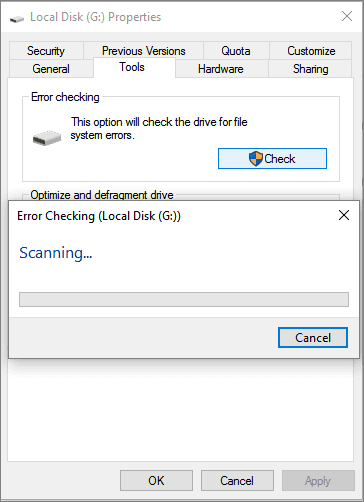
If the issue persists, try Quick Fix 2, which involves running the command "chkdsk /f" in the Command Prompt to check and fix any disk errors on your drive, and then restart your device. If this resolves the problem, you can access your drive and use your data as usual. If not, you may need to consider alternative solutions, such as using a different device or seeking professional help.
2. Gain Permissions to Access Denied USB Drive
If you don't have permission to access a protected USB or hard drive, you won't be able to open it and may get an "access denied" error message.
To access an inaccessible hard drive, USB, or file folders, you can try gaining permission by running a command or using a software tool that can bypass security restrictions, such as a password reset or access rights modification. This approach may require technical expertise and should be done with caution to avoid causing further damage or compromising system security.
Step 1. Right-click the inaccessible hard drive, USB, or file folder, and select Properties.
Step 2. To access the Owner tab, go to the Security section, click on Advanced, and navigate to the Owner tab.
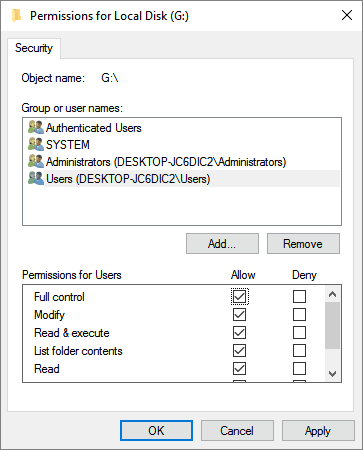
Step 3. Click on "Edit" in the top right corner of the page, and then click on your username under "Group or username" in the left-hand menu.
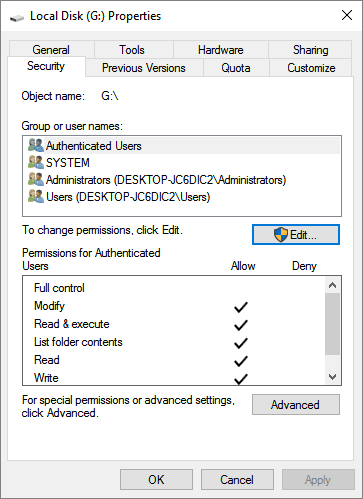
Step 4. To gain access to an inaccessible device, check all boxes in the Allow column and click OK, then click Apply to apply the permissions.
If you have important data, you can try to get all the problems fixed without losing any data. If you don't need the data at all, you can directly format the access denied drive to fix the inaccessible problem at once.
3. Change Drive Letter to Access USB or Pen Drive
If a USB or pen drive's drive letter is assigned incorrectly, it may cause the hard drive to become inaccessible. In such cases, changing the drive letter can help troubleshoot the issue.
Step 1. If a device becomes inaccessible, try renaming it by right-clicking and selecting "Rename" to see if it can be opened with a new drive letter, and if not, follow additional troubleshooting steps.
Step 2. Right-click "This PC/My Computer" > Select "Manage".
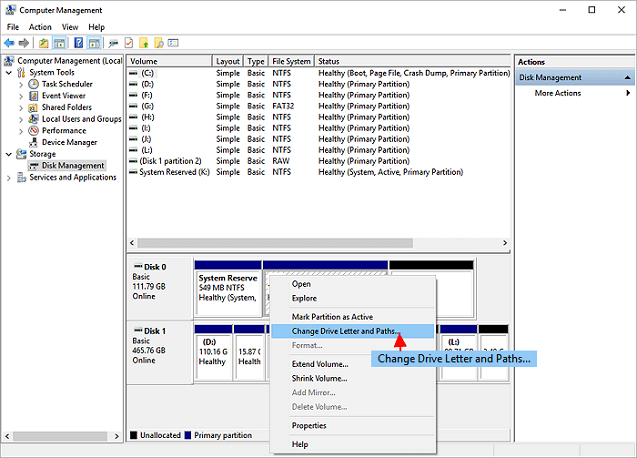
Step 3. To change the drive letter of a partition, open Disk Management, right-click on the target partition, and select "Change Drive Letter and Paths..." from the context menu.
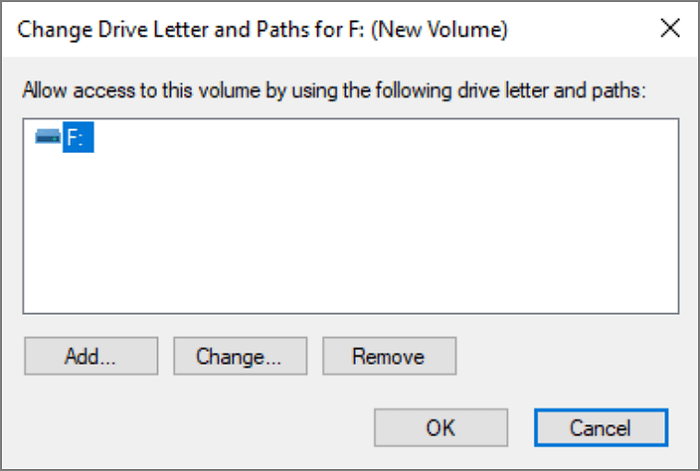
Step 3. On the Change Drive Letter windows, choose "Change" to modify the drive letter, then click "OK".
4. Edit Local Group Policy to Access USB/Pen Drive
If your USB flash drive, pen drive, or external hard drive is restricted by Windows Local Group Policy Editor, you may encounter an access denied issue. Here is how to adjust Windows Local Group Policy:
Step 1. To access the Local Group Policy Editor, click the Search button and type in "gpedit.msc", then press Enter to open the editor.
Step 2. Click "Administrative Templates" to expand the System folder.
Step 3. Click System and Open the "Removable Storage Access" folder.
Step 4. To restrict access to removable disks, you can deny execute, read, or write access to them by double-clicking on the corresponding policies in the Local Security Settings window.
Step 5.To change Windows Local Group Policy and access your USB drive, click on "Disabled > OK". This will enable access to your USB drive.
5. Run CHKDSK to Fix Access Denied in Command Prompt
The Command Prompt access denied error typically occurs when you lack sufficient privileges or there's write protection on the disk partition where the command is trying to execute. This can manifest as an error message like "Diskpart has encountered an error, access is denied."
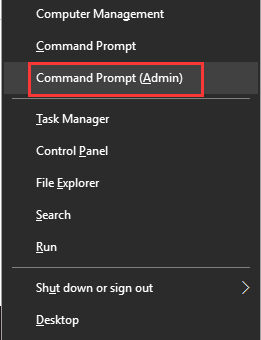
Step 1. Press Windows + X keys to bring up a black context menu, which provides quick access to various system tools and utilities, such as the Command Prompt, PowerShell, and the Windows Defender Firewall.
Step 2. Choose Comand Prompt (Admin) to open the Command Prompt.
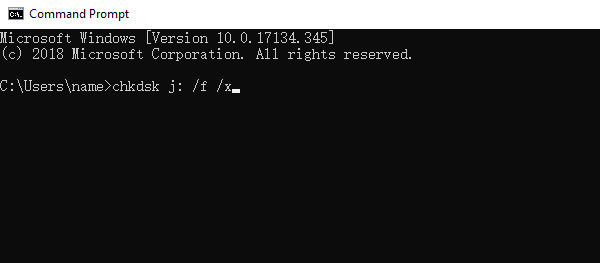
3. Type chkdsk g: /f in the Command Prompt and press Enter. Change the drive letter of the USB drive and replace it with the correct one.
6. Remove Write Protection on USB/External Hard Drive
Step 1. Press the Windows key + R to open the Run dialog box.
Step 2. Type regedit into the box.
Step 3. Navigate to HKEY_LOCAL_MACHINE\SYSTEM\CurrentControlSet\Control\StorageDevicePolicies.
Step 4. To disable write protection on a Windows drive, you need to modify the registry. First, open the Registry Editor by searching for "regedit" in the Start menu.
7. Format and Reset USB or Hard Drive to Factory Settings
After recovering the data from the inaccessible hard drive or storage devices, you can directly format the inaccessible drive to factory settings now. This will erase all data and restore the drive to its original state, making it usable again.
Step 1. Right-click on the inaccessible device - internal/external hard drive, USB or SD card, etc - and select "Format".
Step 2. Reset the file system, label name, etc on inaccessible devices and click "Start".
Step 3. To resolve the "Access Denied" error and reset inaccessible devices to their factory settings, click "OK".
The Bottom Line
When the "USB access denied" or "external hard drive access denied" error appears in Windows 11/10/8/7, it's likely a sign that your hard drive has failed. To resolve this issue, six proven solutions can be employed to help troubleshoot and fix the problem.
It's crucial to prioritize data security by first restoring and backing up any important data from the failed USB drive to prevent potential loss.
For an inaccessible E: volume, separate permission, encryption, and file-system causes before choosing a recovery scan.
For an external drive that reports Access denied on Windows 11, check the Windows 11 external-drive recovery guide to distinguish a permissions issue from file-system damage.
Related Articles
- How Long Do Hard Drives or External Hard Drives Last (If Unused)
- Fix Nothing Happens When Plug in USB Flash Drive in Windows
- Recover Data from a Corrupted SD Card
- Fixed: WD External Hard Drive Not Recognized/Working with Light On
- Top 6 Data Recovery Services in Boston, MA
Want to find data recovery services in Boston, Massachusetts that can help you recover photos, documents, and emails from computers or laptops? This guide can help you compare your options. - Chicago Data Recovery Services [HDD, SSD, RAID]
this guide provides you detailed information about ten Chicago data recovery services. We will provide the address, numbers, and working hours to help you get full information.
Products
Articles & Tutorials
- Data Recovery
- Data Backup
- File Recovery
- File Backup
- System Backup and Restore
- Disk and Partition Clone
- Technical articles
- Mobile articles
- Disk Master Help
- Windows Data Recovery Tutorials
- Windows Secure Delete Tutorials
- Windows Partition Management Tutorials
- Windows File Backup and Restore Tutorials
- Windows System Backup and Restore Tutorials
- Windows Disk Backup and Restore Tutorials
- Windows Clone Tutorials