Battle of Hard Drives: Fusion Drive vs. SSD vs. HDD. Which Is Better?
When choosing between Fusion Drive, SSD, and HDD, consider factors like price, speed, and performance, as well as potential risks associated with each. Whether you're setting up an Apple computer, Windows PC, or laptop, selecting the right hard drive is crucial. Meanwhile, if you've lost data on any of these drives, Deep Data Recovery can help with its advanced data recovery capabilities.
This page provides a comprehensive comparison of HDD, SSD, and Fusion drives, offering detailed information on their differences and characteristics. Additionally, it offers a complete data recovery solution for the latest Fusion drives.
| Workable Solutions | Step-by-step Troubleshooting |
|---|---|
| HDDs | The cheapest, oldest and most common type of drive is the humble HDD...Full steps |
| SSDs | HDDs are increasingly being replaced by SSDs (or solid-state drives)...Full steps |
| Fusion Drive | Fusion Drive is a combination of HDD and SSD technology...Full steps |
| Fusion Drive Recovery | When lost Fusion drive data, run Qiling recovery software > Scan drive > Restore...Full steps |
Hard drives come in various types, each with its own strengths and weaknesses, and the choice ultimately depends on balancing size, performance, and price.
HDDs
The humble HDD (hard disk drive) is the oldest and most common type of drive, still widely used today. Data is stored on rotating platters, read from and written to with a magnetic head that moves across the surface like a record player arm. This mechanical design makes HDDs audible when in use, and their decade-old technology is a testament to their enduring popularity.
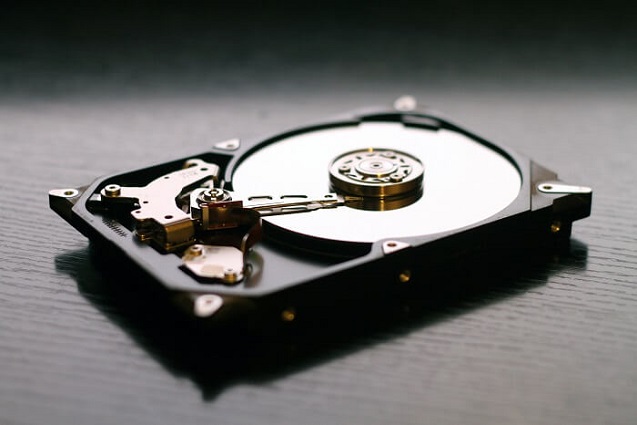
- Advantages: cheap, reliable, high capacities available
- Disadvantages: Slow, risk of physical damage, can be noisy in use
SSDs
SSDs are replacing HDDs due to their faster performance and lower risk of damage, making them ideal for tasks that require better speed, such as gaming and video editing.
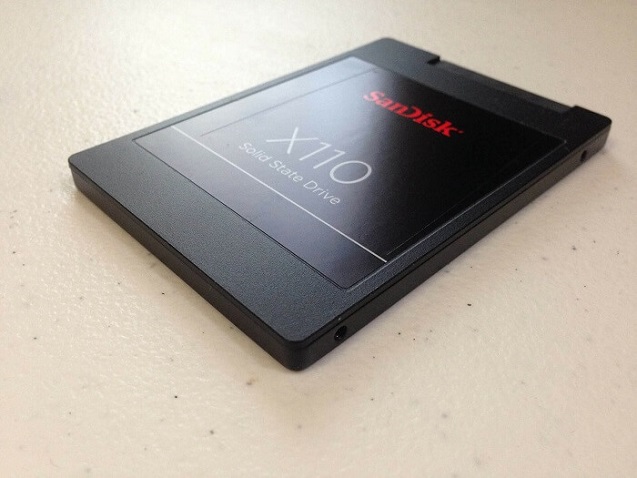
While SSDs offer faster performance compared to traditional HDDs, they come at a higher cost per gigabyte. However, prices have decreased significantly in recent years as the technology gains popularity. SSDs are available in various physical forms, including those resembling regular hard drives and others that look like RAM modules. It's also worth noting that SSDs have a shorter lifespan than HDDs, not due to reliability issues, but because their design limits the number of times data can be written to each section of the disk.
- Advantages: Fast performance, low power consumption, silent operation
- Disadvantages: Higher cost, lower capacities, limited lifespan
Fusion Drive
Apple's Fusion Drive combines a large capacity hard disk drive (HDD) with a smaller solid-state drive (SSD), appearing as a single drive within macOS, offering a balance between storage capacity and performance.
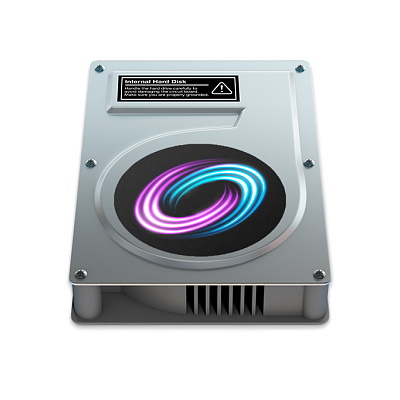
- Advantages: Hybrid SSHDs offer a balance between affordability and performance, providing faster speeds than traditional hard disk drives (HDDs) while being cheaper than solid-state drives (SSDs). They also operate quietly, although not completely silently, and are available in high capacities, making them a viable option for those seeking a compromise between storage cost and speed.
- Disadvantages: The performance may not be the best, and it can have some issues, but it is still available for use on certain Mac models.
Fusion Drive Benefits
macOS optimizes a Fusion Drive by storing frequently accessed files on the faster SSD, speeding up access times. This can include frequently used documents, apps, and operating system files. A Fusion Drive essentially combines the capacity of a hard drive with the speed benefits of an SSD, offering a cost-effective alternative to a full SSD installation.
You can only get a Fusion Drive by buying an iMac with one preinstalled, or by adding one to a Mac that was originally supplied with one, but this is not guaranteed to work and is not recommended.
Fusion Drive is a unique storage solution that combines a hard drive and a solid-state drive (SSD) into a single drive, but it can sometimes malfunction and appear as two separate drives instead of one, a problem known as "splitting", which can be caused by either software or hardware issues.
Fusion Drive, like traditional HDDs and SSDs, is prone to data loss due to accidental file deletion. Regardless of the type of drive, it's easy to delete a file only to later realize it was needed. To prevent this, having a backup plan in place is crucial. Regular backups can safeguard against data loss, and the Trash feature provides a safety net for recovering deleted files. However, if the Trash is emptied, recovering deleted files becomes a challenge.
Deep Data Recovery can help recover data from various types of disks, including HDDs, SSDs, and Fusion Drive disks, offering a chance to retrieve lost files due to accidental deletion, formatting, viruses, or other reasons. The software is available for $59.9 +VAT and comes with a free trial version to test its capabilities before purchasing.
How to Recover Deleted/Lost Data from Fusion Drive:
Step 1. Download and Install Deep Data Recovery Software
To download and install the software, click the download button to obtain the installation package, then follow the on-screen instructions to run it and click "USB/SD Scan" to proceed with the installation process.

Note: You can choose different search modes based on where and why the data was lost.
Step 2. Select your SSD or HDD. Then click "Scan" to start finding lost data.

Step 3. Preview SSD or HDD data
The program allows users to search for specific types of files using the "Filter" or a search bar, or they can sort lost files from the file folder listed on the left side, such as "Deleted Files" or "Other Lost Files".

Step 4. Restore SSD or HDD data
Click "Recover" to save found files to a secure location on your PC or external storage.
Related Articles
- How to Migrate Linux Installation to New Drive
- How to Clone IDE to SATA HDD/SSD (2 Ways)
- Lost Unsaved PowerPoint Document - How to Recover?
- How to Recover HFS, HFS+ Partition Data on Mac
- Why Can't I Update My Mac? Fix It and Update Mac to The Latest macOS Big Sur
- Fix Corrupted Hard Drive on Mac with Two Methods
- Recover My Files Free Download | Recover My Files in Windows PC
Recover My Files is a tool that helps users recover deleted and lost files on their Windows PC, but there's an alternative available for both Windows and Mac.
Products
Articles & Tutorials
- Data Recovery
- Data Backup
- File Recovery
- File Backup
- System Backup and Restore
- Disk and Partition Clone
- Technical articles
- Mobile articles
- Disk Master Help
- Windows Data Recovery Tutorials
- Windows Secure Delete Tutorials
- Windows Partition Management Tutorials
- Windows File Backup and Restore Tutorials
- Windows System Backup and Restore Tutorials
- Windows Disk Backup and Restore Tutorials
- Windows Clone Tutorials