Fix Stuck at Windows Is Loading Files Loop
If your computer is stuck on "Windows is loading files..." for an extended period, don't worry - there are fixes to get it working again. You can try various solutions, such as checking for software updates, running a system file checker, or even booting in safe mode. Additionally, you can try using a bootable USB drive or CD, or even resetting your computer to its original settings. If none of these work, you can try running a virus scan or checking for hardware issues. By trying out one of these fixes, you should be able to get your computer up and running again.
| Workable Solutions | Step-by-step Troubleshooting |
|---|---|
| Fix 1. Run Startup Repair | Insert Windows installation disk and boot PC on it > Select "Repair your computer"...Full steps |
| Fix 2. Update Computer Drivers | Restart PC and press F8 > Enter Advanced Boot Options > Select "Safe Mode"...Full steps |
| Fix 3. Use Windows Repair Services | A safe way to fix Windows 10 issues without data loss is using manual Windows repair services...Full steps |
| Fix 4. Check HDD and RAM | If you have 1+ hard disk or RAM memory stick, remove the additional one and restart PC...Full steps |
| Fix 5. Reset or Update BIOS | Enter BIOS > "Setup Defaults" > "Load Setup Default" > Save the changes...Full steps |
| Fore More Fixes | Uninstall suspicious programs, run bootrec to repair the Master Boot Record and Boot Configuration Data, or run the System File Checker (SFC) tool to scan and replace corrupted system files. If these don't work, you may need to reinstall Windows.Full steps |
Overview of 'Windows is loading files'
My Windows 10 Dell laptop gets stuck in a reboot loop when I run a startup repair. The system displays a loading circle on the 'Windows is loading files' screen, but instead of progressing, it loops back to the laptop's starting page and restarts the loading process, showing the 'Windows is loading files' screen again and again. This creates an infinite loop, preventing the system from completing the startup repair.

When reinstalling Windows, some users experience a black screen with a frozen "Windows is loading files" message, preventing the loading wheel from moving. This issue can occur for various reasons, and in some cases, it may lead to other problems such as the black screen of death, random computer freezing, startup repair loops, disk boot failures, and more.
Possible Causes
When you start your computer, the Windows loading process begins, which typically happens quickly and goes unnoticed. However, if you get stuck on the loading screen, it's likely due to an issue with your computer that needs to be addressed.
The "Windows is loading files" loop can occur when starting a computer or reinstalling Windows, often due to a damaged BOOTMGR or outdated drivers.
Fixes for Windows 11/10/8/7 is Loading Files Loop
- Important
- Before starting, make sure you have a corresponding Windows installation media, such as a bootable USB drive, CD, or DVD disc, and that it's set up as the first in the BIOS boot sequence. If you don't have the installation media, visit Microsoft's page on creating Windows 10 installation media for help.
The "Windows is loading files" loop can be caused by damaged BOOTMGR or problematic computer drivers. To resolve this issue, various solutions can be applied, including running the System File Checker (SFC) to scan and replace corrupted system files, checking for any problematic drivers and updating them, and attempting to repair or reinstall the BOOTMGR.
Method 1. Run Startup Repair
To resolve the issue of your Windows 7 computer not booting properly, try performing a Startup Repair using the Windows installation disc. This process can help identify and fix any problems that may be preventing your computer from booting correctly.
Step 1. Insert your Windows 7/Vista installation disc into your computer.
Step 2. Start your computer and boot from your installation DVD.
Step 3. Select "Repair your computer" in the Windows Welcome screen.
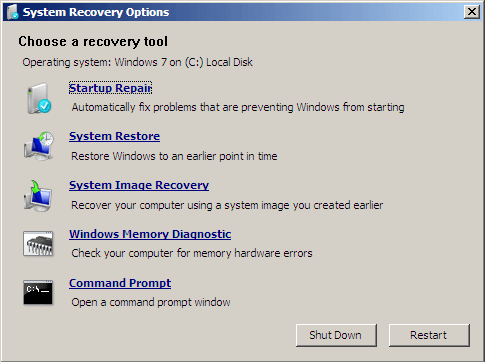
Step 4. Choose your corresponding OS. When you see the System Recovery Options, choose "Startup Repair".
Step 5. Wait for the repairing process to finish. After that, restart your computer.
If "Startup Repair" can't fix your PC that's stuck at the "Windows is loading files" screen, try the "System Restore" option next.
Method 2. Update Computer Drivers
Device drivers act as a communication medium between your Windows OS and hardware devices, such as the motherboard, video card, or printer. Manufacturers typically include a set of drivers on a CD or DVD for various hardware components. If driver-related issues arise, updating the drivers can resolve the problem. However, if the computer cannot boot, updating drivers requires entering Safe Mode, which starts the system with only essential drivers and services, allowing for basic functions and serving as a troubleshooting tool.
Step 1. Restart your computer. Once it starts, press "F8" in 1-second intervals until you see the Windows logo.
Step 2. Then you will see the menu of "Advanced Boot Options". Under it, choose "Safe Mode".
Step 3. Insert your driver CD/DVD and find the drivers.
Step 4. Run the .exe file or setup file in the driver folder to install the driver, or use the .inf file if available, following the on-screen instructions to complete the installation.
Method 3. Use Windows Repair Services
To fix Windows 10 issues without losing data, you can use manual Windows repair services. Qiling's professional technical team can assist with system startup errors, such as system failure, blue screen, and black screen issues.
Consult with Qiling data recovery experts for a one-on-one manual recovery service, which includes a FREE diagnosis, followed by the provision of additional services such as data recovery.
- Fix Windows boot issues, including BSOD
- Fix Windows error and configure Windows environment
- Restore the system when it fails to boot
- Optimize Windows computer to make it run quickly
Method 4. Check HDD and RAM
A problematic hard disk or RAM can cause the "Windows is loading files" loop, so try removing extra hard disks or RAM sticks and restarting your computer.
Method 5. Reset BIOS or Update BIOS
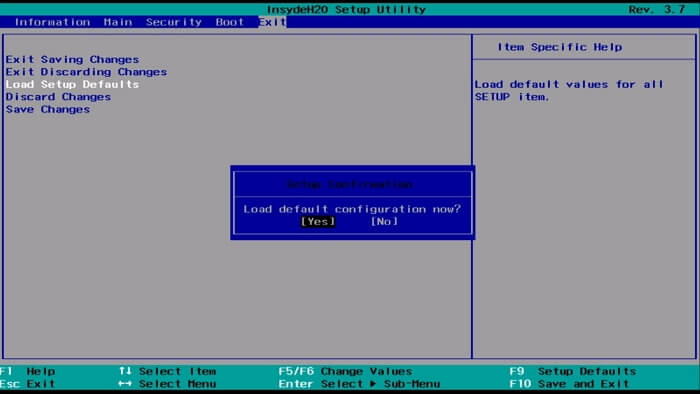
Resetting BIOS to its default settings or updating BIOS to the latest version can be helpful according to user feedback. To reset BIOS, you can follow these steps:
Step 1. Restart your computer.
Step 2. Press the proper key to enter BIOS. (Depending on the computer you are using, the keys to enter BIOS vary.)
Step 3. To find the "Setup Defaults" option, look for it in the BIOS settings menu, which may be called Load Default, Load BIOS Defaults, Load Default Settings, Load Setup Default, or something similar. This option is used to restore the BIOS settings to their original factory settings.
Step 4. Save the changes and exit BIOS.
Method 6. Boot into Safe Mode
If you've recently installed new programs or drives on your computer before the "Windows is loading files" error occurs, try removing the program or drive by booting into Safe Mode. This may resolve the issue.
Step 1. Restart your computer. Once it starts, press "F8" in 1-second intervals until you see the Windows logo.
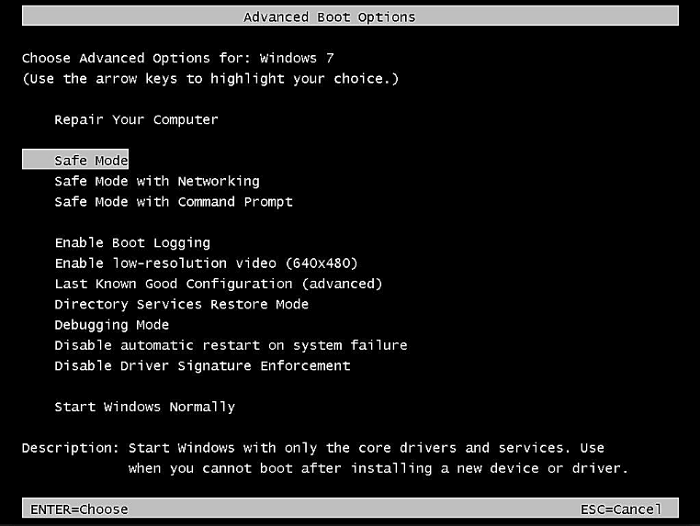
Step 2. Then you will see the menu of "Advanced Boot Options". Under it, choose "Safe Mode".
Step 3. Uninstall the suspicious programs or drivers that lead to your PC being stuck at "Windows is loading files".
Step 4. When you have finished troubleshooting, repeat the first step and choose "Start Windows Normally" under the "Advanced Boot Options".
- Tip
- There are options under Advanced Boot Options, such as "Last Known Good Configuration (advanced)" and "Disable automatic restart on system failure", which can be applied to troubleshoot issues.
Method 7. Run bootrec
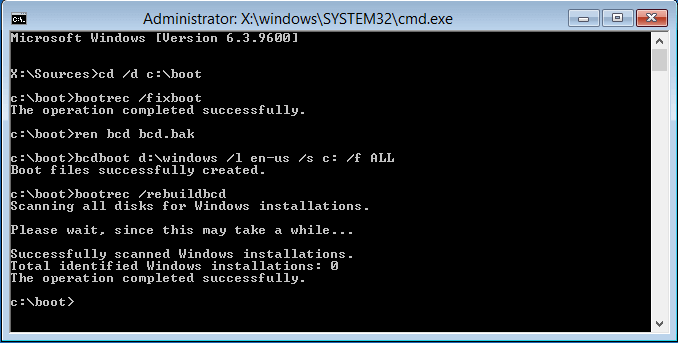
The bootrec.exe utility, provided by Microsoft in the Windows Recovery Environment, is a tool that can help fix startup issues by repairing the Master Boot Record (MBR), Boot Sector, Boot Configuration (BCD), and boot.ini.
Step 1. Insert your Windows 7/Vista installation disc into your computer.
Step 2. Start your computer and boot from your installation DVD.
Step 3. Chose "Command Prompt".
Step 4. Enter the following command one by one:
- bootrec /fixboot
- bootrec /scanos
- bootrec /fixmbr
- bootrec /rebuildbcd
- Exit
Step 5. Restart your computer.
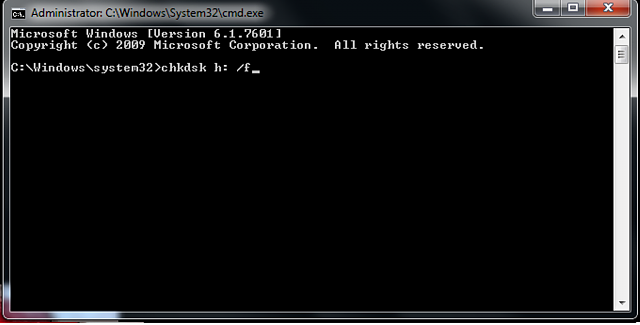
Method 8. Run Chkdsk
CHKDSK is a command that can check and repair errors found in a disk, which can be useful in fixing the "Windows is loading files" error caused by a problematic hard disk.
- Warning
- Running chkdsk may resolve drive error issues, but it can also lead to total data loss. Therefore, it's recommended to perform data recovery beforehand and then proceed with the CMD method.
Step 1. Insert your Windows 7/Vista installation disc into your computer.
Step 2. Start your computer and boot from your installation DVD.
Step 3. Chose "Command Prompt".
Step 4. Type chkdsk c: /f and hit "Enter". (Replace "c" with your system partition.)
Step 5. Enter exit and restart your computer.
Method 9. Reinstall Windows
If the previous solutions don't work, you can try reinstalling Windows, but be careful not to lose any data. To avoid data loss, use software like Qiling to recover data from your system partition and save it to a safe location, such as an external disk or USB device, even if your PC won't boot into Windows.
Download the Qiling bootable data recovery software and follow the guide below to solve your problem.
To export data before fixing Windows is loading files stuck loop by reinstalling Windows:
Step 1. Create a bootable disk
To create a bootable disk, first, prepare an empty USB drive. If it's not empty, back up any important data to another device, as the process will erase the existing data. Then, use the Deep Data Recovery WinPE Edition tool to create a bootable disk on the prepared USB drive. This tool will guide you through the process, ensuring that your new bootable disk is set up correctly.
To start, connect the USB drive to your PC and launch Deep Data Recovery WinPE Edition. Then, select the USB drive and click "Create" to create a bootable disk.
Step 2. Boot from the bootable USB
Connect the bootable disk to the PC that won't boot and change the computer's boot sequence in the BIOS settings, typically by pressing F2 at startup to access and adjust the boot order.
To boot your PC from a device other than the hard drive, press the F10 key to save and exit. This allows you to select booting from a removable device like a USB disk or a CD/DVD drive.
Step 3. Recover data from a hard drive that won't boot
When booting from a USB, you can run Deep Data Recovery from the WinPE bootable disk. You can then select the drive to scan to find lost files.

Click "Scan" to start the scanning process.

After scanning, you can preview and recover data from the computer or laptop by selecting targeted files and clicking the "Recover" button, and save the recovered data to another place to avoid data overwriting.

You can reinstall Windows without losing any data by backing up your files and settings to an external drive or cloud storage, and then using the Windows installation media to reinstall the operating system. This way, you can start with a clean slate while keeping all your important files and settings intact.
Step 1. Insert your Windows 7/Vista installation disc into your computer.
Step 2. Start your computer and boot from your installation DVD.
Step 3. Select a keyboard method and choose a language you prefer. Click "Next".
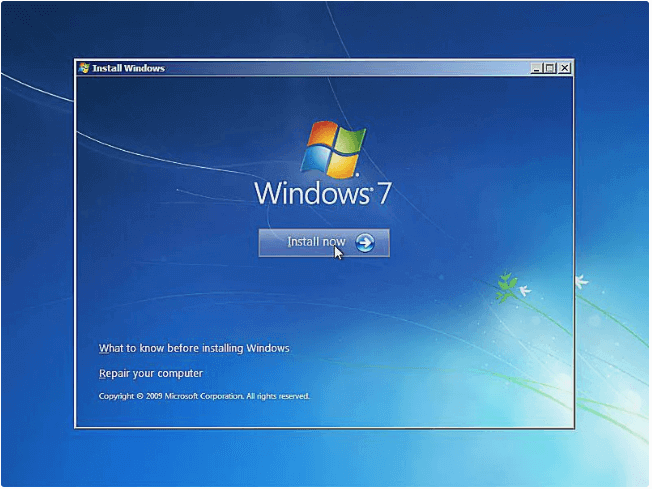
Step 4. Choose "Install Now".
Step 5. Follow the wizard to finish the installation process.
The Bottom Line
The "Windows is loading files" error typically occurs on Windows 7 or Vista computers. It's often caused by driver issues or a corrupted BOOTMGR. To resolve the issue, try the solutions mentioned above, and if you're concerned about data loss, consider using Qiling data recovery software to access and recover your files when your computer can't boot.
Related Articles
- How to Remove Bad Sector from Hard Disk Using CMD
- Restore Deleted/Lost ASUS Data with ASUS Data Recovery Software
- Zoom Meeting Disappeared for No Reason? Fix It and Recover Zoom Meetings Now
- 2022 Aptio Setup Utility Ultimate Guide | How to Access and Fix It
- How to Recover Missing/Disappeared Files in Windows 10 Easily
This guide offers several simple and free methods to recover missing files in Windows 10 after a Windows update or reinstall. - How to Recover Permanently Deleted Excel File from Desktop?
Recovering a permanently deleted Excel file from your desktop can be achieved through various methods, as outlined in this article. The steps to recover the file are provided to help users restore their Excel file.
Products
Articles & Tutorials
- Data Recovery
- Data Backup
- File Recovery
- File Backup
- System Backup and Restore
- Disk and Partition Clone
- Technical articles
- Mobile articles
- Disk Master Help
- Windows Data Recovery Tutorials
- Windows Secure Delete Tutorials
- Windows Partition Management Tutorials
- Windows File Backup and Restore Tutorials
- Windows System Backup and Restore Tutorials
- Windows Disk Backup and Restore Tutorials
- Windows Clone Tutorials