Fix 'Please Insert a Disk into Removable Disk' Without Losing Data
Error Description - Please Insert a Disk into a USB Drive
A removable disk, such as a USB flash drive, memory card, or pen drive, may not work on Windows OS or Mac OS X, resulting in error messages that prevent users from accessing data. One common error when using a USB drive in Windows 10/8/7 is the message "Please insert a disk into removable disk G: (or any other drive letter)".
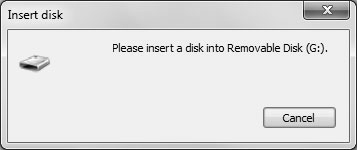
What Will Happen When "Please insert a disk into removable disk" Error Occurs
- The error "Please insert a disk into removable disk" occurs when you try to open a USB drive that Windows recognizes as a removable drive, but it is not actually a disk with a physical drive. This is likely because the USB drive is being treated as a virtual drive, rather than a physical one.
- The USB drive is showing 0 bytes used and 0 bytes available when checking its properties, indicating that it may not be properly initialized or formatted. This could be due to a hardware issue, a problem with the USB drive's file system, or an issue with the computer's ability to read the drive.
- The USB drive state is "No Media" in Disk Management.
- Try using a different USB drive or a different computer to see if the issue is with the USB drive or the computer. If the issue persists, you may need to run a disk check or format the drive using a different method, such as using a USB drive formatting tool.
Causes
The notification "Please insert a disk into removable disk (drive letter)" is likely due to a software or driver issue, rather than an actual disk being required. This can occur when there's a problem with the device's driver or software, causing the system to think that a disk is needed.
- Your removable device is not well connected
- Your USB drive is not recognized by the computer
- Your device is inaccessible
If your USB drive is not recognized by your computer, it may be due to hardware issues or physical damage. To troubleshoot, try the solutions provided below.
| Workable Solutions | Step-by-step Troubleshooting |
|---|---|
| Fix 1. Change a USB port | Connect your USB drive to your computer via the rear USB ports and...Full steps |
| Fix 2. Assign a New Drive Letter | Log in as an Administrator account in your system or any other account with administrative privileges...Full steps |
| Fix 3. Scan Hardware Changes | Go to "This PC" > "Manage" > "Device Manager". Find and right-click your USB drive...Full steps |
| Fix 4. Update Driver | Go to "This PC" > "Manage" > "Device Manager". Find and right-click your USB drive...Full steps |
| More Fixes | Right-click This PC/My Computer > Manage > Disk Management...Full steps |
The prompt "Please insert a disk into removable disk" usually appears when the USB drive is shown as "no media" in Disk Management, indicating physical errors on the device. To resolve this issue, various methods can be employed to make the USB drive usable again, which will be detailed in the following response.
Method 1. Change the Connection of the USB Drive
Connect your USB drive to the rear USB ports on your computer, as they are more stable than the front ones, to see if the issue persists.
To resolve the issue, try changing the USB cable to ensure it's not the cause of the problem, and also check for any other potential issues such as a loose connection.
Method 2. Assign a New Drive Letter to the USB Drive
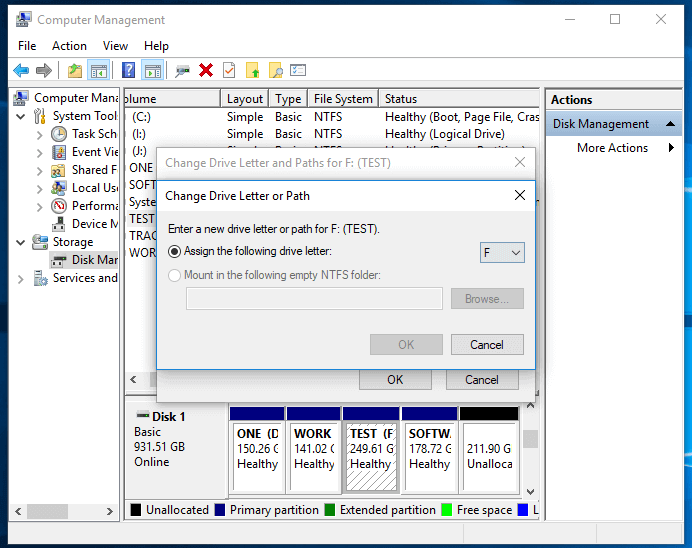
If you're getting the error prompt "Please insert a disk into a removable disk" due to a drive letter conflict between your USB drive and a partition on your computer, you can resolve it by manually assigning a new drive letter to your USB drive. To do this, go to Disk Management, right-click on the USB drive, select "Change Drive Letter and Paths," and then choose a new drive letter from the dropdown menu or manually enter a letter that is not in use. This should resolve the conflict and allow you to access your USB drive without any issues.
Step 1. Log in as an Administrator account in your system or any other account with administrative privileges.
Step 2. Press "Windows + X" and click "Disk Management".
Step 3. Right-click on your removable drive partition and select "Change Drive Letter and Paths" under Disk Management.
Step 4. To change the drive letter, go to "This PC" or "Computer" in File Explorer, right-click on the drive you want to change, select "Change drive letter and paths..
Method 3. Scan for Hardware Changes
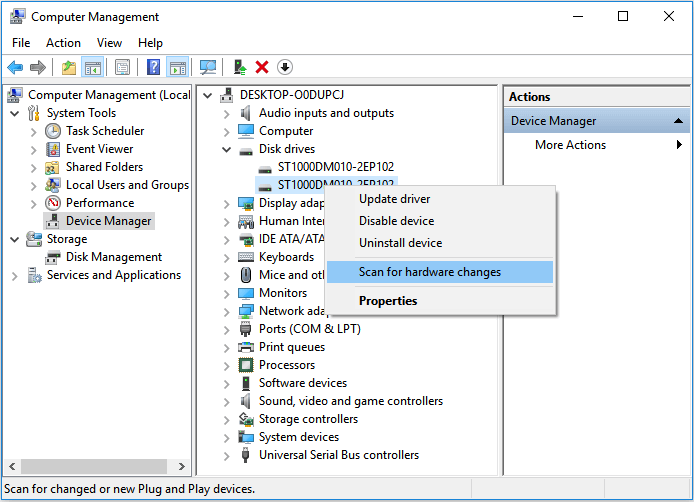
The "Scan for hardware changes" feature allows you to check and load changes made to your hardware, which can also resolve the error "Please insert a disk into removable disk (your USB drive)" in certain situations.
Step 1. Go to "This PC" > "Manage" > "Device Manager".
Step 2. To resolve the issue, right-click your USB drive, then select "Scan for hardware changes".
Step 3. Check whether your disk works properly again.
Method 4. Update Driver
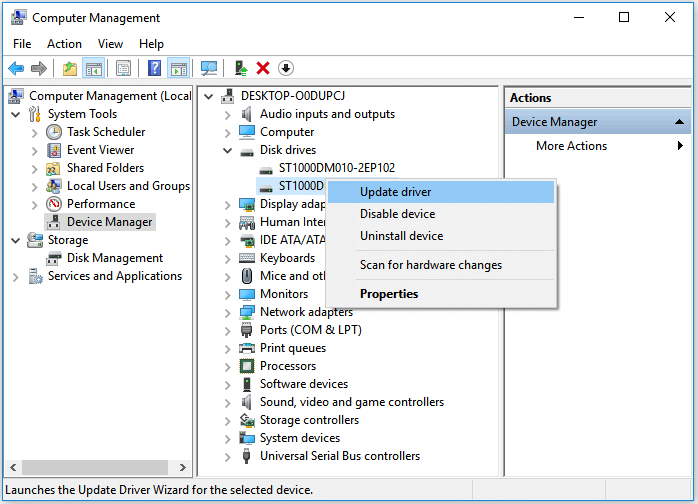
If you're experiencing issues with a device, updating the driver might be the solution. Drivers are the software that enables communication between your computer and a hardware device, so upgrading them can resolve compatibility problems and improve performance. To update drivers, you can typically do so through the device manager on your computer, where you can search for and install the latest version of the driver for the specific device that's causing the problem.
Step 1. Go to "This PC" > "Manage" > "Device Manager".
Step 2. Find and right-click your USB drive, then choose "Update".
Step 3. Check whether your disk works properly again.
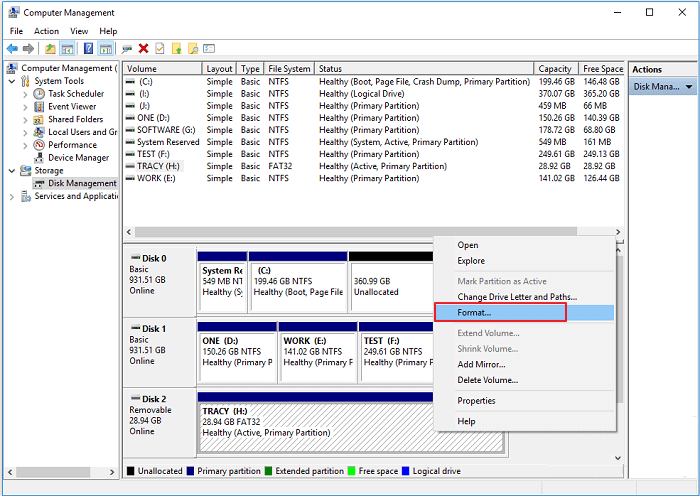
Method 5. Repair the Drive by Formatting
Formatting will erase all the files on your storage device. Be careful to perform the operation if you have important files on the USB drive. If you are sure you want to format it, you can do so by going to the device manager, selecting the drive, and clicking on the "Format" option.
To resolve the 'Please insert a disk into removable disk' error in Windows 10/8/7, you can try formatting the hard drive and repairing the issue. The effectiveness of this tip varies depending on your situation, but following the steps below may help.
Step 1. Right-click "This PC/My Computer > Manage > Disk Management".
Step 2. To format a hard drive, USB drive, or SD card, right-click on the device and select "Format Volume" followed by "Reset File System" (choosing NTFS or FAT32 as needed), and then rename the device.
Step 3. To resolve the issue of 'please insert a disk into removable disk' error, click Finish to complete the repair process. This action will resolve the problem with the device.
Method 6. Repair your USB Drive
If your USB drive has errors, you can try using a repair tool provided by the manufacturer, if available. These tools can check and repair issues, but some may reset the device to its factory settings, erasing all data. If there are important files on the device, it's recommended to first try recovering the data and then repairing the drive, rather than risking data loss.
After applying the solutions above, you may encounter three types of situations: 1) the problem is resolved, 2) the problem persists, or 3) the problem is more complex than initially thought.
- The USB drive is visible and accessible in the Disk Management utility, and it can be used normally without any issues.
- The USB drive is now shown as "RAW" in Disk Management, or it can be recognized but remains inaccessible.
- Your USB drive state is "No Media" still.
If you've encountered the "Please insert a disk into removable disk" error, you've likely successfully resolved the issue. If you've lost data due to this error, you can breathe a sigh of relief knowing that third-party software can help you recover your files. However, if your removable device has suffered physical damage, it's best to have it manually repaired by sending it in for professional assistance.
Consult with Qiling Data Recovery Experts for one-on-one manual recovery service, which includes a FREE diagnosis, followed by the offer of various services such as manual recovery.
- To repair a corrupted RAID structure, unbootable Windows OS, and damaged virtual disk files (such as .vmdk, .vhd, or .vhdx), a comprehensive solution is needed. This involves using a combination of tools and techniques to identify and fix the root cause of the issue. A reliable data recovery software can be used to scan and recover data from the corrupted virtual disk, while a RAID recovery tool can be employed to repair the RAID structure.
- Recover/repair lost partition and re-partitioned drive.
- Unformat hard drive and repair raw drive(Bitlocker encrypted drive)
- Fix disks that become GPT protected partitions
How to Recover Data from Inaccessible USB Drive
After trying the fixes for the error "Please insert a disk into removable disk", you may find that your disk is partially restored, showing up in Disk Management as RAW or a similar format, indicating it's still recognizable. This means you can recover files from your previously inaccessible USB drive.
To recover data from a USB drive that is RAW or inaccessible, you can use data recovery software such as Deep Data Recovery.
Qiling data recovery software enables you to:
- Recover deleted files, restore formatted, lost, and corrupted data with ease.
- Recover files from damaged devices such as RAW, inaccessible, or virus-infected hard drives, solid state drives, external hard drives, USB drives, memory cards, and more.
- After recovering data from a corrupted storage device, it's essential to repair corrupted files to ensure they can be accessed and used properly. This includes photos, videos, and documents in various file types, such as JPEG, MP4, PDF, and more.
To recover data from your inaccessible USB drive, it's 100% secure, virus-free, and plugin-free. Follow the video guide and step-by-step guide to access your data.
Step 1. Select file types
Connect your USB drive or pen drive to your computer and launch Qiling USB data recovery software. Select the desired file types and click "Fast Scan" to initiate the recovery process.

Note: You can choose different search modes based on where and why the data was lost.
Step 2. Run USB Data Recovery Software
To recover lost files, select the drive labeled as an External drive and click "Scan" to initiate the search.

Step 3. Scan and Search Lost Files on a USB Drive
Deep Data Recovery thoroughly scans a USB flash drive or pen drive to find lost data, and allows users to filter results to find specific files.

Step 4. Restore All Lost Files from USB
A double-Click will allow you to preview the files. Select the target files to restore and click "Recover" to save them to a secure location on your PC or other external storage devices.
After recovering the data, you can move the device to a new USB drive to send it for manual service.
The Bottom Line
If the first three methods fail to resolve the "please insert a disk into USB drive" issue, it's likely that the USB drive has hardware damage, which cannot be fixed using the methods provided. In this case, you should have your device manually repaired.
Related Articles
- Best Way to Store Digital Photos Long Term
- Fix Word The Add-In Template is Not Valid
- Discord RTC Connecting Stuck? Troubleshoot This Error Now (7 Ways)
- Get Your Answer: Does Formatting A Laptop Remove Viruses?
- How to Recover Videos and Photos from Sony Camcorder
Yes, it is possible to recover photos and videos from a Sony camcorder on Windows or Mac. You can use a Sony camcorder data recovery software to easily recover deleted photos and videos from the camcorder to your computer. - How to Reset Canon Rebel DSLR to factory settings
To reset your Canon Rebel to factory settings, follow these steps: First, turn off the camera. Next, press and hold the "Menu" button, then press the "OK" button. Hold both buttons for about 3 seconds.
Products
Articles & Tutorials
- Data Recovery
- Data Backup
- File Recovery
- File Backup
- System Backup and Restore
- Disk and Partition Clone
- Technical articles
- Mobile articles
- Disk Master Help
- Windows Data Recovery Tutorials
- Windows Secure Delete Tutorials
- Windows Partition Management Tutorials
- Windows File Backup and Restore Tutorials
- Windows System Backup and Restore Tutorials
- Windows Disk Backup and Restore Tutorials
- Windows Clone Tutorials