SQL Error 233 No Process Is on the Other End of the Pipe
5 Ways to Fix Microsoft SQL Server Error 233
| Workable Solutions | Step-by-step Troubleshooting |
|---|---|
| Fix 1. Enable TCP/IP |
Open MS SQL Server. Go to configuration tools, and then open "SQL Server Network Configuration"...Full steps |
| Fix 2. Enable Shared Memory |
Shared Memory Protocol is used for connecting SQL Server, if it is disabled, it may lead to SQL Server login failed error 233...Full steps |
| Fix 3. Enable Named Pipes Protocol |
Run MS SQL Server. Go to configuration tools, and then open "SQL Server Network Configuration"...Full steps |
| Fix 4. Check for Remote Connection |
Connect to SQL Server Instance in SSMS on a database server. Right-click on the Server instance...Full steps |
| Fix 5. Repair the MS SQL Database |
Launch Qiling MS SQL Recovery. Select the corrupted database file. Then, click the "Repair" button...Full steps |
Overview of SQL Server Error 233
The error "No process is on the other end of the pipe" in SQL Server, typically error 233, occurs when SQL Server is unable to connect to a remote server or process. This can happen when the remote server is not running, the network connection is down, or there is a problem with the pipe itself. To resolve this issue, you can try restarting the remote server, checking the network connection, or verifying that the pipe is properly configured.
The error "A connection was successfully established with the server, but then an error occurred during the login process. (provider: Shared Memory Provider, error: 0 – No process is on the other end of the pipe) (Microsoft SQL Server, Error: 233)" typically indicates that the SQL Server service is not running or has stopped unexpectedly, causing a loss of connection. To resolve this, ensure the SQL Server service is running and configured to start automatically.
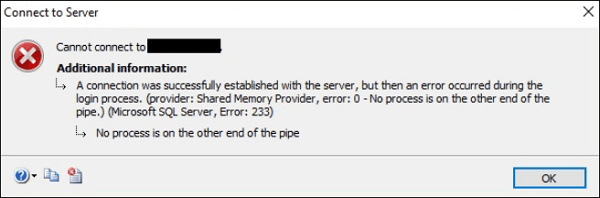
SQL Server Error Code 233 Causes
Error 233, indicating that no process is on the other end of the pipe, is often caused by two reasons. Firstly, it can occur when the receiving end of the pipe is not properly configured or is not running, resulting in a communication breakdown.
- The server is unable to process a client connection that only uses named pipes, as the named pipes protocol is not enabled on the server.
- The client attempts to connect with any available protocol, but named pipes are listed before TCP in the client protocol order, which may cause issues with the connection.
According to the two reasons above, you can fix error 233 easily.
Fix 1. Enable TCP/IP to Solve SQL Server Error 233
If the client is trying to connect using named pipes and the server is not configured to allow remote connections using named pipes, you can resolve the issue by configuring the server to allow remote connections using named pipes. This can be done by modifying the server's configuration to enable named pipe connections, or by using a different connection method that is allowed by the server.
Step 1. Open MS SQL Server.
Step 2. To configure SQL Server Network Configuration, go to Configuration Tools in SQL Server Configuration Manager, and then open the "SQL Server Network Configuration" section.
Step 3. Choose "TCP/IP" option and enable remote connections using named pipes.
To resolve the issue where the client protocol order is attempting to connect with the named pipes protocol before trying the TCP protocol, and named pipes are not enabled on the server, you can modify the client protocol order to prioritize the TCP protocol over named pipes. This can be achieved by adjusting the protocol order in the client configuration to place TCP before named pipes.
To configure SQL Server Configuration Manager on the client computer, move TCP before named pipes in the protocol order list. This involves accessing the SQL Server Configuration Manager, navigating to the SQL Server Network Configuration section, selecting the Protocols for MSSQLSERVER, and modifying the protocol order to prioritize TCP over named pipes.
Fix 2. Enable Shared Memory
The Shared Memory Protocol is used for connecting to SQL Server. If it's disabled, it may cause SQL Server login failed error 233, preventing users from logging in successfully.
Step 1. Open MS SQL Server in your system.
Step 2. Choose "Configuration Tools" and "SQL Server Network Configuration".
Step 3. Then, find and right-click "Shared Memory". Choose "Enable".
Fix 3. Enable Named Pipes Protocol to Solve SQL Error 233
SQL Server error 233 occurs when the client cannot connect to the server due to it not being configured to accept remote connections. To resolve this issue, aside from enabling Shared Memory and TCP/IP, you also need to activate Named Pipe protocols using the SQL Server Configuration Manager tool.
Step 1. Run MS SQL Server.
Step 2. To access the SQL Server Network Configuration, go to the Configuration Tools in SQL Server Configuration Manager, and then open "SQL Server Network Configuration" from there.
Step 3.Launch the Properties windows of Named Pipes Protocol then click "Enable".
Step 4.To apply this change on SQL Server, click "Apply" and then "OK".
To resolve the error 233, you need to restart SQL Server services from the SQL Server Configuration Manager. After the server is online, try reconnecting to your SQL Server instance. This should resolve the error and allow a successful database connection.
Fix 4. Check for Remote Connection
If you are experiencing Microsoft SQL Server error 233, which indicates that no process is on the other end of the pipe, you can try workarounds such as checking for network issues, verifying the SQL Server service is running, and ensuring the correct instance is being used. If these solutions don't resolve the issue, you may need to allow remote connection for SQL Server.
Step 1.Connect to SQL Server Instance in SSMS locally on a database server.
Step 2. Right-click on the Server instance name and choose "Properties".
Step 3.At the left tab, select "connection" and check the option "Allow remote connections to this server".
Fix 5. Repair Corrupted MS SQL Database to Resolve SQL Error 233
If you're still experiencing issues, the problem might be with the database itself, which could be due to various threats and errors in MS SQL Server. To resolve this, consider repairing the database. Alternatively, you can use a professional SQL repair tool like Qiling MS SQL Recovery, which can recover database components, deleted records, and supports MS SQL Server 2016, 2014, 2012, 2008, and older versions.
Step 1: Select the corrupted database for recovery
- Launch Qiling MS SQL Recovery.
- To select the corrupted database file, click the "Browse" button (represented by two dots) or click "Search" to locate the file.
- After selecting the file, click the "Repair" button to initiate the analysis process.
Note: To use this software, you must stop the SQL Server service.
Step 2: Repair the corrupted database
- The software displays all recoverable items in a tree-like structure, with items shown in a left pane.
- Click the "Export" button from the window to select the desired component to be recovered.
Step 3: Export to the database or as scripts
- To export database objects, you can choose to either export them to a database or export them as scripts. This allows you to either replicate the database structure and data to a new location or to create a set of SQL scripts that can be used to recreate the database objects in a different environment.
- If you choose to export to a database, you'll need to provide the necessary details and select the target database to store the exported data.
- A window pops up asking for login credentials and the destination to save the recovered items. Click "OK" to initiate the repair process.
Note: You need to restart the SQL Server service before clicking "OK" to complete the process.
If the Qiling SQL repair tool fails to resolve the error, contact Microsoft customer support for professional help.
Conclusion
We've explored SQL Server error 233, which occurs when there's no process on the other end of the pipe, in detail. This error can be caused by various factors, including issues with Shared Memory, TCP/IP, and Named Pipe protocols. To resolve this, you can try enabling these protocols to allow SQL Server clients to connect to the server, or use a reliable SQL recovery software to restore corrupted database files, fix log files, or recover individual objects.
This tutorial aims to help resolve the SQL login failed error 233. The error typically occurs when there's an issue with the SQL Server login credentials.
Related Articles
- SQL to XML | How to Export Data from SQL Server to XML
- How to Export MS SQL Server Database to CSV File
- How to Rebuild Master Database in SQL Server
- How to Recover Deleted Records in MS SQL Server Automatically
- How to Recover Deleted Photos in Sony Xperia
This article walks you through the whole process of how to recover deleted photos from Sony Xperia under Windows or Mac. - How to Recover Deleted PowerPoint Files on Mac
No matter which PowerPoint version you are used. Qiling recover PPT file Mac tool can help you easy to recover deleted PowerPoint files on Mac, external hard disk, formatted drive, USB drive, SD card, etc.
Products
Articles & Tutorials
- Data Recovery
- Data Backup
- File Recovery
- File Backup
- System Backup and Restore
- Disk and Partition Clone
- Technical articles
- Mobile articles
- Disk Master Help
- Windows Data Recovery Tutorials
- Windows Secure Delete Tutorials
- Windows Partition Management Tutorials
- Windows File Backup and Restore Tutorials
- Windows System Backup and Restore Tutorials
- Windows Disk Backup and Restore Tutorials
- Windows Clone Tutorials