Fix Corrupt Master File Table. CHKDSK Aborted Error in Windows 10/8/7
The error message "Corrupt master file table. Windows cannot recover master file table. CHKDSK aborted" indicates that the master file table (MFT) of the Windows operating system is corrupted, making it impossible for the system to recover. This corruption prevents the Check Disk (CHKDSK) utility from running and repairing the issue.
You are experiencing a corrupted MFT (Master File Table) on your Seagate HDD with a single NTFS partition, causing Windows to fail to access the drive. To recover your data and fix the MFT, you can try using a file recovery tool like Deep Data Recovery, which can scan the drive for recoverable files. Alternatively, you can run the chkdsk command in Command Prompt with the /r option to attempt to repair the MFT. If the drive is still not accessible, you may need to use data recovery software to recover your files. Be sure to stop using the drive to prevent further data loss.
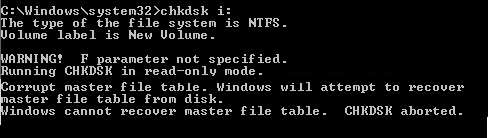
The Master File Table (MFT) in an NTFS file system is the primary file that keeps track of all files on the volume, including their logical location in folders, physical location on the hard drive, and metadata. If the MFT becomes corrupted, files in the volume become inaccessible.
Common reasons for corruption of Master File Table are:
- Windows system crash
- Malware and virus attack for MFT
- A lot of bad sectors on the hard drive
- Application crash or malfunction
- Pull out external disk improperly
When encountering a situation where CHKDSK can't recover the master file table, you can try running CHKDSK in repair mode to check and repair bad sectors. However, this may not always work and may prompt an error message. In such cases, you can try other practical approaches to repair the master file table, which will be discussed further.
Fix "Corrupt Master File Table" Error in Windows 10/8/7 and Recover Data
- Tip
- Before attempting any fixes, back up the hard drive to prevent data loss.
Solution 1: Repair Corrupt Master File Table with CHKDSK Utility
1. Right-click the hard drive with a corrupt master file table and choose "Properties".
2. Click "Tools" > "Check". And choose "Scan drive".
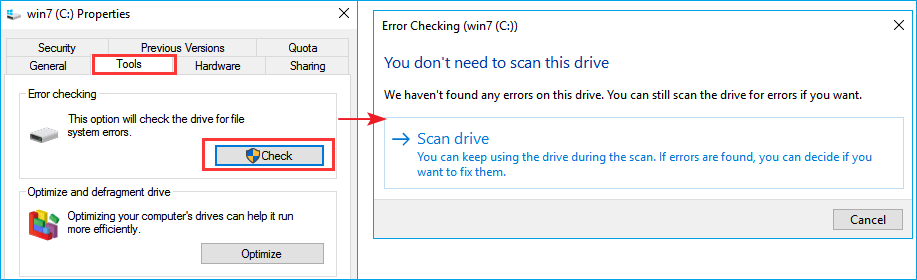
If CHDKS is aborted, move to Solution 2.
Solution 2: Use FixMbr Command to Repair MFT
1. To enter System Recovery Options, connect a bootable USB drive to your computer, restart it, and continuously press F2 or F8 to enter the BIOS setup. From there, go to the Startup or Boot column, set the computer to boot from the new drive, save the changes, and restart your PC.
2. Follow the onscreen message, and select "Repair your Computer" when you get to the System Recovery Options window.
3. Open a command prompt window and type "bootrec.exe" and press Enter.
The /FixMbr parameter allows the repair of a corrupted Master Boot Record.
Solution 3: Recover Data and Format the Drive
If the above fixes can't solve the "Corrupt master file table. Windows cannot recover master file table. CHKDSK aborted" issue, the last resort is to format the hard drive to make it accessible and usable again. However, to avoid data loss, it's essential to recover data from the corrupted partition using a professional hard drive recovery software before formatting.
How to Recover Data from Corrupted Hard Drive
Here, we highly recommend trying Qiling data recovery program, which works exceptionally well to recover files from a corrupted hard drive or raw disk in Windows, as well as recover lost data from various storage media due to formatting, deletion, partition loss, application/system crash, or virus attack.
Click the following button to get this easy-to-use data recovery tool. Then follow the steps below to recover data from hard drive with corrupted master file table.
Step 1.Launch Qiling file recovery software on your Windows computer and select the file types you want to recover. Click "Fast Scan" to start the file recovery process.

Note: You can choose different search modes based on where and why the data was lost.
Step 2. Choose the exact location where you lost the files and click the Scan button.

Step 3. The software will immediately start scanning the drive, and deleted files will be displayed soon. If you find the files you need during the scan, you can stop it. To quickly find the target file, you can use the file format filter.

Step 4. To recover files, select the desired files such as Word, Excel, PDF, photos, videos, or emails and click the "Recover" button. You can then choose a different location to save the recovered files.
Once the data recovery process is finished, you can format the hard drive to NTFS or FAT file system to reuse it.
1. To format a partition or drive on a Windows computer, go to This PC or Disk Management, right-click on the partition or drive, and select "Format" from the context menu. This will erase all data on the selected partition or drive.
2. Set the volume label, file system, and allocation unit size as needed, then click "OK" to initiate the process.
Consult with Qiling Data Recovery Experts for a one-on-one manual recovery service. After a free diagnosis, we can offer various services, including manual data recovery, to help you recover your lost data.
- To repair a corrupted RAID structure, unbootable Windows OS, and corrupted virtual disk file (such as .vmdk, .vhd, or .vhdx), you can use a combination of tools and techniques. First, try to boot from a live Linux CD or USB to access the corrupted data. If that doesn't work, use a data recovery software like Deep Data Recovery or Recuva to scan the corrupted disk for recoverable files.
- Recover/repair lost partition and re-partitioned drive
- Unformat hard drive and repair raw drive (BitLocker encrypted drive)
- Fix disks that become GPT protected partitions
Related Articles
- Top 10 Best Free Data Recovery Software for Windows 11
- Download Qiling Data Recovery Crack 14.4 with Serial Keygen
- Best Forensic Data Recovery Software
- Top 5 Best Open Source Data Recovery for Windows/Mac/Linux/Android
- How to Recover Deleted Photos from Hide It Pro
How to recover deleted photos from Hide It Pro? This article tells you how to recover images from Hide It Pro on Android phone and iPhone. - How to Recover Deleted Photos from Lenovo Laptop
To recover deleted photos from a Lenovo laptop, you can follow these steps: install a Lenovo laptop data recovery software, use it to locate where the photos were deleted from, preview the recovered photos, and finally recover the deleted Lenovo laptop photos.
Products
Articles & Tutorials
- Data Recovery
- Data Backup
- File Recovery
- File Backup
- System Backup and Restore
- Disk and Partition Clone
- Technical articles
- Mobile articles
- Disk Master Help
- Windows Data Recovery Tutorials
- Windows Secure Delete Tutorials
- Windows Partition Management Tutorials
- Windows File Backup and Restore Tutorials
- Windows System Backup and Restore Tutorials
- Windows Disk Backup and Restore Tutorials
- Windows Clone Tutorials