[Fixed] How to Fix Corrupted Database/Data Error on PS4
Using a PS4 can be frustrating when you encounter a corrupted database or data issue, preventing you from playing games or using the console as desired. Fortunately, there are ways to fix this problem. If the issue is due to data loss on the hard drive, you can try using Deep Data Recovery to retrieve your lost files, which may resolve the corrupted database/data issue on your PS4.
The error prompts "The database is corrupted. The PS4 will restart." and "Corrupted Data - Cannot load the saved data because it is corrupted." often appear when trying to play games on PS4, preventing game play due to corrupted database or data.
Obviously, neither of them is wanted. Luckily, there are workable fixes for these issues and you may follow to get rid of them from your PS4 now.
| Workable Solutions | Step-by-step Troubleshooting |
|---|---|
| Part 1. Fix PS4 Corrupted Database...Full steps |
Step 1. Turn off the console Step 2. Boot into Safe Mode Step 3. Connect the controller to the console Step 4. Choose Rebuild Database |
| Part 2. Fix PS4 Corrupted Data |
Fix 1. Delete corrupted data manually...Full steps Fix 2. Delete downloads and redownload...Full steps Fix 3. Rebuild the PS4 database...Full steps |
Part 1. Fix PS4 Corrupted Database
The PS4 database is a crucial collection of data that allows you to access, edit, or update information on your device. However, when it becomes corrupted, it can be quite frustrating.
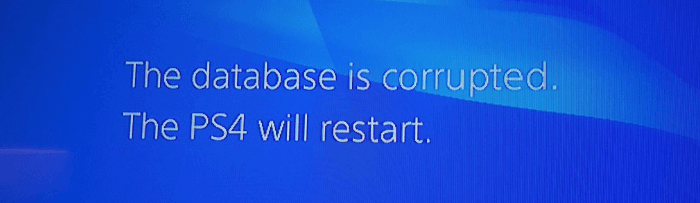
Symptoms of Corrupted Database:
- PS4 warns database corrupted and automatically restarts.
- The game takes a long time to load, which is unusually slow.
- Your PS4 won't read a disc.
- It's sluggish to navigate through the menu.
- It's stuttering while playing games.
Causes of Database Corruption:
- Underlying platform corruption
- File header corruption
- storage media corruption
- Power outage
- hardware failure
Once the symptoms and potential causes of the issue are understood, it's time to focus on finding solutions.
Fix Corrupted Database on PS4
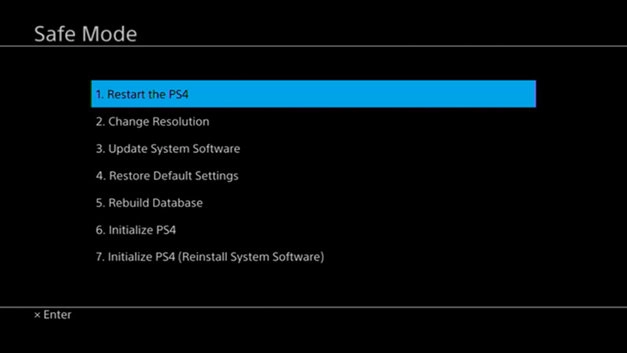
If your PS4 is experiencing a corrupted database error, you can still try to start the device and attempt to fix the issue. One effective solution is to rebuild the database, which scans the drive and creates a new database of all content. This option is available in Safe Mode, which can be accessed by turning off the device and booting it up again. By following these steps, you may be able to resolve the corrupted database error and get your PS4 up and running again.
Step 1. Turn off the console and wait until the white light dims completely.
Step 2. To put your PS4 in Safe Mode, press and hold the power button until you hear two beeps, after which it will boot into Safe Mode.
Step 3. Connect your PS4 controller to the console with the USB cable.
Step 4. In Safe Mode, there are several options available. Choose "Rebuild Database" and wait for the process to complete.
If your database becomes corrupted due to hardware failure or system failure, you can try to recover it using database recovery software or contact a professional database administrator for assistance. Rebuilding the database from scratch may be a viable option if the corruption is minor and you have a reliable backup of the data. However, if the corruption is severe or you do not have a backup, you may need to seek professional help.
- Fix the corrupted hard drive
- Initialize the PS4
To fix the internal HDD of your PS4, take it out carefully, or consider initializing the device in Safe Mode, which will restore system settings to default and delete system storage data. Be cautious with this decision.
Part 2. Fix PS4 Corrupted Data
Corrupted data on a PS4 is different from a corrupted database, as it's always related to a specific game, not the entire database on the console.
Symptoms of Corrupted Data on PS4:
- A PS4 game is experiencing lag, the game screen is going black, or the character is unable to load. This could be due to a variety of reasons such as a corrupted game file, a hardware issue, or even a software glitch.
- The error message "Cannot continue using the application. The data for the following application is corrupted. Delete the application from the PS4, and then insert the disc again" indicates that the game data on the PS4 is corrupted and needs to be deleted and reinstalled from the disc.
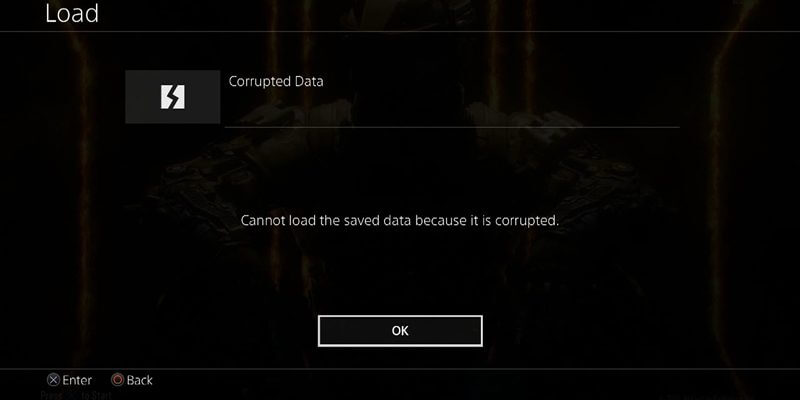
- The error message "Corrupted Data - Cannot load the saved data because it is corrupted" indicates that the saved data is not in a valid format, making it impossible to load. This can occur due to various reasons such as incomplete or incorrect data entry, software glitches, or hardware issues.
- Encounter error codes like CE-37732-2 and NP-32062-3
When you get corrupted data in a game, you will see an obvious sign, as shown in the image below.

Causes of PS4 Data Corruption:
- Malfunction or poorly functioned hard drive
- Data corruption in some game you installed
- The downloaded file was not installed to the system properly
- The data on the system may be corrupted
To fix your corrupted data, we have a few ideas that might help. You don't have to try them all, but find the one that works best for you.
Fix 1. Delete the Corrupted Data Manually
The error message is likely caused by corrupted game files, which can be resolved by removing them.
Step 1. Go to "Settings" > "System Storage Management" > "Saved Data" > "Media Player".
Step 2. Enter into the Media player folder. There should be a 'corrupt data' saved file that shows up.
Step 3. Press the "Options" button and delete the saved corrupt data file.
Step 4. Now exit. Reopen the Media Player app.
Fix 2. Delete the Downloaded & Corrupted PS4 Files and Redownload Them
The downloaded file was not installed properly in the system, possibly due to corruption during the download process.
Step 1. Delete the downloaded file. On PS4, go to "Notifications" > "Downloads" and select the content.
Step 2. Then press the "OPTIONS" button on your controller and delete the downloaded content.
Step 3. Retry downloading the file.
Tip
1. If you're experiencing issues with a game patch, try this: highlight the game application on the home screen, press the OPTIONS button, and select [Check for Update].
2. If you're experiencing an issue with a game from the PS Store, try going to your [Library] and selecting the application to download the file. This may resolve the problem.
3. If you're still experiencing an error, try initializing your system by going to "Settings" > "Initialization" > "Initialize PS4" > "Quick", and then re-download the content.
4. If the error persists after upgrading the HDD and you have previously upgraded the HDD, try switching back to the original HDD and re-installing the system software.
After system re-installation or initialization, try re-downloading the content.
Fix 3. Rebuild PS4 Database to Fix the Corrupted Data
Rebuilding a database on the PS4 can resolve various problems and correct corrupted data, similar to a defrag on a computer, by essentially refreshing the console's system and fixing any issues that may have arisen due to corrupted data.
Step 1. Connect your PS4 controller to the console with a USB cable.
Step 2. Press and hold the power button on your PS4 console until you hear the second beep.
Step 3. Then release the button. Your PS4 will be in safe mode, and the screen will look like this:
Step 4. Select "5. Rebuild Database" with your controller.
Wait for the process to complete, then turn on your PS4 to see if rebuilding the database helps fix the corrupted PS4. If the error persists, you may consider initializing your PS4 to resolve the issue.
Extra Tips: How to Avoid Data Loss on PS4
Sometimes, there is data loss on your PS4 after fixing the errors, which should remind you of the importance of data protection. We recommend you two ways to avoid data loss on PS4.
# 1. Upgrade PS4 to a Larger HDD
To avoid data loss and improve your PS3 or PS4 system, we recommend backing up or cloning your drive to a larger HDD, especially if you frequently download games, demos, and HD videos, which can quickly fill up the small hard drive. This will also help prevent data corruption.
# 2. Recover Lost Files with a Free File Recovery Tool
If you've experienced data loss due to backing up to an external device, mistaken deletion, or other issues, Deep Data Recovery can help. This free data recovery software is a powerful and easy-to-use program that can recover deleted files, lost files due to software crashes, formatting, damage, or virus attacks from removable flash drives.
The Bottom Line
If your PS4 database or data gets corrupted, you can try rebuilding the database as a first step to solve the problem. This approach can be helpful in both cases. As a last resort, initializing your device is an option.
FAQs About PS4 Data or Database Corruption
This page provides information on symptoms, causes, and solutions for PS4 corrupted data or database issues. However, some users may still be unclear about what causes PS4 data or database corruption, and why a corrupted database can be fixed by rebuilding.
Many people have been searching for answers to these common questions on Google, and we have summarized the brief answers below.
1. What does corrupted data mean on PS4?
When the error message "Corrupted Data - Cannot load the saved data because it is corrupted" appears on a PS4, it indicates that the console is unable to load saved game data due to corruption, preventing gameplay and character loading.
The "Corrupted Data" error on PS4 is often accompanied by error codes such as CE-37732-2 and NP-32062-3 displayed on the console's screen.
2. What cause corrupted data?
The PS4 corruption can be caused by various factors, including software bugs, hardware malfunctions, improper shutdowns, and user errors, among others.
- Malfunction or poorly functioned hard drive.
- Downloaded files were not installed properly.
- Downloaded files were corrupted.
- System data corrupted.
- PS4 database corrupted.
3. How do you fix corrupted data on PS4?
To fix corrupted data on a PS4, there are three possible solutions. Firstly, you can try restarting your console, which can sometimes resolve the issue.
1). Delete the Corrupted Data
To fix the issue, delete the downloaded or corrupted PS4 files and redownload them. This should resolve the problem and allow you to access the content as intended.
3). Rebuild PS4 Database
You may revert to Part 2 and follow any method to fix the corrupted PS4 data with ease.
4. What does database corrupted mean on PS4?
When your PS4 database gets corrupted, you may experience issues accessing, editing, or updating data on the console, leading to problems such as being unable to play games, load characters, or save screenshots.
If you meet any case as listed below, it means that your database on PS4 is corrupted:
- The game takes an unusually long time to load, which can be frustrating for players.
- Your PS4 won't read a disc
- It's sluggish to navigate through the menu
- It's stuttering while playing games
Related Articles
- How to Migrate Linux Installation to New Drive
- How to Clone IDE to SATA HDD/SSD (2 Ways)
- Fixed: Why My PS4 Won't Turn On
- What Happens to the Data on an SSD When the Power Is Lost?
- Fix: The Volume Does Not Contain A Recognized File System in Windows 10/8/7
- How to Fix Error Code 43 for USB in Windows 10 & Recover Data
- How to Recover Deleted Photos from Canon DSLR Camera
If you've lost photos from your Canon DSLR camera. You can recover them using Canon DSLR photo recovery solutions. Follow these steps to retrieve your deleted photos from your Canon camera.
Products
Articles & Tutorials
- Data Recovery
- Data Backup
- File Recovery
- File Backup
- System Backup and Restore
- Disk and Partition Clone
- Technical articles
- Mobile articles
- Disk Master Help
- Windows Data Recovery Tutorials
- Windows Secure Delete Tutorials
- Windows Partition Management Tutorials
- Windows File Backup and Restore Tutorials
- Windows System Backup and Restore Tutorials
- Windows Disk Backup and Restore Tutorials
- Windows Clone Tutorials