Excel Found A Problem with One Or More Formula References in This Worksheet [Solved]
Excel Found a Problem with One Or More Formula References!
"One of my least favorite messages that Excel provides is: Excel found a problem with one or more formula references in this worksheet. Check that the cell references, range names, defined names, and links to other workbooks in your formulas are all correct. But I can never find bad references. It's usually buried somewhere very deep, in a chart series formula, or a name definition, or who knows where else".

If you encounter the error "Excel found a problem with one or more formula references in this worksheet" in your Excel workbook, it suggests that the file is either corrupt or partially damaged. This error prevents you from saving the file, which can lead to data loss in Excel. To resolve the issue, you can try repairing the file using the built-in Excel repair option, or if that doesn't work, you can try using a third-party repair tool.
Here are some methods you can follow to fix the error "Excel found a problem with one or more formula references in this worksheet": You can try refreshing the worksheet by clicking on "Formulas" > "Calculation Options" and selecting "Manual" or "Automatic" calculation. If that doesn't work, you can try checking for any circular references in your formulas by clicking on "Formulas" > "Error Checking" and following the prompts.
| Workable Solutions | Step-by-step Troubleshooting |
|---|---|
| Isolate the Spreadsheet Tab | Copy your tabs from the old workbook to a new one. Keep checking which tab...Full steps |
| Run Excel Repair Software | Download, install and launch Deep Data Recovery. Go to the software's home screen and...Full steps |
| Check Formulas in Excel | Go to Formulas and click on the "Error Checking" button. This runs a scan...Full steps |
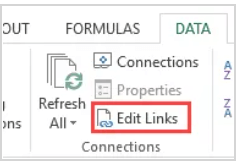
| Check the External Links | Go to the "Data" Tab. In the Connections group, click on "Edit Links". It opens...Full steps |
| Other Workable Solutions |
Check Your Charts...Full steps Check Pivot Tables...Full steps |
Solution 1. Isolate the Specific Spreadsheet Tab
To isolate the specific Excel sheet, you can start by opening the file and clicking on the tab you want to work with. This will bring that tab to the front and make it the active sheet. You can also click on the "View" tab in the ribbon and select "Sheets" from the drop-down menu to see all the sheets in the file. From there, you can click on the sheet you want to work with to select it.
Step 1. Copy your tabs from the old workbook to a new one.
Step 2. To troubleshoot the issue, keep switching between the tabs in the new workbook to see which one triggers the error message. This will help identify the specific tab or operation that is causing the problem.
Step 3. To resolve the issue, save each tab separately, and the error message should appear when trying to save the problematic tab. This will allow you to identify which tab is causing the problem.
Review the workbook to identify the faulty sheet, and if necessary, back up the sheet and remove it after the backup.
Solution 2. Run Excel Repair Software to Repair Excel Files
If Method 1 can't solve the error, you can use advanced Excel repair software to recover and repair Excel files. Deep Data Recovery is a powerful tool that can repair corrupt Excel files, among other file types. To use it, follow the steps below.
Step 1. Launch Deep Data Recovery, select the desired file types, and click "Fast Scan" to initiate the recovery process.

Note: You can choose different search modes based on where and why the data was lost.
Step 2. This software allows you to scan a disk with corrupted documents and fix damaged Word, Excel, PPT, and PDF files in a single process.

Step 3. Qiling data recovery and repair tool will scan for all lost and corrupted files, allowing you to find them by file type or search for a specific file name.

Step 4. Deep Data Recovery can automatically repair damaged documents and save them to a safe location after previewing them, allowing you to recover Word, Excel, and PDF files.
Solution 3. Check Formulas in Excel to Fix Excel Errors
Small and silly formula errors in Excel can lead to big consequences. Therefore, it's best to double-check your formula and ensure it's error-free to avoid any issues.
Step 1. Go to Formulas and click on the "Error Checking" button
Step 2. The script runs a scan on the sheet and displays any issues found, providing a concise and actionable report.
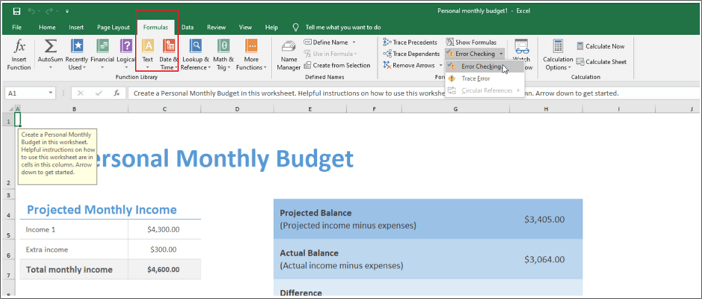
If no issue is found, it displays the following message:
"The error check is completed for the entire sheet."
If you're getting a "File in use by another user" error when trying to save an Excel file, try closing all other instances of Excel, or save the file to a different location. If the issue persists, right-click on the Excel icon and select "Run as administrator" to open Excel with elevated privileges. Then, you can try to save the Excel file again.
Solution 4. Check the External Links
To address the issue of external links containing errors, follow these steps to identify and correct them:
Step 1. Go to the "Data" Tab.
Step 2. In the Connections group, click on "Edit Links" to open the Edit Links dialog box, which lists all referenced workbooks.
Step 3. Check the links. If you find any faulty link, remove it and then save the sheet.
Solution 5. Check Your Charts
If the issue persists, check the charts for any errors, as they may appear after selecting a chart or when entering the "Select Data Source" dialog box.
To ensure accuracy, please review the following locations for errors:
- In the source data of the chart.
- The chart series formulas presented in the Select Data Source dialog box for each series can be rewritten.
- Check for the errors in the horizontal axis formula which is present inside the Select Data Source dialog box.
- Also, check in the chart's Secondary Axis.
- To check the chart, verify that the axis labels, data labels, and chart title are correctly displayed. Check if the labels are not overlapping or cut off, and adjust the label rotation, font size, or position as needed.
Solution 6. Check Pivot Tables
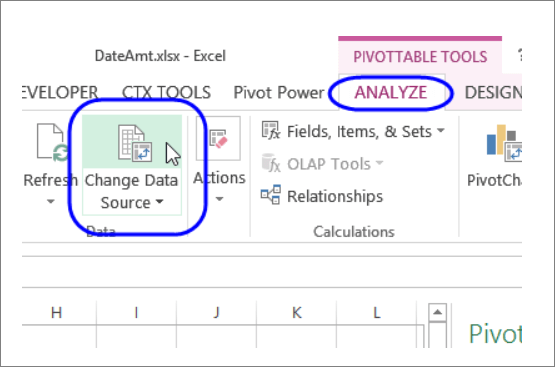
To troubleshoot the issue with your Pivot Table not updating, check if there's an error in the Data Source formula. To do this, follow these steps:
Step 1. To change the data source for a pivot table, go to "PivotTable Tools > Analyze > Change Data Source > Change Data Source…".
Step 2. Check out whether any of your formulas are having the error or not.
Conclusion
This article provides fixes to troubleshoot the error "Excel found a problem with one or more formula references in this worksheet", but be aware that the solutions may result in a partial loss of information, so it's recommended to make a backup to external devices in advance.
Related Articles
- Microsoft Flight Simulator Free Download (Full Version)
- 3-Step Solution to Recover Deleted Picasa Photos with Ease
- How to Fix Buffalo External Hard Drive Not Working/Recognized
- How to Enable/Disable Windows Boot Manager in Windows 11/10
- Best File Shredder Software for Windows 10 Free Download
File shredder is a must if you want to securely delete files on your Windows PC. Here are the top 10 best file shredder for Windows 10 you can make use of. - Corrupted Word Repair: How to Fix Corrupted Word Document
Word files can't open, formatting is messed up, unreadable characters and error? these have 5 ways to fix corrupted word files, so that you can get back the important word documents.
Products
Articles & Tutorials
- Data Recovery
- Data Backup
- File Recovery
- File Backup
- System Backup and Restore
- Disk and Partition Clone
- Technical articles
- Mobile articles
- Disk Master Help
- Windows Data Recovery Tutorials
- Windows Secure Delete Tutorials
- Windows Partition Management Tutorials
- Windows File Backup and Restore Tutorials
- Windows System Backup and Restore Tutorials
- Windows Disk Backup and Restore Tutorials
- Windows Clone Tutorials