How to Empty Recycle Bin on Windows 10 (On a Schedule)
The Recycle Bin is a system folder in Microsoft Windows that saves deleted files, folders, pictures, shortcuts, and web pages by default. It is located in the RECYCLER folder in the root directory of each hard disk partition, but is hidden from view.
The deleted items will remain in the Recycle Bin, taking up disk space, until they are either restored or permanently deleted by emptying the Recycle Bin, freeing up computer space.

Here are the different ways to empty the Recycle Bin in Windows 10: beginners can learn the basic methods to clean it with ease, while experienced users can learn how to empty it in CMD and schedule it.
1. Empty Recycle Bin on Desktop
To clean the Recycle Bin, right-click on the Recycle Bin icon on your desktop and select "Empty Recycle Bin" from the context menu. This will permanently delete all files and items currently in the Recycle Bin.
Step 1. Find the Recycle Bin icon on your desktop.
Step 2. Right-click it and select "Empty Recycle Bin" from the drop-down menu.
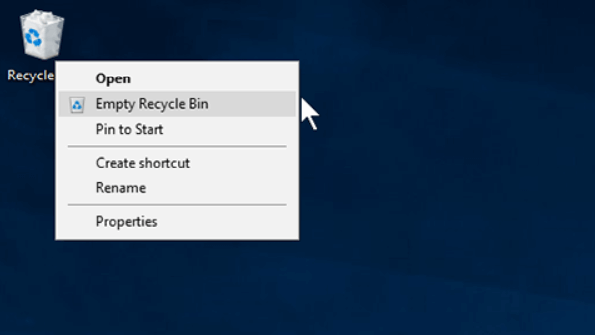
Step 3. A pop-up window will ask "Are you sure you want to permanently delete all of these items?", click "Yes" and confirm the deletion of the files.
Related reading: Can't Find or Open Recycle Bin Windows 10/8/7
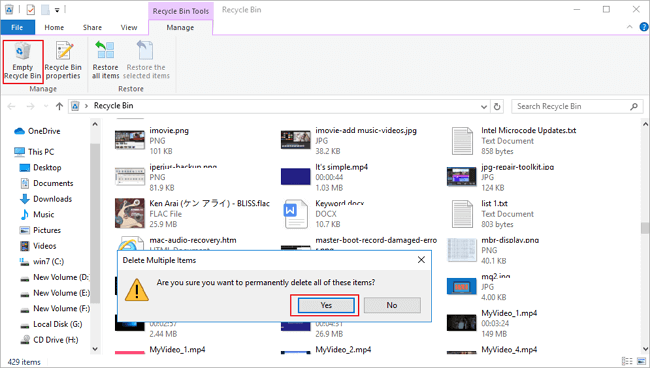
2. Empty Windows 10 Recycle Bin in Its Manage Menu
Steps to empty Recycle Bin with the Manage utility.
Step 1. Find and open the Recycle Bin.
Step 2. Click "Manage" and choose "Empty Recycle Bin" > "Yes" to empty your Recycle Bin.
3. Empty Recycle Bin on Windows 10 in Settings
Check how to clean Recycle Bin in Windows 10 Settings.
Step 1. To access Windows settings, click the Windows icon and then select "Settings". From the settings menu, choose "System".
Step 2. To access storage settings, click on the "Storage" option in the left panel of the Settings window, then select either "This PC" or the specific partition you want to view under "Storage".
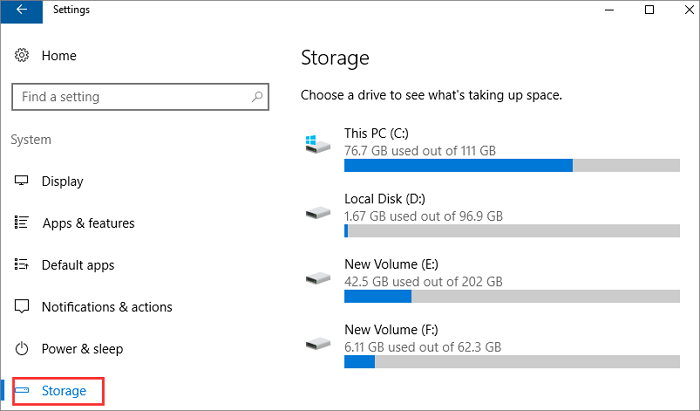
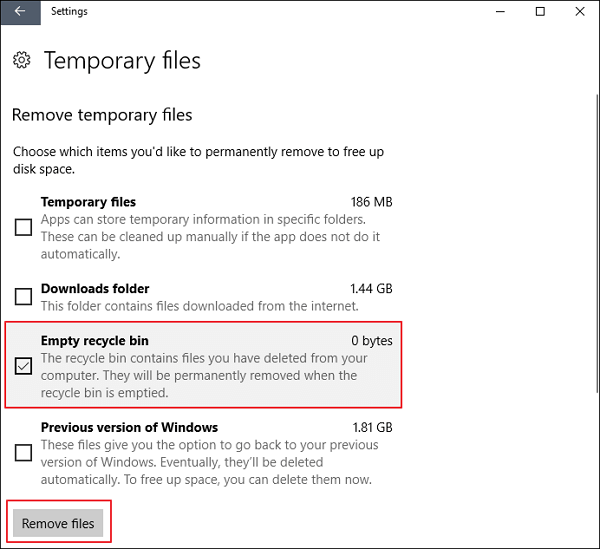
Step 3. Click "Temporary files". All the temporary files on the hard drive will be listed.

Step 4.To empty the Recycle Bin on Windows 10, check the "Empty recycle bin" box, then click "Remove files" and wait for your computer to delete files in your Recycle Bin.
4. Empty Recycle Bin Windows 10 with Command Line
For professionals who'd like to empty Recycle Bin in an advanced way, or when other methods don't work, Windows Recycle Bin can be emptied using command lines.
Step 1. Click the Search button, type cmd.
Step 2. Right-click "Command Prompt" from the search results and choose "Run as administrator".
Step 3. The command to empty the Recycle Bin folder in the D drive is `rd /s /q "D:\$Recycle.Bin"` .
rd /q /s d:\$Recycle.Bin
You can replace C with another drive letter, such as E: to empty the Recycle Bin on E drive.
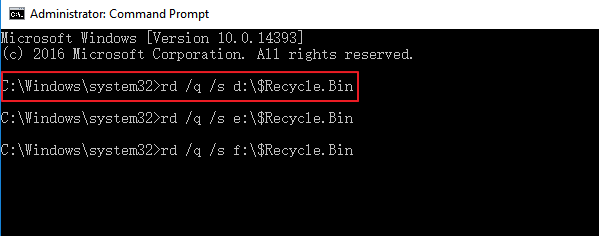
Or you can also use this command to clean the Recycle Bin on your system drive.
rmdir /s %systemdrive%\$Recycle.bin
Type Y to confirm the deletion.
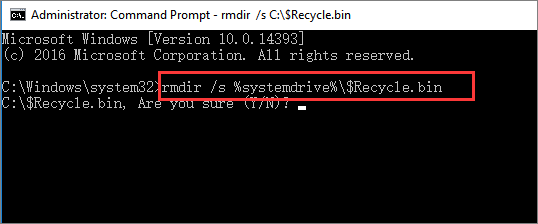
To empty the Recycle Bin on a specific drive, such as D drive, you can replace %systemdrive% with the drive letter and run the command "rmdir /s d:\$Recycle.bin" to delete the Recycle Bin on that drive.
5. How to Empty Recycle Bin on Windows 10 Automatically on a Schedule
You can use Windows' built-in feature, Storage Sense, to automatically clean the Recycle Bin at a fixed frequency, freeing up space by deleting temporary files and content in the bin.
Here's how to do it.
Step 1. Go to "Settings" > "System" on your Windows 10 computer.
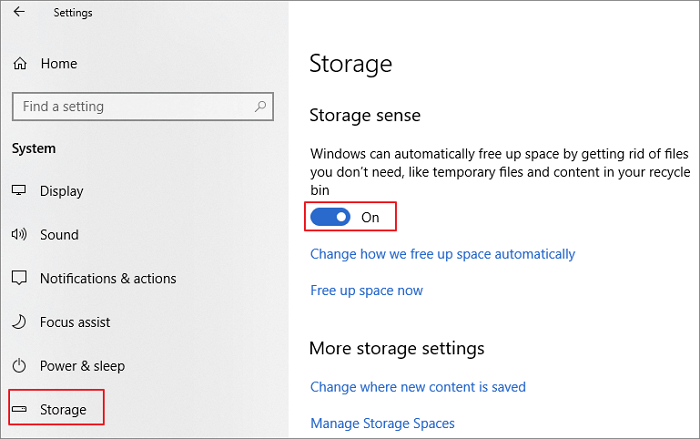
Step 2. Click on "Storage" and find "Storage Sense".
Step 3. To turn on Storage Sense, go to Settings > Storage > Storage Sense, and toggle the switch to the "On" position. This will automatically free up storage space on your device by deleting unused apps, temporary files, and other data.
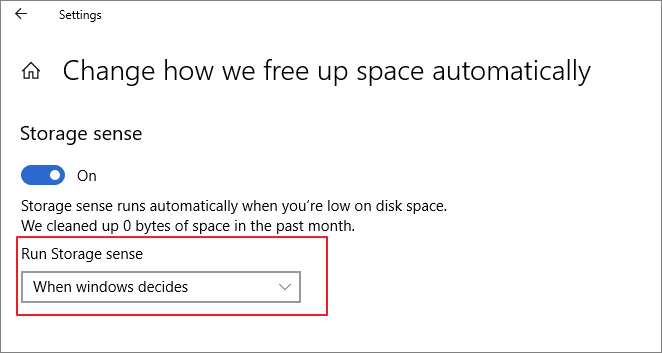
Step 4. You can set the schedule to empty the Recycle Bin by clicking on the "Change how we free up space automatically" option.
Step 5. You can change the frequency of when Storage Sense runs on the new page, setting it to run daily, weekly, or monthly.
Step 6. To manage your computer's temporary files, go to the Temporary Files section and select the option to delete files in your Recycle Bin after a certain period of time, such as 14, 30, or 60 days. This will automatically remove files that have been in the Recycle Bin for longer than the chosen time frame.
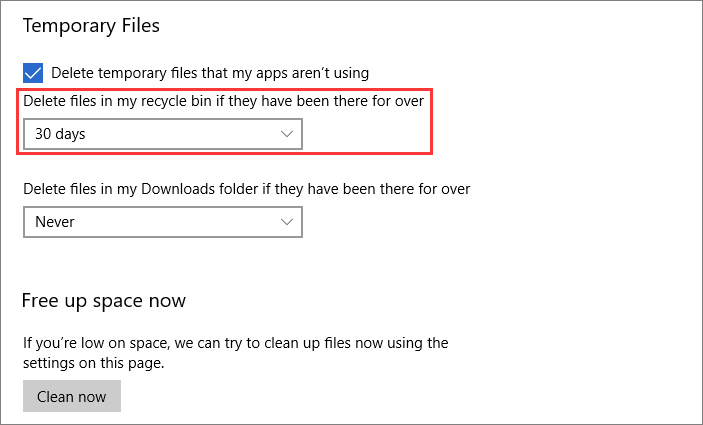
After these settings, the deleted files in the Recycle Bin will be removed automatically.
How to Recover Deleted Files from Emptied Recycle Bin Windows 10
If you've emptied the Recycle Bin and need to recover files, you can try using a data recovery software to scan your computer for deleted files. This type of software can often recover files that have been deleted, including those that were in the Recycle Bin. However, the effectiveness of the recovery depends on various factors, such as the type of file, the amount of time that has passed since deletion, and the overall health of your computer's hard drive. It's also worth noting that some files, such as those that have been overwritten or corrupted, may not be recoverable.
You can restore emptied Recycle Bin using a tool like Deep Data Recovery, which is a well-known advanced file recovery tool.
Deep Data Recovery
- Recover files from formatted hard drives, corrupted, or inaccessible USB flash drives, and other storage devices that have been compromised due to various reasons, such as accidental deletion, formatting, or physical damage.
- Recover deleted or permanently deleted photos, videos, documents, emails, etc. effectively
- Repair corrupted photos, videos, and documents automatically
Free download this professional data recovery program and follow the steps below to recover deleted files from emptied Recycle Bin on Windows 10/8/7.
Step 1. Run Deep Data Recovery. Choose file types and click "Recycle Bin Scan" to start the recovery process.

Note: You can choose different search modes based on where and why the data was lost.
Step 2. To recover files from the emptied Recycle Bin on Windows, hover over the "Recycle Bin" option in the "Locations" section and click "Scan" to initiate the file recovery process.

Step 3. Qiling data recovery software performs a quick scan to recover deleted files, followed by a deep scan to find more lost files, and offers a "Filter" feature to select specific file types for recovery.

Step 4. Once you've located the files you want to restore, double-click on them for a full preview. Then, select the target files and click "Recover" to restore them. To avoid data overwriting, we suggest saving the recovered files to a different volume or an external USB drive.
The Bottom Line
On Windows 10, you can empty the Recycle Bin in various ways. You can delete all files in the Recycle Bin from the desktop, use its Manage feature, access it through Windows settings, or even use the Command Prompt (CMD) to accomplish this task.
For users who want Windows to automatically empty the Recycle Bin, the storage sense utility can be used to schedule the cleaning of the Recycle Bin on a regular basis.
If you accidentally delete files from the Recycle Bin, use Qiling data recovery software to quickly recover them. It can restore data from emptied Recycle Bin, formatted hard drives, inaccessible external hard drives, USB flash drives, and more.
Related Articles
- SD Card Not Showing Up or Working in Windows 10/8/7
- Data Recovery Software with Original File Names [Full Guide]
- [DIY Guide] Where Do I Find My Scanned Documents on Windows/Mac
- Recover Data from Deleted or Lost Partition
- How to Create Windows 10 System Image Backup
Creating a system image backup of Windows 10 is a crucial step in ensuring the safety and security of your system. A system image backup is a snapshot of your entire system, including all installed software, settings, and files. - How to Use Deep Data Recovery
It is a tutorial for how to make use of Deep Data Recovery to recover lost and deleted files from computer and external hard drives.
Products
Articles & Tutorials
- Data Recovery
- Data Backup
- File Recovery
- File Backup
- System Backup and Restore
- Disk and Partition Clone
- Technical articles
- Mobile articles
- Disk Master Help
- Windows Data Recovery Tutorials
- Windows Secure Delete Tutorials
- Windows Partition Management Tutorials
- Windows File Backup and Restore Tutorials
- Windows System Backup and Restore Tutorials
- Windows Disk Backup and Restore Tutorials
- Windows Clone Tutorials