Dropbox Deleted Files by Itself, How to Recover Missing Files in Dropbox in 4 Ways
You've been using Dropbox for a while without any issues, but now you're concerned that Dropbox automatically deleted your files. This is likely due to Dropbox's file versioning feature, which periodically deletes older versions of files to free up space. To recover deleted files, you can check your Dropbox account's "Versions" or "File history" section, where you might find the deleted files. You can also contact Dropbox support for assistance in recovering your files.
Dropbox is a popular online file synchronization tool that uses cloud computing to store and share files on the internet, automatically backing up locally stored files to a cloud server.
Dropbox offers both free and paid services, including Dropbox Pro and Business, but users of all types may experience the issue of Dropbox deleting files by itself, requiring a way to recover deleted Dropbox files.
Why Dropbox Delete My Files
Dropbox may delete your files due to a time zone issue, incorrect file information, or a data disposition policy, or it may clean up files you've deleted for a long time.
How Long Does Dropbox Keep Deleted Files
30 days or 180 days.
Dropbox saves deleted and previous file versions for a certain period, allowing restoration, but they become unrecoverable once the time is up.
Different file recovery periods of Dropbox are:
- 30 days for Dropbox Basic, Plus, and Family users.
- 180 days for Dropbox Professional and Business users.
Other Reasons for Dropbox Files Missing
- Dropbox files may be accidentally deleted.
- Files or folders sharing is stopped.
- Files are synced improperly.
- Network issue disables you to view and access files.
- Dropbox server has a temporary problem.
If you've accidentally deleted or lost files in Dropbox, there is a solution. You can try checking your Dropbox Trash, which stores deleted files for a certain period of time, allowing you to restore them if needed.
Method 1. Recover Deleted Dropbox Files from Trash Bin
Missing files or folders will initially go to the Trash Bin and remain there for the file recovery period. Therefore, it's best to try restoring missing files from the Trash Bin first.
You can only restore files that you have edit permission for, and if you can only view files in Dropbox, you won't be able to recover them.
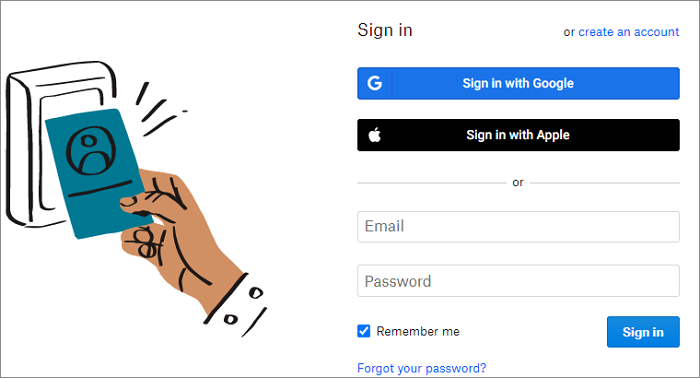
Step 1. Sign in to your Dropbox.com.
Step 2. Click "Files" and select "Deleted files" in the left sidebar.
Step 3. The recently deleted files will appear on the screen.
Step 4. To recover lost files or folders, select the items you need to recover, then click "Restore" to restore them.
Method 2. Retrieve Dropbox Missing Files with Show Deleted Files Option
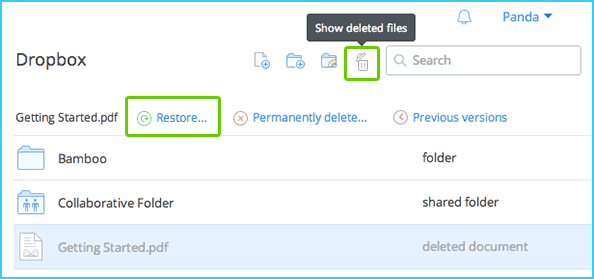
You can use the Show deleted files feature in Dropbox to restore missing files or folders.
Step 1. log in to your Dropbox.com account.
Step 2. To view deleted files, click on "Files" in the left panel on the main screen, and then select "Show deleted files" in the right panel.
Step 3. To recover deleted files, go to the "Recycle Bin" or "Trash" folder, click on the three dots icon, and select "Restore" from the dropdown menu. This will move the files back to their original location. Make sure to check the folder where the files were originally stored to confirm their restoration.
Method 3. Recover Deleted Files from Dropbox with Versions History
You can also restore missing Dropbox files by restoring from previous versions. Dropbox saves version history for all file types, allowing you to find and recover old versions of any file. Simply access your version history to recover an older version of a file that has gone missing.
The version history in Dropbox varies depending on the version you're using. The default version history allows you to view and restore changes, but the extent of this history differs between versions.
- Dropbox Basic, Plus, and Family users have 30 days.
- Dropbox Professional and Business users have 180 days.
You can extend your version history with the Extended Version History Add-On.
Steps for viewing version history of deleted files in Dropbox:
Step 1. Sign in to dropbox.com.
Step 2. To restore a previous version of a file or folder, locate the item in the File Explorer. Right-click on the item and select "Properties.
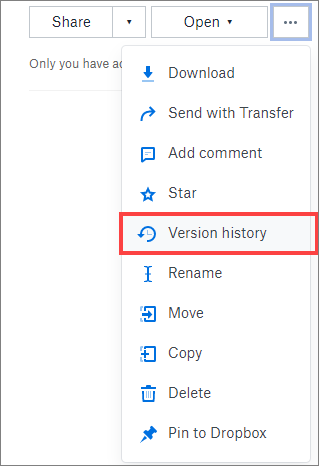
Step 3. Click the three-dot icon and click "Version history".
Method 4. Recover Permanently Deleted Files from Dropbox
Unfortunately, Dropbox has a limitation where permanently deleted files and folders cannot be restored, and the recovery time is typically 30 days. However, some users may want to recover files that are older than 30 days. In such cases, Dropbox may not be able to recover the files, and users may need to explore other options.
If you've permanently deleted files, you can't recover them from the device itself. However, you can try to retrieve them by checking if they're stored on any other device, or by restoring from a backup on an external hard drive if one exists.
More Guides on Cloud Drive Data Recovery (NAS)
Dropbox, OneDrive, and Google Drive offer public cloud storage services, while private cloud storage options like Network Attached Storage (NAS) have also gained popularity. NAS is widely used in various settings, including office integration, campus network construction, and medical data storage, to manage data on the network in a secure, effective, and cost-effective manner. Its ease of management and affordability make it a preferred choice for many.
To use NAS network storage servers safely, it's essential to configure a professional NAS data recovery software to recover lost files at any time. Qiling NAS data recovery software offers an exclusive NAS recovery service that can be easily connected, providing users with a reliable solution for data restoration.
Our software allows you to connect to your NAS server and restore deleted, formatted, or corrupted files from it on your Windows PC, without needing to physically access the NAS drive.
- Recover data from various NAS devices, including Synology, QNAP, ASUSTOR, Buffalo, and Western Digital, with specialized software and techniques. These tools can help retrieve lost or deleted files, restore system configurations, and even recover data from failed or corrupted NAS devices. By utilizing data recovery software and following specific procedures for each device type, users can often recover their important files and data, even in the face of hardware failure or other issues.
- Restore files from EXT4 and Btrfs file system drives
- Retrieve NAS data on Windows 11/10 and Windows Server 2022/2019/2016
Step 1. Select a NAS server and start recovering.
To recover data from your NAS server, download and install Deep Data Recovery on your Windows 11/10 64-bit computer, then select "NAS Recovery" when you open the software. Your NAS servers will be automatically listed, so simply choose your target device and click "Scan" to begin the recovery process.

Note: You can choose different search modes based on where and why the data was lost.
Step 2. Enable SSH service on the NAS server.
To enable remote access for Deep Data Recovery, go to the "Control Panel > Terminal & SNMP" section, check the box next to "Enable SSH service", and note the port number for remote access. Then, proceed to open Deep Data Recovery and click "Next".
Step 3. Connect to the NAS server remotely.
This software automatically detects your IP and Port, requiring only user name and password input. If the IP or Port is incorrect, you can manually correct it. After inputting the required information, clicking "Connect Now" initiates the connection.

Step 4. Recover lost/deleted NAS data
Qiling data recovery software will connect to your NAS, scan the device, and display all deleted, lost, or existing files on the server.
To recover lost files on a NAS drive, you can use the "Filter" feature or search for files and folders. Select the desired files, then click "Recover" to save them to a new location.
Click the "Recover" button to restore deleted NAS files.

Conclusion
Dropbox deletes files that exceed the file recovery period, and you may lose your files or folders due to various causes. However, you can use the data recovery methods provided in this article to restore deleted or missing files in Dropbox.
If you need to recover files from a NAS RAID drive, consider using Qiling NAS data recovery software. This tool offers a simple and secure way to restore deleted or corrupted files, without the need to remove disks and rebuild the RAID. Instead, you can connect to your NAS server on your Windows PC for file recovery.
Related Articles
- Full and Free Solutions for CHK File Recovery
- Free Shortcut Virus Remover Software/Tool
- [Solved] This Folder Is Empty on This PC/USB
- How to Open Numbers File in Excel
- Word Cannot Complete the Save Due to a File Permission Error Mac/Windows 10
Microsoft Word is unable to save files due to file permission errors, which can be resolved through various methods, and it also provides information on recovering unsaved and deleted Word documents. - Instant Solutions to Fix Word/Excel Is Locked for Editing
When opening a Word or Excel file, you may encounter the message “File is locked for editing”, preventing you from making changes. this issue can be resolved, and we'll outline some solutions to help you fix it in this article.
Products
Articles & Tutorials
- Data Recovery
- Data Backup
- File Recovery
- File Backup
- System Backup and Restore
- Disk and Partition Clone
- Technical articles
- Mobile articles
- Disk Master Help
- Windows Data Recovery Tutorials
- Windows Secure Delete Tutorials
- Windows Partition Management Tutorials
- Windows File Backup and Restore Tutorials
- Windows System Backup and Restore Tutorials
- Windows Disk Backup and Restore Tutorials
- Windows Clone Tutorials