[Tried & True] How to Download and Update USB Drivers in Windows 10
You'll need USB drivers for devices like cameras, external hard drives, mice, keyboards, webcams, printers, and scanners that connect to your PC via USB, prompting Windows 10 to ask for their installation to ensure smooth operation.
You can learn how to download and install the correct USB drivers for various devices such as USB flash drives, external devices, keyboards, monitors, printers, and scanners, and also how to update USB drivers in Windows 10 to ensure they work properly.
Part 1. How to Download/Install USB Drivers in Windows 10
You usually don't need an additional driver for a USB flash drive, as they're plug-n-play devices, but you may need to download drivers for scanners or printers.
To download the correct USB drive, check your device manufacturer's website and download the driver specifically for your product.
Step 1. Enter your product name and click "Submit".
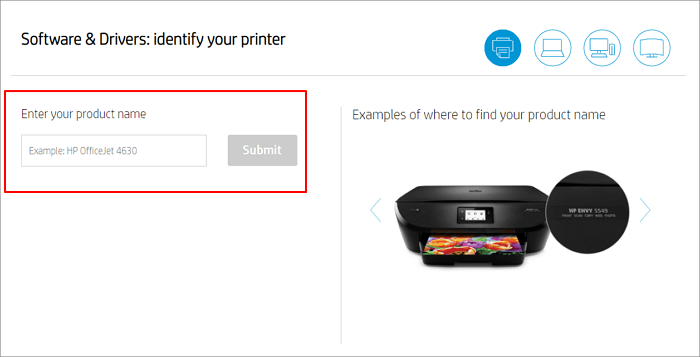
Step 2. Download and install the USB drive.
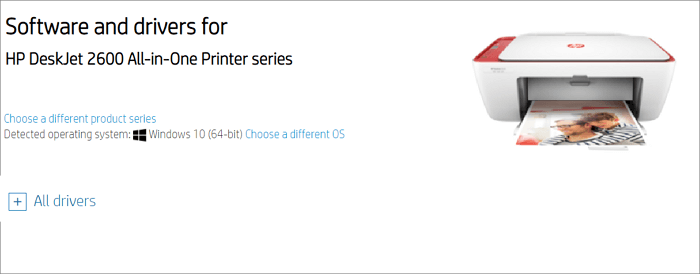
Then, follow the on-screen instructions to complete the USB drive installation in Windows 10. To do so, insert the USB device into your computer, then open Device Manager by searching for it in the Start menu or typing "devmgmt.msc" in the Run dialog box.
Part 2. How to Update USB Divers in Windows 10
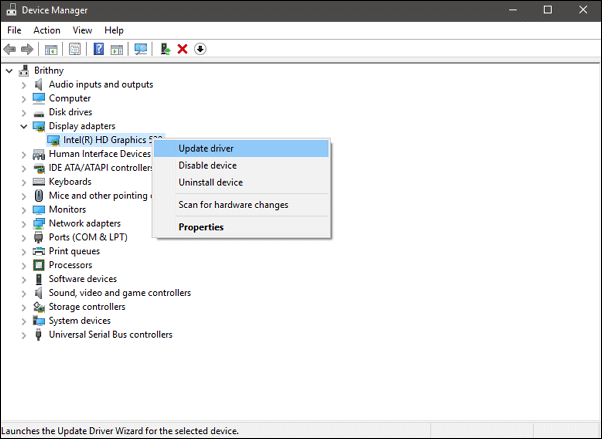
To update the USB drivers, you can use Device Manager, which is a built-in tool in Windows 10. You can access it by pressing the Windows key + X and selecting Device Manager, or by searching for it in the Start menu. From there, you can expand the "Universal Serial Bus Controllers" section, right-click on the USB drive you want to update, and select "Update driver". This will automatically search for and install the latest version of the driver, without requiring any additional software or Windows upgrades. The process is quick and easy, and can be completed in just a few steps.
Step 1. Press Windows + X and select "Device Manager" to open the Windows Device Manager.
Step 2. Expand the "Universal Serial Bus controllers" category.
Step 3. Right-click your USB device and select "Update driver".
Step 4. Click on Search automatically for updated driver software. Windows will automatically search and download the latest USB drive on your Windows 10 computer.
If Windows doesn't find a new driver, you can try looking for one on the device manufacturer's website and follow their instructions.
Part 3. How to Reinstall USB Drivers in Windows 10
If you're unable to update your driver, you can try uninstalling it and then reinstalling it, which may resolve the issue.
Step 1. In the search box on the taskbar, enter device manager, then select Device Manager.
Step 2. Right-click on the name of the device and select "Uninstall" from the context menu.
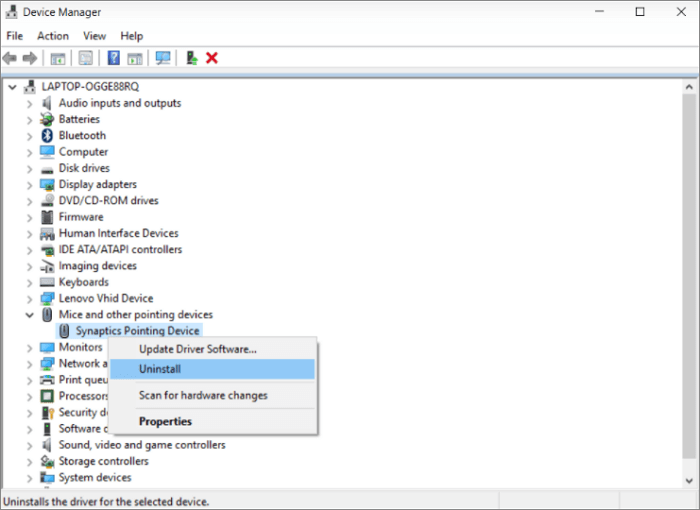
Step 3. Restart your PC. Windows will attempt to reinstall the driver.
Part 4. How to Recover Data from USB Devices After Update Driver
To recover deleted or lost files from USB devices or external devices, Qiling data recovery software is recommended, which can restore data after sudden deletion, formatting, hard drive corruption, virus attack, etc.
Qiling USB Data Recovery Software
- The device supports various storage brands, including Seagate, Kingston, SanDisk, Sony, HP, and others.
- This software recovers deleted photos, videos, Word files, etc.
- To recover lost data from your USB, SD card, or external devices, it's a three-step process. First, you need to stop using the device immediately to prevent overwriting the lost data.
To recover data from a USB drive, download and install a data recovery software, then follow the steps below.
Step 1. Select file types and click "USB/SD Scan" to start
Connect your USB drive or pen drive to your computer and launch Qiling USB data recovery software. Select the file types you want to recover and click "USB/SD Scan" to initiate the recovery process.

Note: You can choose different search modes based on where and why the data was lost.
Step 2. Run USB Data Recovery Software
To recover lost files, select the drive labeled as an External drive, and click "Scan" to initiate the file search process.

Step 3. Scan and Search Lost Files on a USB Drive
Deep Data Recovery scans your USB flash drive thoroughly to find lost data, and then uses a filter feature to find and recover specific files.

Step 4. Restore All Lost Files from USB
A double-Click will allow you to preview the files. Select the target files to restore and click "Recover" to save them to a secure location on your PC or other external storage devices.
Conclusion
The most common issue with USB drives in Windows 10 is that they are not detected, working, or recognized. To resolve this problem, you can try installing, updating, or reinstalling the USB drivers. If you experience data loss after updating or reinstalling drivers, you can use Deep Data Recovery to easily recover lost files in Windows 11/10/8/7.
Related Articles
- Free Download Windows 8/8.1 (ISO File) for 32-Bit/64-Bit PCs
- It Takes Two Lost Save File, How to Recover?
- Windows 10 ISO Download 64-Bit Full Version for Free [2022 Latest]
- Zoom Meeting Disappeared for No Reason? Fix It and Recover Zoom Meetings Now
- How to Fix WD My Passport Access Denied in Windows 10 and Windows 11
If you're unable to access your WD My Passport external hard drive due to an 'access denied' error, you can try gaining permissions, but if that doesn't work, you can use Qiling hard drive recovery software to retrieve and export your data. - What Is an SD Card and What Is It Used For
An SD card is a type of flash memory storage used in various electronic devices, such as digital cameras, baby monitors, and handheld computers. It can be used to store data, and if lost, data can be recovered using software like Qiling SD data recovery. - Fix BUGCODE_USB_DRIVER BSOD (0x000000FE) in Windows 11
Products
Articles & Tutorials
- Data Recovery
- Data Backup
- File Recovery
- File Backup
- System Backup and Restore
- Disk and Partition Clone
- Technical articles
- Mobile articles
- Disk Master Help
- Windows Data Recovery Tutorials
- Windows Secure Delete Tutorials
- Windows Partition Management Tutorials
- Windows File Backup and Restore Tutorials
- Windows System Backup and Restore Tutorials
- Windows Disk Backup and Restore Tutorials
- Windows Clone Tutorials