Download Deep Scan Data Recovery Software
Overview of Deep Scan Data Recovery
A deep scan feature embedded in specialized data recovery software is a recovery module that uses RAW searching technology to scan missing data sector by sector. This allows users to recover data with high efficiency and accuracy, setting top-notch recovery utilities apart from others. The deep scan option is a key feature that distinguishes a powerful and efficient recovery utility from others, enabling users to scan and find as much data as they wish.
When Do You Need a Deep Scan Recovery
When a disk or drive is recognized as RAW or you need to find more files, a deep scan is necessary. A RAW recovery is a process where data recovery tools rebuild lost files in two ways, typically used when a disk or drive is in a RAW state.
One is a fast and easy way to locate files via file directory info, listing scan results in a file tree with original file names and attributes, typically found in "Existing Partition", "Lost Partition", and "Other lost files" from the folder list.
The other option, RAW Recovery, searches and recreates files by scanning all sectors on a partition, requiring more time. The recovered files are assigned a new name like FILE001 and sorted by type in the "Tags" and "RAW" folder.
When a file directory is corrupted, the only way to recover files is by checking the files found by RAW Recovery to ensure they have the right file names and data content.
Can Deep Scan Recovery Recover Files with Names and Contents
Deep scan recovery, also known as RAW recovery, cannot recover files with their original names and folder structures. This is because file storage involves two separate components: file record information (containing folder structure, file name, timestamp, and data storage location) and the actual file data. When a file is deleted, its associated record information is marked as empty, but the file's contents remain on the hard drive until they're overwritten by new data. As a result, deep scan recovery can only retrieve the file data, not the original file names and folder structures.
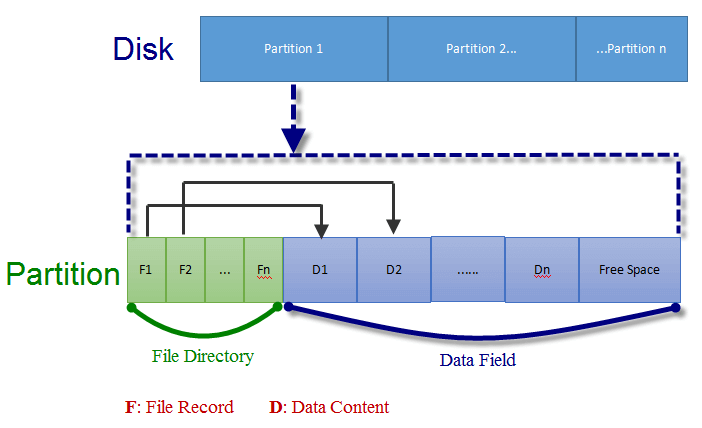
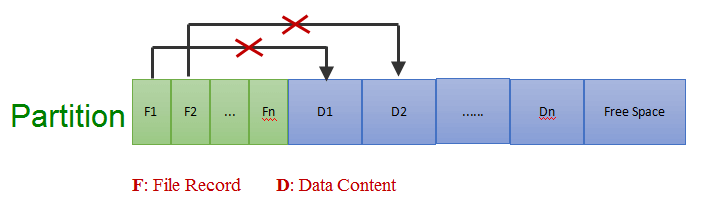
When both file records and data content are intact, data recovery tools can easily recover lost files by searching the partition's file directory, resulting in recovered files with original names and folder structures. However, if the file directory is corrupted, the file record can't point to the correct data content, making it impossible for the tool to find valid data through the directory search. This is why recovered files might not have their original names and folder structures, or can't be opened even with original names and folder structures.
Download the Best Deep Scan Recovery Tool
The ability of deep scanning hard disks makes many data recovery software stand out among customers. Finding a reliable deep scan recovery product can be challenging, but we've identified the best software that can help recover crucial data like photos, videos, and important office documents.
Qiling disk data recovery software supports lost partition recovery and RAW drive recovery with deep scan from various storage devices, and is a recommended data recovery software with an easy-to-use interface, offering outstanding scanning speed and detailed results.
How to Recover Data with Qiling Deep Scan Recovery Software
Qiling data recovery software offers a free version for small data recovery tasks under 2GB, and a paid upgrade for larger file recovery tasks.
Step 1. Select file types and click "Fast Scan" to start
Launch Deep Data Recovery, select file types, and click "Fast Scan" to initiate the recovery process.

Note: You can choose different search modes based on where and why the data was lost.
Step 2. Select a drive and start scanning
Hover over the partition where you lost data, then click "Scan" to initiate the scan process.

Step 3. Check and preview scanned files
To narrow down the scan results, use the file format filter on the left or upper right corner. This will help you find the specific files you need. Once you've filtered the results, you can click the "Preview" button or double-click a file to view its content. This allows you to quickly scan through the files and find the ones you're looking for.

Step 4. Recover lost data to a secure location
To recover lost data, select the checkbox next to the file and click "Recover" to restore it to a secure location, avoiding the original disk to prevent data overwrite.
Users' Questions
1. How long does Deep Data Recovery scan take?
After clicking "scan", the program starts a quick scan, which is followed by a deep scan once the quick scan is complete. The scan time varies greatly, with quick scans finishing in seconds and deep scans taking anywhere from a few minutes to a few hours, depending on the storage capacity of the drive being scanned and the computer's processing speed.
2. How can I increase my chances of a 100% deep scan recovery?
To recover a file that's being overwritten, start a deep scan recovery process as soon as possible. This will help prevent the file from being completely overwritten and make it easier to recover the data.
3. Is there any limit in data restoring with Qiling data recovery software?
Qiling data recovery software allows for unlimited data recovery, enabling users to restore as much data as needed without any limitations.
Conclusion
Deep scan recovery is a complex process that requires a specialized solution. If you're not comfortable risking your data with non-trusted software or need to recover data from a failing drive, consider using Deep Data Recovery, a recommended software that effectively recovers lost data from formatted, corrupt, or missing partitions.
Related Articles
- Recycle Bin Emptying Not Working Synology/QNAP [Resolved]
- Lost Bitlocker Recovery Key? Here's How to Get It Back Easily
- Recover Data from a Dead Hard Drive and Repair the Corrupted Disk
- Restore Deleted Downloads Folder and Data in Windows 10/8/7
- Full Guide on SATA Hard Drives
Qiling data recovery software can help you recover lost files from a SATA hard drive. A SATA hard drive is a type of storage device that uses the Serial Advanced Technology Attachment (SATA) interface to connect to a computer. - Ultimate Guide on SD Card Recovery in 2022
SD cards are widely used due to their high data transmission speed and hot-swappable features, which often lead to data loss problems. If you accidentally delete files on your SD card, you can use various recovery methods and SD recovery software to help recover deleted files.
Products
Articles & Tutorials
- Data Recovery
- Data Backup
- File Recovery
- File Backup
- System Backup and Restore
- Disk and Partition Clone
- Technical articles
- Mobile articles
- Disk Master Help
- Windows Data Recovery Tutorials
- Windows Secure Delete Tutorials
- Windows Partition Management Tutorials
- Windows File Backup and Restore Tutorials
- Windows System Backup and Restore Tutorials
- Windows Disk Backup and Restore Tutorials
- Windows Clone Tutorials