Data Rescue 6 Review for Windows and Mac
What Is Data Rescue 6 Used For
Data Rescue 6 is a top-rated file recovery app that offers simple file recovery with just a few hassle-free steps. It allows you to scan your drive, clone data, retrieve lost files, and even build a recovery drive when your Windows or Mac PC stops functioning.
Data Rescue 6 for Windows or Mac is a complete file retrieving solution that offers a range of features, making it an impeccable choice in the market. Here, we take a glance at what this app has to offer, providing a comprehensive review of its capabilities and what sets it apart from other file recovery software.
Data Rescue 6 for Windows
If you've accidentally deleted crucial files from your Windows PC or your external drive is no longer responding or showing up, Data Rescue 6, the best data recovery software, can help you recoup valuable videos, images, and confidential business documents with ease.
To download Data Rescue 6 for Windows, you need to have a Windows 7 or later operating system, a stable internet connection, and a secondary storage device.
You need to pay a fee of $19 to access files under standard licensing.
Data Rescue 6 for Mac
Data Rescue 6 for Mac allows quick retrieval of business documents and other files within minutes. To use this feature, you need macOS 10.12 or later, a stable internet connection, and a secondary storage device.
Data Rescue 6 for Mac now supports macOS 10.15 (Catalina), includes APFS support, a recovery drive for 10.15, and has a user interface that's been enhanced with dark mode.
The standard license offers a cost-effective solution at just $19, allowing you to retrieve specific files for free. In contrast, the professional license provides advanced features such as improved RAID recovery, cross-compatibility with Mac and Windows, and faster scan and retrieval speeds.
What's new about Data Rescue 6
The Data Rescue 6 app offers full support for Big Sur and APFS, allowing you to create a quick Retrieval Drive for macOS 10.15 on a 32GB USB 3.0 Flash Drive, with features such as user interface maximization and dark mode.
The best software features are the following:
- Improved RAID Recovery: Automatically ascertains a set of RAID configurations.
- You can now use standalone tools to secure and eliminate files with full-fledged security, or quickly discover your drive order with Number Sector.
- Cross-Data Rescue 6 can now be installed on both Windows and Mac operating systems with the same license, allowing for cross-platform compatibility.
- Super-fast scan and retrieval speed: Lower the time to operate a complete scan and disseminate your recoverable files.
- Observe File Data and Raw Drive allows you to view files from your scan before recovering them, providing a hex viewer for a detailed look.
Data Rescue 6 Main Features
Data Rescue 6 is the best retrieval tool created by Prosoft Engineering, available for both Mac and Windows. This data rescue review highlights the tool's key features, showcasing its capabilities as the top recovery tool in the market.
-
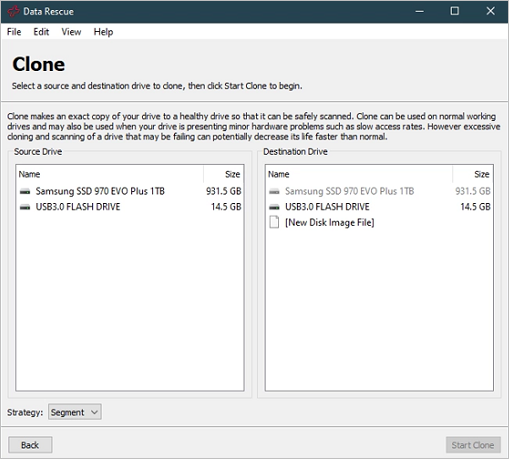
Clone Your Hard Drive
If your hard drive is failing or not functioning properly, using Data Recovery 6 can help you create a full-fledged clone of your existing drive. This proactive step can safeguard your data against misplacement, making it a useful tool in case of a hard drive failure.
In the app, you can create an image file directly instead of cloning to a disk, which can then be used to recreate a hard drive later.
-
FileIQ
Data Rescue 6 supports over 100 file types and has a built-in feature called FileIQ, which allows it to learn and identify new, unsupported file types by adding them to a list.
-
Build a Bootable Recovery Drive
Data Rescue 6 allows users to create a bootable retrieval drive to recover their hard drive content in case of boot sequence issues, providing a seamless and functional process, especially when compared to buying pre-configured boot drives from the Prosoft website.
-
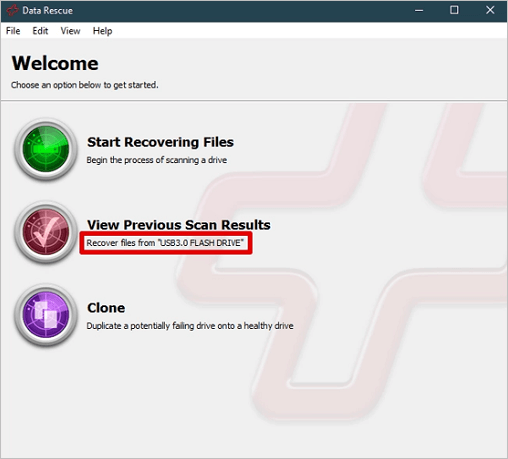
Assess Previous Scan Results
If you've already ended a scan, you can easily access it again. Data Rescue 6 allows you to view the contents of your last scan, which is saved automatically. This way, you don't have to rescan the entire drive, saving you time and effort. The saved scan is stored, and you can access it whenever you need it. This feature is useful for keeping a record of previous scans, especially if you're working on a detailed scan that takes a lot of time.
Pros and Cons of Data Rescue 6
The Data Rescue 6 app of Prosoft Engineering is the top choice for its excellent recovery system and user-friendly interface. Although it has some drawbacks, it remains the best option for both IT professionals and regular users.
Pros:
- Straightforward and hassle-free to use
- Pay for those files only that you need to retrieve
- Mac and Windows supported
- Preview files for free prior to recovery
Cons:
- No refund policy
- Troubleshooting support is available online only
Data Rescue 6 Price
In the 4th part of the Data Rescue 6 review, we'll discuss the pricing and plans of this tool. Prosoft offers a free trial, allowing users to scan for deleted or mislaid files, but file recovery with Data Rescue 6 will incur a charge, regardless of whether you have a standard or professional license.
Data Rescue 6's standard license allows you to scan your drive for retrievable files, and it provides a hands-on demo before requiring payment. After the scan, you pay $19 for the files you want to retrieve, making this method suitable for occasional users.
Those who use it daily will benefit from a Professional license, which costs $399.96/year, offering limitless drive retrievals and system activations, a more affordable option compared to other recovery tools.
Prosoft Engineering offers Enterprise Licenses, which can be obtained by contacting them directly for a quote and details on its features.
| License Version | Cost | Advantages/Disadvantages |
| Standard | Free |
Pros: Pay per retrieval, Free disk scans Cons: No trial recoveries |
| Professional | $399.96/year |
Pros: Infinite file recovery benefits, Endless activation Cons: Not budget-friendly |
Data Rescue 6 Download and Setup
Data Rescue 6 uses its advanced algorithms to search the device for files based on known file patterns and restructure the raw data of identified files. To download Data Rescue 6 for Windows and macOS, follow the steps below.
Step 1. You can download Data Rescue 6 directly from the Prosoft Engineering website.
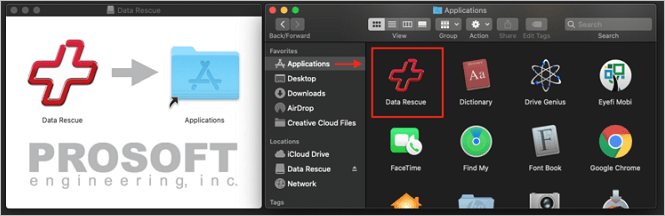
Step 2.After downloading the Data Rescue software, open the ZIP file and a window with the Data Rescue logo will appear. To install the software, simply drag the icon into your Applications folder.
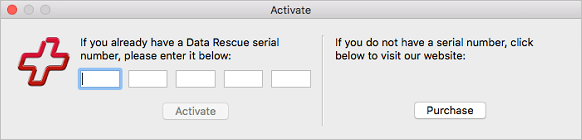
Step 3.The software can be easily launched from the applications folder, and you'll need to enter your name and either your purchased serial number or the demo version. After providing this information, you'll be taken to the welcome screen.
How to Use Data Rescue 6 to Recover Data in Windows
To understand how efficient Data Rescue 6 is in retrieving files, you need to download this software from Prosoft Engineering by paying for any license versions. The data retrieval process in Windows requires a standard USB flash drive, allowing for a detailed look at the recovery process.
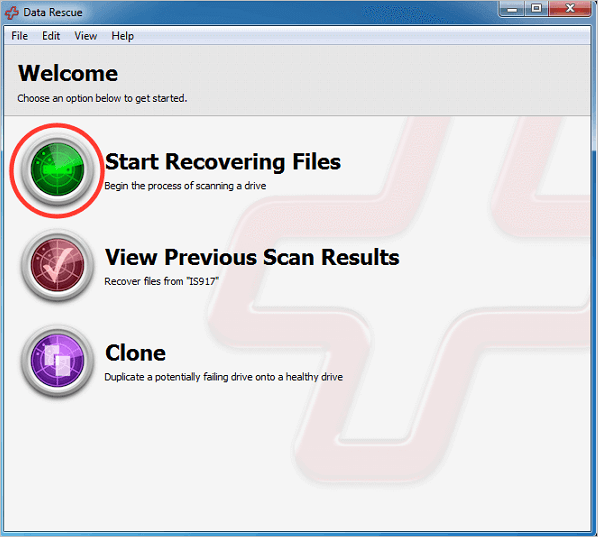
Step 1. Opt for "Start Recovering Files".
After opening Data Rescue 6, you'll be taken to a welcome screen where you can view previous scan results, choose between scanning for files or cloning your drive, and start recovering files by hitting the "start recovering files" button.
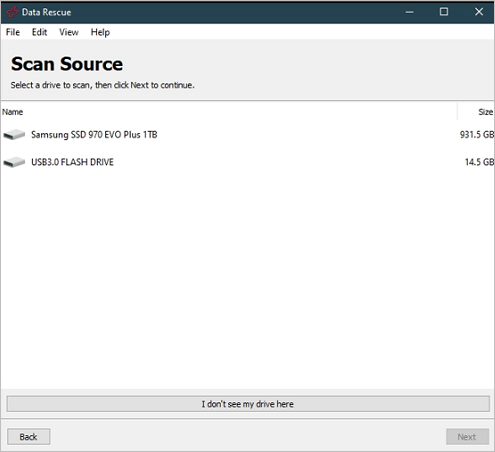
Step 2. Choose the drive that you want to scan.
You will be prompted to choose a drive to scan for recoverable or lost data. This could be your primary hard drive, which requires changing the temporary file location in File > Change Temporary Storage Location, or a USB drive. Select the desired drive and click Next.
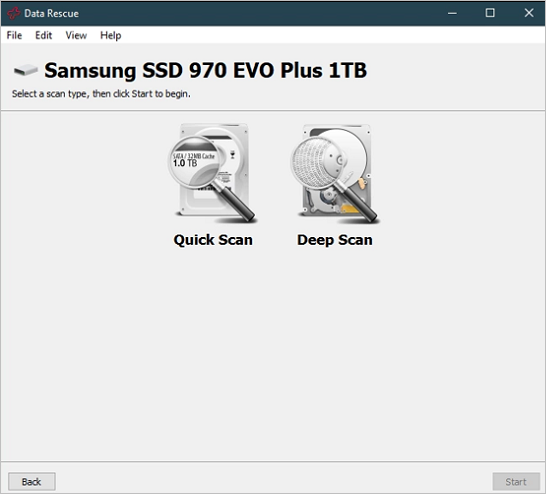
Step 3. Opt for a quick scan or deep scan.
What do you prefer between a deep scan and a quick scan? Every scan will be going to assess your hard drive. However, the sole difference is how meticulous the scan will be. So, once you've selected one, hit the start button.
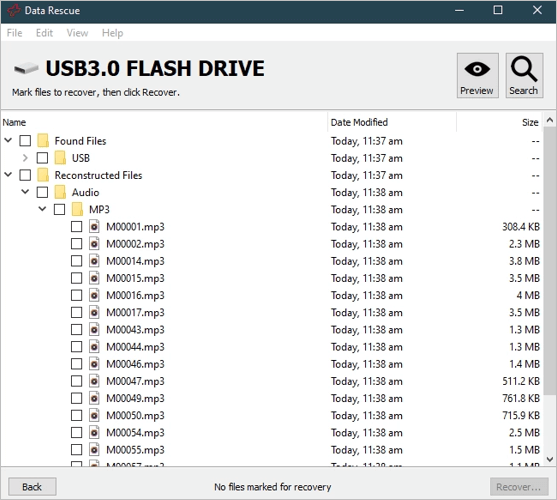
Step 4. Evaluate the scanned results.
After the scan is complete, Data Rescue 6 generates a detailed file list of the recoverable files, which can be quickly retrieved. You can browse through the list, select preferred files, and preview them to ensure they are in a recoverable state. Alternatively, you can use the search function to find specific files. To recover the files, you'll need to upgrade to either the Standard or Professional license.
Data Rescue 6 FAQs
Prosoft offers a FAQs page with tutorials for Mac and Windows, and also provides live chat support from Monday to Friday, 8 am to 5 pm PST, for any additional questions.
1. Is Data Rescue safe?
Data Rescue 6 is a safe and top-notch recovery tool developed by Prosoft Engineering, widely evaluated and trusted.
2. How much time Data Rescue 6 takes to scan?
Data Rescue 6's fastest scan facility is significantly faster than its Deep scan, but scan times depend on disk size, with larger disks taking longer to scan. According to Prosoft, the Deep scan takes approximately 3 minutes per gigabyte.
3. How to install Data Rescue on USB?
To change the temporary file location, go to File > Change Temporary Storage Location, then select a USB drive, choose a drive, and scan it.
4. Alternatives to Data Rescue
To avoid being caught off guard when a critical file goes missing, it's essential to have a reliable data recovery tool installed on your Windows PC. Data Rescue 6 is a top choice, but if you're looking for alternatives, there are other options available that can help you retrieve lost files.
Data Rescue Final Verdicts
To conclude, Data Rescue 6 software provides:
- Tool safety and reliability
- Complete OS compatibility
- Technical support
- Full-fledged recovery expectations
Data Rescue 6 allows file previewing but not trial retrieval, and its simple UI makes it easy to use, making it the best tool for fast data recovery.
Related Articles
- Can RAID 0 Be Recovered? Get Answers Here
- Does Initializing a Disk Erase Data, Yes or No?
- Corrupted HTML File Recovery Solutions (Online & Offline)
- How to Fix Memory Card Locked Error Without Losing Data in 4 Ways
- Restore or Repair Corrupted AutoCAD Files
RAID 0 can be recovered even if a drive becomes corrupted or fails. You can learn more about what happens when RAID 0 fails and how to fix it on this page. To restore lost files, you can try using Qiling RAID 0 data recovery software. - How Fix Not Able to Launch Sticky Notes Error
If Sticky Note is not opening, or Sticky Notes has failed to initialize (Quit), you can try the following three methods to troubleshoot and resolve the issue. First, check if the Sticky Notes app is running in the background and close it. If that doesn't work, try restarting your computer.
Products
Articles & Tutorials
- Data Recovery
- Data Backup
- File Recovery
- File Backup
- System Backup and Restore
- Disk and Partition Clone
- Technical articles
- Mobile articles
- Disk Master Help
- Windows Data Recovery Tutorials
- Windows Secure Delete Tutorials
- Windows Partition Management Tutorials
- Windows File Backup and Restore Tutorials
- Windows System Backup and Restore Tutorials
- Windows Disk Backup and Restore Tutorials
- Windows Clone Tutorials