Ctrl+Z Deleted Files Recovery: How To Recover Files Lost by Ctrl+Z
Ctrl+Z Deleted My Files, How to Recover Undo Files
"I cut and pasted some photos to a folder that I created on the desktop. Then I deleted a few of those photos. Later, by using ctrl+z, I replaced those photos back there. But what happened was, by pressing ctrl+z, it deleted that whole folder with all of the photos in it. But again, pressing ctrl+z replaced the folder back to the desktop, but all the data that was on that folder was gone, and ctrl+z won't work anymore. I checked the original position where I copied them, and they were not there either. How do I recover a deleted file from Ctrl Z? Any help will be appreciated."
Windows shortcuts are a very useful tool that makes work much easier, with the most frequently used being "Ctrl+C", "Ctrl+X", "Ctrl+V", and "Ctrl+Z". These shortcuts enable us to efficiently perform common tasks, such as copying, cutting, and pasting text, as well as undoing changes when needed.
If you accidentally press Ctrl+Z and lose files, don't worry! While Ctrl+Z is a useful shortcut for undoing actions, it's not a master key and can sometimes lead to file loss. Fortunately, there are ways to recover deleted files on Windows 10, and we'll show you two effective methods to do so on this page. Read on to learn how to get your lost files back.
How to Recover Undo Files/Folders Windows 10
If you fail to undo the deletion by pressing the Ctrl + Z keys, you can right-click in the folder and select the 'Undo delete' option.
Step 1. To recover a deleted file, open the File Explorer and navigate to the folder where the file was originally located. This will allow you to access the file's previous location and potentially recover it.
Step 2. Right-click on the folder and select "Undo delete".
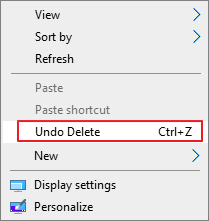
Step 3. If you've accidentally deleted a file, you can try using the "Restore Previous Versions" feature to recover it. This is similar to using Ctrl + Z to undo an action. By going to the "Properties" of the folder where the file was located, clicking on the "Previous Versions" tab, and selecting the version of the file from the date and time it was last backed up, you may be able to restore your deleted file.
How to Recover Files Lost by Ctrl+Z with File Recovery Software
If this method doesn't work, don't be discouraged. You can still recover Windows 10 Ctrl +Z deleted files using competent data recovery software, such as Deep Data Recovery, which enables you to easily restore accidentally deleted files from various storage devices with a few clicks.
Key features of Qiling file recovery software:
- Recover photos, videos, documents, emails, and other 1000+ file types
- Recover deleted files from formatted hard drives, RAW drives, lost partitions, OS crashes, emptied Recycle Bin, and other data loss scenarios
- Repair corrupted files automatically after the data recovery
- Support data recovery on Windows 11/10/8/7 and Windows Server 2019/2016/2012/2008/2003
To recover Ctrl + Z deleted folders and files, download a data recovery software and follow its step-by-step guides. This software can help you restore the lost data with ease.
Step 1. Select file types and click "Fast Scan" to start
Launch Deep Data Recovery. Select the file types you want to recover and click "Fast Scan" to start the recovery process.

Note: You can choose different search modes based on where and why the data was lost.
Step 2. Select a location and start scanning
To recover deleted files, hover over the partition/drive where the files were stored. Then, click "Scan" to initiate the file recovery process.

Step 3. Select the files you want to recover
After the scanning process is complete, select the files you want to recover from the list. You can filter the results by file type if needed. If you remember the file name, you can also search for it in the search box, which is a quick way to find the desired file.

Step 4. Preview and recover deleted files
Preview the recoverable files, select the desired files, and click "Recover" to move them to a new storage location.
More About Ctrl +Z Deleted Files Recovery in Windows 10
The Ctrl shortcut keys on Windows offer numerous conveniences, especially when used in combination with other keys. One of the most useful functions is Ctrl + Z, which allows users to undo actions and correct mistakes. This feature provides a great deal of flexibility and can be a lifesaver in many situations.
What Does Ctrl+Z Do in File Explorer?
Pressing Ctrl+Z can restore the last thing you clicked, typed, or changed to its previous state, often faster than using the Edit > Undo feature. This can also recover deleted files in Windows Explorer or File Explorer without needing to access the Recycle Bin.
What Happens if You Press Ctrl +Z?
Pressing Ctrl +Z can undo the last actions made, and it also works in situations where the Undo option isn't available.
How Do I Recover a Deleted File from Ctrl+Z?
To recover a deleted file from Ctrl+Z, you can use the two approaches in this article. If you need to recover permanently deleted files in Windows 10, the best way is to use Deep Data Recovery.
How to Recover Files Lost by Ctrl+Z on Mac?
You can recover lost files from various scenarios, including accidental deletion, hard drive formatting, OS crashes, virus attacks, and more, using Deep Data Recovery for Mac. This tool supports the recovery of various file types, including photos, videos, documents, and backups, making it a helpful solution for a range of data loss situations.
Related Articles
- How to Extract and Restore Specific/Individual Files from Windows 11/10/8/7 Backups
- 2 Ways to Recover Deleted or Lost Saved Game Files on Xbox One
- How to Restore, Unlock Encrypted Excel File Without Password
- Restore Deleted or Lost Thunderbird Emails
- How to Restore Database in SQL Server 2014 from .Bak File
- How to Recover Deleted YouTube Videos with or Without Link
You can recover deleted YouTube videos by using various methods, including the WayBackMachine, which can retrieve videos from archived web pages, or data recovery programs that scan your device for deleted files.
Products
Articles & Tutorials
- Data Recovery
- Data Backup
- File Recovery
- File Backup
- System Backup and Restore
- Disk and Partition Clone
- Technical articles
- Mobile articles
- Disk Master Help
- Windows Data Recovery Tutorials
- Windows Secure Delete Tutorials
- Windows Partition Management Tutorials
- Windows File Backup and Restore Tutorials
- Windows System Backup and Restore Tutorials
- Windows Disk Backup and Restore Tutorials
- Windows Clone Tutorials