Chrome History: How to View, Delete, and Recover
Google Chrome is a web browser developed and maintained by Google, first released in 2008 for Microsoft Windows and later ported to various other platforms. It has become the most popular web browser in the world, with over 60% market share, widely used by almost everyone.
- It is designed to be fast, simple, and secure.
- Chrome has a large number of extensions and themes.
- It is guaranteed to keep your browsing history safe.
Chrome's Incognito mode allows users to browse without saving history, but for those who want to keep track, Chrome history is a feature that lets users view their past browsing history, making it easy to find previously visited websites. This post will guide you through how to view, search, delete, and recover Chrome history and bookmarks.
What Goes into Browser History
Your Google Chrome browser history is a record of the websites you've visited, including the date and time of each visit and the web address (URL) of the page. If you're signed in to your Google account, your history may also include products you've searched for, websites you've visited while signed in, and videos you've watched on YouTube. This information is stored in your browser to make it easy to retrace your steps or find something you looked at before.
- The Chronological List
- Tabs from Other Devices
- Chrome Journeys Tab View
The Chronological List
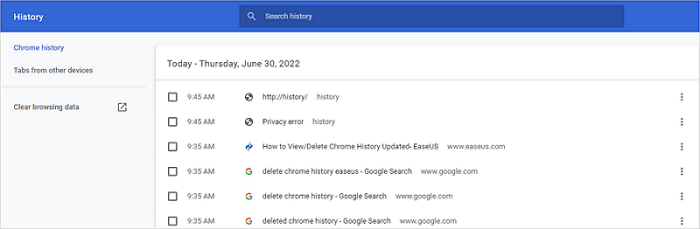
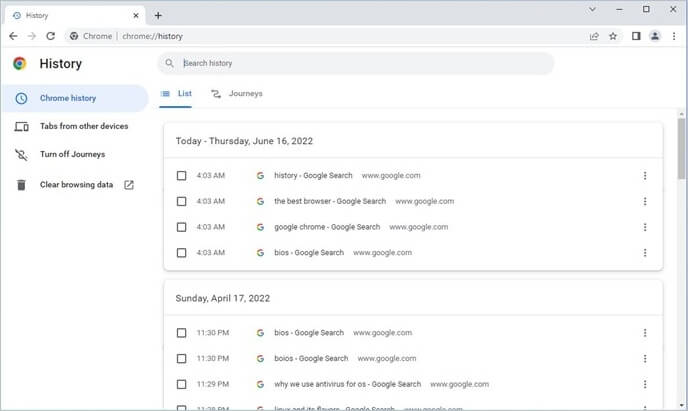
Chrome's history feature allows users to view their browsing activity in chronological order by typing "chrome://history" into the address bar. This will display a list of every website visited using Chrome, along with the date and time of each visit, although the content may vary depending on individual Google Activity Control settings.
You can use the search bar to find a specific website, and the chronological list can help you retrace your steps, track down lost tabs, or recover accidentally closed windows. This list can be useful for remembering where you've been and what you were doing.
Tabs from Other Devices
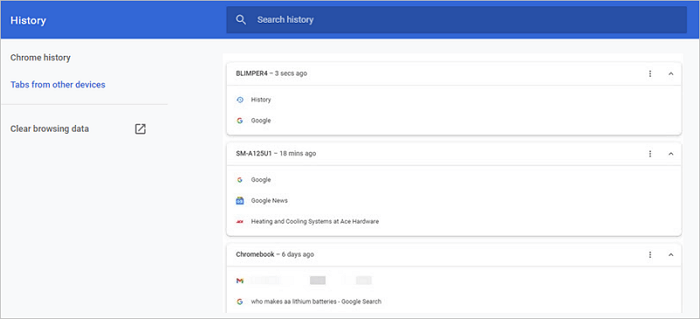
Chrome's "Tabs from other devices" feature allows users to access and view tabs they've opened on other devices, making it easy to pick up where they left off on a different device, especially when working on a project across multiple devices. This feature syncs automatically with your account, so you can access the same information on each device.
To view tabs from other devices, open the Chrome history page, click on the "Tabs from other devices" section, and select the device you want to view tabs from. This shows you which tabs are currently open on that device.
Chrome Journeys Tab View
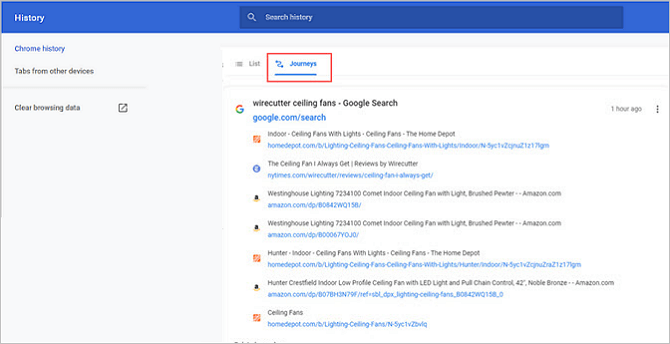
Chrome Journeys is a new feature in Chrome that groups your browsing history by topic, making it easy to find specific pages. For example, if you're searching for a recipe, Chrome Journeys shows you all the related pages you've visited, allowing you to quickly access the information you need.
Browser History - Your Discovery Feed
The visibility of browser history and bookmarks on a discovery feed depends on the user's browsing mode. If private browsing mode is used, the history will not be visible to others. However, if not using private browsing mode, the history may be visible to others who use the same computer or device, as most browsers, including Chrome, record Web history.
- Clearing your browser history is a good habit to get into, as it can help maintain your online privacy and security. Regularly deleting your browsing history, cookies, and cache can help prevent tracking and targeted advertising, and also free up space on your device.
- You can set your browser to delete your history automatically after each session.
- To browse privately, enable private browsing mode on your browser, which prevents your browsing history from being saved.
- Don't import or export Chrome bookmarks to others' PCs.
- Create an account and log in to browse privately.
To keep your browsing history private and avoid having it show up on your discovery feed, follow these steps. However, even with these precautions, your activity may still be visible to your internet service provider, government agencies, and other third-party observers.
How to View Chrome History on Any Device
Chrome stores your browsing history. You can view your Chrome history by clicking on the three dots in the top right corner of the browser, selecting "History," and then clicking on "History" again. Alternatively, you can use the keyboard shortcut Ctrl+H (Windows) or Command+Y (Mac) to open the history page.
Method 1. View Chrome History for Desktop Users
To view Google Chrome history, follow these steps: Open Google Chrome, click on the three vertical dots on the top right corner, click on "History", select the time period you want to view, and then click on the "History" tab. From there, you can browse through your browsing history, search for specific sites, and even delete any entries you no longer want to keep.
Step 1. Open Google Chrome on your desktop.
Step 2. Press Ctrl + h. You will be at chrome://history.
Method 2. View Chrome History for Android/iPhone Users
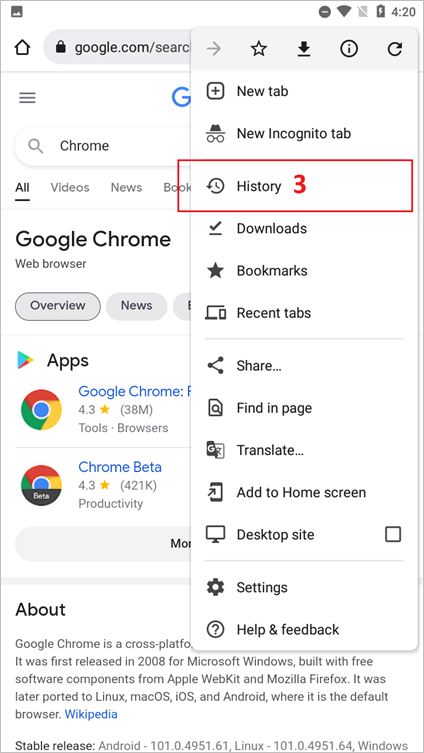
No matter whether you are using an Android phone or an iPhone, the steps are the same. Here's how you can view Chrome history on Android or iPhone.
Step 1. Open the Chrome app on your phone.
Step 2. To access the 3 vertical dots menu item from the top right, simply click on it.
Step 3. From the dropdown menu, select "History".
How to Search Chrome History by Date
Now that you know how to view your Chrome history, you can easily search Chrome history by date. To do this, simply follow the steps you've learned to view your history, and then use the date filter to search for browsing history from a specific time period.
Step 1. Open Google My Activity page.
Step 2. To view your Google My Activity page, click "Filter by date & product".
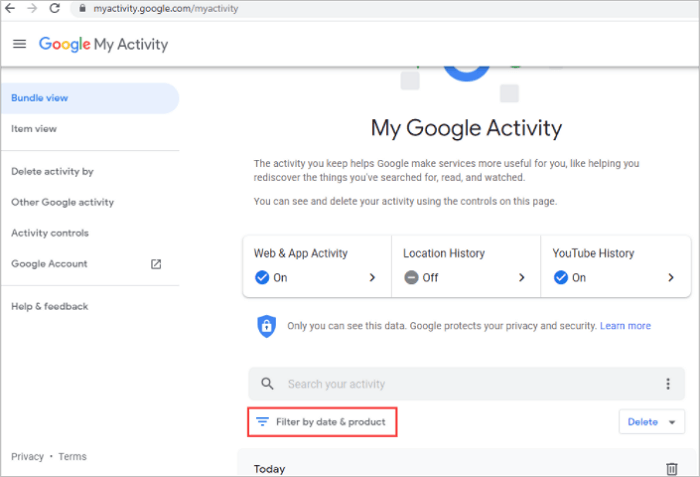
Step 3. To sift through browsing history, click the drop-down icon in the pop-up Filter by date window and select a time range to narrow down the search. This allows users to focus on specific periods of browsing activity.
- Today
- Yesterday
- Last 7 days
- Last 30 days
- All time
- Custom
Step 4. To filter your Google search history, go to your Google account, click on "Data & personalization" from the menu, then select "Go to Google Account." From there, click on "Data & personalization" again, then select "Manage your search history.
Step 5. After selection, click the "Apply" button.
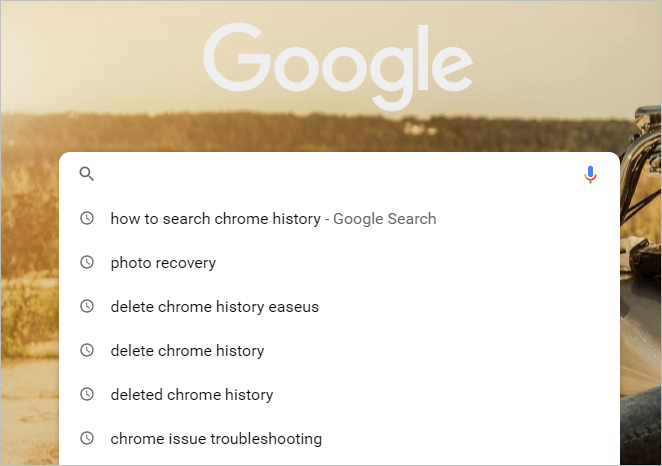
If you've browsed or searched something in Chrome, you can search your history by typing keywords in the Search box. This shows you specific content you've looked at in the past.
How to Clear/Delete Chrome History
Keeping your browsing history private is crucial, and Chrome makes it easy to clear your history.
Method 1. How to Remove Some Items
- On your computer, open Chrome.
- At the top right, click the three dots.
- Click "History".
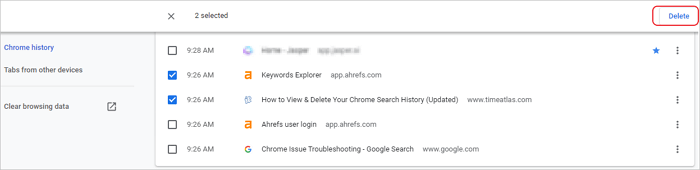
- Check the boxes next to each item you want to delete from your browsing history. This will allow you to remove specific entries from your history.
- At the top right, click "Delete".
- To remove an item, click the "Remove" button next to it.
Method 2. Clear Chrome History
You can clear different levels of history in Chrome, including browsing history, cookies and site data, or cached images and files, depending on how much you want to clear. Follow the steps below to clear your Chrome history.
If you want to clear cookies and site data:
- To access the Chrome settings, click on the three dots in the top-right corner of Chrome.
- Click "Settings".
- Under the "Privacy and security" section, click "Clear browsing data".
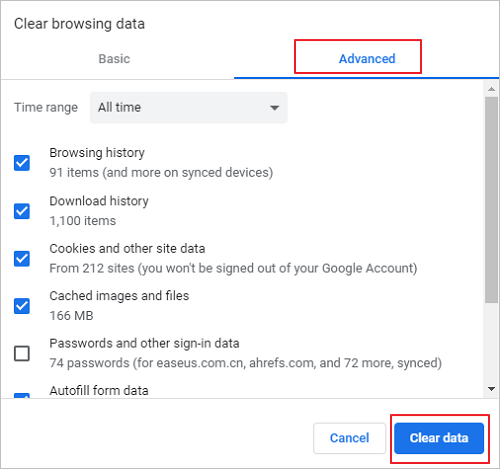
- Select "Advanced" to decide what to delete.
- Then, click "Clear data" to confirm your choice.
If you want to clear your browsing history:
- The three dots in the top-right corner of Chrome are called the Chrome menu. Clicking on them opens a dropdown menu with several options, including Settings, History, and Help.
- Click "History".
- On the left side of the screen, click "Clear browsing data".
- You can clear data from the past 24 hours, 7 days, 30 days, 60 days, 90 days, or 180 days. You can also remove specific types of data, such as browsing history, search history, location history, voice and audio recordings, and more.
- Click "Clear data".
Full Guide
To view and delete Chrome browsing history, go to the Chrome menu, select "More tools" and then "Clear browsing data." In the "Clear browsing data" window, choose the types of data you want to delete, such as browsing history, cookies, and site data.
How to Recover Chrome History/Bookmarks
If you've accidentally deleted your browsing history on Chrome, don't worry - you can recover it with a few simple steps.
To Recover Lost Chrome History:
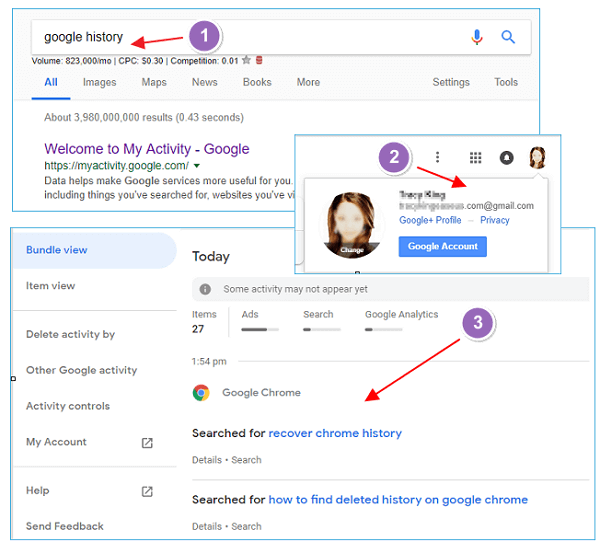
Step 1. Search Google History
Step 2. Click Welcome to My Activity - Google.
Step 3. Sign in to your Google account.
Step 4. Your browser and internet history files will be displayed, along with the date and time of each entry.
Step 5. Browse your history as needed.
If a website is not listed, it may have been permanently deleted and can't be recovered. You can try searching for it on a search engine like Google, which might have a cached version of the site that you can access.
To Recover Bookmarks in Chrome:
If your Chrome bookmarks have disappeared, close Chrome first and then follow these steps to restore deleted bookmarks: 1) Open Chrome, 2) Click on the three vertical dots in the upper right corner, 3) Select "Bookmarks" from the drop-down menu, 4) Click on "Show bookmarks bar" or "Bookmarks bar" to view your bookmarks, 5) If you still can't find your bookmarks, try checking your browsing history or reinstalling Chrome. If none of these steps work, you may need to contact Google support for further assistance.
Step 1. To access Google Chrome's user data folder, navigate to the following location on your Windows computer: C:\Users\YourUsername\AppData\Local\Google\Chrome\User Data. Replace 'YourUsername' with your actual Windows user account name. This folder contains various files and subfolders related to your Google Chrome browsing history, extensions, and other data. By accessing this folder, you can manage your browsing data, remove cookies, and even reset Chrome to its default settings.
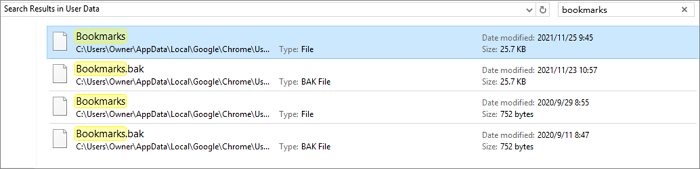
Step 2. To view your saved bookmarks, type "Bookmarks" in the search bar, which will display a list of files named "Bookmarks" and "Bookmarks .bak".
Step 3. Move the Bookmarks file to another location.
Step 4. Rename the Bookmarks.bak file to Bookmarks.
Step 5. Here's how to load bookmarks from a backup file in Chrome:
If your Chrome bookmarks or history are deleted, you can only retrieve them if your local bookmark.bak files haven't been deleted or removed. If you've found no backups on your computer, you can use file recovery software like Deep Data Recovery to recover the last backup files. This tool can recover files from any storage device, including hard drives, USB drives, and SD cards, and can even recover files from formatted or damaged partitions, helping you to recover lost or deleted files, such as those downloaded in Chrome.
Chrome History & Bookmarks FAQs
Read the following questions and answers to get more info about Chrome history and bookmarks.
1. How do I see/view history on Chrome?
In any Chrome window, use the keyboard shortcut Ctrl+H.
- Or navigate to the URL chrome://history.
- To view your browsing history, click the Menu button in the top-right corner of your browser window and select "History".
- Then, you can see your Chrome history.
2. Can you delete Chrome history?
You can easily delete Chrome history by using the "Clear browsing data" option, which allows you to remove your browsing history, cookies, and other data from your Google Chrome browser.
- Open Chrome, and click the three dots next to your profile image.
- Select "History" and then "History" again.
- Select "Clear browsing data" and you'll be offered the choice to clear your browsing data.
3. Google Chrome does not download files
This error means that your computer's security settings blocked the file. To fix Google Chrome not downloading files, you can try checking your browser settings, updating your browser, or adjusting your computer's security settings.
- Make sure your Internet connection is working normally.
- Fix Internet stability issues if the connection is unstable.
- Try to download the file later
- Contact the website owner...
4. Can someone see your deleted history?
Although the folder is no longer visible to unwanted individuals, the documents it contained still exist and can be easily located with a bit more effort.
Conclusion
You can view your Chrome history to find specific websites you've visited, and deleting it can clear your browsing data and protect your privacy. If you accidentally delete history or bookmarks, Chrome's recovery tool can help you restore your data. By understanding how to view, delete, and recover Chrome history, you can better protect your online activity and maintain your digital security.
Related Articles
- (July 2022) Ultimate Guide to Mac Time Machine Backup
- Email Recovery for Gmail, Yahoo, Outlook, Hotmail
- macOS Update Ultimate Guide: How to Update OS on All Models of Mac
- How to Recover Deleted Videos on Any Device
- Recover Snapchat Photos/Videos from Android Phones
If you've lost wonderful Snapchat photos or videos after cleaning the app's chatting history or deleting all browsing histories on your Android phone or tablet, professional methods are available to help you recover the deleted/lost content. - Recuva Said File Is Unrecoverable | How to Repair or Recover
If Recuva is unable to recover a file due to it being 'unrecoverable', you can try using a different recovery tool, such as EaseUS Data Recovery Wizard, or attempting to repair the file using a file repair tool like Glary Utilities, to see if it can recover or repair the file.
Products
Articles & Tutorials
- Data Recovery
- Data Backup
- File Recovery
- File Backup
- System Backup and Restore
- Disk and Partition Clone
- Technical articles
- Mobile articles
- Disk Master Help
- Windows Data Recovery Tutorials
- Windows Secure Delete Tutorials
- Windows Partition Management Tutorials
- Windows File Backup and Restore Tutorials
- Windows System Backup and Restore Tutorials
- Windows Disk Backup and Restore Tutorials
- Windows Clone Tutorials