Fix Cannot Connect to Camera: Close Other Apps
| Workable Solutions | Step-by-step Troubleshooting |
|---|---|
| 1. Restart Your Device | Press and hold either the volume button and the side button until the power-off...Full steps |
| 2. Remove the Conflicting App | Go to the Home screen of your iPhone. Simply hold and tap the app icon As the app would start...Full steps |
| 3. Check Camera Permissions | From the Settings app, tap Privacy to see all the permissions available on your...Full steps |
| 4. Go in Safe Mode | Turn your iPhone off. When the device is completely turn off, turn it on by...Full steps |
Camera Is Not Working, Please Help
To resolve the "can't connect to camera" issue, try closing other apps that may be using the camera or flashlight, then restart your camera app. If that doesn't work, try restarting your device. If the issue persists, check for any software updates and install them.

Why is Your Camera Not Working?
You may encounter this error if you are using an Android phone, iPhone, or digital camera. Usually, this error happens on a cell phone. The main reasons why the message "Failed to turn on the camera. Close background applications." appears are listed below.
- Your device is in low device storage
- There are system errors on the device
- Some viral components have disrupted the normal functioning of camera applications
- The software or application consumes the lens and the flash module in the background, allowing for seamless integration and functionality.
How to Fix the Error - Cannot Connect to Camera
When you encounter the "can't connect to the camera" issue on your device, you'll need to determine the cause of the error to decide on the next steps. To resolve this problem, follow the steps listed below to learn how to fix the "cannot connect to camera" issue on your device.
Fix 1. Reboot/Restart Your Device
When you receive the message - To resolve the issue of being unable to connect to the camera, close any other apps that may be utilizing the camera, and then restart your device completely. This will ensure that all running programs, including any that might be interfering with the camera, are deactivated. After the reboot, you can check if the issue has been resolved.
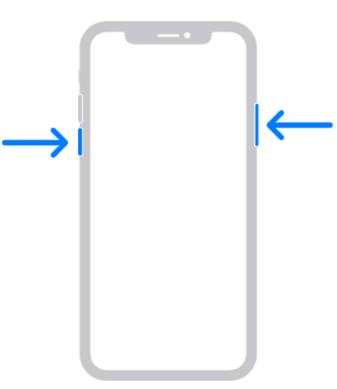
Here's an example of reboot iPhone 12:
Step 1. Hold the volume button and the side button at the same time until the power-off slider appears on the screen.
Step 2. Drag the slider to shut down your device, then wait 30 seconds for it to fully turn off. The device will automatically turn back on after 30 seconds.
Step 3. To restart your iPhone, press and hold the side button on the right side of your iPhone until you see the Apple logo.
Fix 2. Remove the Conflicting Third-Party App
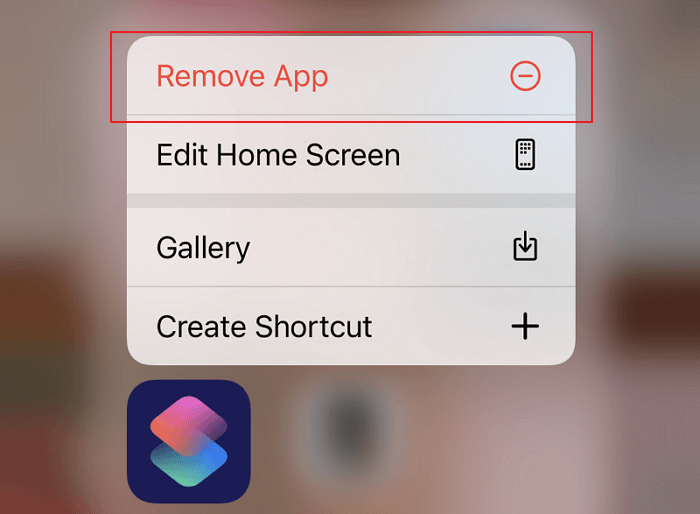
When you've identified the app causing your camera issues, remove apps that have camera access like WhatsApp, Snapchat, and others. Uninstall the problematic apps by following the steps.
- Go to the Home screen of your iPhone
- Simply hold and tap the app icon
- As the app starts to wiggle, you can tap on the top remove button.
Fix 3. Check Camera App Permissions
If the "camera not working on your device" error occurs, check the apps you granted permission to access your camera. To do this on iOS, go to Settings > Privacy > Camera, and review the list of apps that have been granted permission to use your camera. If an app is no longer needed or has been deleted, revoke its permission by tapping the "Don't Allow" button next to it.
Step 1. From the Settings app, tap Privacy to see all the permissions available on your phone.
Step 2. To see which apps have been granted certain permissions, tap on any entry to view the apps and disable the permissions if needed.
Fix 4. Go in Safe Mode to Fix Cannot Connect to Camera Error
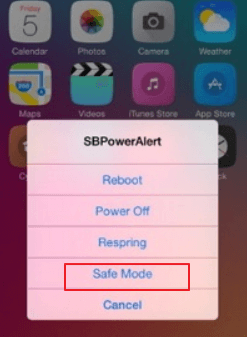
Try restarting your device in Safe Mode to troubleshoot the issue, as this mode disables all downloaded apps, allowing you to identify the problematic one.
Step 1. Turn your iPhone off.
Step 2. To turn on the device, press and hold the power button until it turns on.
Step 3. Once your iOS device lights up, hold down the Volume down button until you see the Apple logo.
Step 4. When the iOS device boots up, it will be in safe mode. This allows you to remove any tweak or theme that's causing the problem, making it easier to troubleshoot.
If the camera is not working by now, you must take your phone or digital camera to a professional repair center immediately.
Extra Tips - How to Recover Lost Photos from Your Camera
If you've lost camera photos and videos, you can get additional help here. You can recover photos from your phone and get back images from your digital camera using Deep Data Recovery, a photo recovery software that makes it easy to restore lost files in just three steps.
Step 1. Open Deep Data Recovery. Select file types, then click "Fast Scan".

Note: You can choose different search modes based on where and why the data was lost.
Step 2. Locate the storage device where the deleted or lost photos were saved, then click the "Scan" button to initiate the recovery process.

Step 3. After the scanning finishes, you can quickly filter photos by choosing "Pictures" in the left panel.

Step 4. After selecting the pictures you want to recover, you can preview them. Once you're satisfied, click "Recover" and choose a new location to save the recovered data.
Conclusion
To fix the error "cannot connect to camera please make sure to close other apps that may use camera", close all other apps that may be using the camera, restart your device, and ensure that the app you're trying to use has the necessary permissions. It's also a good idea to be cautious when downloading and using apps, especially those that require camera access, to avoid potential security risks.
Related Articles
- How to Activate Windows 10/11 with Product Key/Digital License/CMD
- Complete & Free Android Data Recovery Without Root
- Here Are the Solutions to Fix NVME SSD Not Detected (Windows/Mac)
- Reliable Ways to Fix i saved a word document and can't find it Issue
- How to Recover Deleted Temp Files
If you've accidentally deleted your temp files, there is a solution, as you can recover them with Deep Data Recovery. This software allows you to easily restore deleted temp files in just three steps, and it's also capable of recovering other types of files such as photos, videos, and documents. - How to Recover Deleted TikTok Videos in Android/iPhone/PC
If you've accidentally deleted a video on TikTok, you can try to recover it instead of re-shooting it. Fortunately, there are methods to retrieve deleted TikTok videos, including drafts.
Products
Articles & Tutorials
- Data Recovery
- Data Backup
- File Recovery
- File Backup
- System Backup and Restore
- Disk and Partition Clone
- Technical articles
- Mobile articles
- Disk Master Help
- Windows Data Recovery Tutorials
- Windows Secure Delete Tutorials
- Windows Partition Management Tutorials
- Windows File Backup and Restore Tutorials
- Windows System Backup and Restore Tutorials
- Windows Disk Backup and Restore Tutorials
- Windows Clone Tutorials