7-Zip Data Error Fix (4 Methods)
7-Zip data error shows up
As for the 7-Zip data error, it typically shows up as: "Error: Unable to read file. The file does not exist."
"To resolve the issue with extracting files from a 7-zip archive, try the following: Check if the archive is corrupted by trying to extract it on a different computer or using a different extraction tool. If the issue persists, try repairing the archive using a tool like 7-Zip's built-in repair feature or a third-party repair tool. If the problem still exists, it's possible that some files were not properly added to the archive when it was created, or they may have been deleted since then.
7-Zip: Diagnostic messages:
Data error in 'File Name.' The file is broken! How can I fix this data error and get the lost files back?"
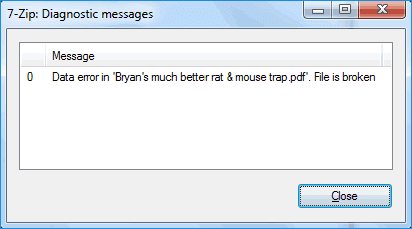
This page provides fixes from the 7-Zip website and professional geeks to repair the error and restore valuable files with ease.
7-Zip data error fixes
7-Zip data error is a common issue that can occur when using the 7-Zip file archiver. This error can be caused by a variety of factors, including corrupted archives, incorrect file permissions, or issues with the 7-Zip software itself. To resolve the issue, users can try reinstalling 7-Zip, checking the file permissions, or using a different file archiver.
Method 1. [Official] Fix for 'Data error' by replacing 'bad' .7z archive
According to 7-Zip website, when you receive "Data Error" it means that you almost can't recover the data. But if you have exact copies of files from the 'bad' archive, you can fix this error by doing so:
- Step 1: Create a duplicate archive with the same settings and file order as the original, using good copies of the files.
- Step 2: Replace "bad" parts of bad .7z with "good" parts from another good .7z,
- Step 3: The task involves reviewing file listings in both bad and good archives, analyzing logs from the "test" command, and brainstorming strategies to replace or correct the problematic parts.
- Step 4: To fix the issue, you can directly replace the old .7z archive with the new good one, then retry decompressing the file again.
Method 2. Restart 7-Zip and reboot PC
Some users who experienced the same issue on 7-Zip suggest that restarting 7-Zip software and rebooting PC may resolve the issue.
Method 3. Clear virus, redownload an extraction tool
7-zip data error can be caused by various reasons, including viruses infection. To fix this error, you can try scanning your computer with an anti-virus software to remove any malware that might be causing the issue. Additionally, you can also try reinstalling 7-zip and checking for any corrupted files or settings that might be contributing to the error.
- First, use your antivirus software to clear the existing virus.
If you're experiencing issues with your computer, consider running a virus scan using a reputable antivirus software such as AVG, Quick Heal, or Norton. These programs can detect and remove malware, helping to resolve any problems and keep your system safe.
- Second, go to 7-Zip official website to download the tool again.
You need to uninstall the old version of the software before downloading the new one, and make sure to download the same version that you used to compress files.
In this way, you can try again to see whether the data error shows up or not.
Method 4. Try zip file repair tool
When a zip archive file becomes corrupted, a reliable zip file repair tool or software can often help to recover the damaged file.
You can also search for a reliable "Zip repair tool" online to fix the issue immediately.
Bonus Tip: 7-Zip data error recovery
To recover a lost or deleted 7-Zip file, you can try using data recovery software such as Deep Data Recovery or Recuva. These programs can scan your computer's hard drive or external storage device for deleted files, including 7-Zip archives, and attempt to recover them.
With the help of Deep Data Recovery, recovering 7-Zip files on Windows becomes straightforward, as it supports the restoration of various file types, including .7z files, on Windows 10, 8.1, 8, and 7.
If you've lost a 7-zip file, don't worry, you can easily recover it by following these three simple steps. First, check if the file was saved in a temporary folder or if it was deleted by mistake.
Step 1. Select file types and click "Fast Scan" to start
Launch Deep Data Recovery, select the desired file types, and click "Fast Scan" to initiate the recovery process.

Note: You can choose different search modes based on where and why the data was lost.
Step 2. Select a location and start scanning
Choose the partition where you lost data. Then, click "Scan".

Step 3. Filter and preview files
Use the file format filter on the left or upper right corner to find specific files, then click the "Preview" button or double-click a file to preview its content.

Step 4. Recover lost data or files
To recover lost data, select the file that needs to be recovered, check the box next to it, and then click the "Recover" button to restore the data to a secure location.
Related Articles
- Top 10 Best Word Repair Tools [FREE DOWNLOAD]
- How to Fix Excel Found Unreadable Content Error (Easy Guide)
- How to Correct #DIV/0 Error in Excel | Check Your Full Guide 2022
- Free Download Hidden File Recovery Software to Recover Hidden Files
If you need to show and recover hidden files on your Windows PC, SD card, USB drive, or external hard drive, there's a simple solution. A hidden file recovery software can be downloaded for free, allowing you to recover all hidden files with ease, following detailed guidelines. - How to Fix Hitachi Hard Drive Not Working/Recognized
If your 1TB Hitachi hard drive is not working or detected in Windows 10/8/7, this post provides effective solutions to make it detected and recognized. To fix the issue, you can try various troubleshooting steps.
Products
Articles & Tutorials
- Data Recovery
- Data Backup
- File Recovery
- File Backup
- System Backup and Restore
- Disk and Partition Clone
- Technical articles
- Mobile articles
- Disk Master Help
- Windows Data Recovery Tutorials
- Windows Secure Delete Tutorials
- Windows Partition Management Tutorials
- Windows File Backup and Restore Tutorials
- Windows System Backup and Restore Tutorials
- Windows Disk Backup and Restore Tutorials
- Windows Clone Tutorials