3 Ways to Open MS SQL Server Backup .BAK File in Excel
Quick Navigation: How to Open a .BAK File
Overview of the methods to open a SQL .BAK file in Excel.
Q 1: You can't directly open a SQL .bak file in Excel. However, you can use a tool like SQL Server Management Studio (SSMS) or a third-party software like Apex or SQL Server Data Tools (SSDT) to export the data from the .bak file into a CSV or Excel-compatible format. This way, you can import the data into Excel for analysis. Alternatively, you can use a SQL query to extract the desired data and save it as a CSV or Excel file. If you're new to SQL, I can provide you with a simple query to get you started.
Q 2: Yes, you can check the SQL .bak file when the database is corrupted. You can open the .bak file in a text editor or a SQL client like SQL Server Management Studio to view its contents. However, to restore the database, you'll need to use a SQL tool like SQL Server Management Studio or a command-line interface like sqlcmd.
| Workable Solutions | Step-by-step Troubleshooting |
|---|---|
| 1. Convert SQL .bak to Excel |
|
| 2. Restore .BAK to SQL Server |
|
| 3. Use .BAK to Excel Convert Tool | Use a third-party SQL .bak to Excel converter tool to convert SQL to Excel and open SQL .BAK...Full steps |
New MS SQL administrators often find it challenging to use SQL queries or applications to access or open specific SQL .bak files. Additionally, when a SQL database becomes corrupted, the process of restoring a .bak file to SQL Server can be confusing for some administrators.
If you are a new SQL Server administrator facing issues with opening SQL .bak files in Excel, there are reliable methods to resolve your problem. You can try using SQL Server Management Studio (SSMS) to restore the database and then export it to Excel.
Part 1. How to Open SQL .BAK File in Excel (3 Ways)
To recover a SQL Server database from a .bak file, start by locating the directory where the .bak file is saved on your SQL server computer. The default path is typically where SQL Server saves the backup file. Once you have found the directory, you can use SQL Server Management Studio or the SQL Server command line to restore the database from the .bak file.
- Program Files > Microsoft SQL Server > MSSQL 1.0 > MSSQL > BACKUP
- C:\Program Files\Microsoft SQL Server\MSSQL10.MSSQLSERVER\MSSQL\Backup
You can open your SQL database backup file in Excel using one of three methods. First, you can convert the SQL backup file to an Excel file using the SQL Server Import and Export Wizard.
Way 1. Manually Convert SQL .bak to Excel
Note: This method is provided by a third-party website as a quick way to convert .BAK file to Excel.
And you may try this way to open your SQL Server .bak file in Excel.
Let's start:
Step 1. You need to locate and find the SQL .bak file on your local drive. This file contains a backup of your SQL database, and you'll need it to restore your database to a previous state.
If you're unable to find the .bak file in the specified location, you can run a command in SQL Server Management Studio (SSMS) to locate the directory of your SQL database backup file. This command will help you identify the path where the backup file is stored.
|
SELECT DatabaseName = x.database_name LastBackupFileName = x.physical_device_name LastBackupDatetime = x.backup_start_date FROM ( SELECT bs.database_name bs.backup_start_date bmf.physical_device_name The Ordinal column is calculated using the ROW_NUMBER() function with an OVER clause that partitions by the database_name and orders by the backup_start_date in descending order. FROM msdb.dbo.backupmediafamily bmf JOIN msdb.dbo.backupmediaset bms ON bmf.media_set_id = bms.media_set_id JOIN msdb.dbo.backupset bs ON bms.media_set_id = bs.media_set_id WHERE bs.[type] = 'D' AND bs.is_copy_only = 0 ) x WHERE x.Ordinal = 1 ORDER BY DatabaseName |
Step 2. Copy and save the .bak file to another secure device.
Step 3. To view file extensions in File Explorer, go to the "View" tab, click on "Options" and uncheck the box that says "Hide Extensions for Known File Types". Click "OK" to save the changes.
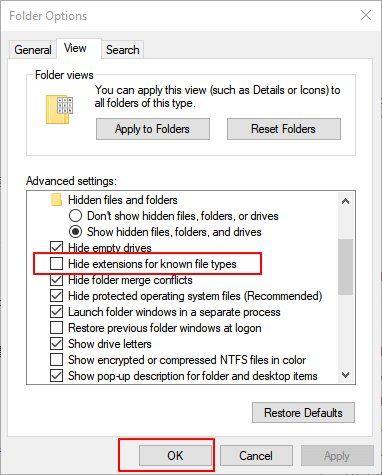
Step 4. Open the device with the copied SQL database backup .bak file and right-click on it.
Step 5. To rename the backup file, select the "Rename" option and change the ".bak" file extension to ".xls" or ".xlsx".
Step 6. Double-click the renamed file and open it in Excel.
You can restore the SQL .bak file, which contains a snapshot of the database at a specific point in time, to its original state. This can be done using a SQL tool or a database management system.
Way 2. Restore .BAK to SQL Server and Export Database to Excel
This method involves two steps: restoring a .bak database backup file into SQL Server, and then exporting the restored database into Excel.
Here are the detailed guidelines:
# 1. Restore .BAK to SQL Server via SQL Server Management Studio
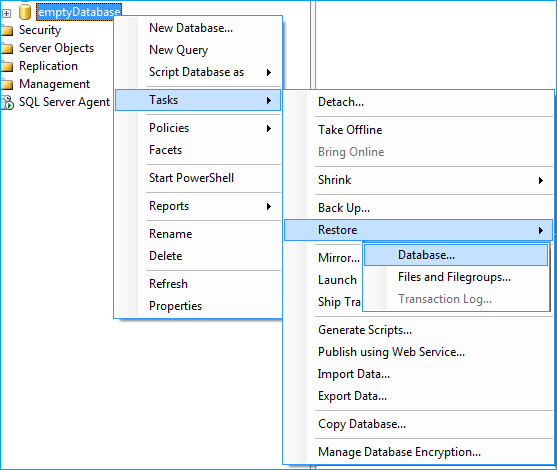
To restore a .bak file using SQL Server Management Studio, follow these steps: Launch SQL Server Management Studio and connect to the server where you want to restore the database. In the Object Explorer, right-click on the Databases folder and select Tasks > Restore > Database.
Step 1. To restore a .bak file to a SQL Server database, open SQL Server Management Studio, right-click on the desired database, select "Tasks" > "Restore" > "Database", and follow the wizard to specify the .bak file and other restore options.
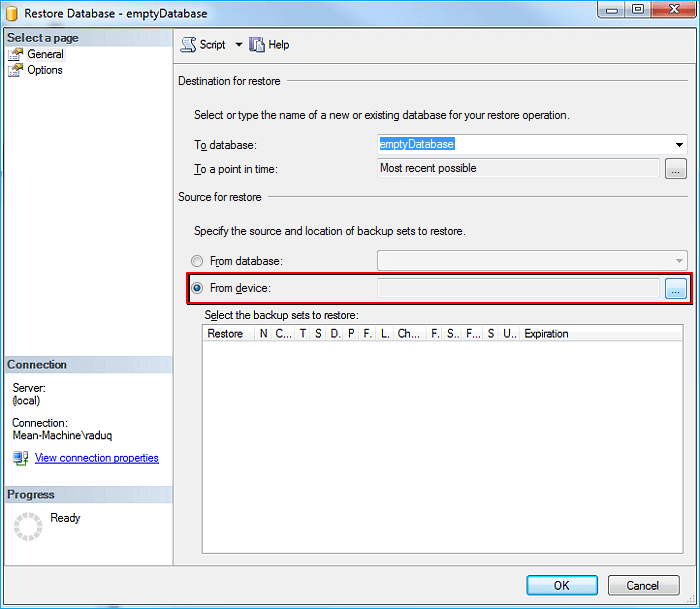
Step 2. To restore a backup file, click the three dots button next to the "From device" section and browse to select the .bak file saved on your local drive.
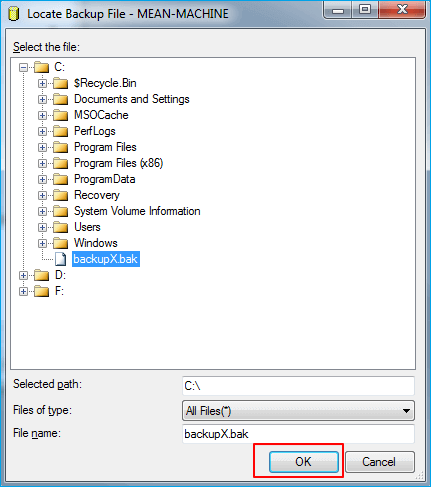
Step 3. To specify the exact location where you saved the .bak file, click "Add", select the file, and click "OK" to confirm.
Step 4. To create a full database backup and transaction log backup, select both options and click "OK" to confirm the backup process.
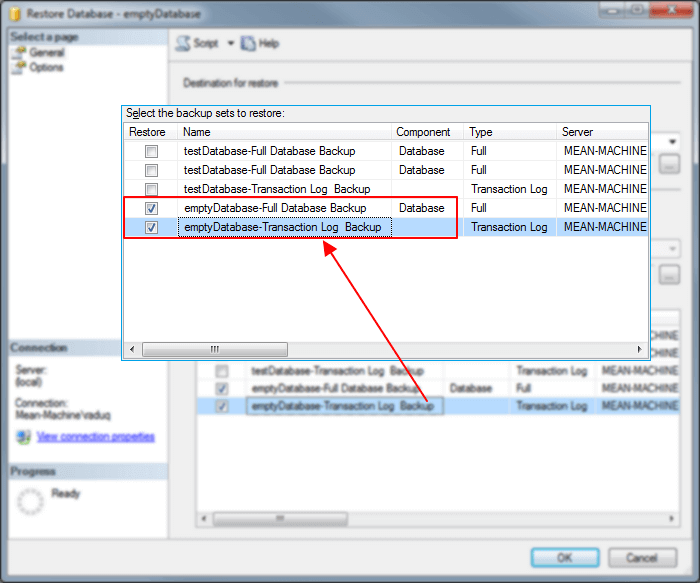
When the restore process completes, click "OK" to finish.
Note: If the .bak file contains the backup of your SQL database, the process also works to restore your corrupted SQL Server database from backup.
# 2. Export Restored .bak File - SQL Database to Excel
SQL Server Management Studio, using its Import and Export Wizard, allows you to export the restored .bak file - SQL database into Excel in a single step.
Be careful with the below manual steps to export the SQL database:
Step 1. Open SQL Server Management Studio and log in with your administrator account.
Step 2. To export data from a database to Excel, navigate to Object Explorer, right-click on a desired database, and select "Tasks" followed by "Export Data..." from the context menu.
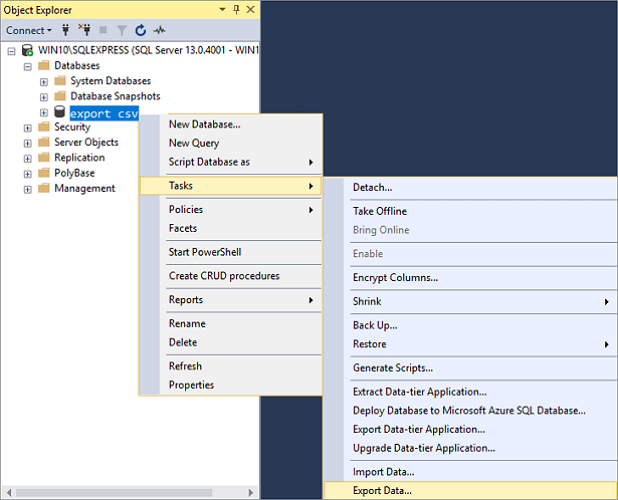
Step 3. The SQL Server Import and Export Wizard is a built-in tool in SQL Server that allows users to import data from various sources, such as CSV files, Excel spreadsheets, or other databases, and export data to different formats, like CSV files, Excel spreadsheets, or other databases. To use the wizard, follow these steps: Enter the SQL Server Import and Export Wizard, and click "Next" to continue.
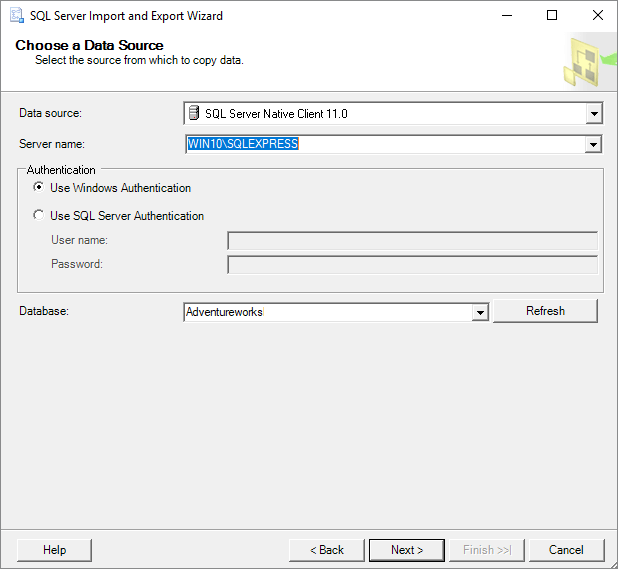
Step 4. To proceed, select a data source from which you want to copy data, and click "Next" to continue the process.
- Data source - SQL Server Native Client 11.0
- Server name - SQL Server from which data need to be copied
- Authentication - Use Windows Authentication as the data source connection
- Database - Choose the database which you've restored from the .bak file.
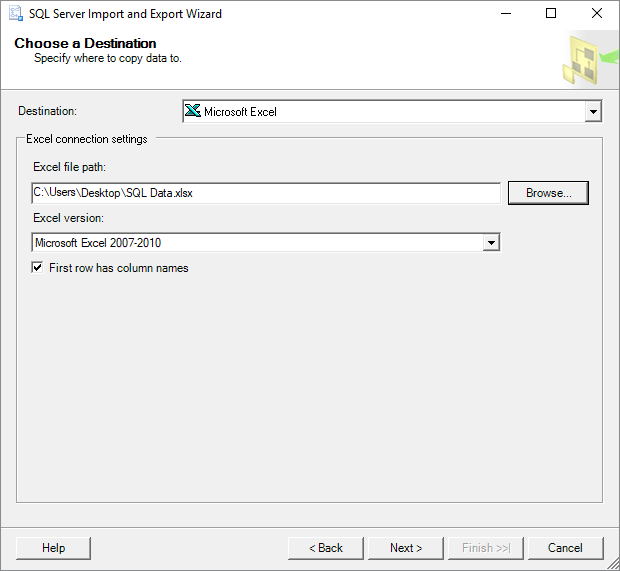
Step 5. To copy database data to Excel, select a destination and click "Next" to proceed.
- Destination - Microsoft Excel
- Excel file path - To determine the destination for copied data from the SQL Server data source, you need to specify where the data will be copied to. This can be a different SQL Server database, a flat file, or another data source.
- Excel version - specify the Excel version that you are using on your PC
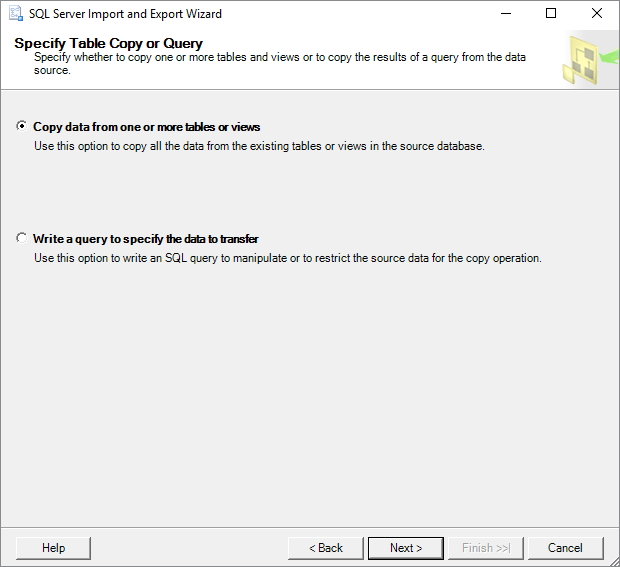
Step 6. To copy data from one or more tables or views, select the "Copy data from one or more tables or views" option and click "Next" to proceed.
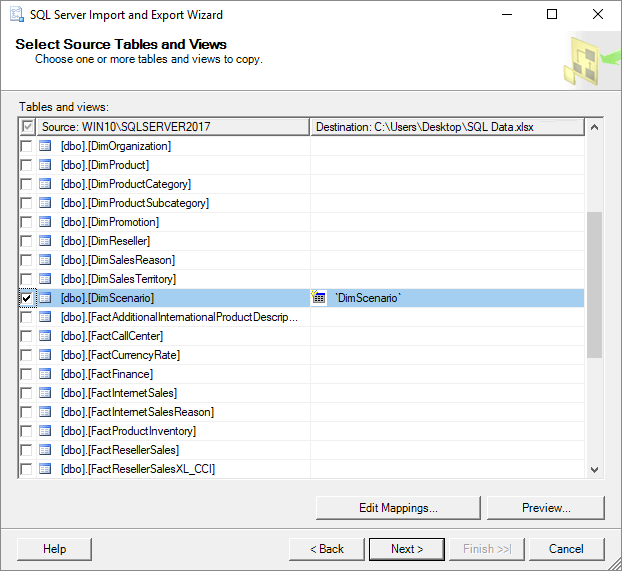
Step 7. Select the specific tables and views you want to open in Excel, and proceed by clicking "Next".
You can also select a specific table and click "Preview" to check the data in advance.
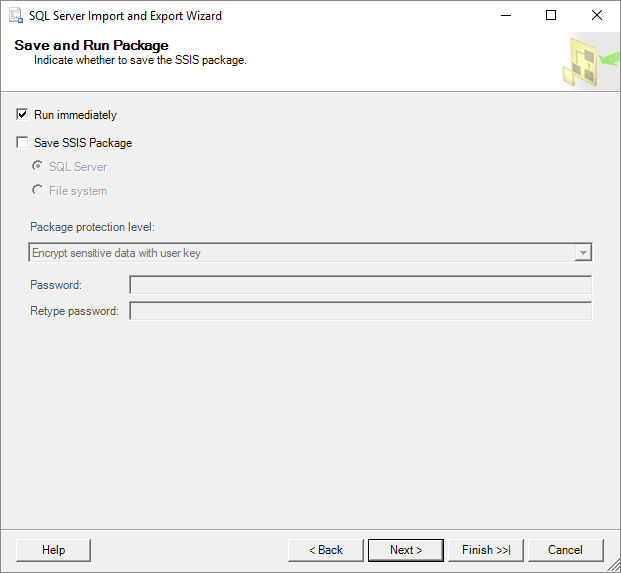
Step 8. Select the "Run immediately" option on the Save and Run Package, then click "Next" to proceed.
Step 9. Click "Finish" on the Complete Wizard.
Step 10. To continue, click the Report drop-down button and select "Save Report to File...".
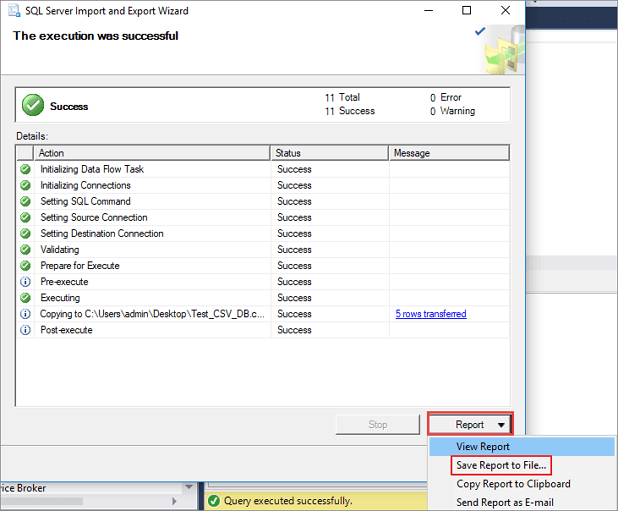
Step 11. To open the exported SQL database in Excel, select Excel as the target file, allowing you to view the database in a spreadsheet format. This enables you to utilize Excel's functionality to manipulate and analyze the data.
Way 3. Use Third-Party SQL .BAK to Excel Convert Tool
On some open source websites, developers create a third-party SQL .bak to Excel converter tool.
Converting a SQL .bak file to Excel is a straightforward and practical process. To do this, you can search online for a tool that specializes in SQL to Excel conversion, such as SQL to Excel convert. This will allow you to easily transfer the data from the SQL file into an Excel spreadsheet.
Also read:
- How to Export Data from SQL Server to Excel Automatically
- SQL Database Recovery Pending Access Denied
- How to Rebuild Master Database in SQL Server
Part 2. Repair Corrupted SQL Database Without .BAK File (Database Backup)
In Way 1, the restoring process of a .bak file to SQL Server via SSMS can help to restore corrupted or deleted databases to SQL Server.
If you accidentally deleted records in your SQL database or it became corrupted for some reason, a professional SQL recovery tool can help. Qiling MS SQL Recovery, with its powerful feature, can effectively bring your lost database records back.
Qiling MS SQL Recovery
- SQL Server supports all versions of MS SQL Servers, including SQL Server 2017/2016/2014/2012/2008.
- The device can recover lost data and records by using advanced algorithms to scan the storage device and identify deleted files. It can then restore the data to its original state, effectively bringing back lost information.
- It fixes a corrupt log file while it repairs the rest of the database.
- With Qiling MS SQL Recovery, users can encrypt their database to safeguard it from unauthorized access, ensuring their sensitive data remains secure.
To repair a corrupted SQL Server database, follow these steps: First, download and install the SQL Server Database Engine Tuning Advisor, which will help identify and fix issues. Next, use the SQL Server Management Studio to connect to the corrupted database, and then use the "Database Properties" window to check for any errors or inconsistencies.
Step 1: Select the corrupted database for recovery
- Launch Qiling MS SQL Recovery.
- To select the corrupted database file, click on the "Browse" button (represented by two dots) or the "Search" button.
- Once the file is selected, click the "Repair" button to initiate the analyzing process.
Note: To use this software, you need to stop the SQL Server service.
Step 2: Repair the corrupted database
- The software displays all recoverable items in a tree-like structure, with items shown in the left pane.
- From the window, click the "Export" button to select the desired component to be recovered.
Step 3: Export to the database or as scripts
- To export database objects to a database, you can use SQL Server Management Studio (SSMS) or the SQL Server command-line tool. This method creates a copy of the database objects, such as tables, views, and stored procedures, in a new database.
- To export data to a database, select the "Export to database" option, enter the necessary details, and choose the target database where the data will be stored.
- To initiate the repair process, click "OK" on the window that appears, providing credentials to connect to the server and specifying the destination to save the recovered items.
Note: To resolve the issue, you need to restart the SQL Server service before clicking "OK" on the SQL Server Configuration Manager. This will allow the changes to take effect and resolve the issue.
Related Articles
- SQL to XML | How to Export Data from SQL Server to XML
- Restore Database from MDF and LDF Files in SQL Server 2017/2014/2012
- How to Restore Master Database in SQL Server 2008/2012 with or Without Backup
- SQL Error 233 No Process Is on the Other End of the Pipe
- Fix Hard Disk Not Detected/Recognized on Windows 10
Troubleshoot hard drive failure when a disk is not detected or recognized, and learn when to recover data before repair. - Free Fix Hard Drive Partition Shows 0 Bytes Error in Windows 11/10/8/7
If your hard drive shows 0 bytes used on your computer, you may be unable to access saved data on a hard drive or partition that displays 0 bytes in Windows. Fortunately, Deep Data Recovery Free offers reliable fixes to solve the hard drive partition showing 0 bytes error and restore HDD data.
Products
Articles & Tutorials
- Data Recovery
- Data Backup
- File Recovery
- File Backup
- System Backup and Restore
- Disk and Partition Clone
- Technical articles
- Mobile articles
- Disk Master Help
- Windows Data Recovery Tutorials
- Windows Secure Delete Tutorials
- Windows Partition Management Tutorials
- Windows File Backup and Restore Tutorials
- Windows System Backup and Restore Tutorials
- Windows Disk Backup and Restore Tutorials
- Windows Clone Tutorials