Easy Solutions to Fix "You cannot format this volume" on Windows 11/10
To format a partition on Windows 10 or Windows 11, open File Explorer, select the partition you want to format, right-click on it, and choose "Format" from the context menu. Follow the prompts to complete the formatting process, which will erase all data on the selected partition.
1. To access the "This PC" view, click on the File Explorer icon on your desktop, and then from the left-hand pane, select "This PC".
2. To format a partition, right-click on the partition you want to format and select the "Format" option from the context menu.
3. Follow the instruction to finish format process.
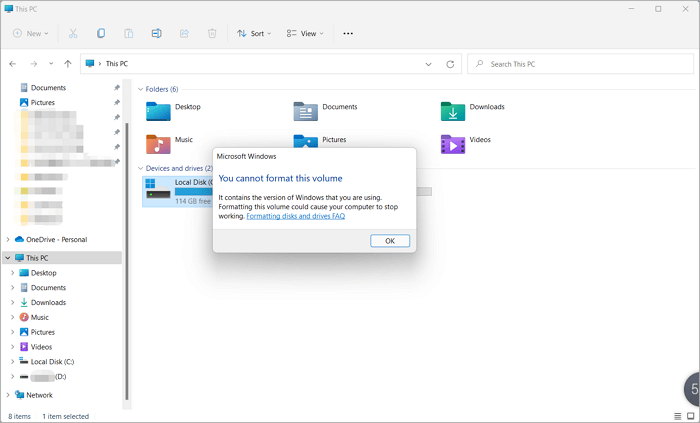
The error message is saying that the formatting operation is invalid because it's being performed on a system partition. This typically means that the partition contains the operating system and its files, and formatting it would erase the OS and all installed programs. It's usually not a good idea to format a system partition, as it would require reinstalling the OS and all software.
Main Content:
Error Message: You Cannot Format This Volume
What Could Be Causing This Error on Windows 10/11?
How to Fix the "You cannot format this volume" Error
Error Message: You Cannot Format This Volume
The user has an SSD with Windows 10 installed and wants to do a clean installation of the same operating system. However, they're unable to format the disk as it's already running the previous version of Windows 10. This is a known issue where formatting the disk is not allowed when the operating system is already running from it. To resolve this, the user can create a bootable USB drive or CD/DVD with the Windows 10 installation media and perform the clean installation from there. This way, the user can bypass the issue of not being able to format the disk while it's running the operating system.
If you're encountering the error message "You cannot format this volume" when trying to format a drive, you're likely wondering what's causing it and how to fix it. This error can be caused by various factors, and fortunately, there are some useful solutions to resolve the issue.
What Could Be Causing This Error on Windows 10/11?
The error "You cannot format this volume" occurs because Windows can't format the system drive, possibly due to it being in use by another process, program, or service, or containing active paging or hibernation files that Windows uses and can't delete. To resolve this, you may need to disable these features and then try formatting the drive again.
If you get the message "You cannot format this volume" because the drive is a boot partition, it means the drive contains essential Windows startup files and can't be formatted without reinstalling Windows first, allowing you to format the partition after reinstalling Windows.
Before formatting a drive, ensure that all files are backed up to prevent data loss. This includes checking for any hidden or system files that may be stored on the drive.
How to Fix the "You cannot format this volume" Error
1. Back Up Your C Drive before Format It.
Before formatting your system drive, back up all important files on your C drive to avoid losing critical data during the process. You can choose a backup method that suits your needs.
Try a free file backup software - Qiling Backup: It's free to back up files on your C drive, saving you time in just a few minutes.
If your system drive is full of sensitive files, copying a file to an external device may take a long time due to the limited space on your system drive.
Once you've backed up your files, you can format your system drive with confidence knowing that your data is safe. This allows you to start fresh and install a new operating system, or simply give your computer a clean slate.
2. Format System Volume/C Drive Using Windows Installation Disc
Formatting a system volume using a Windows installation disc is a straightforward process that can be completed in a few minutes. However, please note that this method will erase all data on the disk, so it's essential to use it only if you're willing to lose all data on the system partition. If you want to format the system partition without deleting all data, alternative methods are available.
Step 1. Insert the disc into the computer and boot from it.
Step 2. When the Windows setup screen appears, select the option to format the system volume.
Step 3. Select the desired file system and allocation size, and then confirm the format operation to proceed with the formatting process.
Step 4. Wait for the process to complete and then restart the computer.
Formatting the system volume using a Windows installation disc is a last resort solution that can repair corrupt files or folders causing problems on your computer.
Only Format C Drive - Try A Professional Partition Manager
Qiling Partition Master can help fix the issue of "You cannot format this volume" by creating a bootable USB drive with the software already installed, allowing users to format specific partitions without any issues.
Free Download This Software:
How to Create a Bootable Device:
Step 1. To create a bootable disk of Qiling Partition Master, prepare a storage media such as a USB drive or CD/DVD disc, then correctly connect it to your computer.
Step 2. Launch Qiling Partition Master, and click on the "WinPE Creator" feature at the top.
Step 3. To select the storage method for the ISO file, you can choose between using a USB drive or a CD/DVD, or save the file to a local drive and burn it later. Once you've made your selection, click the "Proceed" button to start the process.
When the process finishes, you have successfully created a Qiling Partition Master WinPE bootable disk, allowing you to manage your hard disks and partitions through the bootable drive even when the computer fails to boot normally.
To add the RAID driver in the WinPE environment, click the "Add Driver" option from the menu bar, which allows you to add the specific driver for your device, especially for devices that cannot be recognized without the driver installed, such as RAID or certain hard disk models.
How to Format C Drive:
Step 1. Click the hard drive partition and choose the "Format" option.
Step 2. In a new window, set the Partition label, File system, and Cluster size for the partition, then click "Proceed" to continue the process.
Step 3. You can see a warning window, click "OK" to proceed with formatting the hard drive partition.
Conclusion
When trying to format the system partition (C drive), the message "You cannot format this volume" appears. To resolve this, you can try using a Windows Installation Disc or Qiling Partition Master, which is a suitable option for formatting the C drive specifically.
Related Articles
- How to Unpartition a Hard Drive on Windows 11/10/8.1/8/7
- How to Wipe a Hard Drive in Windows XP Without CD
- Format RAW SD Card/USB Drive in Windows 11/10/8/7
- [Fixed] Windows Resource Protection Found Corrupt Files but Was Unable to Fix Some of Them
- Why Can't I Transfer Large Files From One SSD to Another
Why can't I transfer large files from one SSD to another? Is my SSD broken? Check on this page and you will find the answers. - Why Is My External M.2 SSD Slowing Down to 40 Mbps Write Speed
Why is my external M.2 SSD slowing down to 40 Mbps write speed? Can I speed it up? Continue reading, and you will find a solution here.
Products
Articles & Tutorials
- Data Recovery
- Data Backup
- File Recovery
- File Backup
- System Backup and Restore
- Disk and Partition Clone
- Technical articles
- Mobile articles
- Disk Master Help
- Windows Data Recovery Tutorials
- Windows Secure Delete Tutorials
- Windows Partition Management Tutorials
- Windows File Backup and Restore Tutorials
- Windows System Backup and Restore Tutorials
- Windows Disk Backup and Restore Tutorials
- Windows Clone Tutorials