Windows 10 Boot Drive Size & How to Create a Windows 10/11 Bootable Drive
What is a Windows Boot Drive?
A Windows boot drive is a crucial device that allows a computer to boot into the Windows operating system. It's one of the primary devices needed to start the computer.
System files are typically stored on the internal disk's C drive, which is used every time the computer is turned on for the boot process. However, if you encounter serious issues starting the computer, you can create a bootable USB drive to resolve the problem. Additionally, this bootable drive can be used on another computer to access your own system on that device.
To create a bootable USB drive, you'll need a USB drive with at least 8GB of free space, a computer, and a blank USB drive. You can use a tool like Rufus to create a bootable drive, which will allow you to install Windows on your computer. The size of the Windows boot drive will depend on the version of Windows you're installing, but a minimum of 20GB is recommended.
How to Create a Windows 10/11 Boot Drive?
There are different methods to create a Windows boot drive, and each of these methods comes with its own advantages. Here we will introduce three common methods, including making a fresh new bootable drive and making a portable system drive of your setup computer.
Method 1. Creating Windows 10/11 Boot Drive with Windows Media Creation Tool
The Windows Media Creation Tool is a user-friendly method for creating a Windows boot drive. It enables you to download the Windows 10/11 install file onto a flash drive or CD/DVD, allowing you to reinstall the Windows system. To use this method, you'll need a USB drive with at least 8GB of storage space.
Follow these steps to use the Windows Media Creation Tool:
Step 1. To download the creation tool, go to Microsoft's official download page and click on "Download tool now" to initiate the process.
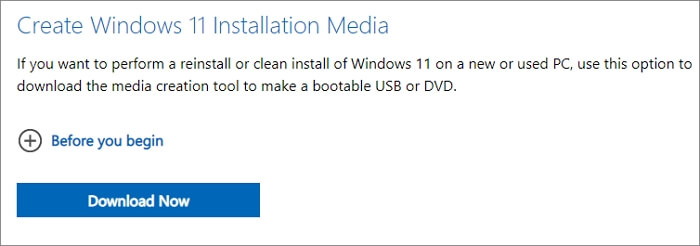
Step 2.Wait until the download is complete. Then click on the downloaded file to run it.
Step 3. Accept the Terms and Conditions and select the Create installation media (USB flash drive, DVD, or ISO file) for another PC.
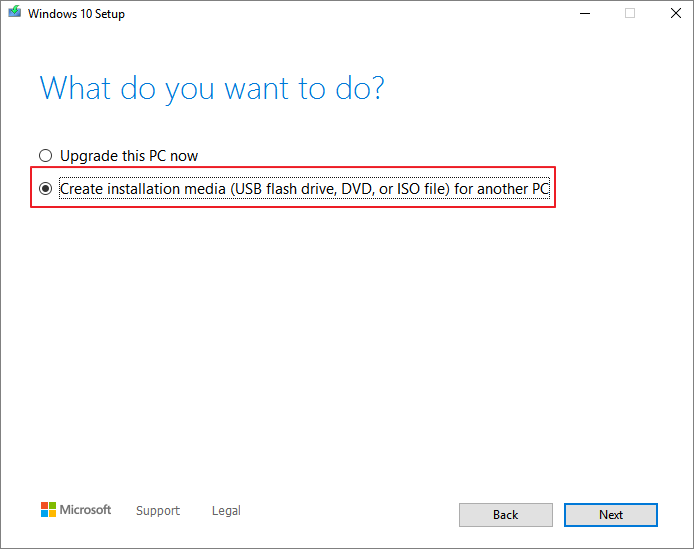
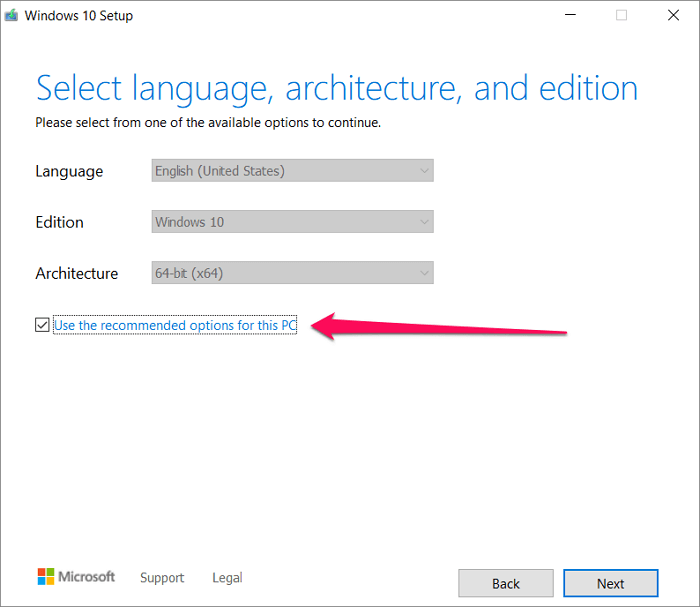
Step 4. Select the language, architecture, and edition details, and the tool will automatically choose the best options for you. Click Next to proceed.
Step 5. The instructions are to select the option "USB flash drive" and click on "Next" on the next page.
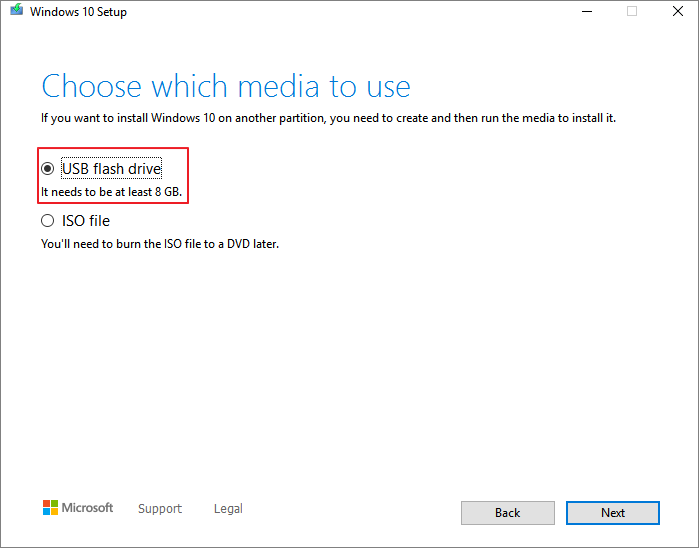
Step 6. To create a Windows USB boot drive, follow the on-screen instructions to download the Windows Media Creation Tool and create a bootable USB drive. This will allow you to reinstall a Windows system using the USB drive.
Method 2. Create a Portable Windows USB Drive Using Windows To Go
Windows To Go allows users to create a portable Windows system drive on Windows Education and Enterprise editions, enabling them to use their system on any computer, including a Mac without BootCamp.
To apply this method, you will need to satisfy the following requirements:
- A computer running Windows 8/8.1/10
- A Windows To Go certified USB drive
Below are the steps you need to follow:
Step 1.To use Windows To Go on your Windows 10 computer, launch Windows To Go and select the USB drive you want to use.
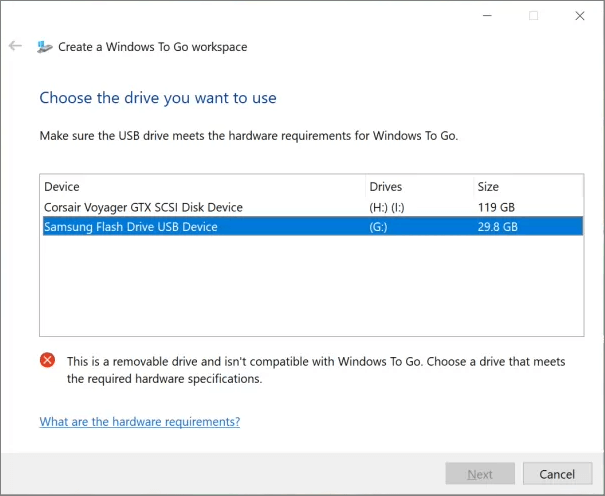
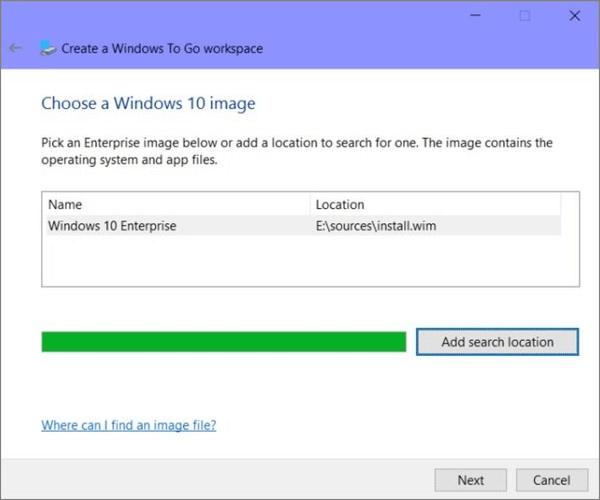
Step 2. Choose a valid Windows image file. It will automatically list an available one, or you can search for it manually.
Step 3. In the next step, you can choose to set a Bitlocker password or not. It's an optional choice.
Step 4. Windows To Go will format the target USB drive and transfer the Windows image to the USB drive, completing the process.
To boot from the created Windows To Go USB drive, launch Windows To Go, select Yes to automatically boot from the workspace in the Startup Options, and save the changes. Restart your computer, and it will boot from the portable Windows USB drive.
Method 3. Create a Portable Windows USB Drive Using Qiling OS2Go
If you're looking for a portable USB drive but don't have Windows Education or Enterprise editions, ! Qiling Disk Master is a great alternative to Windows To Go, allowing you to create a portable USB drive even on a normal Windows system, despite the feature being removed in the latest Windows 10 version.
Qiling OS2Go is a user-friendly Windows to Go creator that supports all Windows versions from Windows 7 to Windows 11, offering benefits to both novice and advanced users.
- Migrate Windows 11, along with all installed programs, files, and other data, to a portable drive.
- Easy-Windows To Go is a feature that allows you to create a portable version of Windows that can be booted from a USB drive, even if you have zero knowledge about it. You can use this tool to create a portable Windows environment that can be used on any computer, without affecting the host machine. This makes it a useful tool for troubleshooting, testing, or even just having a portable Windows environment.
- Once created, you can even run Windows 11 on unsupported old computers.
- The created USB drive can be used on Mac computers, which is a great advantage for Mac users, especially gamers who can now enjoy their favorite games on their Apple devices.
Download Qiling OS2Go from the button below and see how to use this easy tool to get started.
Step 1. To begin, install Qiling OS2Go on your Windows computer, which will display the used space on your system drive. Next, plug in a USB drive that is larger than the used space on your system drive. Then, choose the target USB drive and click Next to continue.
Step 2.Qiling OS2Go will notify you that deleting all data on your drive is about to occur, and you should back up important data before proceeding. Click "Continue" to confirm this action.
Step 3.The disk layout on the target drive will be the same as the resource drive, but you can also customize it to your needs. If you're using a solid state drive as the Windows bootable drive, select the option to do so. Then, click Proceed.
Step 4.Qiling OS2Go will start to create the portable USB drive. This process may take a while, depending on your operating system and network conditions. Once the progress reaches 100%, the USB drive should be bootable.
Step 5. To start, insert the portable Windows USB into your computer and restart it. Then, press the key (usually F2, DEL, F10, etc.) to access the BIOS settings, and select the option to boot from the USB drive. This will allow you to install Windows from the USB drive.
Note: To ensure a successful boot, it's crucial that the boot mode of the portable USB and the target computer are identical, either both in UEFI or Legacy mode. This is because a mismatch may prevent the computer from booting properly.
Conclusion
Creating a bootable drive can be a useful and simple process, especially with tools like Qiling OS2Go that cater to those without extensive computer knowledge. This tool can help you achieve a seamless experience in creating a Windows boot drive, making it a great option for those looking to boot up their system quickly and efficiently.
Related Articles
- The Best Windows To Go Alternative Free Download
- How To - How to Install and Run Windows 11 on USB
- How to Effectively Create Bootable Windows 7 USB Drive
- How to Play Windows PC Games on Linux
- Prolong the Lifespan of Your SSD with Several Ways
This tutorial will explain the definition of SSD lifespan and how to prolong Synology/Crucial SSD read write lifespan in both desktop and laptop in several simple ways. - How to Manage SSD Partition Alignment Well?
Partition alignment helps you optimize the performance of SSD. Learn how to do SSD partition alignment in Windows by using Qiling Disk Master.
Products
Articles & Tutorials
- Data Recovery
- Data Backup
- File Recovery
- File Backup
- System Backup and Restore
- Disk and Partition Clone
- Technical articles
- Mobile articles
- Disk Master Help
- Windows Data Recovery Tutorials
- Windows Secure Delete Tutorials
- Windows Partition Management Tutorials
- Windows File Backup and Restore Tutorials
- Windows System Backup and Restore Tutorials
- Windows Disk Backup and Restore Tutorials
- Windows Clone Tutorials