Shred vs. Delete. What is the Difference?
In Windows, deleting a file is a common practice, but there's another method called shredding, which removes files in a more advanced way. Unlike deleting, shredding ensures that files are completely erased and cannot be recovered. This post compares and contrasts deleting and shredding, discussing which method to use and which is best for partitions.
Shred vs. Delete. What is the Difference?
When Should I Use Shred and Delete?
How to Shred Files or Partitions
How to Delete Files
Shred vs. Delete. What is the Difference?
Shredding refers to permanently erasing or destroying files, making them unrecoverable, whereas deleting only removes files from the hard drive, leaving them potentially recoverable using advanced methods.
When you delete a file from the Recycle Bin, the operating system (OS) doesn't actually remove the file itself, but rather removes the reference to it in the file table. The file remains on the disk until it's overwritten by a new file in the same location, at which point the OS considers it deleted. This is an OS limitation, not a feature of the Recycle Bin itself.
Shredding a file involves overwriting it multiple times with junk data, making recovery impossible, similar to a factory reset of a laptop, which takes time due to the drive being overwritten with random data.
When Should I Use Shred and Delete?
Now that the difference between the two is clear, you must understand when to use what, as there is a huge difference between the amount of time taken, which is crucial to know.
Shred should be used to format the drive to overwrite the data in the hard drive partition, making it impossible to recover files, and is recommended when handing over a drive or PC to someone else or selling it.
When you delete a file, it moves to the Recycle Bin, where you can restore it if needed. However, if you want to permanently remove a file, you should use the Delete function, which will remove it from the Recycle Bin and make it unrecoverable by the OS or a regular user.
Deleting files is a day-Today, I removed some unimportant files, but for sensitive files or those I want to delete permanently, I use Shredding instead.
How to Shred Files or Partitions
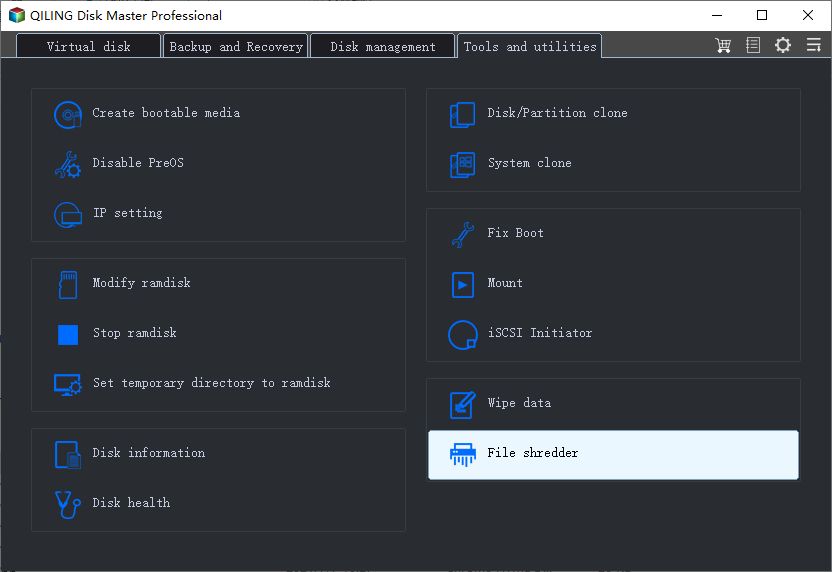
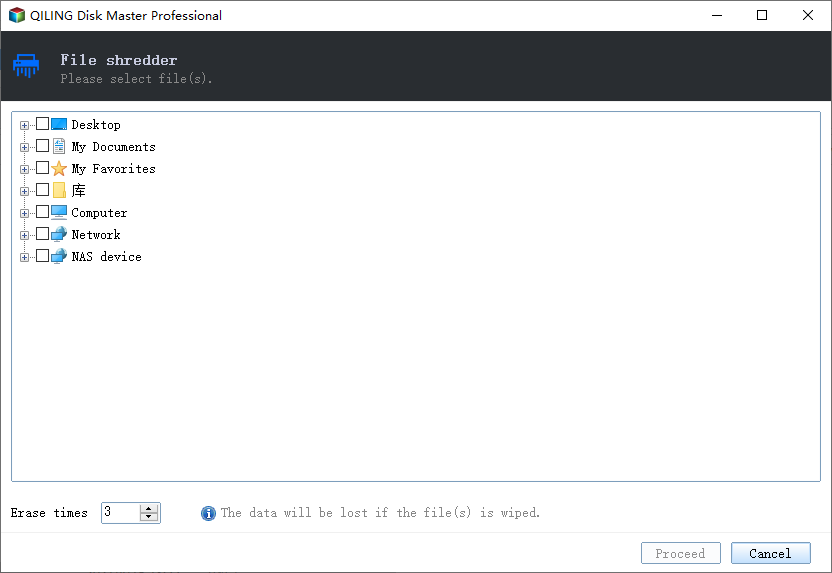
Now that the difference and usage are clear, let's move on to learning how to shred files or partitions. However, be sure to practice this on a spare drive or files that are not important, as once shredded, they cannot be recovered.
You have two methods to delete files permanently. The first method ensures that once a file is deleted, it cannot be recovered, making it truly gone. The second method, on the other hand, only removes the file from your PC, but it still exists on the storage device, so it can be recovered if needed.
Method 1. Shred All Files on the Hard Drive Partition
To shred all files on a hard drive partition, consider using professional software that can manage a disk and perform various operations. Qiling Partition Master is a suitable option that cannot only shred files but also delete the partition and data from the hard drive.
The software offers the following features:
- Resize/Move Partition
- Create/Format/Delete Partition
- Merge Partitions
- Wipe Data
The last software in the list can permanently delete data on a hard disk, making confidential and sensitive information untraceable. To use it, launch the software, right-click on the drive partition, and select the option to wipe the data. You can choose how many times to wipe the data or use random junk to override it.
This method ensures that none of the data on the file can be recovered using any third-party software.
We've set two options for you to wipe data. Choose the one you need.
Option 1. Wipe Partition
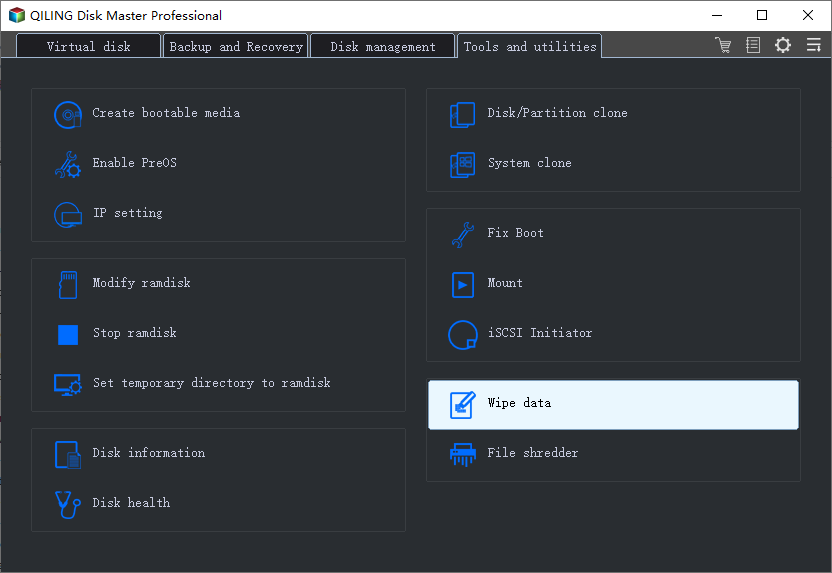
- In the Tools and utilities page, choose "Wipe Data".
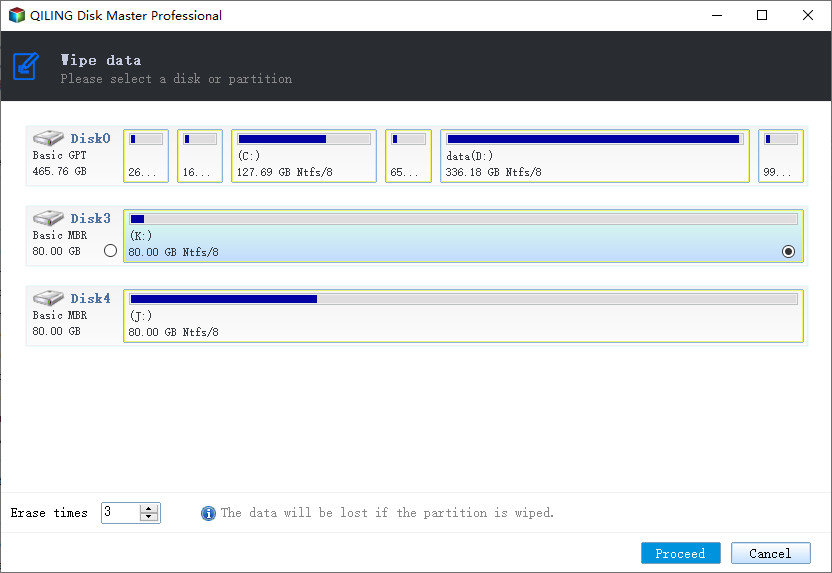
- Click the partition you want to erase data from.
- To wipe your partition, you will need to set the time for which you want to wipe your partition. This can be done by clicking on the "Time" field and selecting the desired duration from the dropdown menu.
- Check the message. Then click "Proceed".
Option 2. Wipe Disk
- In the Tools and utilities page, choose "Wipe Data".
- Select the HDD/SSD.
- Set the number of times to wipe data to 10 at most.
- Check the message. Then click "Proceed".
Method 2: Shred Single File
If you only want to delete a single file, you can use CCleaner, which offers a single file shredding feature in addition to cleaning your PC of junk data, removing registry entries that are no longer useful, and other unnecessary items that can slow down your computer.
Step 1:Go to the CCleaner website, download and install the software.
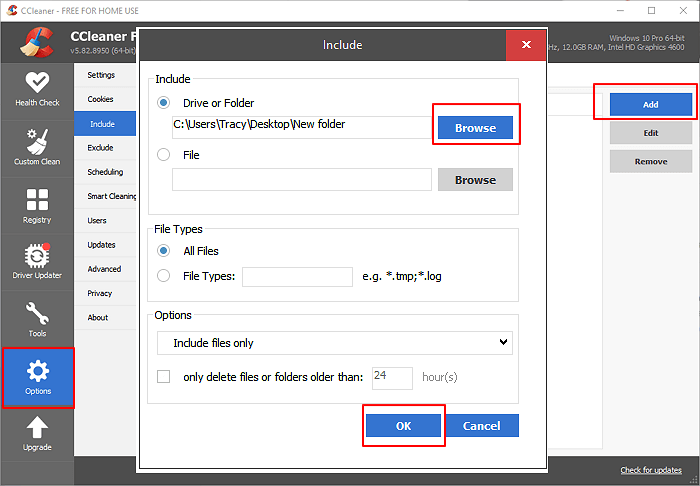
Step 2: To access the file shredder in CCleaner, navigate to Options and select "Include" > Add folder(s) and file(s) that you want to delete securely.
Step 3:Go to the menu and select Clean. Then press the Run Cleaner button.
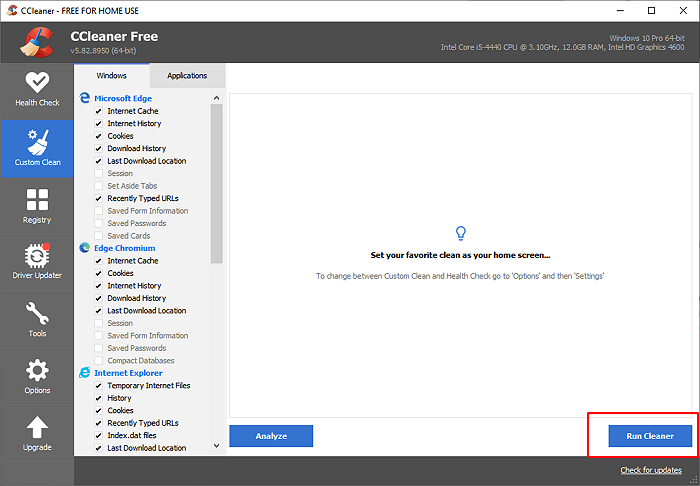
In the future, you can keep a folder and add all the files you wish to shred. Make sure the folder itself is included to be wiped, and all files will be regularly removed from it. However, be aware that any file removed from this folder cannot be recovered anymore.
How to Delete Files
If you want to delete a file from Windows that the OS or the User should not find, you can use the built-in methods.
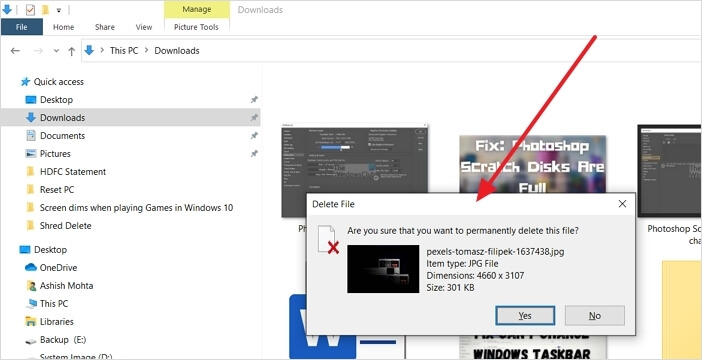
To delete a file, you can press the delete key on your keyboard, right click on the file and select "delete" from the context menu, or drag and drop the file into the Recycle Bin if it's on your taskbar or desktop. Once deleted, you can then empty the Recycle Bin to permanently remove the file from your computer.
To delete a file in Windows, you can either right-click on it and select "Delete" to move it to the recycle bin, or use Shift + Delete to directly remove the file without moving it to the recycle bin first.
Conclusion
As a common user, the terms "deleting" and "shredding" are often used interchangeably, but they have slightly different meanings. Deleting simply means making a file or folder unfindable, whereas shredding ensures that the data is completely unrecoverable, providing an extra layer of security.
To securely shred or delete files, consider using professional software like Qiling Partition Master, which cannot only delete files but also offers disk management tools. This software is easy to use, but it's recommended to back up all data on the partition before wiping it, as you'll be dealing with the partition.
Related Articles
- Toshiba USB Flash Drive Write Protected Removal/Format Solutions
- Solutions to Wsappx Takes High Disk and CPU Usage on Windows 11/10
- [Fixed] 'Current Read-Only State Yes' on USB Flash Drive/SD Card
- Windows 11/10/8/7 Won't Boot from SSD
- How Do I Run SSD Speed Test Online? Your Guide Is Here [Easy & Efficient]
To test your SSD speed, you can use free programs that allow you to check your SSD's performance online. These programs can help you determine how fast your SSD is and may provide additional information that can be useful for you. - Top 5 Best SSD Speed Test Software Recommend with Pros & Cons
Many SSD speed test software enable you to test your SSD's speed within a few seconds rapidly. In this blog, we've sorted out five speed test software with complete details. After reading this blog post, you can choose any software that suits you best.
Products
Articles & Tutorials
- Data Recovery
- Data Backup
- File Recovery
- File Backup
- System Backup and Restore
- Disk and Partition Clone
- Technical articles
- Mobile articles
- Disk Master Help
- Windows Data Recovery Tutorials
- Windows Secure Delete Tutorials
- Windows Partition Management Tutorials
- Windows File Backup and Restore Tutorials
- Windows System Backup and Restore Tutorials
- Windows Disk Backup and Restore Tutorials
- Windows Clone Tutorials