SATA vs SSD: Which One to Choose
Overview of PC Data Storage Solutions
The significance of storage devices cannot be overstated in today's world. Since the first hard drive was produced, technology has evolved significantly, with hard drives undergoing numerous transformations over time.
A hard drive is a computer's permanent memory that retains information even after the power is turned off, storing gigabytes of data from various programs.
Hard drives come in different types, with Solid-state drives (SSD) and Serial Advanced Technology Attachment (SATA) being the two main types. Evaluating a storage device is crucial to determine if it meets your needs and is efficient for the project at hand. This evaluation will help you choose the right type of hard drive for your system.
While both SATA and SSD drives are widely used in modern computers and laptops, they have several key differences. One major distinction is in performance, with SSDs generally outperforming SATA HDDs. Additionally, there is a significant price difference between the two, with SSDs typically being more expensive. Given these differences, it can be challenging to choose between the two options, which is why I've created this guide to help you understand the main differences between SSDs and SATA HDDs.
Read also: TF card vs. SD card
What Is SATA & SATA Drive?
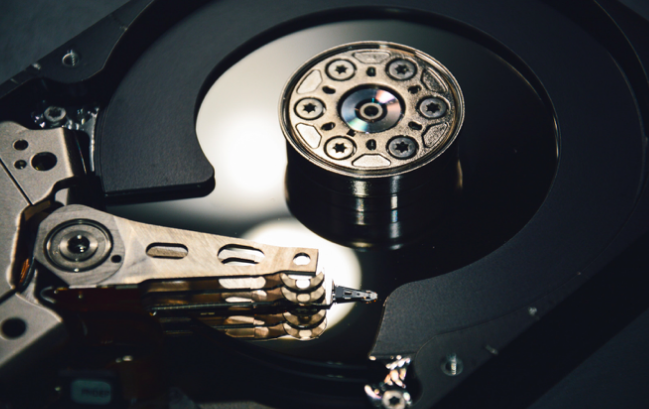
SATA (Serial ATA) is the widely used storage interface in consumer-grade hard drives, introduced by Intel in 2003. It has become the standard for connecting hard drives to desktop and laptop computers, also used for solid-state drives and optical drives, replacing Parallel ATA (PATA) for storage devices. Since 2004, most desktop-grade motherboards have featured a SATA bus and port.
SATA drives offer a compact way to store large amounts of data, but come with some drawbacks. The moving parts in each drive make them prone to damage from shock and sudden movement, and data fragmentation can slow down read/write times. However, these issues are less likely to occur in standard-sized towers, which have more space to dissipate heat, making SATA drives a suitable choice for them.
SATA drives, as a type of rotating media storage device, have some drawbacks compared to flash-based storage. However, their plug-and-play advantages, versatility, and compatibility with existing hardware make them a suitable choice for laptops in most cases.
Advantages of SATA Drive
SATA drives are a cost-effective storage solution, offering the ability to have more storage on multiple hard drives, making it more financially savvy to purchase a larger drive than several smaller ones.
SATA drives are typically used for mass storage of files such as movies, photos, and software applications.
These drives are ideal for network servers or high-capacity applications with large data transfers, making them suitable for use in data centers, cloud storage, and other environments where data storage and retrieval are critical.
SATA drives offer a cost-effective storage solution and flexibility to connect multiple devices with varying storage capacities to a computer or server, making them suitable for file servers that handle large volumes of data accessed by multiple users.
Disadvantages
SATA drives are often considered unsuitable for laptops due to their high energy consumption and increased risk of failure, making them a less desirable option for portable devices.
SATA drives are vulnerable to shock due to the high-speed spinning of their platters, which can cause the heads to get knocked out of position, resulting in bad sectors and making data recovery costly over time.
HDD is the right choice for these reasons:
- If you need a lot of storage space and don't want to spend too much money, it makes sense to buy a hard disk drive (HDD) instead of a solid-state drive (SSD).
- An HDD has more storage capacity and is significantly cheaper than an SSD.
- For the average consumer, if speed isn't a priority or user convenience is a major factor, a hard disk drive (HDD) is a better option.
- If you only use the internet for surfing, basic apps, and an HDD is sufficient, then you're good to go.
If you're looking for a storage device for average needs, such as using it as a storage device or adding extra storage to your laptop, a Hard Disk Drive (HDD) is a good option.
What Is an SSD?
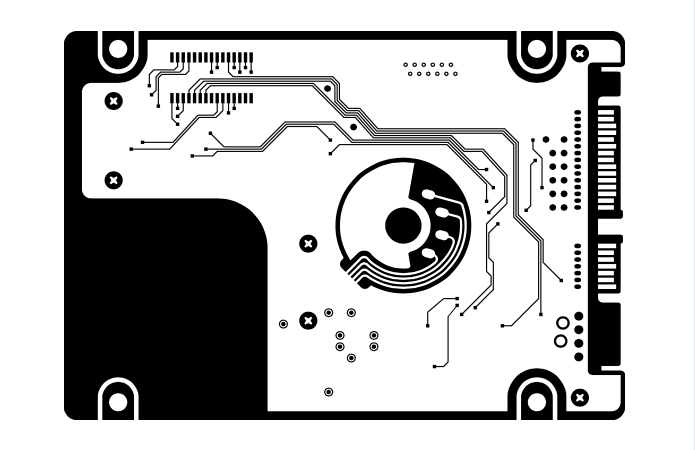
SSDs (solid-state drives) are computer storage devices that use flash memory to store data persistently. They outperform traditional hard drives due to their internal design and architecture, communicating with a computer bus at speeds comparable to RAM. Unlike standard hard disk drives, SSDs have no moving parts, making them less prone to failure and also silent in operation, making them ideal for use in laptops or desktop computers.
Solid state drives (SSD) have become the go-to choice in the computer world, outpacing traditional drives in speed. This is because traditional hard drives rely on a motor connected to a small metal arm, which spins and moves to read or write data directly off the platter in the hard disk. In contrast, SSDs use a different technology that doesn't rely on mechanical parts, allowing them to operate at much faster speeds. While traditional drives can read multiple disks simultaneously, this only pushes up against performance limits, whereas SSDs can handle a high volume of data without any mechanical constraints.
Advantages
SSDs (Solid State Drives) are faster, more durable, and energy-efficient compared to traditional hard disk drives. They offer faster data access times, are less prone to physical damage, and produce less heat, making them a popular choice for various applications.
- SSDs (solid-Solid-state drives (SSDs) provide better performance than hard disk drives (HDDs) for random read and write operations, as they have no moving parts and can access files quickly.
- Solid-State drives, also known as solid-state drives (SSDs), significantly accelerate computer performance by reducing lag and latency.
Its fast access times and high data transfer enable you to work faster.
SSDs have a significantly faster processing speed compared to traditional hard drives, resulting in quicker application loading, faster laptop startup times, and overall improved system responsiveness.
Disadvantages
They are more expensive and not as large as traditional hard drives.
Unlike hard disk drives, SSDs have a limited number of writes, which means their performance will degrade over time due to frequent file access, causing files to take longer to open.
SSD is the right choice for these reasons:
- An SSD is a fast storage solution ideal for tasks that involve frequent reading and writing, outperforming other storage options.
- For individuals who need to accelerate their computer's performance to play highly intensive games, Solid-State Drives (SSDs) are the ideal choice.
- SSDs are ideal for video editing and music production due to their fast access times and low noise levels.
- If you're a power user who relies on instant app opening, high productivity, and quick boot-up times, fast SSD storage is a must-have.
If you're a graphics designer, video producer, or simply looking for a performance upgrade for personal enjoyment, consider opting for SSD storage over HDD. This upgrade can significantly enhance your computer's speed and efficiency, making it ideal for professionals and non-professionals alike.
SATA Drive vs SSD: Which One Should You Choose?
The Serial ATA (SATA) standard is widely used in modern desktop and laptop computers, and is the most common interface for SATA drives, which come in various storage capacities from 500 GB to 16 TB. While SATA drives may not offer the fastest access time or performance for random I/O or small file transfers, they remain popular due to their low cost.
SSD vs. HDD: Speed & Performance
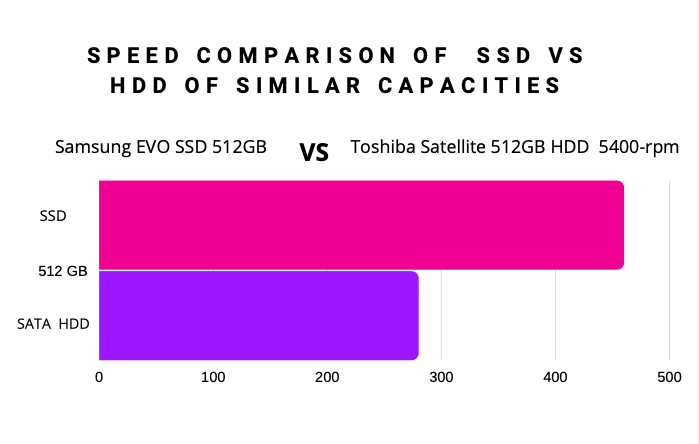
SSD's impact on PC performance is significant, with startup times cut in half and application and operating-system launch times reduced to near-instantaneous. This results in excellent system responsiveness, even when booting into demanding operating systems. For gaming PCs, SSDs are particularly beneficial, as most graphic-intensive games load in seconds, providing a seamless gaming experience.
SSDs have lower latency than HDDs, making them suitable for applications that require 3D-streaming of data over high-speed connections or significant random access, such as data centers.
Whether you're a student finishing homework on the computer or an artist working on a digital painting, an SSD can significantly speed up your activity and unlock a faster way of working. With a solid-state drive in your system, you'll enjoy faster boot-up times, optimized performance, and a more efficient workflow.
SSD vs. HDD: Price
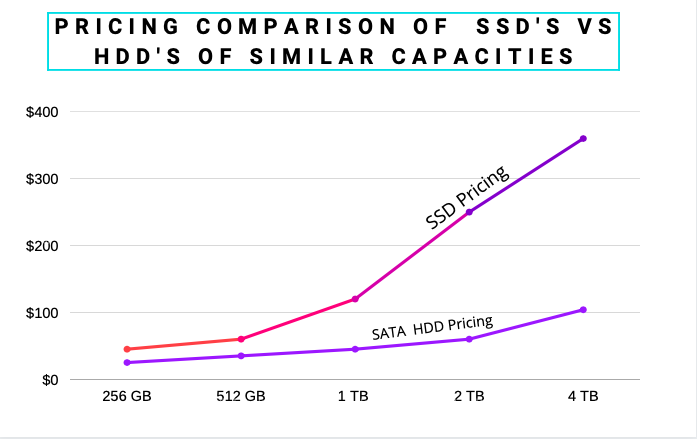
The main difference between HDDs and SSDs is their price, with SATA SSDs still being more expensive than SATA HDDs per gigabyte. However, the price gap is narrowing, and the two technologies follow a pattern of exponential growth in capacity with steady falling prices. While SSDs are more costly than hard drives, the price difference is relatively small, and the significant speed increase they offer makes them a worthwhile investment for most users. As storage sizes continue to grow into the TB range, SSDs will become even more economical.
The prices of Solid State Drives (SSDs) and Hard Disk Drives (HDDs) have been converging over the years, with lower-cost, higher-capacity SSDs driving down prices. The trend is expected to continue, with prices per gigabyte and capacity per dollar on a decline due to advancements in technology and manufacturing efficiency, making these storage options more affordable for consumers.
SATA HDDs are a good option if you need a lot of cheap storage and don't mind slower speeds, or if you require physical drives for specific purposes. However, they are generally less expensive than SSDs but also consume more power, which can affect reliability.
SSD vs. HDD: Reliability & Durability
For simple and not extreme-A conventional SATA HDD is sufficient for some applications, such as a backup system to store copies of files or large amounts of data. However, for tasks requiring significant computing power, an SSD drive is recommended for faster performance.
Flash memory is a nonvolatile storage option that retains its content even when power is off. This eliminates the risk of mechanical failure and makes it ideal for use in high-stress environments, such as laptops and video game consoles, where physical damage is a concern.
How to Replace SATA Drive with SSD
Solid-State Drives (SSDs) are increasingly replacing traditional spinning hard drives in laptops, offering a significant performance boost in situations where fractions of a second can make a difference in decision-making, such as saving or discarding data.
Solid-state drives (SSDs) are a great option for storing data, especially for those who need a portable and durable solution. They're quick and reliable, making them ideal for business or creative professionals who rely on a single machine for their work.
Upgrading from a hard disk drive (HDD) to a solid state drive (SSD) can significantly improve computer performance, but it's essential to clone or migrate the operating system (OS) from the HDD to the new SSD using a reliable partition tool, especially if the OS is currently installed on the HDD.
Migrating a hard drive to a Solid State Drive (SSD) is a recommended practice that can significantly enhance both performance and reliability. However, this process can be challenging, as it may result in data loss or ineffective migration due to the old hard disk partition layout, making it difficult for users to find a suitable solution.
What's The Best HDD to SSD Migration Tool?
Qiling Partition Master offers various ways to migrate or clone a hard drive to an SSD, allowing you to transfer the entire hard drive or a selected disk partition.
Qiling Partition Master is a powerful hard disk manager that offers various data management functions, allowing for efficient hard drive migration. Its features include resizing/moving partitions, copying disks, creating/deleting partitions, formatting, and converting MBR and GPT disks.
With Qiling Partition Master Professional Edition, you can migrate your Windows system, applications, and data to a new Solid State Drive (SSD) without reinstalling Windows using the "Migrate OS to SSD" feature.
The clone function in Qiling Partition Master allows for the duplication of a disk or partition, which can be moved to another SSD or SATA HDD, preserving the original's capacity, format, system, and attributes. The application supports various disk migrations, including HDD to HDD, HDD to SSD, and SSD to SSD, as well as migrating the OS from HDD to SSD.
When cloning a source disk to a destination disk with a smaller partition size, you can clone the whole disk using the "Migrate OS to SSD" option, but if the source disk's partition size is larger than the destination disk, you must clone the partition that contains Windows to move it to the SSD. This is necessary to ensure that Windows and other applications are successfully transferred.
How to Migrate OS to SSD with Qiling Partition Master
Steps to migrate OS to HDD/SSD:
- Run Qiling Partition Master, select System clone from the tools page.
- Select the SSD or HDD as the destination disk and click Next.
- Be aware that the process will erase all data and partitions on the target disk, so it's essential to back up any important data before proceeding. If you haven't already, take the necessary steps to secure your data now.
- Then click Continue.
- Preview the layout of your target disk. Then click Proceed to start migrating your OS to a new disk.
Note:When migrating your OS to a new SSD or HDD, be aware that if there's not enough unallocated space on the target disk, existing partitions and data will be deleted and removed. Make sure to back up any important data on the target disk to an external hard drive beforehand.
A solid-Upgrading to a solid-state drive (SSD) can greatly enhance your computer's performance, making it faster and more responsive. It's a good time to consider upgrading your storage.
Related Articles
- How-to: Create USB Bootable Partition Manager to Manage Partitions Safely
- How to Partition Hard Drive Disk without Formatting
- How to Clone WD SSD on Windows 10/11 [Full Guide]
- 4 Methods to Hide or Unhide Partition in Windows Server
- How to Remove USB Partition on Windows 10/11
Removing a USB partition is relatively straightforward and requires just a few steps. - How to Repair Windows 10 From USB [Complete Guide]
Having trouble with your Windows 10? Discover the power of USB repair, which allows you to repair Windows 10 from a USB device and easily fix common issues. By following a step-by-step guide, you can troubleshoot and restore your system efficiently.
Products
Articles & Tutorials
- Data Recovery
- Data Backup
- File Recovery
- File Backup
- System Backup and Restore
- Disk and Partition Clone
- Technical articles
- Mobile articles
- Disk Master Help
- Windows Data Recovery Tutorials
- Windows Secure Delete Tutorials
- Windows Partition Management Tutorials
- Windows File Backup and Restore Tutorials
- Windows System Backup and Restore Tutorials
- Windows Disk Backup and Restore Tutorials
- Windows Clone Tutorials